1. Introduction
This manual provides comprehensive instructions for the setup, operation, and maintenance of your Linterngo X1 Mini WiFi 1080P HD Camera. Please read this guide carefully before using the product to ensure proper functionality and safety. Keep this manual for future reference.
2. Product Overview
The Linterngo X1 Mini WiFi Camera is a compact, wireless security camera designed for indoor use. It features 1080P HD video recording, motion detection, and night vision, allowing for real-time monitoring and alerts. Its small size and versatile mounting options make it suitable for various home surveillance needs.
Key Features:
- 1080P HD Video Resolution
- Wireless Connectivity (Wi-Fi)
- Motion Detection with Real-time Alerts and Optional Siren
- Advanced Infrared Night Vision (with 6 IR LEDs)
- Compact and Portable Design (approx. 3.2 x 3.2 x 3 cm)
- Built-in Rechargeable Battery (approx. 3-4 hours operating time)
- Supports Local Storage (MicroSD card, up to 32GB, often included)
- Remote Monitoring via Mobile Application (IWFcam)
- Flexible Placement Options (tabletop, wall-mounted, magnetic)
- Secure Data Connection with 256-bit Encryption
- Micro USB Charging Port
Package Contents:
- Linterngo X1 Mini WiFi Camera
- Power Adapter
- USB Charging Cable (Micro USB)
- Camera Stand
- Instruction Manual (digital)
- 32GB MicroSD Card (may vary by package)

Figure 2.1: The Linterngo X1 Mini WiFi Camera, a 32GB microSD card, a small stand, and a smartphone screen showing the camera's live feed.

Figure 2.2: The Linterngo X1 Mini WiFi Camera is shown next to a coin, illustrating its compact size (approximately 1.2 inches / 3.2 cm).
3. Setup Guide
Follow these steps to set up your Linterngo X1 Mini WiFi Camera and connect it to your mobile device.
3.1 Initial Setup Steps:
- Charge the Camera: Before first use, fully charge the camera using the provided power adapter and Micro USB cable. The camera can also operate while connected to a power source, such as a power bank.
- Insert MicroSD Card (Optional): Locate the MicroSD card slot on the camera. Gently insert a compatible MicroSD card (up to 32GB recommended) for local video storage.
- Download the Mobile Application: Scan the QR code provided in the product packaging or search for "IWFcam" in your mobile device's app store (iOS or Android) and install the application.
- Power On the Camera: Press and hold the power button on the camera until the indicator light turns on.
3.2 Connecting to Wi-Fi and App:
- Connect to Camera's Wi-Fi Hotspot: On your mobile device, go to Wi-Fi settings. Look for a Wi-Fi network named similar to "BK1290-..." or "F-3F82A5..." (as shown in Figure 3.1) and connect to it. This is the camera's direct hotspot.
- Add Camera to IWFcam App: Open the IWFcam application. The app should automatically detect the new device. If prompted, select the camera and confirm to add it.
- Connect Camera to Home Wi-Fi: Within the IWFcam app, navigate to the camera settings. Select "Setup device WiFi connection" and choose your home Wi-Fi network from the list. Enter your Wi-Fi password and confirm. This will allow the camera to connect to your home network for remote access. Once connected, the camera's indicator light may change, and you should be able to view the live feed through the app from anywhere with an internet connection.

Figure 3.1: A four-step visual guide for setting up the Linterngo X1 camera, showing Wi-Fi connection, app opening, device selection, and home Wi-Fi configuration.
3.3 Flexible Placement:
The compact design and included stand allow for versatile placement. You can place the camera on a tabletop, mount it on a wall, or use its magnetic base for attachment to metal surfaces.

Figure 3.2: Various flexible placement options for the Linterngo X1 camera, including charging with a power bank, mounting on a wall, placing on a table stand, and installing near an entrance.
4. Operating Instructions
4.1 Live View and Remote Monitoring:
- Open the IWFcam app and select your camera to view the live feed.
- Monitor your home, pets, or family members from any location with an internet connection.

Figure 4.1: A person using a smartphone to view the camera's live feed, demonstrating remote monitoring capabilities for babies, parents, and pets.

Figure 4.2: The compact Linterngo X1 camera allows for monitoring in any location, highlighting its mini, magnetic, wireless, and portable design.

Figure 4.3: The camera can help monitor the safety of seniors at home, as shown by a smartphone displaying a live feed of an elderly person who has fallen.
4.2 Recording and Snapshots:
- Continuous Recording: If a MicroSD card is inserted, the camera will automatically record continuously.
- Manual Recording: Within the app's live view, tap the "Record video" icon to start or stop manual recording.
- Snapshot: Tap the "Snapshot" icon in the app's live view to capture still images.
4.3 Motion Detection and Alerts:
- Activation: Enable motion detection in the camera settings within the IWFcam app.
- Alerts: When motion is detected, the camera will send instant notifications to your mobile device and can automatically record video clips.
- Siren (Optional): Some models may feature an automatic siren that can be triggered upon motion detection. Check your app settings for this option.
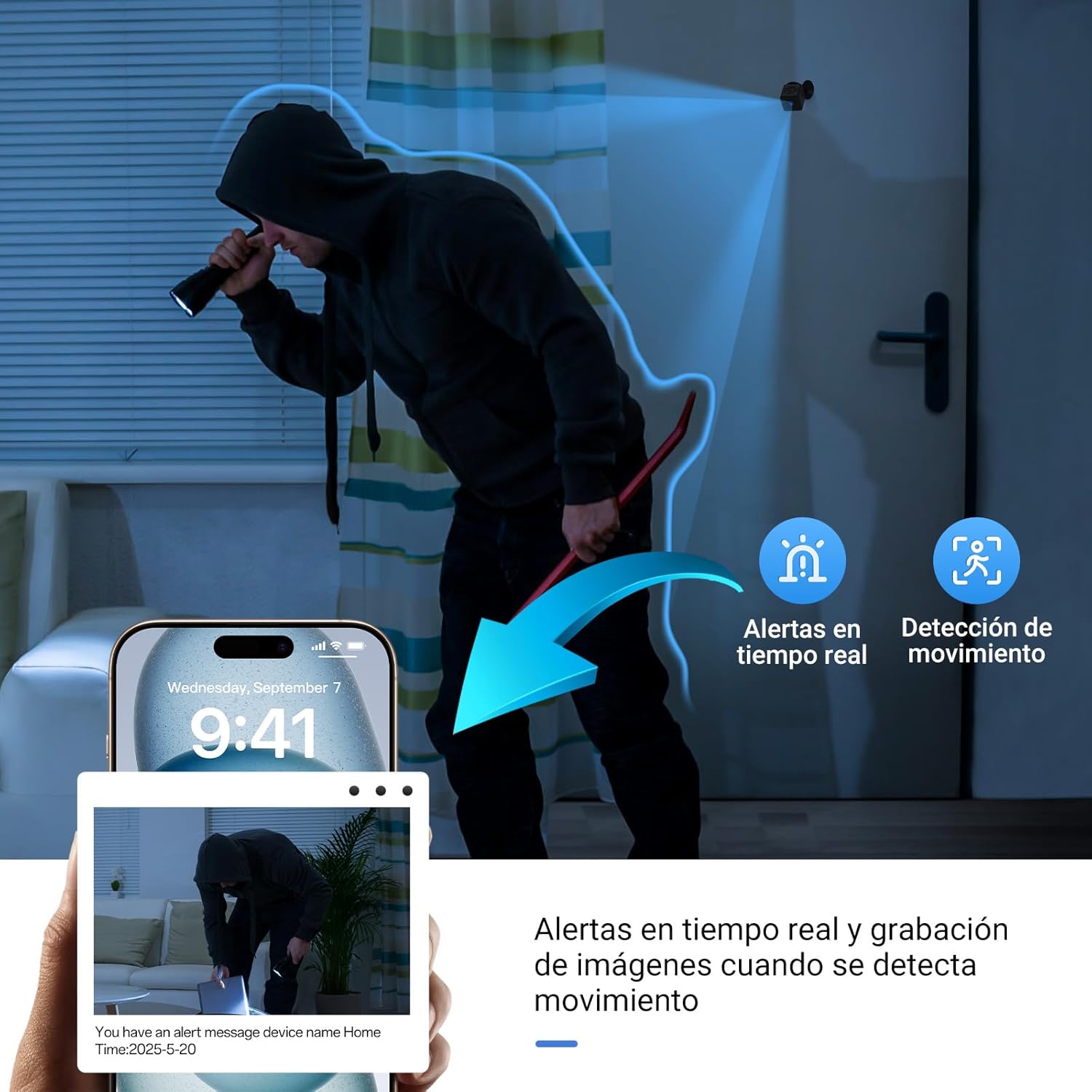
Figure 4.4: An illustration of the camera detecting a person entering a room, triggering real-time alerts and image recording on a smartphone when motion is detected.

Figure 4.5: A smartphone displaying an instant notification: "Motion detected. Cam P1 has detected a movement!", illustrating the intelligent motion detection feature.

Figure 4.6: An illustration showing the camera detecting an intruder, sending instant notifications to a phone, and activating an automatic siren for home protection.
4.4 Night Vision:
- The camera automatically switches to infrared night vision in low-light conditions, providing clear black-and-white video.
- Equipped with 6 IR LEDs for enhanced night vision capabilities.
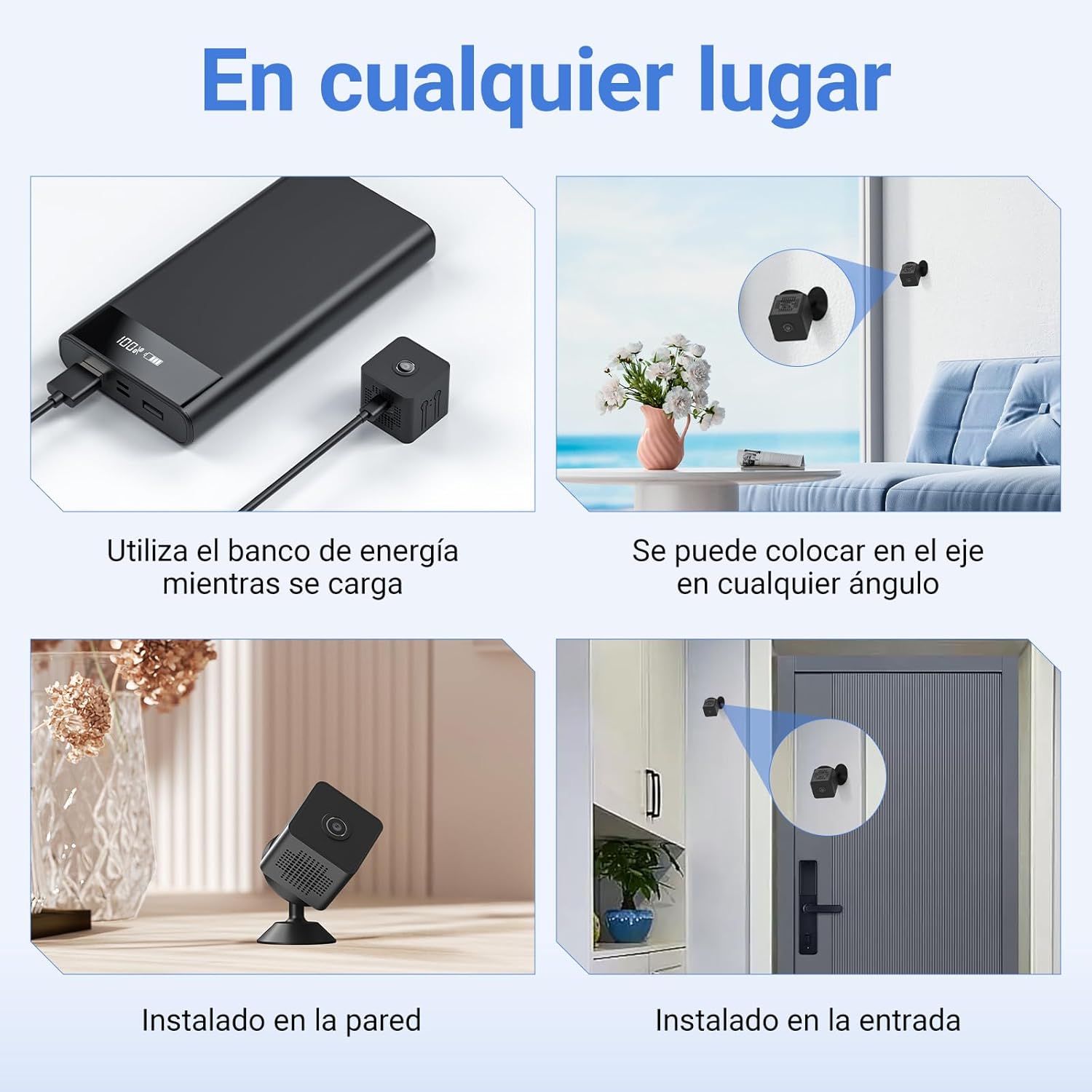
Figure 4.7: A comparison showing the camera's 1080P HD live view during the day and its night vision capabilities in a dark room, both displaying a baby.

Figure 4.8: A baby sleeping in a crib, monitored by the Linterngo X1 camera, highlighting its 1080P Full HD advanced night vision capabilities with 6 IR LEDs.
5. Maintenance
- Cleaning: Use a soft, dry cloth to clean the camera lens and body. Do not use liquid cleaners or abrasive materials.
- Storage: When not in use for extended periods, store the camera in a cool, dry place.
- Battery Care: To prolong battery life, avoid fully discharging the camera frequently. Charge it regularly.
6. Troubleshooting
- Camera Not Connecting to Wi-Fi:
- Ensure your home Wi-Fi network is 2.4GHz, as the camera may not support 5GHz networks.
- Verify the Wi-Fi password entered in the app is correct.
- Make sure the camera is within range of your Wi-Fi router.
- Restart your router and the camera, then try connecting again.
- No Live View / Offline Status:
- Check if the camera is powered on and fully charged.
- Verify your mobile device has an active internet connection.
- Ensure the camera is still connected to your home Wi-Fi network. Reconnect if necessary.
- Poor Video Quality:
- Ensure the camera lens is clean and free from obstructions.
- Check your internet connection speed. A slow connection can affect streaming quality.
- For night vision, ensure there are no strong light sources directly facing the camera, which can interfere with infrared.
- Motion Detection Not Working:
- Confirm motion detection is enabled in the IWFcam app settings.
- Adjust the motion detection sensitivity if needed.
- Ensure the camera's view is not obstructed.
- Short Battery Life:
- Battery life can vary based on usage (e.g., continuous recording, frequent motion alerts).
- Ensure the camera is fully charged before use.
- Consider keeping the camera connected to a power source for continuous operation.
- No Sound / Poor Sound Quality:
- Check the audio settings in the IWFcam app.
- Ensure there are no obstructions blocking the camera's microphone.
- Note that the camera typically supports one-way audio (monitoring only), not two-way communication.
7. Specifications
| Feature | Detail |
|---|---|
| Brand | Linterngo |
| Model Name | X1 |
| Manufacturer | Linterngo |
| Product Dimensions | 3.2 x 3.2 x 3 cm (1.26 x 1.26 x 1.18 inches) |
| Product Weight | 120 g (0.26 lbs) |
| Connectivity | Wi-Fi (2.4GHz recommended) |
| Video Resolution | 1080p HD |
| Usage | Indoor |
| Mounting Type | Table mount (includes stand), magnetic |
| Power Source | Built-in rechargeable battery (approx. 3-4 hours operating time), Micro USB charging port, can be powered via USB (power adapter included). |
| Included Components | Linterngo X1 Camera, Power Adapter, Instruction Manual (digital), Stand, (often includes a 32GB MicroSD card). |
| Audio | One-way audio (monitoring only) |
8. Warranty and Support
For warranty information and technical support, please refer to the contact details provided with your purchase or visit the official Linterngo website. Keep your proof of purchase for warranty claims.
9. Privacy Statement
Linterngo prioritizes user privacy. The camera utilizes secure, encrypted data connections (256-bit encryption) to protect your data. It is recommended to change the default camera access password for enhanced security.

Figure 9.1: This image emphasizes privacy protection, showing a family with a dog and a smartphone screen with a privacy warning, indicating secure, encrypted data connection.