
Introduction
This manual provides detailed instructions for the installation, operation, and maintenance of your eufy PoE Bullet Security Camera E40. This camera is designed to work exclusively with a compatible eufy NVR system (e.g., eufy NVR S4) and requires a Power over Ethernet (PoE) connection for both power and data transmission.

Image: The eufy PoE Bullet Security Camera E40, a white and black bullet-style camera with a prominent lens and eufy branding.
What's in the Box
Please verify that all components are present before proceeding with installation:
- 1 x PoE Cam E40
- 1 x 59ft/18m Ethernet Cable
- 1 x Waterproof Cover Pack
- 1 x Screw Pack
- 1 x Position Sticker
- 1 x Warning Sticker
- 1 x Quick Start Guide
Setup
The eufy PoE Bullet Security Camera E40 is designed for straightforward integration with your existing eufy NVR S4 system. A single Ethernet cable provides both power and data connectivity.
Prerequisites:
- A compatible eufy NVR system (e.g., eufy NVR S4) is required.
- A PoE NVR, switch, or injector is necessary if your NVR does not provide PoE directly.
- Ensure you have the eufy Security app installed on your smartphone or tablet.
Installation Steps:
- Plan Camera Placement: Identify optimal locations for camera installation, considering the 122° wide-angle field of view and desired coverage areas. Use the provided position sticker to mark drilling points.
- Mount the Camera: Securely mount the camera using the screw pack. Ensure the camera is positioned to capture the intended area. The camera supports various mounting options including ceiling, corner, and wall mounts.
- Connect the Ethernet Cable: Connect one end of the provided Ethernet cable to the camera's PoE port and the other end to a PoE port on your eufy NVR or PoE switch/injector. Use the waterproof cover for outdoor installations to protect the connection.
- Power On the NVR: Ensure your eufy NVR system is powered on and connected to your network.
- Add Camera to NVR: Follow the instructions in your eufy NVR's manual or the eufy Security app to add the new PoE camera. The system should automatically detect the camera.
- Adjust Camera Angle: Fine-tune the camera's angle and orientation for optimal surveillance coverage.
Image: Diagram illustrating various mounting options for the eufy camera, including ceiling, corner, and wall mounts, showing versatile coverage.
Operating
The eufy PoE Bullet Security Camera E40 offers advanced features for comprehensive security monitoring.
Key Features:
- 4K UHD Resolution: Experience clear, detailed video with 4K Ultra HD resolution and a 122° wide-angle field of view.
- 24/7 Recording with PoE: Continuous recording is enabled via the Power over Ethernet connection, ensuring constant surveillance.
- Starlight Color Night Vision: View colorful details at night without the need for a spotlight, enhanced by AI-ISP processing. A spotlight can be activated for even clearer views, and HDR helps prevent overexposure.
- AI Human/Vehicle/Pet Detection: Advanced AI reduces false alerts by distinguishing between people, vehicles, and pets, notifying you only when significant events occur.
- Red and Blue Strobe: Deter intruders with smart sirens and a visible red and blue strobe light, activated upon detection.
- Crystal Clear Two-Way Talk: Communicate clearly with visitors or deter unwanted guests using the two-way talk feature, enhanced by AI noise reduction.
- IP67 Weatherproofing: The camera is built to withstand various weather conditions, ensuring reliable operation in rain, snow, and sun.

Image: A eufy camera mounted on a wall, with text highlighting '4K UHD', '8MP Resolution', and '122° Field of View' for comprehensive security.

Image: An illustration showing a eufy camera connected to an NVR, with arrows indicating 24/7 recording capability, powered by PoE.

Image: Comparison of 'Human Vision' (dark) and 'Starlight Color Night Vision' (full color) of a backyard at night, demonstrating enhanced visibility.

Image: Four panels showing different night vision modes: Human Vision, Starlight Color Night Vision, Infrared Night Vision, and Spotlight Color Night Vision, illustrating varying levels of clarity and color at night.

Image: A man walking past a car in a driveway, with AI detection boxes around both, illustrating 'On-Device AI for Proactive Defense' and reduced false alerts.

Image: A person in a hoodie looking towards a camera emitting red and blue strobe lights, demonstrating the warning light feature.
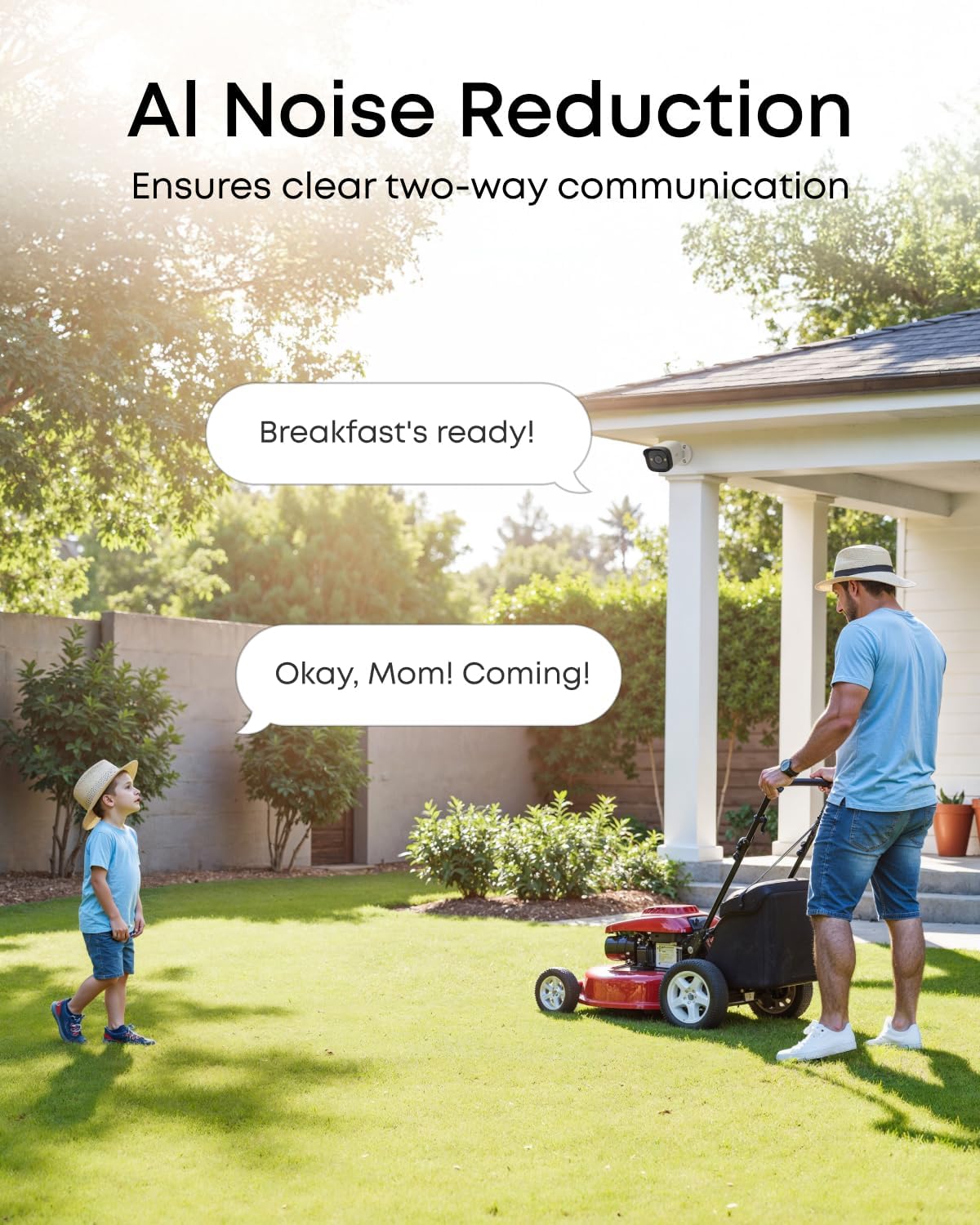
Image: A father mowing the lawn and his child, with speech bubbles indicating clear two-way communication facilitated by AI noise reduction.

Image: A eufy camera mounted outdoors, with raindrops visible, illustrating its IP67 weatherproof rating.
Using the eufy Security App:
The eufy Security app provides full control over your camera and NVR system. Through the app, you can:
- View live feeds from your camera.
- Access recorded footage and event history.
- Customize detection zones and sensitivity settings.
- Enable or disable AI detection features (human, vehicle, pet).
- Initiate two-way talk.
- Manage siren and strobe light activation.
- Perform smart video searches to quickly find specific events.
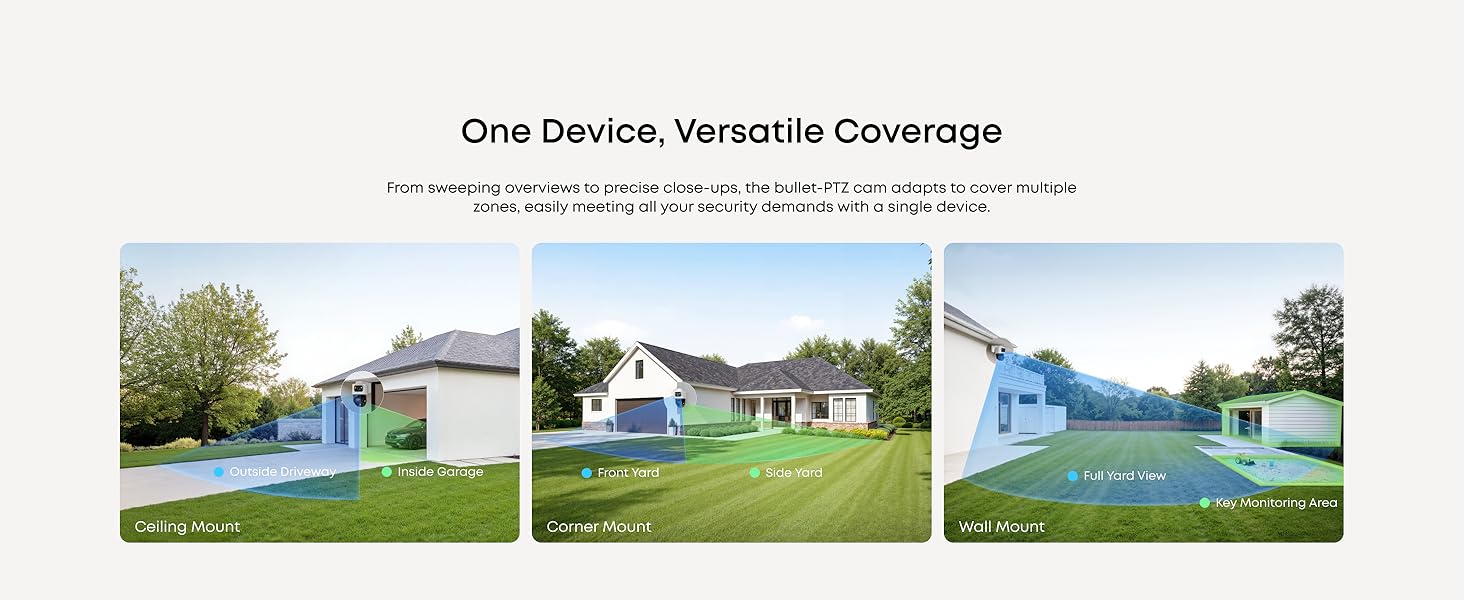
Image: A collage of video thumbnails from a security system, with a search bar showing 'Girl in blue hat', illustrating the 'Smart Video Search' function.
Maintenance
Regular maintenance ensures optimal performance and longevity of your eufy PoE Bullet Security Camera E40.
- Clean the Lens: Periodically clean the camera lens with a soft, damp cloth to remove dust, dirt, or water spots that may obstruct the view. Avoid abrasive cleaners.
- Check Cable Connections: Ensure the Ethernet cable connection remains secure and free from damage, especially for outdoor installations.
- Firmware Updates: Regularly check for and install firmware updates via the eufy Security app. Updates often include performance improvements and security enhancements.
- Environmental Considerations: While IP67 weatherproof, extreme conditions (e.g., prolonged direct sunlight in very hot climates, heavy ice buildup) can affect performance. Ensure proper ventilation around the camera if possible.
Troubleshooting
If you encounter issues with your eufy PoE Bullet Security Camera E40, refer to the following common solutions:
| Problem | Possible Solution |
|---|---|
| Camera not powering on/no video feed |
|
| Poor video quality |
|
| Frequent false alerts |
|
| Two-way talk issues |
|
| Camera not detected by NVR |
|
For further assistance, please contact eufy Security customer support.
Specifications
| Feature | Detail |
|---|---|
| Brand | eufy Security |
| Model Number | T8P00 |
| Connectivity Technology | Wired (PoE) |
| Video Capture Resolution | 4K UHD 2160p |
| Number of Channels (NVR) | Supports up to 16 (NVR dependent) |
| Color | White + Black |
| Dimensions (L x W x H) | 8.91 x 6.57 x 3.33 inches |
| Compatible Devices | eufy NVR S4, Laptops, Personal Computers, Smartphones, TV, Tablets (for viewing) |
| Frame Rate | 30, 60, 120 FPS (NVR dependent) |
| Recording Mode | Continuous, Motion Detection |
| Lens Type | Wide Angle |
| Video Input | IP |
| Viewing Angle | 122 Degrees |
| Manufacturer | eufy |
| Item Weight | 2.14 pounds |
| Weatherproofing | IP67 |
Warranty and Support
For warranty information and customer support, please refer to the official eufy Security website or contact their support channels directly. The Quick Start Guide included in your product packaging also contains specific warranty details and contact information.
You can visit the official eufy Security store for more information and support resources: eufy Security Store


