
1. Introduction
This manual provides comprehensive instructions for the setup, operation, and maintenance of your Forc Y43BT Thermal Shipping Label Printer. Please read this manual thoroughly before using the printer to ensure proper function and to maximize its lifespan. This printer is designed for efficient, inkless label printing for various applications, including shipping, personal use, warehouse management, and office tasks.
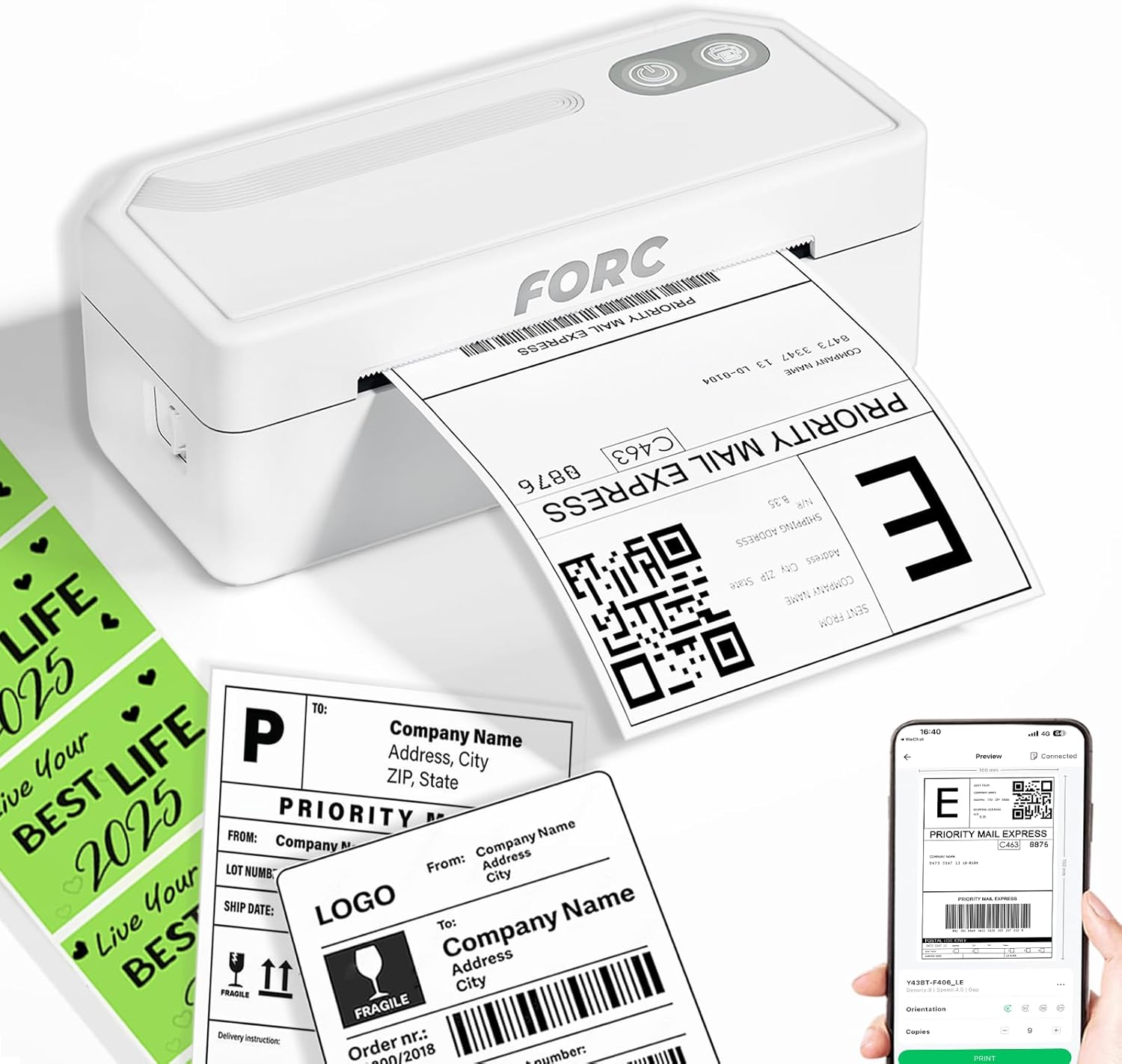
Image 1.1: The Forc Y43BT Thermal Label Printer in operation, printing a standard 4x6 shipping label.
2. Package Contents
Please verify that all items listed below are included in your package. If any items are missing or damaged, please contact customer support.
- 1x Forc Y43BT Thermal Label Printer
- 1x Power Adapter
- 1x Power Cable
- 1x USB Cable
- 1x USB Flash Drive (containing drivers and software)
- 1x User Manual (this document)
- 20x Test Labels

Image 2.1: All components included in the Forc Y43BT Thermal Label Printer package.
3. Product Overview
The Forc Y43BT is a compact and efficient thermal label printer designed for various label printing needs. It utilizes thermal printing technology, eliminating the need for ink or toner cartridges.
Key Features:
- Dual Connectivity: Supports both Bluetooth and USB connections.
- High-Speed Printing: Prints up to 72 labels per minute (160mm/s).
- High Resolution: 203 DPI for clear and scannable labels.
- Wide Label Compatibility: Supports label widths from 1.57 to 4.3 inches (40-110mm).
- Automatic Label Detection: Prevents paper waste by automatically adjusting label position.

Image 3.1: The Forc Y43BT printer offers clear, high-speed printing at 72 sheets/minute and 203 DPI resolution.
4. Setup
4.1 Hardware Connection
- Connect the power adapter to the printer's power port and then plug it into a wall outlet.
- Ensure the printer is powered on. The power indicator light should illuminate.
4.2 Software and Driver Installation
The included USB flash drive contains necessary drivers for Windows and Mac operating systems. For mobile devices (Android/iOS), download the 'Flashlabel Pro' app.
- Windows/Mac: Insert the USB flash drive into your computer. Follow the on-screen instructions to install the printer drivers.
- Android/iOS: Download the 'Flashlabel Pro' app from the Google Play Store or Apple App Store.
4.3 Connectivity Options
The Forc Y43BT printer supports both USB and Bluetooth connections. Note: Wi-Fi connection is not supported.

Image 4.1: The Forc Y43BT printer supports both USB and Bluetooth connectivity for various devices.
4.3.1 USB Connection (Windows/Mac/Chrome)
- Connect the printer to your computer using the provided USB cable.
- Ensure drivers are installed (refer to Section 4.2).
- The printer should be recognized by your operating system. You can now print directly from your computer.
4.3.2 Bluetooth Connection (Android/iOS)
- Download and open the 'Flashlabel Pro' app on your mobile device.
- Ensure Bluetooth and location services are enabled on your device.
- Within the 'Flashlabel Pro' app, search for and connect to your Forc Y43BT printer (e.g., 'Y43BT_XXXX_LE').
- Once connected, you can import PDF files or images and print labels through the app.

Image 4.2: Detailed steps for establishing a Bluetooth connection with the Forc Y43BT printer via the 'Flashlabel Pro' mobile application.
5. Operating Instructions
5.1 Loading Thermal Labels
- Open the printer cover.
- Place the thermal labels into the label compartment, ensuring the printable side is facing up.
- Adjust the label guides to fit the width of your labels snugly, without being too tight.
- Close the printer cover. The printer will automatically detect the label size and feed the first label to the correct printing position.

Image 5.1: The printer features adjustable snaps and scales to accommodate various label widths.
5.2 Printing Labels
Once connected and labels are loaded, you can proceed with printing.
- From Computer (USB): Open your document or shipping platform, select the Forc Y43BT printer, choose the correct label size (e.g., 4x6 inches), and initiate the print command.
- From Mobile Device (Bluetooth via 'Flashlabel Pro' app): Within the app, select the label file (PDF, image), adjust print settings (size, orientation, copies), and tap 'Print'.

Image 5.2: The simplified three-step process for printing labels: Connect, Design, and Print.
5.3 Supported Label Sizes and Types
The printer supports thermal labels with widths ranging from 1.57 inches to 4.3 inches. Common sizes include 4x6 inches for shipping labels, as well as smaller labels for various purposes.

Image 5.3: The Forc Y43BT printer supports multiple label sizes and shapes, from 1.57" to 4.3" wide.
6. Maintenance
6.1 Cleaning the Print Head
Regular cleaning of the print head ensures optimal print quality and extends the printer's life. Use an alcohol swab or a specialized print head cleaning pen.
- Turn off the printer and unplug the power cable.
- Open the printer cover.
- Gently wipe the print head surface with an alcohol swab. Allow it to dry completely before closing the cover and powering on the printer.
6.2 General Cleaning
Wipe the exterior of the printer with a soft, dry cloth. Avoid using abrasive cleaners or solvents.
6.3 Storage
Store the printer in a cool, dry place away from direct sunlight and extreme temperatures. If storing for an extended period, ensure no labels are loaded in the printer.
7. Troubleshooting
This section addresses common issues you might encounter with your Forc Y43BT printer.
| Problem | Possible Cause | Solution |
|---|---|---|
| Printer not powering on | Power cable loose; power outlet faulty | Check power connections; try a different outlet. |
| No print output | No labels loaded; printer not connected; drivers not installed | Load labels correctly; verify USB/Bluetooth connection; install drivers from USB drive. |
| Poor print quality (faded, streaky) | Dirty print head; low-quality labels; incorrect print density settings | Clean the print head (Section 6.1); use high-quality thermal labels; adjust print density in printer settings. |
| Labels not feeding correctly | Labels loaded incorrectly; label guides too tight/loose | Reload labels, ensuring they are straight; adjust label guides to fit snugly. |
| Bluetooth connection issues | Bluetooth off; app not connected; device too far | Ensure Bluetooth is on; connect via 'Flashlabel Pro' app; keep device within range. |
8. Specifications
| Feature | Specification |
|---|---|
| Model Name | Y43BT |
| Printing Technology | Thermal |
| Connectivity Technology | Bluetooth, USB |
| Maximum Media Size | 4 x 6 inch |
| Supported Label Widths | 1.57 to 4.3 inches (40-110mm) |
| Maximum Print Resolution | 203 x 203 DPI |
| Max Print Speed (Monochrome) | 72 ppm (160mm/s) |
| Compatible Devices | Laptops, PC, Smartphones, Tablets (Android, iOS, Mac OS, Windows, Chrome) |
| Product Dimensions | 3.15 x 7.28 x 2.55 inches |
| Item Weight | 2.05 pounds (0.93 Kilograms) |
| Power Source | Power Adapter (Included) |
9. Warranty and Support
Forc provides customer support for its products. If you encounter any issues or have questions regarding your Forc Y43BT Thermal Shipping Label Printer, please refer to the contact information provided with your purchase or visit the official Forc website for assistance.
The package includes a user manual and test labels to help you get started. For specific warranty details, please consult the documentation included in your product packaging or contact Forc customer service directly.


