
1. Introduction
This manual provides instructions for the installation, operation, and maintenance of your Insoma 2 Zones WiFi Water Timer with Brass Inlet and Outlet. This smart device allows you to remotely control and automate your garden watering schedules via a mobile application and voice commands, ensuring efficient irrigation for your plants, garden, greenhouse, and lawn.
The timer features durable brass inlet and outlet connections for enhanced leak prevention and longevity, especially under direct sunlight. It supports two independent watering zones, each with customizable schedules, and includes functions like manual watering and rain delay.
2. Package Contents
Please verify that all components are present before proceeding with installation:
- Insoma 2 Zones WiFi Water Timer (Model SGW02W-TTA-03NH-L)
- WiFi Hub (Gateway)
- User Manual (this document)
- Required batteries (not specified if included, assume user provides)
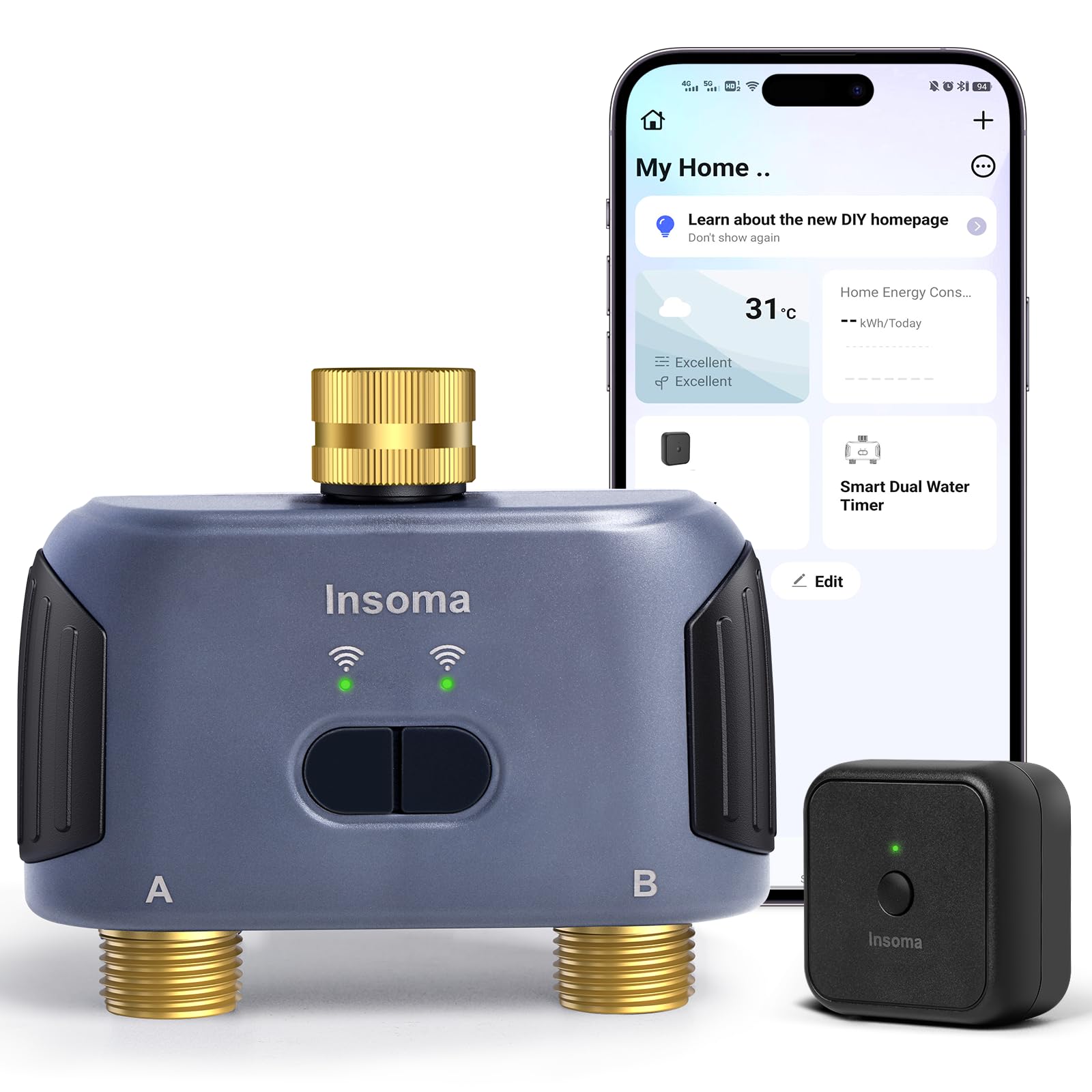
Image: The Insoma 2 Zones WiFi Water Timer, showing its brass inlet and outlet connections.
3. Setup Instructions
3.1 Physical Installation
- Install Batteries: Open the battery compartment on the water timer and insert the required batteries (typically AA or AAA, refer to device markings if not specified). Ensure correct polarity.
- Connect to Faucet: Screw the brass inlet of the water timer onto your outdoor faucet. Hand-tighten firmly to prevent leaks. The brass threads are designed for a secure, leak-proof connection.
- Connect Hoses: Attach your garden hoses to the brass outlets (Zone A and Zone B) of the water timer. Ensure these connections are also tight.
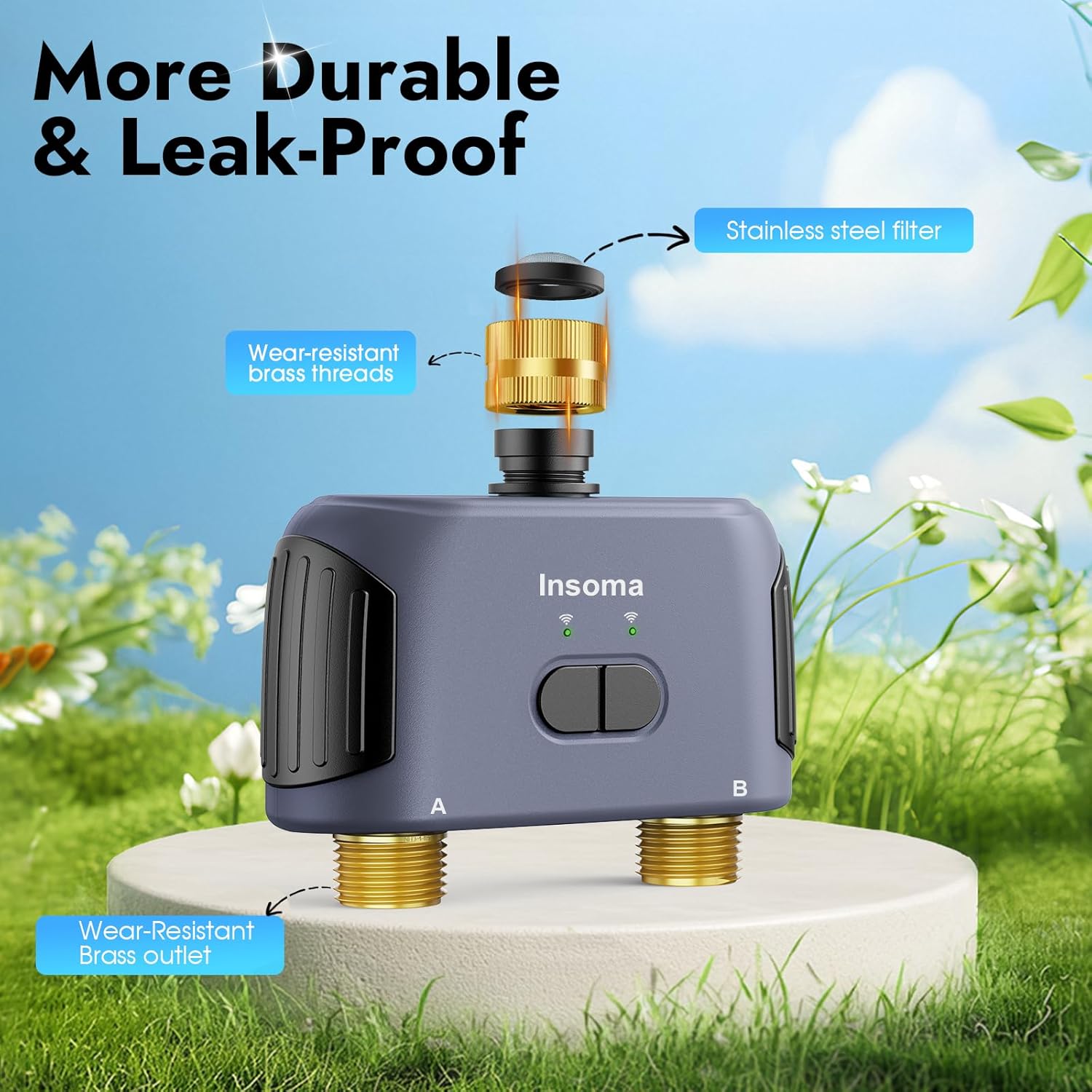
Image: Close-up view of the Insoma water timer's brass inlet, stainless steel filter, and brass outlets, highlighting its durable and leak-proof design.
3.2 App Installation and Pairing
- Download Smart Life App: Search for "Smart Life" in your mobile device's app store (iOS or Android) and download the application.
- Register/Log In: Open the Smart Life app and register for a new account or log in if you already have one.
- Connect WiFi Hub (Gateway):
- Plug in the WiFi Hub (Gateway) to a power source near your home's 2.4GHz WiFi router.
- In the Smart Life app, tap the "+" icon to add a new device.
- Select "Gateway" or "Hub" from the device list and follow the on-screen instructions to connect it to your 2.4GHz WiFi network. Note: The system only supports 2.4GHz WiFi. 5GHz networks are not compatible.
- Pair Water Timer:
- Once the WiFi Hub is successfully added, ensure the water timer is powered on.
- In the Smart Life app, within the Gateway's interface, select "Add Sub Device" or similar option.
- Follow the app's instructions to put the water timer into pairing mode (this usually involves pressing and holding a button on the timer).
- The app will detect and add the water timer. Assign a name to each zone (e.g., "Front Lawn," "Back Garden") for easy identification.
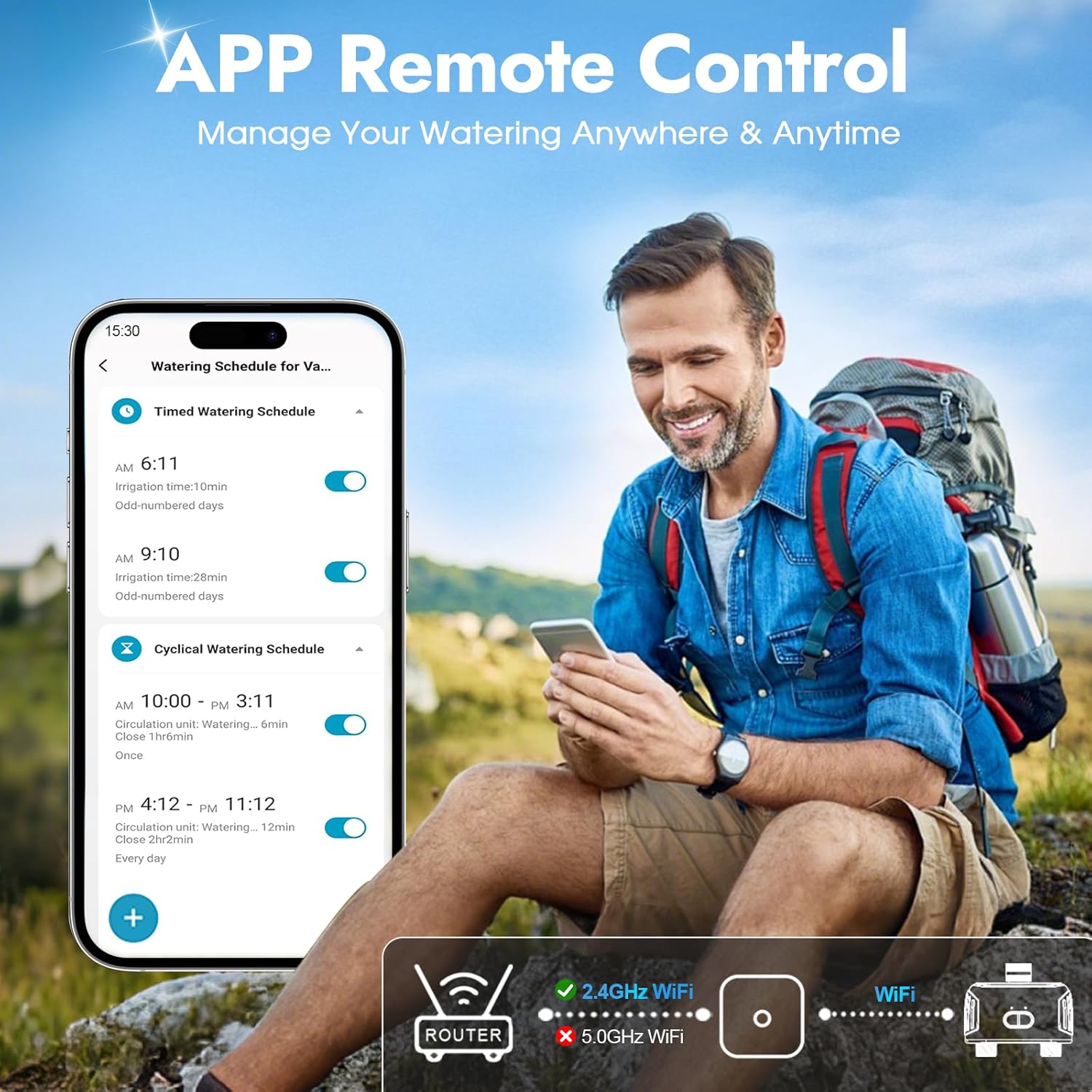
Image: A user remotely managing watering schedules via the Smart Life app, demonstrating the app's interface and the requirement for a 2.4GHz WiFi connection.
4. Operation
4.1 App Remote Control
After successful pairing, you can manage your watering schedules from anywhere using the Smart Life app. The app allows you to:
- Set and modify watering schedules for each zone.
- Initiate or stop manual watering.
- View watering logs and device status.
- Activate the rain delay function.
4.2 Voice Control with Alexa
The Insoma water timer is compatible with Amazon Alexa. To enable voice control:
- Ensure your Alexa device is set up and connected to the same network as your WiFi Hub.
- Open the Alexa app, go to "Skills & Games," and search for "Smart Life."
- Enable the Smart Life skill and link your Smart Life account.
- Discover devices. Your water timer should appear.
- You can now use voice commands such as: "Alexa, turn on [Zone Name] water timer" or "Alexa, turn off [Zone Name] water timer."

Image: A user interacting with an Alexa device to control the smart water timer, illustrating the voice control feature.
4.3 Manual Watering
You can initiate manual watering without affecting your preset schedules. This is useful for immediate watering needs.
- Via App: In the Smart Life app, select the desired zone and choose the manual watering option. Set the duration (from 1 minute up to 23 hours 59 minutes).
- Via Device: The timer may have a physical button for manual operation. Pressing it typically activates a default manual watering duration (e.g., 10 minutes). Refer to the device's specific button functions.

Image: The Insoma water timer connected to a faucet, with an overlay showing two ways to set manual watering: directly on the timer for 10 minutes or via the app for 1 minute to 24 hours.
4.4 Setting Watering Schedules (2 Independent Zones)
The timer supports two independent watering zones (A and B), each capable of holding up to 10 watering schedules. There are two types of schedules:
- Timed Watering Mode:
- Set a specific start time for watering.
- Define the irrigation duration (e.g., 1 minute to 24 hours).
- Choose the watering frequency: weekly cycle (specific days of the week), odd days, even days, or every few days.
- Cyclical Watering Mode:
- Set a start time and an end time for the entire watering cycle.
- Define the irrigation duration for each watering event within the cycle.
- Set an interval time between each watering event.
- The timer will automatically cycle watering within the preset start and end times.

Image: The Insoma water timer installed outdoors, illustrating its two independent zones (A and B) and the ability to set up to 10 watering programs per zone for different garden areas.
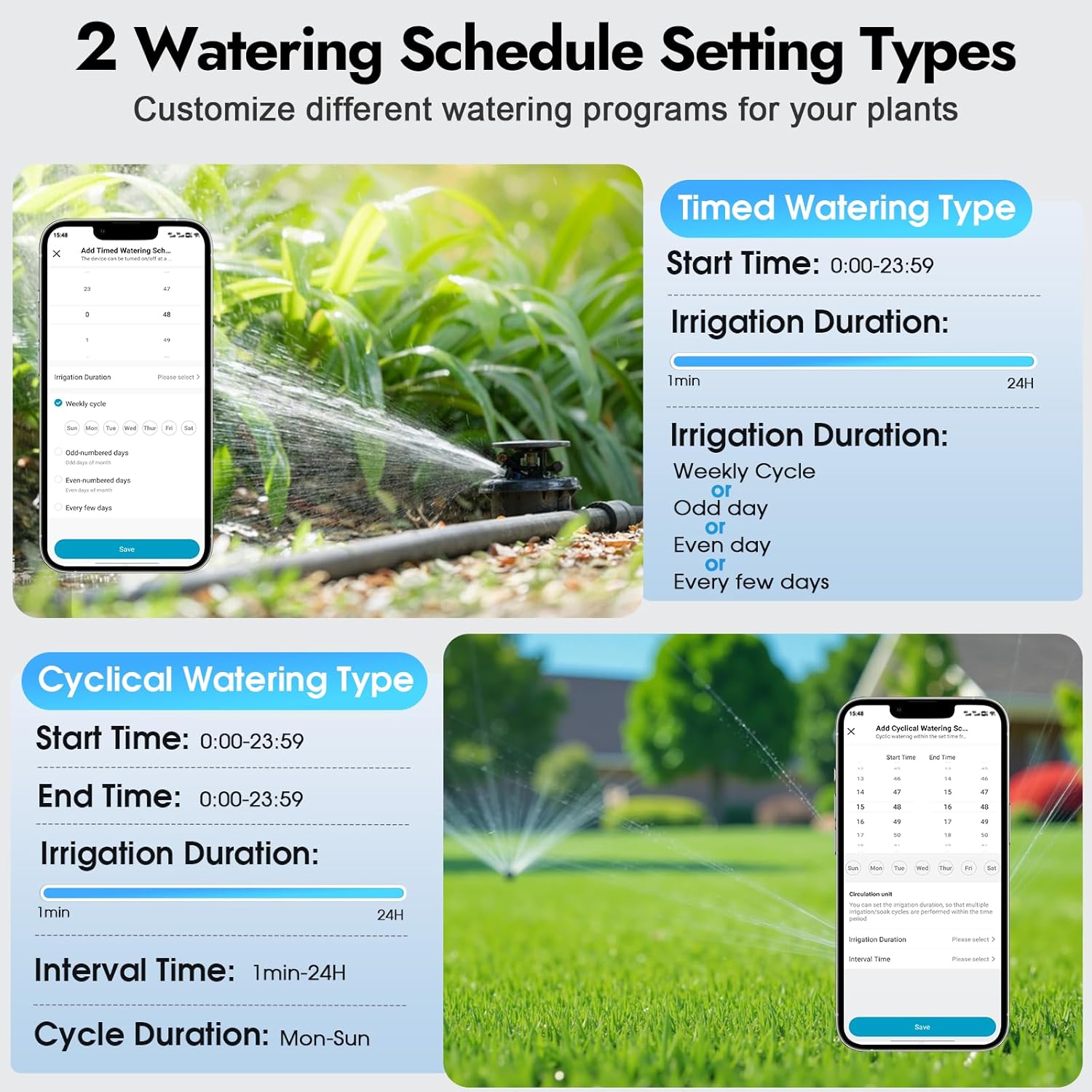
Image: Screenshots of the Smart Life app showing the interfaces for setting Timed Watering Type and Cyclical Watering Type schedules, including options for start time, duration, interval, and weekly cycles.
4.5 Rain Delay Function
The rain delay feature allows you to temporarily pause scheduled watering to avoid overwatering during rainy periods and conserve water.
- Activate rain delay via the Smart Life app.
- You can set the delay duration from 1 to 7 days.
- After the set delay period, scheduled watering will automatically resume.

Image: The Insoma water timer installed on a faucet during rain, illustrating the rain delay function which can pause watering for 1 to 7 days to prevent overwatering.
4.6 Extendable Irrigation System
One WiFi Hub can support up to 32 Insoma WiFi water timers, allowing you to expand your smart irrigation system for larger gardens or multiple watering areas. Family members can also be invited to manage the system via the app.

Image: An illustration of a smart watering system where a single WiFi gateway controls multiple Insoma water timers across a large property, managed via a mobile app.
5. Maintenance
- Battery Replacement: Replace batteries when the low battery indicator appears in the app or on the device. Use high-quality alkaline batteries for optimal performance.
- Cleaning: Periodically check the stainless steel filter at the inlet for debris and clean it if necessary to ensure proper water flow. Wipe the exterior of the timer with a damp cloth.
- Winterization: Before the first frost, disconnect the water timer from the faucet and hoses. Remove batteries. Store the timer indoors in a dry, frost-free location to prevent damage from freezing water.
6. Troubleshooting
| Problem | Possible Cause | Solution |
|---|---|---|
| Timer not connecting to WiFi / App |
|
|
| Water not flowing / Timer not activating |
|
|
| App shows incorrect status (e.g., valve open when closed) |
|
|
| Water leaks from connections |
|
|
7. Specifications
| Feature | Detail |
|---|---|
| Model Number | SGW02W-TTA-03NH-L |
| Brand | Insoma |
| Material | Brass Inlet and Outlet |
| Product Dimensions (D x W x H) | 5.7"D x 5.9"W x 2.4"H |
| Item Weight | 0.62 Kilograms |
| Number of Zones | 2 Independent Zones |
| Watering Schedules per Zone | Up to 10 |
| Watering Schedule Types | Timed Watering, Cyclical Watering |
| Manual Watering Duration | 1 minute - 23 hours 59 minutes (via App) |
| Rain Delay Duration | 1-7 Days |
| WiFi Compatibility | 2.4GHz only |
| Smart Home Compatibility | Amazon Alexa, Smart Life App |
| Maximum Timers per Hub | Up to 32 |
8. Warranty and Support
For warranty information and technical support, please refer to the documentation included with your purchase or contact Insoma customer service directly. Contact details can typically be found on the manufacturer's official website or through the retailer where the product was purchased.
Please retain your proof of purchase for warranty claims.


