Introduction
This manual provides essential information for setting up, operating, maintaining, and troubleshooting your HP Envy TE02 Desktop. Please read this guide thoroughly to ensure proper use and longevity of your system.

Figure 1: HP Envy TE02 Desktop with included keyboard and mouse.
Setup Guide
Follow these steps to set up your new HP Envy TE02 Desktop.
- Unpacking: Carefully remove the desktop, keyboard, mouse, and power cable from the packaging. Retain all packaging materials for future use or transport.
- Placement: Place the desktop on a stable, flat surface with adequate ventilation around all sides. Avoid placing it in enclosed spaces or near heat sources.
- Connecting Peripherals:
- Connect the included keyboard and mouse to the available USB ports on the desktop.
- Connect your monitor(s) to the graphics card's DisplayPort or HDMI outputs. The NVIDIA GeForce RTX 3070 supports multiple displays.
- If connecting to a wired network, plug an Ethernet cable into the RJ-45 port on the rear.
- Connect any other desired peripherals such as speakers, external drives, or printers.
- Power Connection: Insert the power cable into the power supply unit (PSU) at the rear of the desktop, then plug the other end into a grounded electrical outlet.
- Initial Boot-up: Press the power button located on the front of the desktop. The system will boot into Windows 11 Pro. Follow the on-screen instructions for initial setup, including network connection and user account creation.

Figure 2: Front and rear port layout for connecting peripherals.
Operating Instructions
Your HP Envy TE02 Desktop comes pre-installed with Windows 11 Pro, offering a powerful and intuitive computing experience.
System Components Overview:
- Processor: Equipped with an Intel Core i9-12900 16-Core Processor, providing high performance for demanding tasks.
- Graphics: Features an NVIDIA GeForce RTX 3070 with 8GB GDDR6 VRAM, suitable for gaming, content creation, and high-resolution display output.
- Memory: 64GB 3200 MHz DDR4 SDRAM ensures smooth multitasking and application performance.
- Storage: A combination of 2TB M.2 SSD for fast boot times and application loading, and a 1TB HDD for mass storage of files and media.
- Connectivity: Integrated Realtek Wi-Fi 6 (2x2) and Bluetooth 5.2 for wireless connections, plus Gigabit Ethernet for wired networking.
Port Descriptions:
Familiarize yourself with the various ports available on your desktop for connecting external devices.
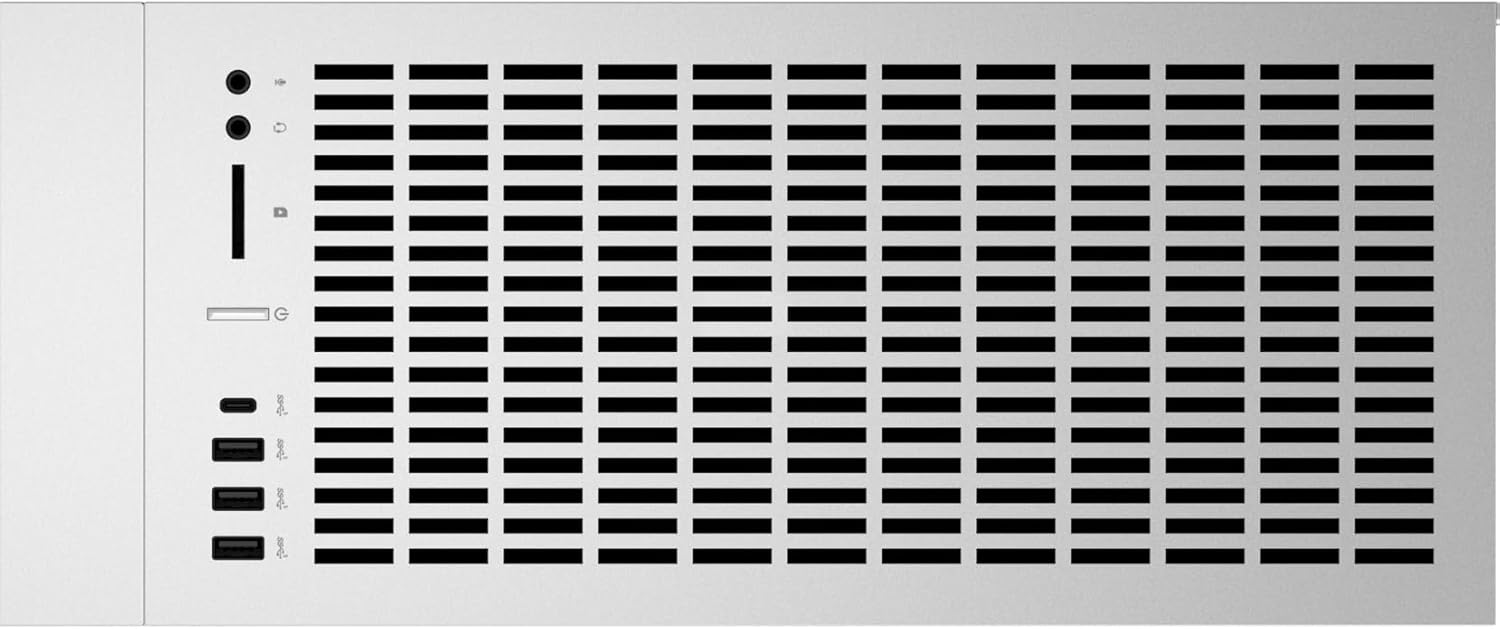
Figure 3: Front panel ports including USB-C, USB-A, headphone/microphone combo, and memory card reader.
- Front Ports:
- 1 x USB 3.2 Gen 1 Type-C (supports Power Delivery / Power-off Charging)
- 3 x USB 3.2 Gen 1 Type-A
- Headphone/Microphone Combo Jack
- HP 3-in-1 Memory Card Reader
- Rear Ports:
- 1 x USB Thunderbolt 4 / USB4 40Gbps Type-C (supports Power Delivery / DisplayPort / Power-off Charging)
- 1 x USB 3.2 Gen 2 Type-C
- 1 x USB 3.2 Gen 1 Type-C
- 1 x USB 3.2 Gen 2 Type-A
- 1 x USB 3.2 Gen 1 Type-A
- 2 x USB 2.0 Type-A
- 1 x RJ-45 (Ethernet)
- 1 x HDMI
- 3 x DisplayPort
- Audio-In, Audio-Out, Microphone Jacks

Figure 4: Rear panel ports for extensive connectivity options.
Maintenance
Regular maintenance helps ensure the optimal performance and longevity of your desktop.
- Cleaning:
- Use a soft, lint-free cloth to wipe down the exterior of the desktop.
- For dust accumulation in vents, use compressed air. Ensure the system is powered off and unplugged before cleaning.
- Do not use liquid cleaners directly on the components.
- Software Updates:
- Regularly check for and install Windows updates to ensure system security and stability.
- Update graphics drivers (NVIDIA GeForce) and other hardware drivers from the HP support website or respective component manufacturer websites.
- Storage Management:
- Periodically clean up unnecessary files using Windows Disk Cleanup.
- Consider defragmenting the HDD (not necessary for SSDs) to optimize performance.
- Monitor disk space to prevent performance degradation.
- Ventilation: Ensure that the desktop's vents are not obstructed to allow for proper airflow and prevent overheating.
Troubleshooting
This section addresses common issues you might encounter with your HP Envy TE02 Desktop.
| Problem | Possible Cause | Solution |
|---|---|---|
| No power / System won't turn on | Power cable loose, power outlet issue, PSU failure. | Check power cable connections. Try a different power outlet. Ensure power strip/surge protector is on. |
| No display on monitor | Monitor cable loose, incorrect input selected on monitor, graphics driver issue. | Ensure monitor cables are securely connected to both desktop and monitor. Check monitor input source. Restart desktop. Update graphics drivers. |
| System running slow | Too many programs running, low disk space, malware, outdated drivers. | Close unnecessary applications. Free up disk space. Run antivirus scan. Update drivers. |
| Peripheral (keyboard/mouse) not responding | Loose connection, faulty peripheral, driver issue. | Reconnect peripheral. Try a different USB port. Test with another peripheral. Check device manager for driver issues. |
If you encounter issues not covered here or if solutions do not resolve the problem, please refer to the Warranty and Support section for further assistance.
Specifications
| Feature | Detail |
|---|---|
| Brand | HP |
| Model Name | TE02-004MS |
| Operating System | Windows 11 Pro |
| Processor | Intel Core i9-12900 (16-Core, up to 5.1 GHz) |
| RAM | 64 GB DDR4 (3200 MHz) |
| Storage | 2 TB M.2 SSD + 1 TB HDD |
| Graphics Coprocessor | NVIDIA GeForce RTX 3070 (8GB GDDR6) |
| Wireless Connectivity | Wi-Fi 6 (802.11ax), Bluetooth 5.2 |
| Ethernet | 10/100/1000 Gigabit Ethernet LAN |
| Power Supply | 800W Gold Efficiency |
| Dimensions (H x W x D) | 17.64 x 6.50 x 15.59 inches |
| Item Weight | 31 pounds |
| Color | Natural Silver |
| Included Accessories | Keyboard, Mouse |
Warranty and Support
Your HP Envy TE02 Desktop is covered by a manufacturer's warranty. For specific details regarding the warranty period and terms, please refer to the documentation included with your purchase or visit the official HP support website.
Contacting Support:
For technical assistance, troubleshooting beyond this manual, or warranty claims, please contact HP Customer Support through their official channels:
- HP Support Website: Visit support.hp.com for drivers, manuals, and troubleshooting guides.
- Phone Support: Refer to the HP website for regional contact numbers.
- Online Chat: Available on the HP support website during business hours.
When contacting support, please have your product model (TE02-004MS) and serial number ready. The serial number is typically located on a sticker on the back or bottom of the desktop.