
BSC3
Blindshell Classic 3 User Manual
Your comprehensive guide to setting up, operating, and maintaining your Blindshell Classic 3 mobile phone.
1. Introduction
The BlindShell Classic 3 is a mobile phone specifically designed for individuals who are blind or visually impaired. It emphasizes ease of use through tactile buttons, voice control, and clear audio. This manual provides detailed instructions to help you get the most out of your device, from initial setup to advanced features.
Key features include the Tandem app for remote assistance, Luna AI assistant for daily tasks, and an emergency SOS button for safety. The phone supports a range of accessible applications to enhance independence and communication.
2. What's in the Box
Upon opening your Blindshell Classic 3 package, please verify that all the following items are included:
- Blindshell Classic 3 Mobile Phone
- Battery
- USB-C Wall Charger
- USB-C Cable
- Earphones
- Lanyard
- Charging Cradle
3. Setup
3.1. Battery and SIM Card Installation
Before first use, ensure the battery is properly installed and charged. The Blindshell Classic 3 supports dual micro-SIM cards.
- Remove the Back Cover: Gently pry open the back cover of the phone using the designated notch.
- Insert SIM Card(s): Locate the SIM card slots. Insert your micro-SIM card(s) into the slots, ensuring the gold contacts face downwards and the cut corner aligns with the slot's orientation.
- Insert Battery: Place the battery into its compartment, aligning the contacts on the battery with those in the phone.
- Replace Back Cover: Press the back cover firmly until it clicks into place.
- Charge the Phone: Connect the USB-C cable to the phone's charging port and the other end to the USB-C wall charger. Plug the charger into a power outlet. Alternatively, place the phone in the charging cradle. The phone will indicate when it is charging.
3.2. Initial Power On and Setup
After charging, you can power on your device for the first time.
- Power On: Press and hold the Power button (usually located on the side) until the phone vibrates and the Blindshell logo appears.
- Language Selection: Follow the voice prompts to select your preferred language using the tactile buttons.
- Network Connection: The phone will guide you through connecting to a Wi-Fi network if available, or it will use your mobile data connection.
- Basic Settings: Complete any initial setup steps such as setting the date and time, and reviewing accessibility options.
4. Operating Instructions
4.1. Basic Navigation
The Blindshell Classic 3 is designed for intuitive navigation using its physical keypad and voice commands.
- Keypad: Use the numerical and navigation buttons to move through menus and select options. The phone provides audible feedback for each button press and menu item.
- Voice Control: Press the dedicated voice command button (if available, or a long press on a specific key) to activate voice control. Speak commands clearly to perform actions like "Call [Contact Name]" or "Open Messages."
- Volume Buttons: Adjust call volume, media volume, and notification volume using the dedicated volume buttons on the side of the device.
4.2. Making Calls and Sending Messages
The phone simplifies communication with clear audio and easy-to-use functions.
- Making a Call: Navigate to the "Phone" or "Contacts" menu. Select a contact or dial a number directly using the keypad. Press the green call button to initiate the call.
- Sending a Message: Go to the "Messages" menu. Select "New Message" or choose an existing conversation. Use the keypad or voice input to compose your message. Press the send button.
4.3. Using Luna, the AI Assistant
Luna is your personal AI assistant designed to help with various daily tasks.
- Activating Luna: Access Luna through a dedicated menu option or by a specific voice command.
- Commands: You can ask Luna to "Send a message to John," "Set an alarm for 7 AM," "What's the weather like today?", or "Browse the web for news."
4.4. Tandem App for Remote Assistance
The Tandem app allows a trusted sighted user to remotely assist you with phone settings or more complex applications, ensuring you stay connected and supported.
- Initiating Assistance: Navigate to the Tandem app and follow the prompts to generate a connection code. Share this code with your trusted assistant.
- Remote Control: Once connected, your assistant can view your screen and control your phone remotely to help with tasks.
4.5. SOS Button
For emergencies, the Blindshell Classic 3 includes a dedicated SOS button.
- Functionality: Pressing the SOS button sends an immediate alert message and/or initiates a call to pre-assigned emergency contacts.
- Setting Up Contacts: Ensure you have configured your emergency contacts in the phone's settings.
5. Features Overview
The Blindshell Classic 3 integrates several features to enhance usability and independence.
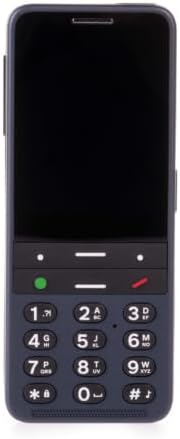
Easy-to-Use Design: The Blindshell Classic 3 features a simple, intuitive interface with tactile buttons, a powerful loudspeaker, and voice control for easy operation. Its physical keypad provides reliable haptic feedback for navigation.

Integrated Camera: Equipped with a 13 MPx camera, the phone allows users to capture photos. The camera can also be used with certain applications for object recognition or reading text aloud.

Tandem App & Support: The Tandem app facilitates remote assistance from trusted individuals, making it easier to manage phone settings or navigate complex applications. This feature enhances user independence while providing a safety net.
5.1. BlindShell App Catalog + Third-Party Apps
Explore the BlindShell App Catalog for a curated selection of accessible applications designed for visually impaired users. Additionally, the phone supports the download and use of compatible third-party applications, expanding its functionality.
6. Specifications
Detailed technical specifications for the Blindshell Classic 3 (Model: BSC3).
| Category | Specification |
|---|---|
| Model Name | Classic 3 |
| Item Model Number | BSC3 |
| Dimensions | 135.2 x 54.6 x 16.7 mm |
| Weight | 100 g (phone), 49 g (battery) |
| Display | 2.83" (480 x 640) |
| Memory (RAM) | 3 GB |
| Internal Storage | 32 GB |
| External Storage | micro SD memory card up to 128 GB (FAT32) |
| Camera | 13 MPx |
| SIM Card | Dual micro-SIM |
| Battery | 3000 mAh |
| Loudspeaker | 1.5 W |
| Microphone | Dual microphone, noise reduction |
| Audio Jack | 3.5 mm stereo |
| USB Port | USB Type-C |
| Buttons | SOS, Volume, Side action button |
| Connectivity | WCDMA (3G), FDD-LTE (4G), TDD-LTE (4G), GSM (2G), VoLTE, Bluetooth 4.2, WiFi 2.4 GHz + 5 GHz (802.11 a/b/g/n/ac), GNSS (GPS, Galileo, BeiDou), FM radio receiver, NFC |
| Sensors | Magnetometer, Barometer, Accelerometer, Gyroscope, Proximity sensor |
| Certifications | CE, FCC, IC, ICASA, ACMA, RoHS, HAC, UN38.3, MSDS, IEC 62133 |
| HAC Rating | M3/T3 |
| Operating System | Android |
7. Troubleshooting
This section addresses common issues you might encounter with your Blindshell Classic 3 and provides potential solutions.
7.1. Phone Does Not Turn On
- Check Battery: Ensure the battery is properly inserted and fully charged. Connect the phone to the charger and wait a few minutes before attempting to power on again.
- Hard Reset: If the phone is unresponsive, try performing a hard reset by pressing and holding the Power button for approximately 10-15 seconds.
7.2. Poor Call Quality or No Signal
- Check Signal Strength: Move to an area with better network coverage.
- Reinsert SIM Card: Power off the phone, remove and reinsert the SIM card(s) to ensure proper contact.
- Restart Phone: A simple restart can often resolve temporary network issues.
7.3. Applications Not Responding
- Restart App: Try closing the application and reopening it.
- Restart Phone: If an app consistently freezes, restart the entire device.
- Check for Updates: Ensure the app and phone's operating system are up to date.
7.4. Battery Drains Quickly
- Reduce Screen Brightness: Lowering display brightness can conserve battery.
- Close Background Apps: Ensure unnecessary applications are not running in the background.
- Disable Unused Features: Turn off Wi-Fi, Bluetooth, or GPS when not in use.
8. Maintenance
Proper care and maintenance will extend the life of your Blindshell Classic 3.
- Cleaning: Use a soft, dry, lint-free cloth to clean the phone's surface. Avoid using harsh chemicals or abrasive materials.
- Battery Care: Avoid extreme temperatures. Do not fully discharge the battery regularly. For optimal battery life, keep the charge between 20% and 80%.
- Software Updates: Regularly check for and install software updates. These updates often include performance improvements, bug fixes, and new features.
- Storage: Keep the phone in a cool, dry place away from direct sunlight and moisture.
9. Warranty and Support
For information regarding the product warranty, please refer to the warranty card included in your product packaging or visit the manufacturer's official website. The warranty period and terms may vary by region.
If you encounter issues that cannot be resolved using the troubleshooting guide, or require further assistance, please contact Blindshell customer support. Contact details can typically be found on the manufacturer's website or in the product documentation.
When contacting support, please have your product model number (BSC3) and purchase information ready.
Ask a question about this manual
Ask about setup, troubleshooting, compatibility, parts, safety, or missing instructions. Manuals+ will review the question and use this page’s manual context to help answer it.