
1. Introduction
This manual provides essential information for the proper installation, operation, and maintenance of the SHHJCO MT8052iP 4.3 Inch HMI Touch Panel. Please read this manual thoroughly before using the device to ensure safe and efficient operation.
The MT8052iP is a Human Machine Interface (HMI) touch panel designed for industrial automation and process control applications. It features a 4.3-inch display, offering intuitive interaction for monitoring and controlling various systems.
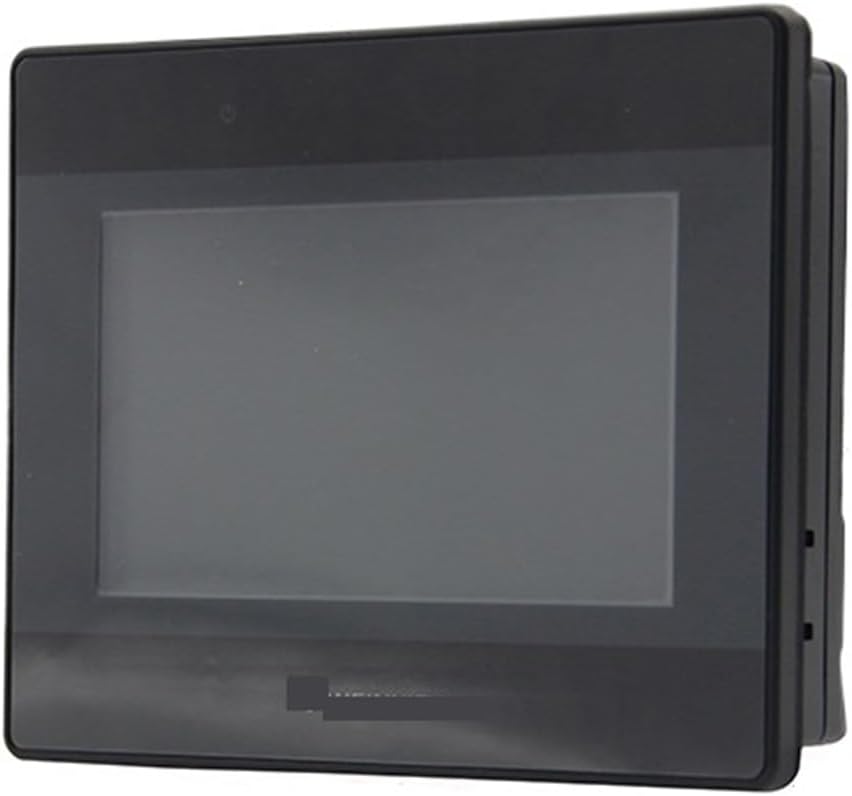
Figure 1: Front view of the SHHJCO MT8052iP 4.3 Inch HMI Touch Panel. The device features a dark bezel surrounding a central display area, with a slightly raised profile on the right side indicating connection ports or mounting points.
2. Setup and Installation
The MT8052iP is designed for straightforward integration into industrial control systems. No assembly is required for the unit itself.
2.1 Unpacking
- Carefully remove the HMI touch panel from its packaging.
- Inspect the device for any signs of damage during transit. If damage is found, contact your supplier immediately.
- Verify that all components listed in the packing list are present.
2.2 Mounting
The MT8052iP is typically panel-mounted. Refer to the specific mounting instructions provided with your installation kit (if applicable) or consult the product's technical drawings for precise cutout dimensions and mounting procedures.
2.3 Wiring and Connections
Connect the power supply and communication cables according to the wiring diagrams provided in the product's technical documentation. Ensure all connections are secure and correctly polarized to prevent damage to the device or connected equipment.
- Power Supply: Connect to a stable DC power source within the specified voltage range.
- Communication Ports: Utilize the available communication ports (e.g., RS232, RS485, Ethernet) to connect to PLCs, controllers, or other industrial devices.
3. Operating Instructions
Once properly installed and powered, the MT8052iP will initiate its boot sequence. The display will show the operating system loading, followed by the configured application interface.
3.1 Powering On/Off
- Power On: Apply power to the device. The HMI will automatically start.
- Power Off: It is recommended to shut down the operating system gracefully if possible, before removing power, to prevent data corruption. Refer to your specific application's shutdown procedure.
3.2 Touch Screen Interaction
The 4.3-inch display is a resistive touch screen. Use a finger or a non-sharp stylus to interact with the on-screen elements. Avoid using sharp objects that could damage the screen surface.
3.3 Application Navigation
Navigation through the HMI application is performed by touching the corresponding buttons, menus, and input fields displayed on the screen. The specific layout and functionality are determined by the application loaded onto the device.
4. Maintenance
Regular maintenance ensures the longevity and reliable operation of your MT8052iP HMI Touch Panel.
4.1 Cleaning
- Screen: Use a soft, lint-free cloth lightly dampened with a mild, non-abrasive cleaner specifically designed for electronic displays. Do not spray cleaner directly onto the screen.
- Casing: Wipe the casing with a soft, dry or slightly damp cloth. Avoid harsh chemicals or solvents.
4.2 Environmental Considerations
Ensure the operating environment remains within the specified temperature and humidity ranges. Protect the device from excessive dust, moisture, and direct sunlight.
4.3 Firmware and Software Updates
Periodically check the manufacturer's website or consult your system integrator for available firmware or software updates. Follow the provided instructions carefully when performing updates.
5. Troubleshooting
This section provides solutions to common issues encountered with the MT8052iP HMI Touch Panel.
| Problem | Possible Cause | Solution |
|---|---|---|
| Device does not power on. | No power supply or incorrect wiring. | Verify power connections and ensure the power supply is active and within specifications. |
| Touch screen unresponsive. | Screen calibration issue or physical damage. | Attempt a soft reset. If the issue persists, check for physical damage or consult technical support for recalibration procedures. |
| Communication errors with PLC. | Incorrect communication settings or faulty cable. | Check communication parameters (baud rate, parity, data bits) on both HMI and PLC. Verify cable integrity. |
| Display shows garbled text or graphics. | Software/firmware issue or hardware malfunction. | Restart the device. If the problem persists, consider a firmware update or contact support. |
If you encounter problems not listed here or if the suggested solutions do not resolve the issue, please contact SHHJCO technical support.
6. Specifications
Key technical specifications for the SHHJCO MT8052iP HMI Touch Panel:
- Model Number: MT8052iP
- Display Size: 4.3 Inches
- Type: HMI Touch Panel
- Manufacturer: SHHJCO
- Item Weight: 1.1 pounds (approximately 0.5 kg)
- Package Dimensions: 0.39 x 0.39 x 0.39 inches (approximately 1 x 1 x 1 cm)
- Assembly Required: No
- Usage: Industrial automation and process control
Note: Detailed electrical, environmental, and communication specifications can be found in the product's full technical datasheet.
7. Warranty Information
SHHJCO warrants this product against defects in materials and workmanship for a period of one (1) year from the date of purchase. This warranty does not cover damage caused by improper installation, misuse, unauthorized modification, or natural disasters.
For warranty service, please retain your proof of purchase and contact SHHJCO customer support. The return policy allows for refund/replacement within 30 days of purchase, subject to seller terms.
8. Customer Support
For technical assistance, troubleshooting, or general inquiries regarding your SHHJCO MT8052iP HMI Touch Panel, please contact our customer support team.
- Manufacturer: SHHJCO
- Online Support: Visit the official SHHJCO website for FAQs, documentation, and contact forms.
- Seller Support: For purchase-related inquiries, contact "SHHJ Shop" via the Amazon platform.
Please have your product model number (MT8052iP) and ASIN (B0F6D2Q567) ready when contacting support.