
1. Introduction
Thank you for choosing the RAINPOT A80 Portable Thermal Printer. This inkless mini printer offers convenient, high-resolution printing for various documents, including 8.5" x 11" US Letter and A4 sizes. Its compact design and wireless connectivity make it ideal for use at home, in the office, or while traveling. This manual provides detailed instructions for setup, operation, maintenance, and troubleshooting to ensure optimal performance of your device.

The RAINPOT A80 printer in use, demonstrating its portability for outdoor or remote work environments.
2. Package Contents
Please verify that all items are present in your package:
- RAINPOT A80 Portable Thermal Printer
- USB-C Cable
- Starter Thermal Paper
- User Manual (this document)
3. Product Overview
Familiarize yourself with the components and layout of your RAINPOT A80 printer.

The RAINPOT A80 Portable Thermal Printer.

Detailed diagram of the RAINPOT A80 printer components and dimensions.
Key Components:
- Power Button: Used to turn the printer on or off.
- Paper Bin Switch: Releases the cover to load thermal paper.
- Paper Feeding Port: Where paper is inserted for printing.
- Print Export: Where printed documents exit the printer.
- USB Data Cable Port: For charging and wired connection to computers.
4. Setup
4.1 Charging the Printer
Before first use, fully charge the printer. Connect the provided USB-C cable to the printer's USB port and the other end to a compatible USB power adapter (not included) or a computer's USB port. The indicator light will show charging status.
4.2 Loading Thermal Paper
- Locate the paper bin switch and open the printer cover.
- Insert the thermal paper into the paper feeding port, ensuring the printable side is facing the print head.
- Adjust the paper guides to fit the width of the paper.
- Close the printer cover securely.
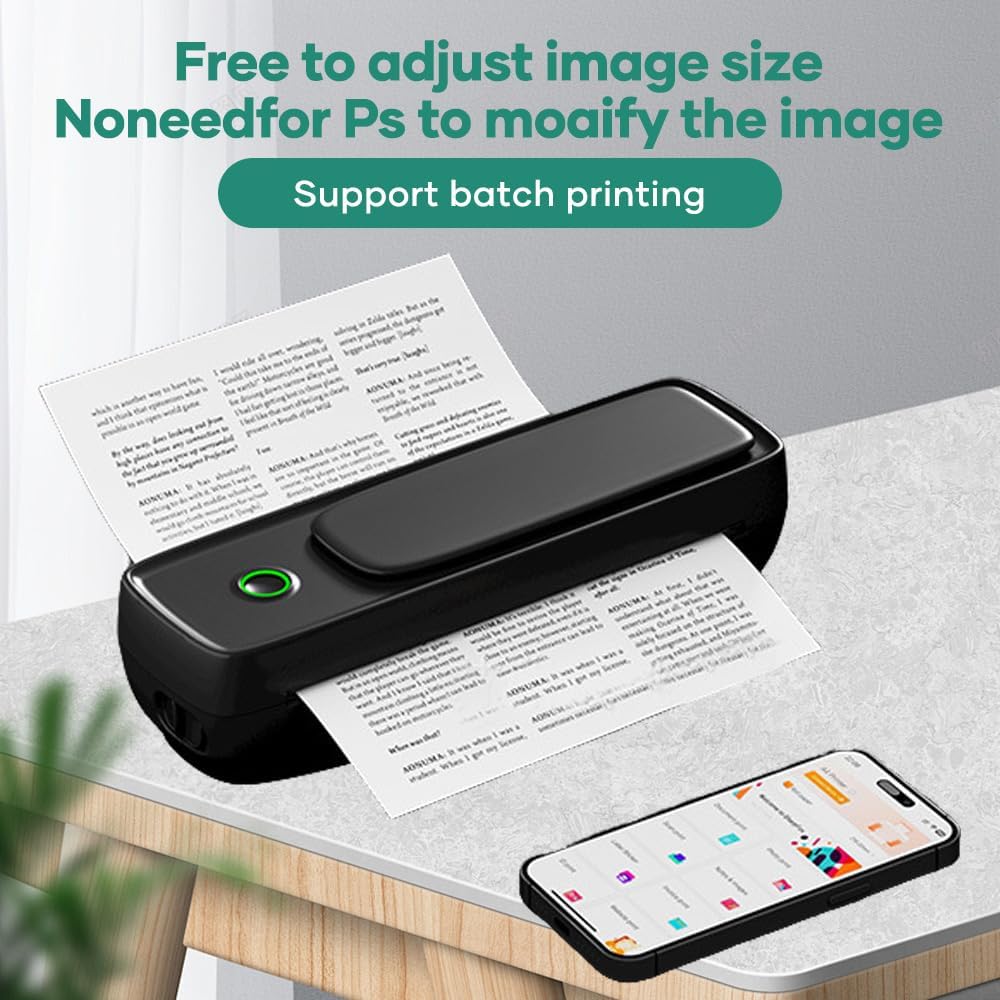
Illustrating the paper feeding process for the RAINPOT A80 printer.
4.3 App and Driver Installation
For mobile devices (iOS/Android), download the "SharpFox" app from your device's app store. For computers (Mac/Windows), download and install the appropriate printer drivers from the RAINPOT official website or the provided installation media.

Steps for connecting the printer to a computer via USB and preparing for mobile printing.
5. Operating Instructions
5.1 Power On/Off
- To Power On: Press and hold the Power Button until the indicator light illuminates.
- To Power Off: Press and hold the Power Button until the indicator light turns off.
5.2 Printing from Mobile Devices (Bluetooth)
- Ensure the printer is powered on and Bluetooth is enabled on your mobile device.
- Open the "SharpFox" app.
- Within the app, search for and connect to your RAINPOT A80 printer via Bluetooth.
- Select the document or image you wish to print from your device or cloud storage.
- Adjust print settings (e.g., paper size, orientation) as needed within the app.
- Initiate the print command.
5.3 Printing from Computers (USB)
- Ensure the printer is powered on and connected to your computer via the USB-C cable.
- Open the document or image you wish to print on your computer.
- Select "Print" from the application's menu.
- Choose the RAINPOT A80 printer from the list of available printers.
- Adjust print settings (e.g., paper size, quality) in the printer properties dialog.
- Initiate the print command.
5.4 Print Quality and Paper Compatibility
The RAINPOT A80 supports high-resolution 300dpi printing for sharp text and monochrome images. It is compatible with thermal paper widths from 2.2 inches to 8.5 inches, including standard A4 and US Letter (8.5 x 11 inches) folding sheets, as well as thermal rolls for receipts.

Comparison of print quality, demonstrating the high-definition output of the RAINPOT A80.
The printer's versatility allows for various applications, from printing art materials and travel itineraries to generating order tickets and grading papers remotely.

Example of the RAINPOT A80 printer's application in printing tattoo stencils.
6. Maintenance
6.1 Cleaning the Print Head
To maintain print quality, regularly clean the print head. Power off the printer and allow it to cool. Gently wipe the print head with a cotton swab lightly dampened with isopropyl alcohol. Ensure the print head is completely dry before closing the cover and powering on the printer.
6.2 Storing Thermal Paper
Store thermal paper in a cool, dry place away from direct sunlight and heat to prevent fading and preserve print quality.
6.3 Battery Care
For optimal battery life, avoid fully discharging the printer frequently. If storing the printer for an extended period, charge it to approximately 50% and recharge every few months.
7. Troubleshooting
If you encounter issues with your RAINPOT A80 printer, refer to the following common problems and solutions:
- Printer Not Powering On:
Ensure the printer is fully charged. Connect it to a power source using the USB-C cable and try again. - No Print Output:
Check if thermal paper is loaded correctly and not jammed. Verify that the printer is connected to your device (Bluetooth or USB) and that the correct printer is selected in your print settings. - Poor Print Quality (Faint/Streaky Prints):
The thermal paper might be loaded incorrectly (wrong side facing up). Clean the print head as described in the Maintenance section. Ensure you are using high-quality thermal paper. - Bluetooth Connection Issues:
Ensure the printer is within range of your mobile device. Turn off and on both the printer and your device's Bluetooth. Forget the device in your Bluetooth settings and re-pair. - USB Connection Issues:
Ensure the USB cable is securely connected to both the printer and the computer. Verify that the correct printer drivers are installed on your computer. Try a different USB port or cable.
8. Specifications
| Feature | Specification |
|---|---|
| Brand | RAINPOT |
| Model Name | A80 |
| Printing Technology | Thermal |
| Connectivity Technology | Bluetooth, USB |
| Printer Output | Monochrome |
| Maximum Print Resolution | 300 dpi |
| Maximum Print Speed (Monochrome) | 10 ppm |
| Supported Media Sizes | A4, Letter (8.5 x 11 inches), 2.2" to 8.5" widths |
| Max Input Sheet Capacity | 50 sheets |
| Product Dimensions | 13 x 3.1 x 5.1 inches |
| Hardware Interface | USB |
| Compatible Operating Systems | iOS, Android, Mac, Windows |
9. Warranty Information
The RAINPOT A80 Portable Thermal Printer comes with a limited warranty. Please refer to the warranty card included in your package or visit the official RAINPOT website for detailed terms and conditions regarding warranty coverage and claims.
10. Customer Support
For further assistance, technical support, or inquiries not covered in this manual, please contact RAINPOT customer support through the official website or the contact information provided with your product. Our support team is available to help you with any questions or issues you may have.