
1. Product Overview
The ARGOX OS-214plus Pro is a versatile desktop thermal label printer designed for a wide range of applications including shipping, barcode generation, tags, and general mailing and packaging needs. It supports both direct thermal and thermal transfer printing modes, offering flexibility for various label types and durability requirements. Equipped with a 32-bit RISC CPU, it delivers high-quality printing at 203 dpi resolution and speeds up to 4 inches per second.

Figure 1.1: The ARGOX OS-214plus Pro Thermal Label Printer in operation, printing a barcode label.
2. Key Features
- Dual Printing Modes: Seamlessly switch between ribbon-free direct thermal printing for cost-effective daily use and thermal transfer for durable, smudge-resistant labels.
- Versatile Media Support: Compatible with labels, receipts, tags, textile ribbons, and fanfold media, supporting widths from 1" to 4.33" and thickness up to 0.254mm.
- Powerful & Reliable Performance: Features a 32-bit RISC CPU, 203 dpi resolution, and up to 4 ips speed for efficient and high-quality output.
- Multiple Interfaces: Built-in USB and RS-232 for easy connectivity with Windows, macOS, and Linux systems.
- Compact Design: Desktop-friendly footprint with a weight of only 2kg, suitable for various environments.
- Expandable Functionality: Supports optional add-ons like an automatic cutter, RTC module for time stamping, or external stacker.
- BarTender Software Compatibility: Integrates with professional label creation software for customized barcode, shipping, and product labels.
3. Setup Guide
3.1 Unboxing and Initial Inspection
Carefully remove the printer and all accessories from the packaging. Verify that all included components are present: the printer unit, power adapter, USB cable, and any documentation. Inspect the printer for any visible damage from shipping.
3.2 Connecting the Printer
Connect the power adapter to the printer and then to a power outlet. Use the provided USB cable to connect the printer to your computer. The printer also supports RS-232 serial connection for compatible systems.

Figure 3.1: Rear view of the printer highlighting the USB, Parallel, and Serial connectivity options.
3.3 Loading Media
Open the printer cover. Depending on your media type (roll or fanfold), place the labels onto the media holder. Ensure the labels are aligned correctly and feed smoothly through the print mechanism. For thermal transfer printing, install the ribbon according to the printer's internal diagrams.
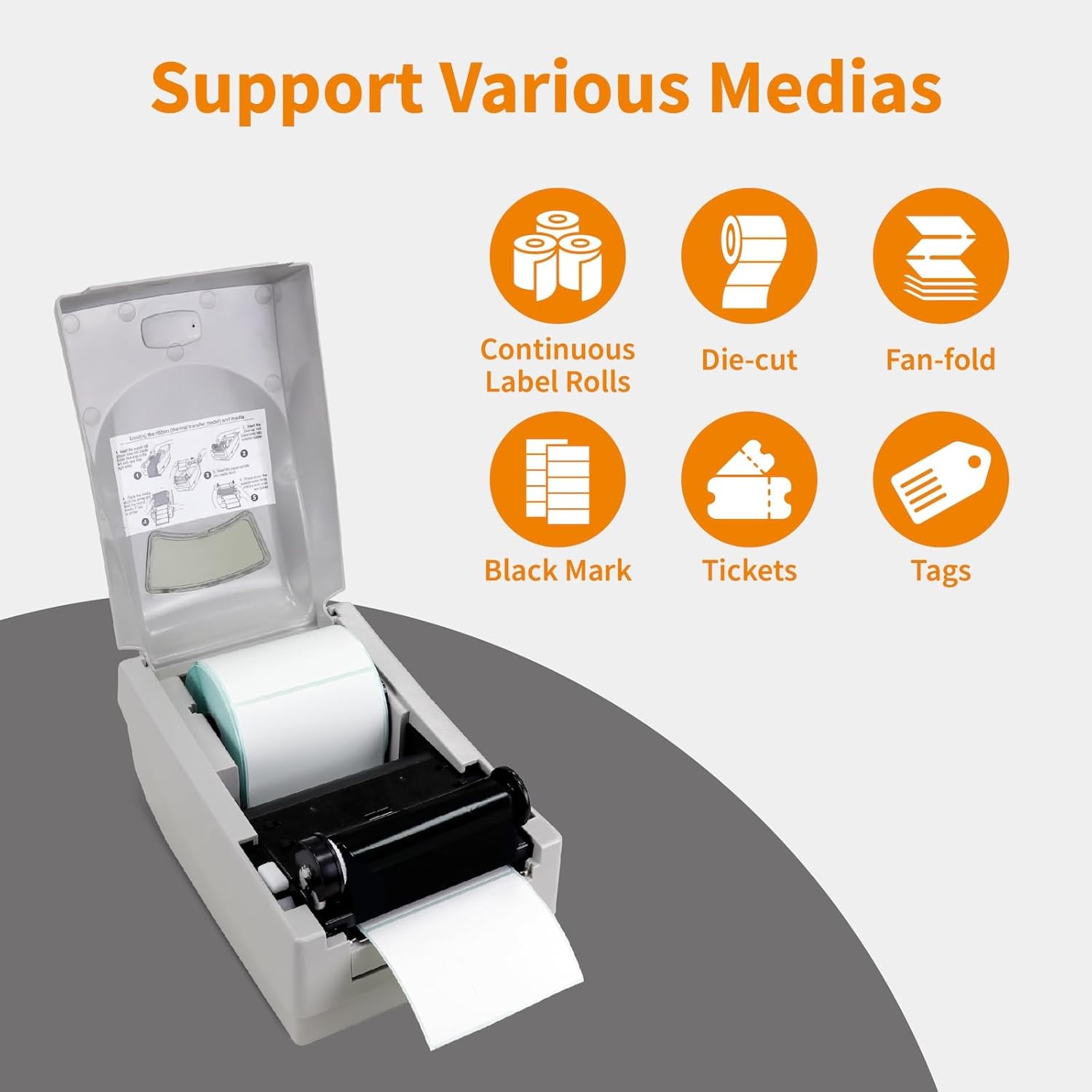
Figure 3.2: Proper loading of a label roll into the printer.
4. Operating Instructions
4.1 Dual Printing Modes
The OS-214plus Pro supports both Direct Thermal (DT) and Thermal Transfer (TT) printing. DT printing uses heat-sensitive paper and does not require a ribbon, ideal for short-term labels. TT printing uses a ribbon to transfer ink onto various label materials, providing more durable and long-lasting prints suitable for harsh environments or long-term storage.

Figure 4.1: Illustration of the two printing modes: Direct Thermal and Thermal Transfer.
4.2 Media Compatibility
This printer is designed to work with a variety of media types, including continuous label rolls, die-cut labels, fan-fold media, black mark labels, tickets, and tags. It can handle media widths from 1 inch to 4.33 inches and lengths up to 100 inches, making it suitable for common label sizes like 4x6 inches.

Figure 4.2: The printer supports 4-inch labels with specific media dimensions.
4.3 Software Compatibility
The ARGOX OS-214plus Pro is compatible with industry-leading label design software such as BarTender. This allows for professional label creation and seamless integration with your existing systems for customized barcode, shipping, and product labels.
Video 4.1: An overview of the ARGOX OS-214plus Pro, demonstrating its features and software compatibility.
5. Maintenance
Regular maintenance ensures optimal performance and longevity of your printer. Keep the printer clean, especially the print head, to prevent print quality issues. Use a soft, lint-free cloth for external cleaning. Refer to the detailed cleaning instructions in the full user manual for specific procedures regarding the print head and platen roller.
6. Troubleshooting
This section provides solutions to common issues you might encounter.
| Problem | Possible Cause | Solution |
|---|---|---|
| No Power | Power cable disconnected; Power outlet issue | Check power connections; Try a different outlet |
| Poor Print Quality | Dirty print head; Incorrect darkness setting; Low ribbon/media | Clean print head; Adjust print darkness in software; Replace ribbon/media |
| Labels Not Feeding | Media loaded incorrectly; Sensor not detecting media | Reload media correctly; Calibrate media sensors |
| Printer Not Responding | USB/Serial cable disconnected; Driver issue | Check cable connections; Reinstall printer drivers |
7. Technical Specifications
| Specification | Detail |
|---|---|
| Model Name | OS-214plus Pro |
| Printing Technology | Thermal (Direct Thermal & Thermal Transfer) |
| Print Resolution | 203 Dots Per Inch |
| Max Print Speed | 4 inches per second (ips) |
| Connectivity | USB, RS-232 |
| Compatible Devices | Linux, Raspberry Pi, Windows, macOS |
| Max Media Size | 4.33" W x 100" L |
| Sheet Size (Width) | 1" to 4.33" |
| Item Weight | 4.4 pounds |
| Product Dimensions | 10.9"D x 7.3"W x 6.5"H |
| Memory | 128MB SDRAM, 128MB Flash ROM |
| Controller Type | 32 bit RISC microprocessor |
| Display Type | LED |
| Included Components | Printer (base unit only; optional: cutter, RTC, stacker, media accessories) |
8. Warranty and Support
The ARGOX OS-214plus Pro Thermal Label Printer comes with a limited warranty. For detailed warranty information, technical support, or to download the complete user manual, please refer to the official documentation or visit the ARGOX A SATO COMPANY website.
You can also access the comprehensive User Manual (PDF) and Installation Manual (PDF) for further assistance.