
WOREGOO M518_EEA
WOREGOO M518_EEA 11-inch Android 15 Tablet User Manual
Model: M518_EEA
1. Introduction
Welcome to the user manual for your WOREGOO M518_EEA 11-inch Android 15 Tablet. This guide provides essential information to help you set up, operate, and maintain your new device. Please read this manual thoroughly to ensure proper use and to maximize your tablet's capabilities.
The WOREGOO M518_EEA tablet features an 11-inch FHD display, an Octa-Core processor, 36GB RAM, 256GB ROM (expandable to 1TB), 5G WiFi, and an 8000mAh battery, running on Android 15 with GMS certification. It also includes a keyboard, mouse, and stylus for enhanced productivity.
2. Package Contents
Verify that all items listed below are included in your package:
- 1 x WOREGOO M518_EEA 11-inch Android 15 Tablet
- 1 x Bluetooth Keyboard
- 1 x Wireless Mouse
- 1 x Protective Case
- 1 x Stylus
- 1 x Power Charger (5V/3A)
- 1 x USB Type-C Cable
- 1 x USB Interface Adapter
- 1 x Headphones
- 1 x User Manual (this document)
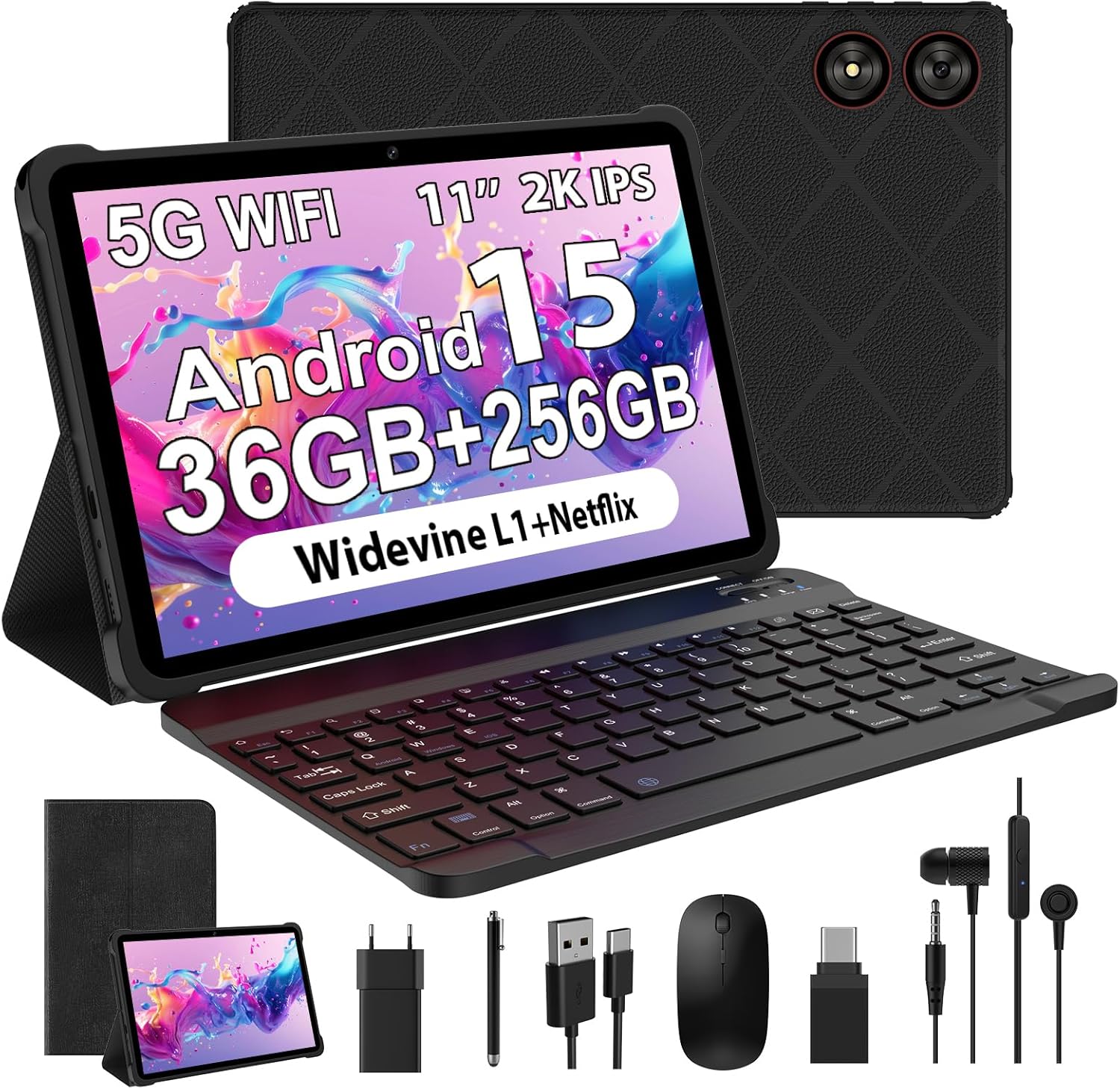
Image: The WOREGOO M518_EEA tablet displayed with its full set of accessories, including the keyboard, mouse, stylus, protective case, charger, and cables.
3. Device Overview
Familiarize yourself with the physical components of your tablet.
3.1 Front View
- 11-inch FHD Display: Main screen for interaction and content viewing.
- Front Camera (8MP): Located at the top bezel, used for video calls and selfies.
3.2 Rear View
- Rear Camera (13MP): Main camera for taking photos and videos.
- Dual Speakers: Provide audio output.
3.3 Side Views (Ports and Buttons)
- Power Button: Turns the tablet on/off or puts it to sleep.
- Volume Buttons: Adjusts the audio volume.
- USB Type-C Port: For charging and data transfer.
- 3.5mm Headphone Jack: For connecting wired headphones.
- MicroSD Card Slot: For expanding storage up to 1TB.

Image: A close-up of the tablet's side, highlighting the USB Type-C charging port and 3.5mm headphone jack, alongside an icon representing the 8000mAh battery capacity.

Image: A visual representation of the tablet's front 8MP camera and rear 13MP camera, emphasizing their role in capturing moments.
4. Initial Setup
4.1 Charging the Tablet
- Connect the USB Type-C cable to the tablet's Type-C port.
- Connect the other end of the USB cable to the provided power charger.
- Plug the charger into a power outlet.
- The battery icon on the screen will indicate charging status. For optimal charging, use the included 5V/3A charger.
4.2 Powering On/Off
- To Power On: Press and hold the Power button until the WOREGOO logo appears on the screen.
- To Power Off: Press and hold the Power button until the power options appear, then select "Power off".
- To Sleep/Wake: Briefly press the Power button.
4.3 Initial Android 15 Configuration
Upon first power-on, follow the on-screen prompts to set up your Android 15 system:
- Select your language.
- Connect to a Wi-Fi network.
- Sign in with your Google account or create a new one.
- Set up screen lock (PIN, pattern, password, or face unlock).
- Review and accept Google services and privacy settings.
4.4 Inserting a MicroSD Card
To expand storage:
- Locate the MicroSD card slot on the side of the tablet.
- Gently insert the MicroSD card into the slot until it clicks into place. Ensure the card is oriented correctly.
- The tablet will detect the new storage. You may be prompted to format it for use as portable or internal storage.
5. Operating Your Tablet
5.1 Android 15 Features
Your tablet runs on Android 15, offering an enhanced, secure, and user-friendly experience. Key features include:
- Google Mobile Services (GMS): Access to Google Play Store, Gmail, Maps, YouTube, and other Google apps.
- Parental Controls: Manage app usage and content for children.
- Digital Wellbeing: Monitor and manage your screen time.
- GPS: For navigation and location-based services.
5.2 Display and Entertainment
The 11-inch FHD INCELL display with 2000x1200 resolution provides clear and vibrant visuals. With Widevine L1 support, you can stream high-definition content from platforms like Netflix, Prime Video, and YouTube.
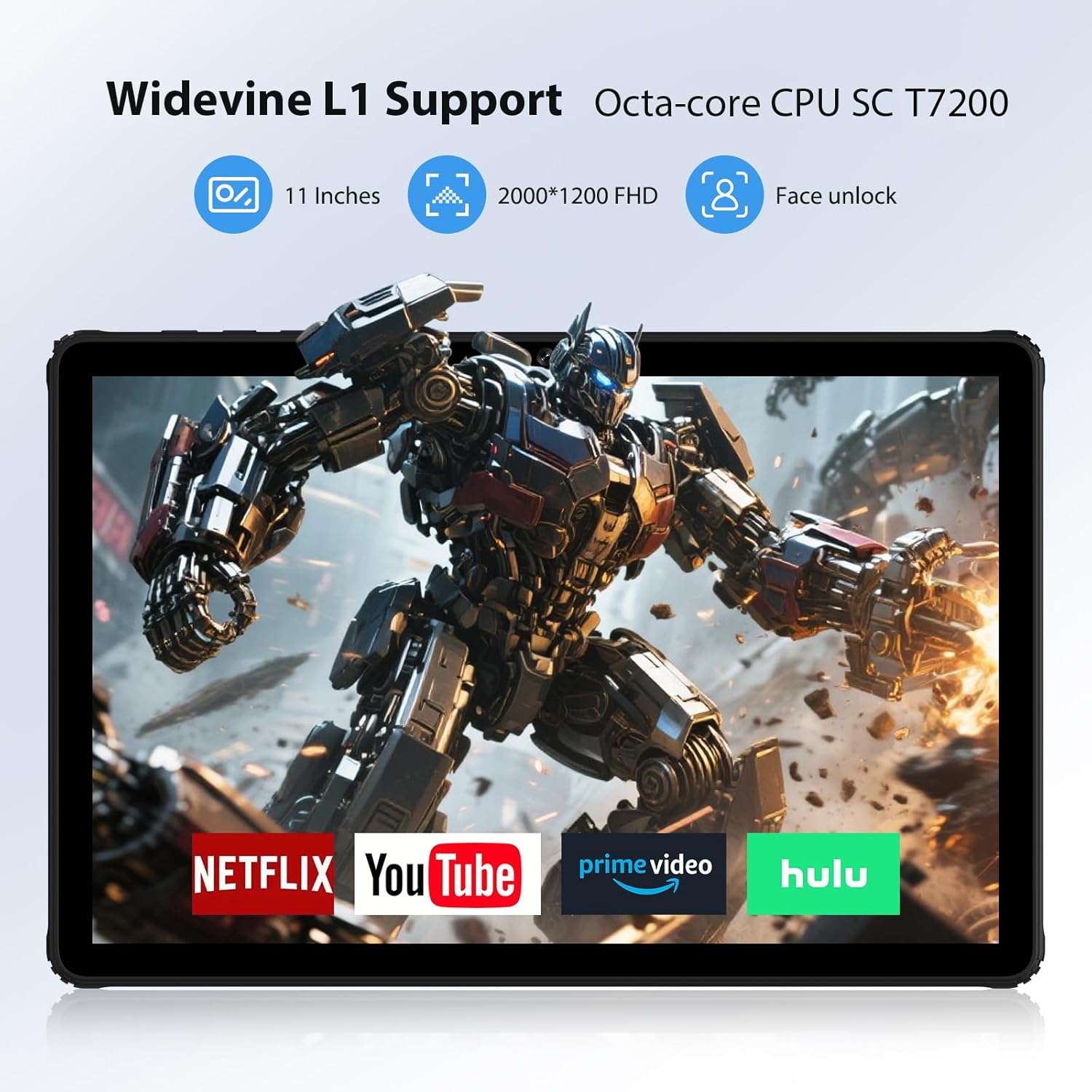
Image: The tablet screen showing popular streaming service logos like Netflix, YouTube, Prime Video, and Hulu, demonstrating Widevine L1 support for HD content.
5.3 Connectivity
- Wi-Fi: Supports dual-band 2.4G/5G Wi-Fi for fast internet access. To connect, go to Settings > Network & internet > Wi-Fi, select your network, and enter the password.
- Bluetooth 5.0: For connecting wireless accessories like headphones, speakers, or the included keyboard and mouse. To pair, go to Settings > Connected devices > Pair new device.
5.4 Storage and Performance
The tablet is equipped with an Octa-Core 2.0 GHz processor, 36GB RAM (12GB physical + 24GB virtual), and 256GB internal storage. This configuration ensures smooth multitasking and application performance. Storage can be expanded up to 1TB using a MicroSD card.

Image: A graphic illustrating the tablet's memory configuration, showing 36GB RAM (12GB + 24GB virtual) and 256GB ROM, with support for 1TB TF card expansion.
5.5 Cameras
Capture photos and videos with the 8MP front camera and 13MP rear camera. Open the Camera app to switch between modes and settings.
6. Using Included Accessories
6.1 Bluetooth Keyboard
- Ensure the keyboard is charged and powered on.
- On your tablet, go to Settings > Connected devices > Pair new device.
- Select the keyboard from the list of available devices and follow any pairing instructions.
6.2 Wireless Mouse
- Insert the USB receiver for the mouse into the USB Interface Adapter.
- Connect the USB Interface Adapter to the tablet's USB Type-C port.
- Ensure the mouse has batteries and is powered on. The tablet should automatically detect the mouse.
6.3 Stylus
The included stylus can be used for precise input, drawing, or navigating the tablet interface. No pairing is required for basic stylus functionality.
6.4 Protective Case
Install the tablet into the protective case to shield it from scratches and minor impacts. The case often includes a stand function for hands-free viewing.
7. Maintenance and Care
7.1 Cleaning the Tablet
- Use a soft, lint-free cloth to clean the screen and body of the tablet.
- For stubborn smudges, slightly dampen the cloth with water or a screen cleaner. Avoid harsh chemicals.
- Do not spray liquids directly onto the tablet.
7.2 Battery Care
- The 8000mAh battery provides extended usage. To prolong battery life, avoid extreme temperatures.
- Charge the tablet regularly, but avoid leaving it fully charged or fully depleted for long periods.
- Use only the provided charger and cable for optimal charging performance and safety.
7.3 Software Updates
Periodically check for system updates to ensure your tablet has the latest features and security patches. Go to Settings > System > System update.
8. Troubleshooting
Here are solutions to common issues you might encounter:
8.1 Tablet Does Not Power On
- Ensure the tablet is sufficiently charged. Connect it to the charger for at least 30 minutes.
- Press and hold the Power button for 10-15 seconds to perform a forced restart.
8.2 Wi-Fi Connection Issues
- Check if Wi-Fi is enabled in Settings > Network & internet > Wi-Fi.
- Restart your Wi-Fi router and the tablet.
- Forget the network and reconnect by entering the password again.
- Ensure you are within range of the Wi-Fi signal.
8.3 Slow Performance
- Close unnecessary background applications.
- Clear cache for frequently used apps (Settings > Apps > [App Name] > Storage & cache > Clear cache).
- Ensure you have sufficient free storage space.
- Restart the tablet.
8.4 Accessories Not Connecting
- For Bluetooth accessories (keyboard), ensure they are charged, powered on, and in pairing mode. Re-pair if necessary.
- For USB accessories (mouse), ensure the USB receiver is properly connected via the adapter to the tablet's Type-C port. Check mouse batteries.
9. Specifications
Detailed technical specifications for the WOREGOO M518_EEA tablet:
| Feature | Specification |
|---|---|
| Brand | WOREGOO |
| Model Number | M518_EEA |
| Operating System | Android 15 |
| Processor | Octa-Core 2.0 GHz (MediaTek) |
| RAM | 36 GB (12 GB physical + 24 GB virtual) |
| Internal Storage (ROM) | 256 GB |
| Expandable Storage | Up to 1 TB via MicroSD card |
| Display Size | 11 Inches |
| Display Resolution | 2000 x 1200 Pixels (FHD INCELL) |
| Widevine Support | Widevine L1 |
| Front Camera | 8 MP |
| Rear Camera | 13 MP |
| Wi-Fi Connectivity | 2.4G/5G (802.11ac) |
| Bluetooth | Bluetooth 5.0 |
| Battery Capacity | 8000 mAh |
| Charging Port | USB Type-C (5V/3A) |
| Audio Jack | 3.5mm Headphone Jack |
| Color | Black |
| Dimensions (Package) | 35 x 19.7 x 4.2 cm |
| Weight (Package) | 1.49 kilograms |

Image: A summary of the tablet's main features, including Android 15 OS, 2.4G+5G WiFi, Widevine L1 support, 11-inch FHD display, 36GB RAM+512GB ROM (note: product description states 256GB ROM, this image might be for a variant), Octa-core CPU, 8000mAh battery, and 8MP front + 13MP rear cameras.
10. Warranty and Support
10.1 Warranty Information
Specific warranty details for the WOREGOO M518_EEA tablet are not available in this document. Please refer to the product packaging or the retailer's website for warranty terms and conditions.
10.2 Customer Support
If you encounter any issues not covered in this manual or require further assistance, please contact WOREGOO customer support through the retailer where you purchased the product. Provide your model number (M518_EEA) and a detailed description of the issue for efficient service.
Ask a question about this manual
Ask about setup, troubleshooting, compatibility, parts, safety, or missing instructions. Manuals+ will review the question and use this page’s manual context to help answer it.