1. Introduction
Thank you for choosing the Gawfolk 32-inch QD-OLED Gaming Monitor. This monitor is designed to provide an exceptional visual experience for gaming and professional use, featuring advanced QD-OLED technology, UHD resolution, and a high refresh rate. Please read this manual thoroughly before operating the device to ensure proper use and optimal performance.
Key Features:
- QD-OLED Technology: Combines quantum dots with organic light-emitting diodes for stunning color performance, true blacks, and superior contrast (1.5 million:1).
- UHD Resolution & High Refresh Rate: 3840x2160 resolution with a 240Hz refresh rate for clear, smooth, and fluid dynamic images.
- Ultra-Fast Response Time: 0.03ms (GTG) response time eliminates blur and ghosting in fast-moving scenes.
- Wide Color Gamut: 99% DCI-P3 coverage for rich, accurate, and vibrant colors.
- Versatile Connectivity: Multi-purpose Type-C interface (65W power delivery), HUB3.0, HDMI, and DisplayPort.
- Enhanced Productivity: Supports Picture-in-Picture (PIP) and Picture-by-Picture (PBP) functions, and KVM for controlling multiple devices.
- Gaming Optimizations: FreeSync technology for tear-free gaming and HDR400 certification for enhanced dynamic range.
- Ergonomic Design: Adjustable stand with tilt, height, and swivel adjustments, plus VESA wall mount compatibility.
- RGB Ambient Lighting: Customizable RGB lighting to enhance your gaming environment.

Figure 1.1: The 32-inch UHD display offers crisp detail and a wide 178° viewing angle.

Figure 1.2: Experience ultra-smooth gameplay with 240Hz refresh rate and 0.03ms GTG response time.
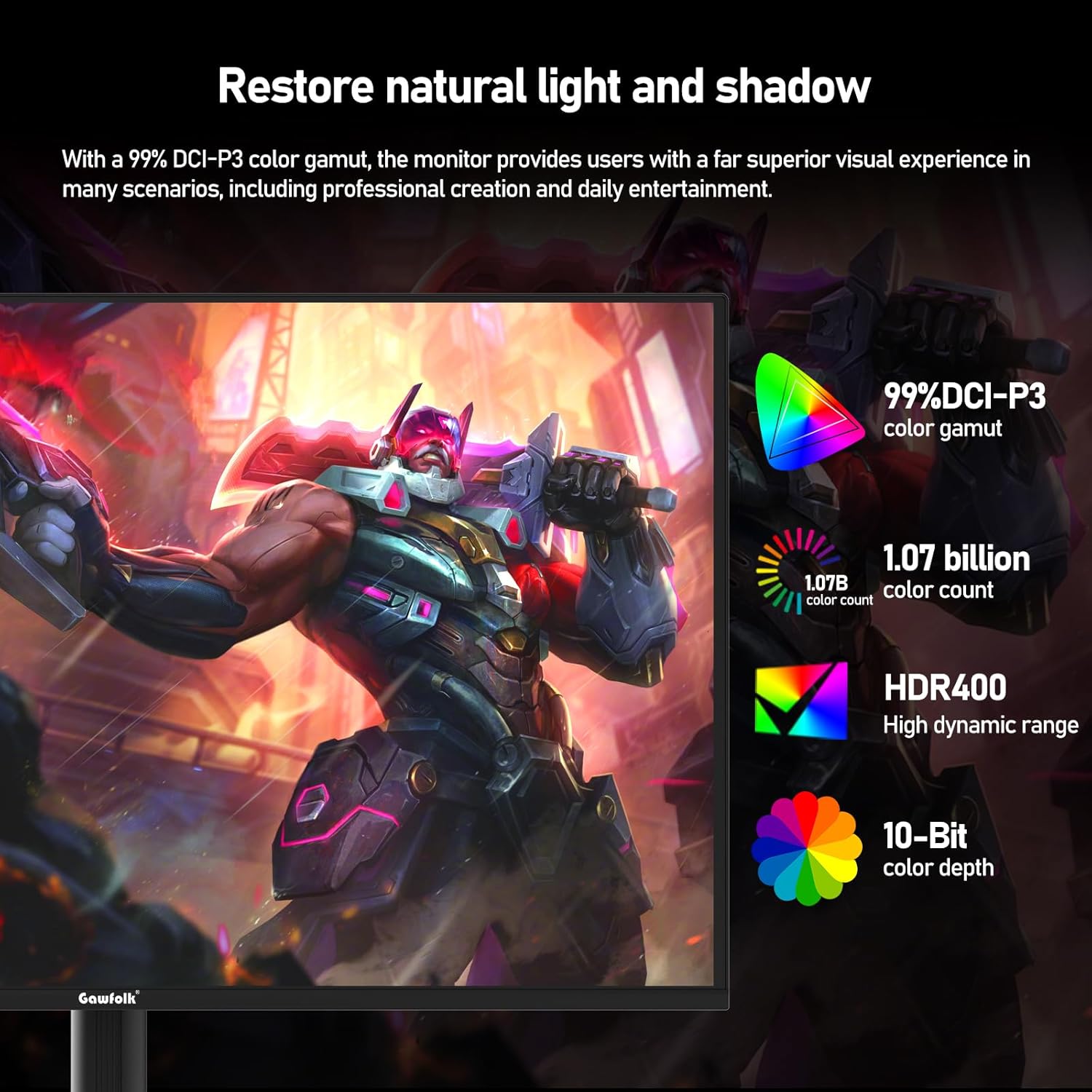
Figure 1.3: Enjoy vibrant and accurate colors with 99% DCI-P3, 1.07 billion colors, 10-bit color depth, and HDR400 support.
2. Package Contents
Please check the package contents carefully. If any items are missing or damaged, contact your retailer.
- Gawfolk 32-inch QD-OLED Gaming Monitor
- Adjustable Stand (Base and Neck)
- Power Cable
- HDMI Cable
- DisplayPort (DP) Cable
- USB Type-C Cable
- User Manual
- Screws for Stand Assembly
3. Setup Instructions
3.1 Assembling the Stand
- Carefully remove the monitor and stand components from the packaging.
- Attach the stand neck to the monitor panel using the provided screws. Ensure it is securely fastened.
- Attach the stand base to the stand neck. Tighten any screws as necessary.
- Place the assembled monitor on a stable, flat surface.
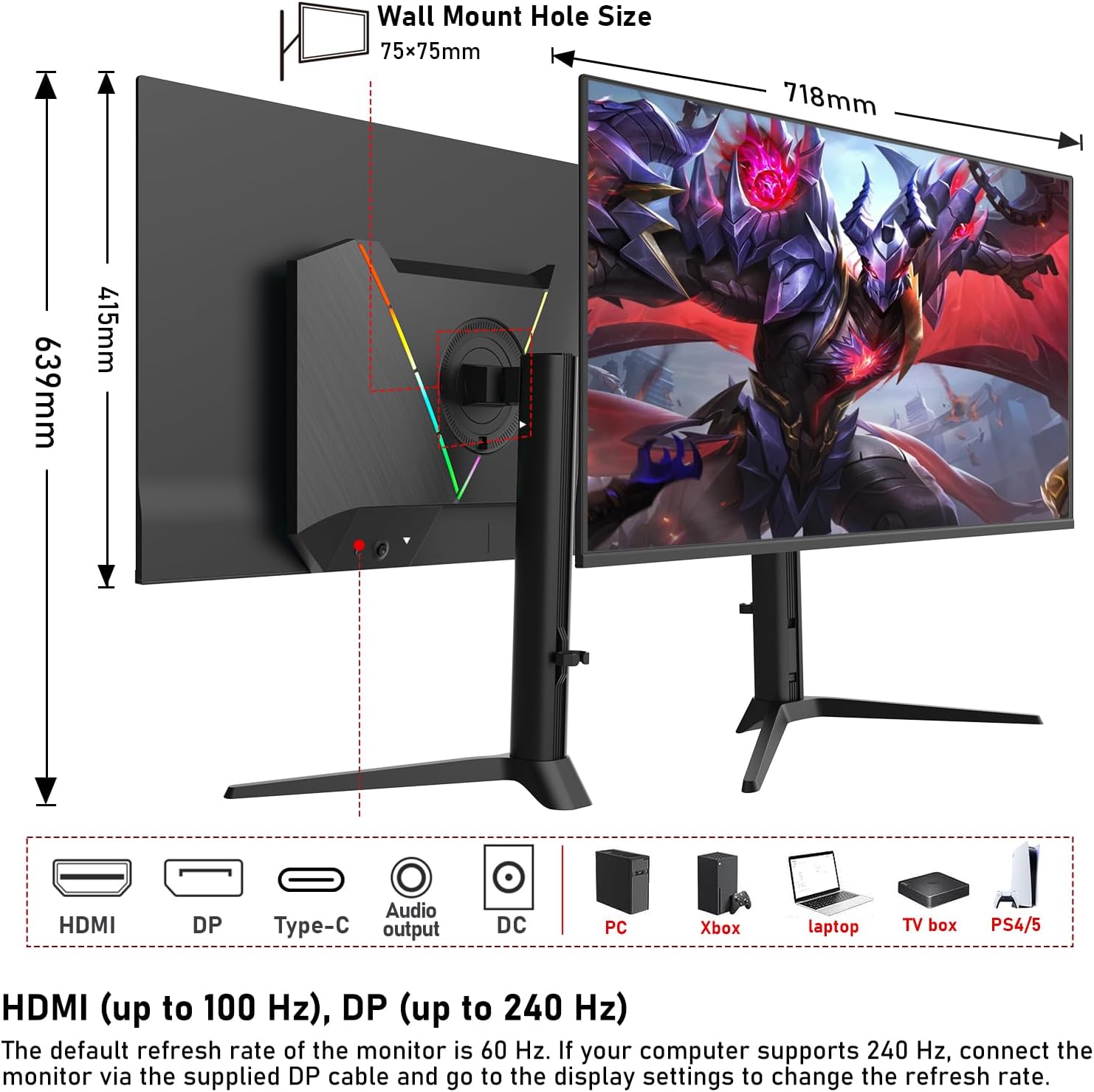
Figure 3.1: Monitor with adjustable stand and VESA mounting points. The stand supports tilt, height, and swivel adjustments. VESA wall mount hole size is 75x75mm.
3.2 Connecting the Monitor
Ensure all devices are powered off before making any connections.
- Power Connection: Connect the power cable to the monitor's DC input and then to a power outlet.
- Video Connection:
- HDMI: Connect an HDMI cable from your computer/device to one of the monitor's HDMI ports. Supports up to 100Hz refresh rate.
- DisplayPort (DP): Connect a DisplayPort cable from your computer/device to the monitor's DP port for up to 240Hz refresh rate.
- USB Type-C: Connect a USB Type-C cable from a compatible device (e.g., laptop, MacBook) to the monitor's Type-C port for video, data, and 65W power delivery.
- USB Hub Connection: Connect a USB upstream cable (if not using Type-C for data) from your computer to the monitor's USB upstream port to enable the HUB3.0 ports.
- Audio Output: Connect headphones or external speakers to the monitor's audio output jack if desired.

Figure 3.2: Rear view of the monitor with available ports. Connect your devices using HDMI, DisplayPort, or USB Type-C.

Figure 3.3: The multi-purpose Type-C interface supports 65W charging, data, and video transmission.
4. Operating Instructions
4.1 Powering On/Off
- Press the power button located on the monitor to turn it on or off.
- The power indicator light will illuminate when the monitor is on.
4.2 On-Screen Display (OSD) Menu
Use the joystick or buttons on the monitor to navigate and adjust settings in the OSD menu.
- Picture Settings: Adjust brightness, contrast, sharpness, and color temperature.
- Color Mode: Select from various preset color modes (e.g., Standard, Game, Movie, sRGB, DCI-P3).
- Input Source: Manually select the input source (HDMI1, HDMI2, DisplayPort, Type-C).
- PIP/PBP: Configure Picture-in-Picture or Picture-by-Picture modes to display multiple sources simultaneously.
- Gaming Features: Enable/disable FreeSync, adjust response time, and other game-specific settings.
- RGB Lighting: Customize the RGB ambient lighting effects on the back of the monitor.
4.3 Adjusting the Stand
The ergonomic stand allows for flexible adjustments to optimize your viewing comfort.
- Height Adjustment: Gently push or pull the monitor up or down to adjust its height.
- Tilt Adjustment: Tilt the monitor screen forward or backward to find your preferred viewing angle.
- Swivel Adjustment: Rotate the monitor left or right on its base.
- Pivot (Rotation): Rotate the monitor 90 degrees for portrait mode (if supported by the stand model).

Figure 4.1: Multi-functional ergonomic stand adjustments and RGB backlight feature.
5. Maintenance
5.1 Cleaning the Monitor
- Always unplug the monitor before cleaning.
- Use a soft, lint-free cloth to gently wipe the screen and exterior surfaces.
- For stubborn marks, lightly dampen the cloth with water or a mild, non-abrasive screen cleaner.
- Avoid using alcohol, ammonia, or abrasive cleaners, as they can damage the screen.
5.2 Storage
- If storing the monitor for an extended period, disconnect all cables and pack it in its original packaging.
- Store in a cool, dry place away from direct sunlight and extreme temperatures.
6. Troubleshooting
| Problem | Possible Cause | Solution |
|---|---|---|
| No image on screen |
|
|
| Image is blurry or distorted |
|
|
| No sound from monitor (if applicable) |
|
|
| Screen tearing or stuttering in games |
|
|
7. Specifications
| Feature | Detail |
|---|---|
| Brand | Gawfolk |
| Model Number | GF320L |
| Screen Size | 32 inches |
| Panel Type | QD-OLED |
| Resolution | 3840 x 2160 (UHD 4K) |
| Refresh Rate | 240 Hz |
| Response Time (GTG) | 0.03 ms |
| Aspect Ratio | 16:9 |
| Contrast Ratio | 1.5 Million:1 |
| Color Gamut | 99% DCI-P3 |
| HDR Support | HDR400 |
| Adaptive Sync | FreeSync |
| Connectivity | 2x HDMI, 1x DisplayPort, 1x USB Type-C (65W PD), 2x USB 3.0 Hub, Audio Out |
| Special Features | Frameless Design, Height Adjustment, Swivel Adjustment, Tilt Adjustment, USB Hub, PIP/PBP, KVM, RGB Lighting |
| VESA Mount | 75 x 75 mm |
| Product Dimensions (LxWxH) | 71.8 x 24.5 x 63.9 cm |
| Item Weight | 9.8 Kilograms |
8. Warranty and Support
Gawfolk provides high-quality computer monitors and excellent services, including a 12-month warranty.
- Warranty Period: 12 months from the date of purchase.
- Coverage: This warranty covers manufacturing defects and malfunctions under normal use.
- Exclusions: Damage caused by misuse, accidents, unauthorized modifications, or natural disasters is not covered.
- Claim Process: If you encounter any damage, malfunction, or missing accessories, please do not hesitate to contact Gawfolk customer support or your retailer.
Customer Support:
For technical assistance, warranty claims, or product inquiries, please refer to the contact information provided with your purchase or visit the official Gawfolk website.
Online Support: Visit the Gawfolk Store on Amazon