
1. Introduction
This manual provides detailed instructions for the installation, operation, and maintenance of your METEESER 4G+64G Car Stereo. This advanced car stereo system features a 10.1-inch HD IPS touchscreen, Wireless CarPlay, Android Auto, GPS navigation, 5G WiFi connectivity, Bluetooth 5.0, and a 32-band AI DSP for enhanced audio. It is designed specifically for Toyota Camry models from 2006 to 2011 with manual air conditioning.
2. Vehicle Compatibility
This car stereo is compatible with Toyota Camry vehicles manufactured between 2006 and 2011 that are equipped with manual air conditioning. Please verify your vehicle's dashboard configuration before installation to ensure proper fitment.
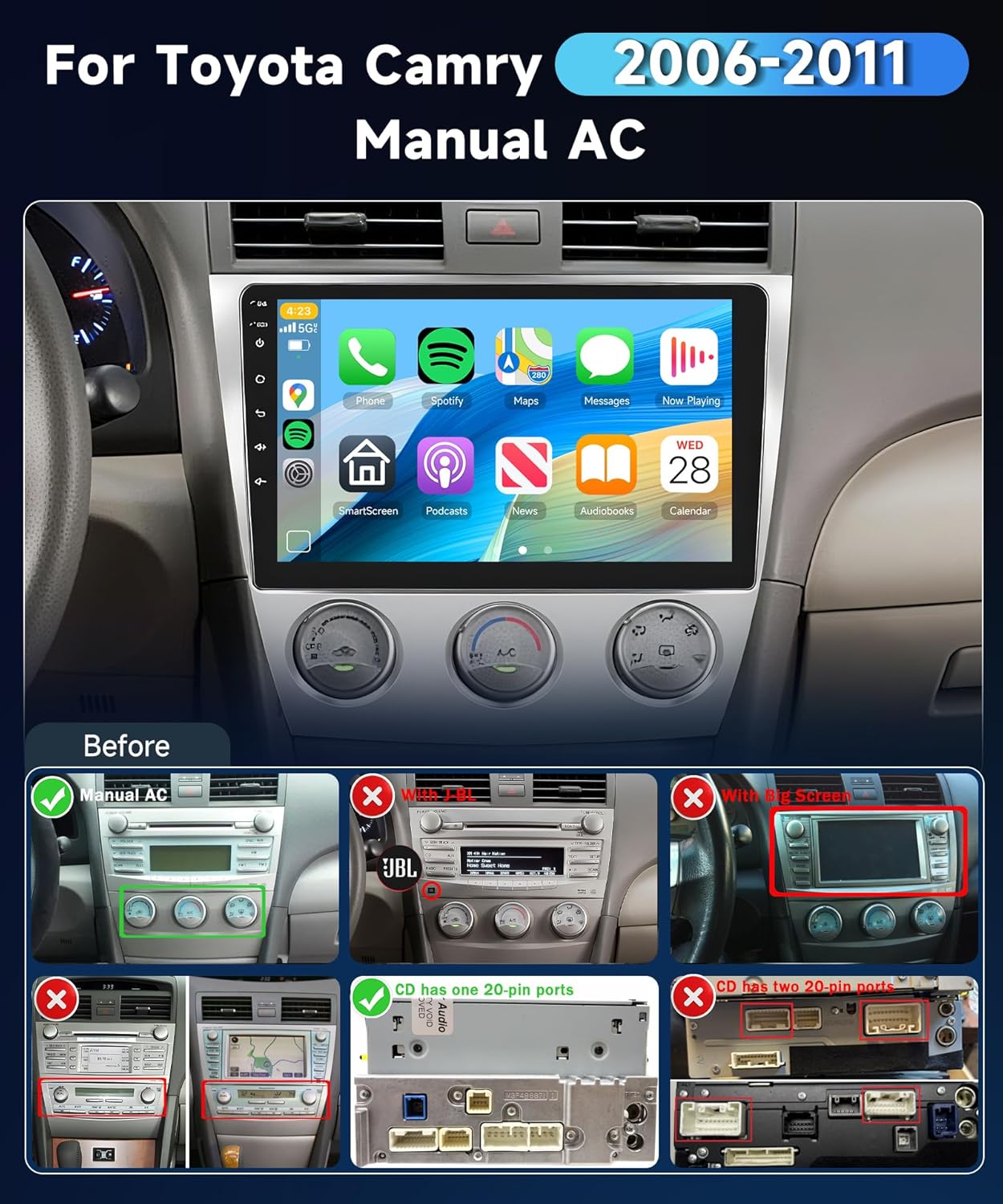
Image: Compatibility check for Toyota Camry 2006-2011 with manual AC. Shows compatible and incompatible dashboard types.

Image: Important note on selecting the correct product based on your original car's central control panel and CD player port configuration.
3. Package Contents
Please ensure all items listed below are present in your package:
- Car Stereo Unit
- Backup Camera
- GPS Module
- External Microphone
- Power Cable
- RCA Cable
- USB Cable
- Radio Antenna
- Rear Camera Input Cable
- Installation Tool
- User Manual
- Accessories

Image: Visual representation of the car stereo unit dimensions and all included accessories and cables.
4. Setup and Installation
Installation of the car stereo requires basic automotive electrical knowledge. If you are unsure about any steps, it is recommended to seek professional assistance.
4.1 Wiring Connections
Carefully follow the wiring diagram to connect the power cable, speaker wires, GPS antenna, USB cables, and backup camera input. Ensure all connections are secure to prevent malfunctions.

Image: Wiring diagram illustrating connections for power, RCA, camera, GPS, and other inputs/outputs.
4.2 Physical Installation
Remove your existing car stereo and carefully mount the new METEESER unit into the dashboard. Secure it using the provided installation tools and ensure all cables are routed correctly to avoid pinching or damage.

Image: Comparison showing the original Toyota Camry dashboard before and after the METEESER car stereo installation.
5. Operating Instructions
5.1 Wireless CarPlay & Android Auto
Connect your smartphone wirelessly to access navigation, music, calls, and messages directly on the car stereo display. Activate Siri or Google Assistant for hands-free control.
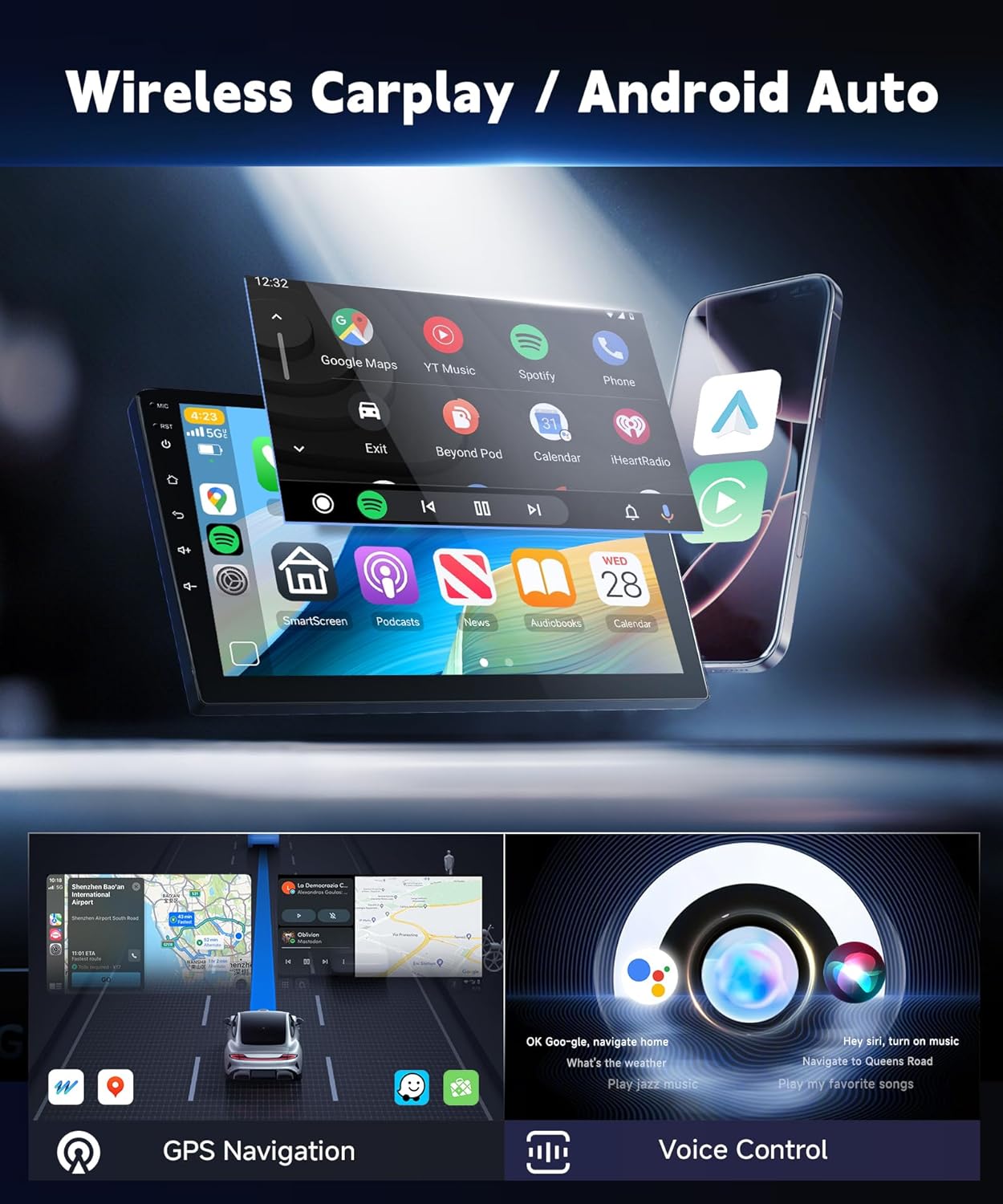
Image: Demonstrates the Wireless CarPlay and Android Auto features, including GPS navigation and voice control.
5.2 GPS Navigation & 5G WiFi
Utilize the built-in GPS for accurate navigation. Connect to a 5G WiFi hotspot to download online maps, stream content, and access various applications from the Play Store.

Image: Illustrates 5G WiFi enhancements for faster internet access and app usage on the car stereo.
5.3 Bluetooth 5.0
Pair your mobile device via Bluetooth 5.0 for high-quality audio streaming and clear hands-free calling. The system supports fast pairing and stable connections.
5.4 FM/RDS Radio
Tune into your favorite FM radio stations with RDS (Radio Data System) support for station information and real-time updates.
5.5 Steering Wheel Control (SWC)
Integrate with your vehicle's existing steering wheel controls for safe and convenient operation of the stereo's functions, such as volume adjustment, track skipping, and call management.
5.6 User Interface (UI) & Display
The 10.1-inch HD IPS 1280*720P touchscreen offers a clear and responsive interface. Customize your experience with 59 available UI themes.

Image: Highlights the HD Incell Screen with 1280*720P resolution, slim design, and fast touch response.
5.7 Audio (AI DSP & EQ)
Experience superior sound quality with the integrated 32-band AI DSP (Digital Sound Processor). Adjust equalization settings to optimize audio output for various music genres and personal preferences.
Video: Demonstrates the equalizer (EQ) and balance settings of the car stereo for audio customization.
5.8 Backup Camera
The included 170° wide-angle AHD waterproof backup camera automatically displays a clear image on the screen when the vehicle is in reverse, assisting with safer parking and maneuvering.

Image: Illustrates the reversing camera functionality, including wide-angle view, waterproofing, night vision, and HD image quality.
5.9 Split Screen Functionality
Run two applications simultaneously on the screen, such as navigation and music playback, for enhanced multitasking.
6. Specifications
| Feature | Detail |
|---|---|
| Brand | METEESER |
| Model Name | 4G+64G |
| Screen Size | 10.1 Inches |
| Display Type | IPS |
| Resolution | 1280*720P |
| Operating System | Android |
| Memory Storage Capacity | 64 GB |
| RAM | 4 GB |
| Connectivity Technology | Bluetooth 5.0, WiFi (5G), USB, FM/RDS |
| Supported Navigation System | GPS |
| Audio Output Mode | APE/FLAC/WAV/MP3/WMA etc. |
| Special Features | Wireless CarPlay, Android Auto, 59UI, 32EQ AI DSP, Touchscreen, Backup Camera |
| Included Components | Backup camera, External microphone, GPS module, Power Cable |
7. Maintenance
To ensure the longevity and optimal performance of your car stereo, follow these maintenance guidelines:
- Cleaning the Screen: Use a soft, lint-free cloth to gently wipe the touchscreen. Avoid abrasive cleaners or harsh chemicals that could damage the display.
- Software Updates: Periodically check for available software updates to ensure your system has the latest features and security enhancements.
- Cable Connections: Ensure all cables remain securely connected. Loose connections can lead to intermittent issues.
- Environmental Conditions: Avoid exposing the unit to extreme temperatures or direct sunlight for prolonged periods, as this can affect performance and lifespan.
8. Troubleshooting
If you encounter any issues with your car stereo, please refer to the following common solutions:
- No Power: Check all power cable connections. Ensure the vehicle's ignition is on. Verify the fuse in the power cable.
- No Sound: Check speaker wire connections. Ensure volume is not muted or set to zero. Verify audio settings (EQ, balance).
- Touchscreen Unresponsive: Restart the unit. Ensure the screen is clean and free of debris.
- GPS Signal Lost: Ensure the GPS antenna is properly installed and has a clear view of the sky.
- Bluetooth Pairing Issues: Ensure Bluetooth is enabled on both the stereo and your device. Delete previous pairings and try again.
- Backup Camera Not Displaying: Check the camera's power and video signal connections. Ensure the vehicle is in reverse gear.
For persistent issues or technical support, please contact our customer service team.
9. Warranty and Support
9.1 Warranty Information
This METEESER car stereo comes with a 2-year warranty from the date of purchase, covering manufacturing defects. Please retain your proof of purchase for warranty claims.
9.2 Technical Support
Our professional technical support team is available to assist you with any questions regarding installation, operation, or troubleshooting. You can reach us via email at asd85hk@163.com.

Image: Guide on how to contact METEESER Tech for support by clicking on the seller name and then 'Ask a question'.