
Fohil Foh-A2
Fohil AI Voice Recorder Foh-A2 Instruction Manual
Model: Foh-A2
Introduction
Thank you for choosing the Fohil AI Voice Recorder, Model Foh-A2. This device is designed to enhance your productivity with advanced AI features, including high-accuracy automatic transcription and smart noise cancellation. Its compact design and long battery life make it an ideal tool for various recording needs. This manual will guide you through the setup, operation, and maintenance of your new device.
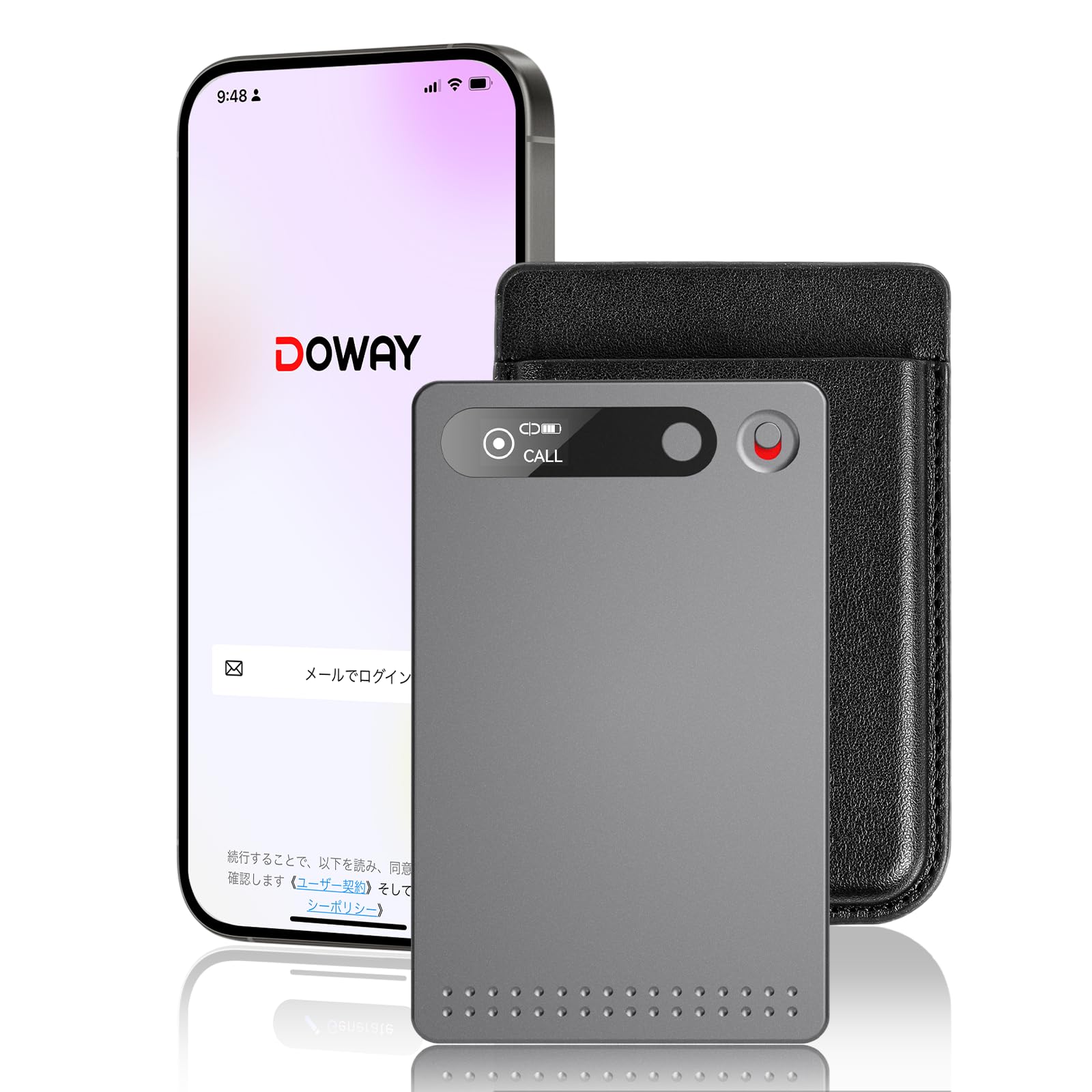
Image: The Fohil AI Voice Recorder, a compact device designed for seamless integration with smartphones.

Image: The recorder is suitable for various scenarios including phone calls, meetings, medical consultations, and lectures.
Package Contents
Please check the package contents upon unboxing:
- Fohil AI Voice Recorder
- Magsafe Case
- Magsafe Ring
- Charging Cable
- Instruction Manual

Image: The package includes the AI voice recorder, Magsafe case, Magsafe ring, charging cable, and instruction manual.
Product Overview
The Fohil AI Voice Recorder is a compact and powerful recording device with several key features:
- AI Transcription: Utilizes a ChatGPT Whisper AI model for high-accuracy automatic transcription, summarization, and mind map generation from recordings. Supports 23 languages.
- AI Smart Noise Cancellation: Ensures clear audio capture by effectively reducing ambient noise in various environments.
- 360° Omnidirectional Recording: Captures sound from all directions with high-sensitivity microphones.
- Long Battery Life: Up to 32 hours of continuous recording on a single charge, with a standby time of approximately 260 days.
- Large Storage: Built-in 64GB memory, capable of storing up to 480 hours of recordings.
- Ultra-light & Compact: Weighs only 30g and is credit card-sized (approx. 8.6cm x 5.4cm x 0.3cm).
- Simple Operation: One-key recording and a mini-display for clear mode and setting indication.
- Cloud Integration: Seamless data synchronization to the cloud via the dedicated 'Doway' app (Bluetooth 5.4) for multi-device access.
- Privacy Protection: Password-protected app and private cloud system for secure data management.

Image: The Fohil AI Voice Recorder features an ultra-thin body (3.2mm) and weighs only 30g, making it highly portable.

Image: The device offers 32 hours of continuous recording and 64GB of internal storage, capable of holding 480 hours of audio.
Setup
1. Initial Charge
Before first use, fully charge the device using the provided charging cable. Connect the cable to the recorder and a USB power source (e.g., computer, wall adapter). The charging indicator will show the charging status.
2. Download the Doway App
To utilize AI transcription, cloud synchronization, and advanced features, download the dedicated 'Doway' app on your smartphone or tablet. The app is available for iOS and Android devices.
3. Device Pairing (Bluetooth)
- Ensure Bluetooth is enabled on your smartphone or tablet.
- Turn on the Fohil AI Voice Recorder.
- Open the 'Doway' app and follow the on-screen instructions to pair your device via Bluetooth 5.4.
- Once paired, your recording data will automatically synchronize to the cloud when the app is open and the device is connected.
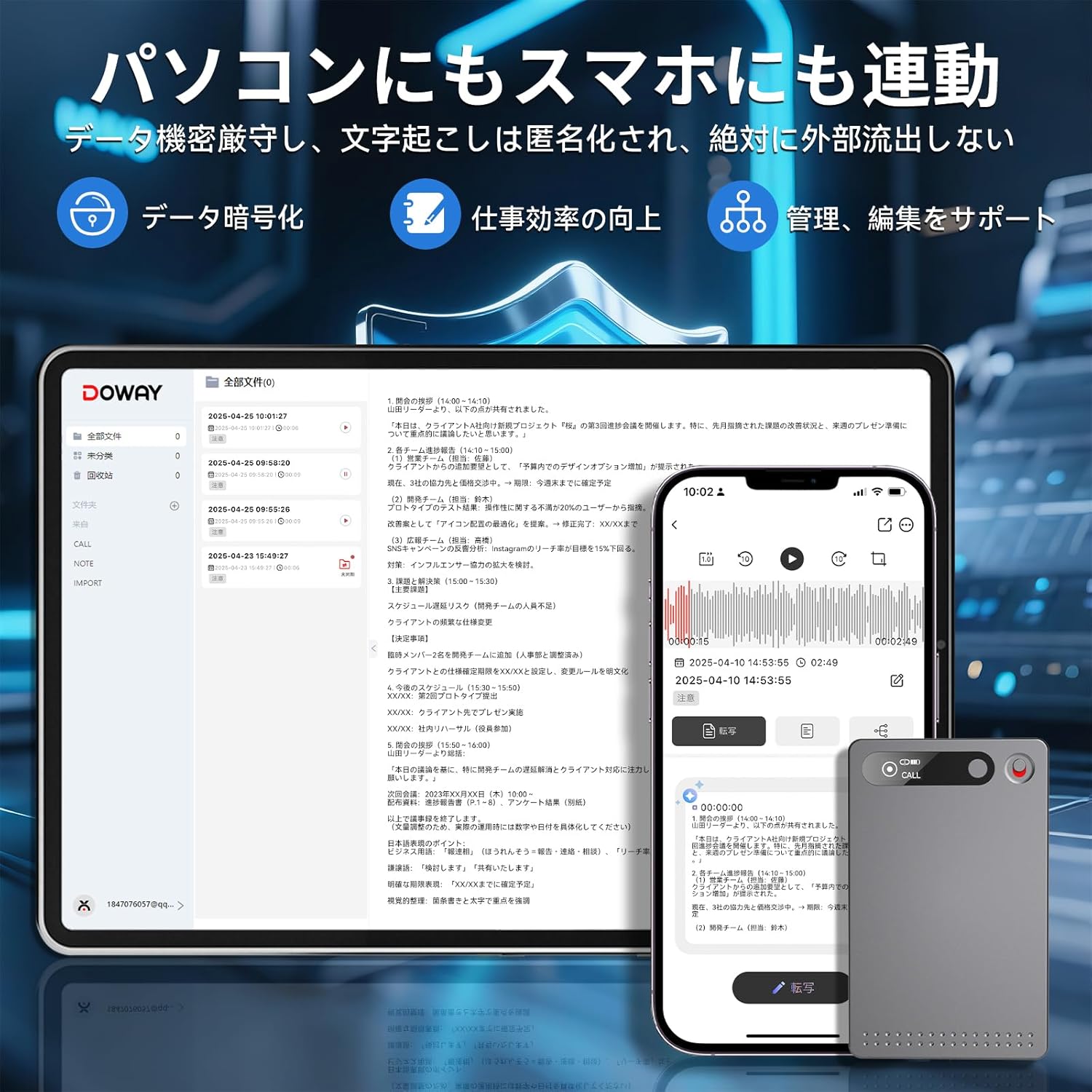
Image: The recorder can be connected to both smartphones and PCs for data management and app functionality.
4. Attaching with Magsafe (Optional)
For convenient attachment to your smartphone, use the included Magsafe case or Magsafe ring. Attach the Magsafe ring to your phone case if it doesn't have Magsafe compatibility, then the recorder can magnetically attach to it.

Image: The recorder can be attached to Magsafe-compatible smartphones or to any smartphone using the included Magsafe ring.
Operating Instructions
1. One-Key Recording
The Fohil AI Voice Recorder features a simple one-key recording mechanism. Slide the recording switch up or down to start or stop recording. The mini-display will indicate the current recording status.
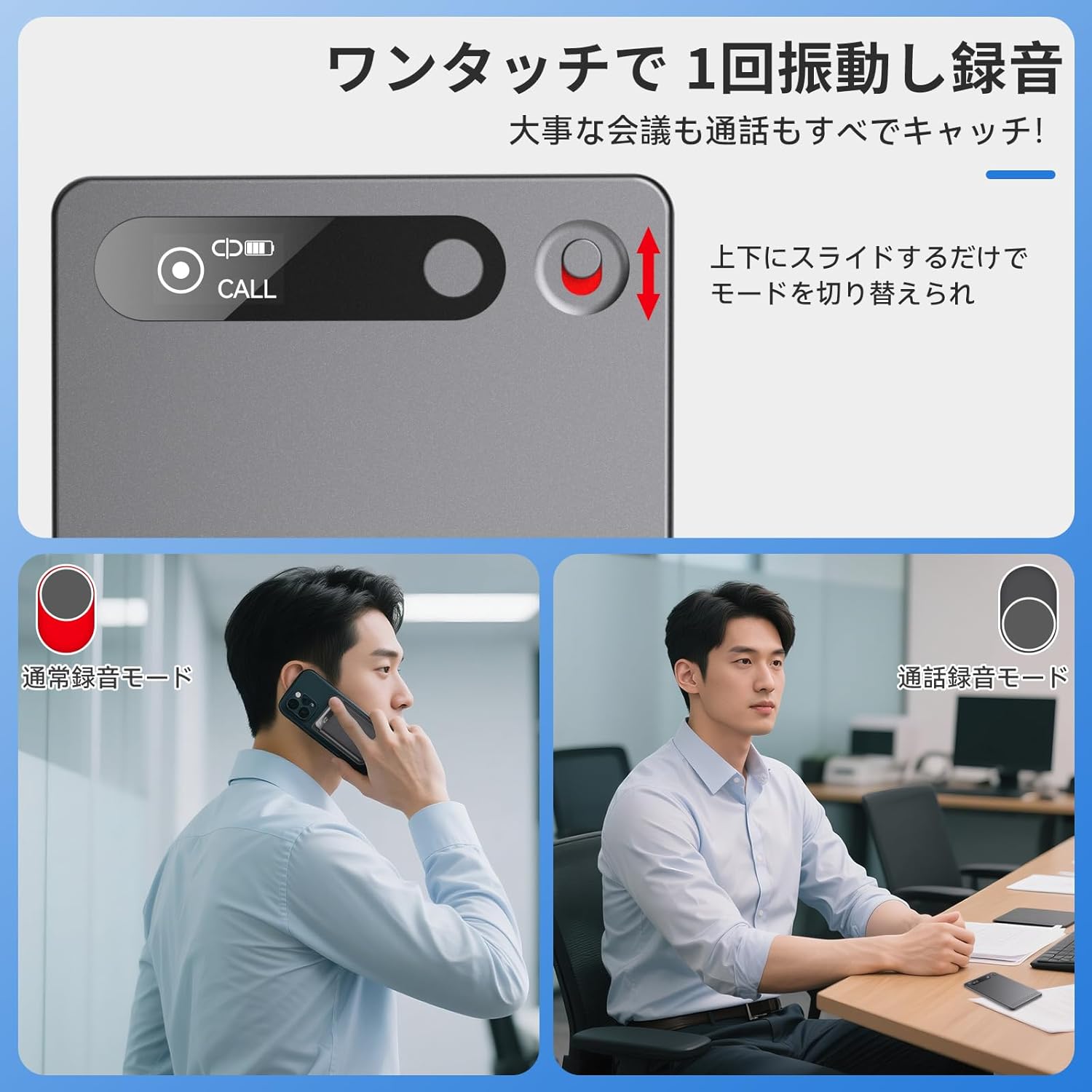
Image: A close-up of the recording switch, which can be slid up or down to toggle between normal recording and call recording modes.
2. Recording Modes
- Normal Recording Mode: For general recording in meetings, lectures, or interviews. The built-in high-sensitivity microphone can capture audio up to 5 meters away.
- Call Recording Mode: When attached to a smartphone, the device can record phone calls. Simply slide the switch to activate this mode.
3. AI Transcription and Summarization
After recording, connect the device to the 'Doway' app. The app will automatically process your audio using its AI model to:
- Generate highly accurate text transcriptions in 23 supported languages.
- Create concise summaries of the recording content.
- Produce visual mind maps for a quick overview of key points.
Note: This product does not support real-time language translation.

Image: A smartphone screen displaying the automatic transcription of a recorded conversation, with high AI accuracy.

Image: The Doway app interface showing a recording, with options for transcription, summary, and mind map generation.
4. Data Management and Cloud Access
All recorded data is automatically synchronized to the Doway private cloud when connected to the app. This allows you to access, manage, and edit your recordings from multiple devices (PC, smartphone, tablet) without risk of data loss. The first year of cloud service is unlimited and free.
Maintenance
- Cleaning: Use a soft, dry cloth to clean the device. Do not use liquid cleaners or solvents.
- Storage: Store the device in a cool, dry place away from direct sunlight and extreme temperatures.
- Battery Care: To prolong battery life, avoid fully discharging the device frequently. Charge it regularly, even if not in use for extended periods.
- Software Updates: Periodically check the 'Doway' app for any available firmware updates for the recorder or app updates to ensure optimal performance and security.
Troubleshooting
| Problem | Possible Cause | Solution |
|---|---|---|
| Device does not turn on. | Battery is depleted. | Charge the device fully using the provided charging cable. |
| Cannot connect to the 'Doway' app. | Bluetooth is off; App is not updated; Device is out of range. | Ensure Bluetooth is on. Update the 'Doway' app. Bring the device closer to your smartphone/tablet. Restart both devices. |
| Transcription accuracy is low. | High background noise; Speaker too far from microphone; Unclear speech. | Ensure recording in a quieter environment. Place the recorder closer to the speaker. Speak clearly. |
| Recordings not syncing to cloud. | No internet connection; App not open/connected. | Ensure your smartphone/tablet has an active internet connection. Open the 'Doway' app and ensure the recorder is paired and connected. |
Specifications
| Feature | Detail |
|---|---|
| Model Number | Foh-A2 |
| Memory Storage Capacity | 64 GB (approx. 480 hours recording) |
| Continuous Recording Time | Up to 32 hours |
| Standby Time | Approx. 260 days |
| Dimensions | Approx. 8.6 cm x 5.4 cm x 0.3 cm |
| Weight | Approx. 30 g |
| Connectivity | Bluetooth 5.4 |
| Microphone | Built-in, Omnidirectional |
| Transcription Languages | 23 languages (e.g., Japanese, English, Korean) |
| Compatible Devices | Smartphones, Tablets (iOS, Android), PCs (Windows) |
Warranty and Support
Warranty Information
Fohil products come with a standard manufacturer's warranty. Please refer to the warranty card included in your package for specific terms and conditions, including warranty period and coverage details. Keep your proof of purchase for warranty claims.
Customer Support
For technical assistance, troubleshooting, or any questions regarding your Fohil AI Voice Recorder, please contact our customer support team. Contact details can typically be found on our official website or within the 'Doway' app.
We are committed to providing a secure and reliable experience. Your data privacy is protected through password login on the Doway app and a private cloud protection system.
Ask a question about this manual
Ask about setup, troubleshooting, compatibility, parts, safety, or missing instructions. Manuals+ will review the question and use this page’s manual context to help answer it.