
1. Introduction
Welcome to the Trayoo KIDS710 7-inch Kids Tablet user manual. This guide provides essential information for setting up, operating, maintaining, and troubleshooting your new tablet. Designed for children aged 3-12, this Android tablet offers a safe and engaging learning environment with robust parental controls and a durable design.
2. What's in the Box
- Kids tablet x 1
- Kid tablet charger head x 1
- Kids tablets type-c cable x 1
- Kids tablet user manual x 1
3. Product Overview
The Trayoo KIDS710 tablet is equipped with a powerful quad-core processor, 2GB RAM, and 32GB ROM, expandable up to 1TB via Micro SD card. It features a 7-inch 1024x600 IPS HD display for clear visuals and an upgraded battery offering up to 10 hours of use. The tablet comes with a child-resistant case for protection against drops and bumps.

Figure 1: Trayoo KIDS710 7-inch Kids Tablet with protective case.

Figure 2: Overview of Trayoo Kids Tablet features including 7-inch HD touch screen, Quad-Core processor, 2GB RAM, 32GB ROM, battery, and Wi-Fi.
4. Setup
4.1 Initial Power On
To power on the tablet, press and hold the power button located on the side of the device until the screen illuminates. Follow the on-screen prompts to complete the initial setup, including language selection and time zone.
4.2 Connecting to Wi-Fi
- From the home screen, tap the 'Settings' icon.
- Select 'Network & Internet' or 'Wi-Fi'.
- Toggle Wi-Fi 'On'.
- Select your desired Wi-Fi network from the list.
- Enter the network password if prompted and tap 'Connect'.
4.3 Setting up Kid Mode (YuBabe App)
The tablet comes pre-installed with the YuBabe app, designed for children. To access Kid Mode:
- Locate and tap the 'YuBabe' app icon on the home screen.
- Upon first launch, you may be prompted to set up a child profile.
- The default parental control password is 0000. It is highly recommended to change this password immediately for security.

Figure 3: Pre-installed learning apps available in Kid Mode.
5. Operating the Tablet
5.1 Navigating Kid Mode
Kid Mode provides a curated selection of educational and entertainment content. Apps include Montessori, First Learning, Brain Training, Mini Games, STEM, Arts and Crafts, Kids TV, Theme, Camera, Gallery, iDraw, Browser, Calculator, and Kids Store. Many of these apps can be used offline.

Figure 4: Pre-installed learning and playing apps interface.
5.2 Parental Controls
The tablet features advanced parental controls to ensure a safe digital environment for your child. Parents can set limits, block apps, and filter unsafe websites. The security settings in Kid Mode can be adjusted at any time using the parental password.
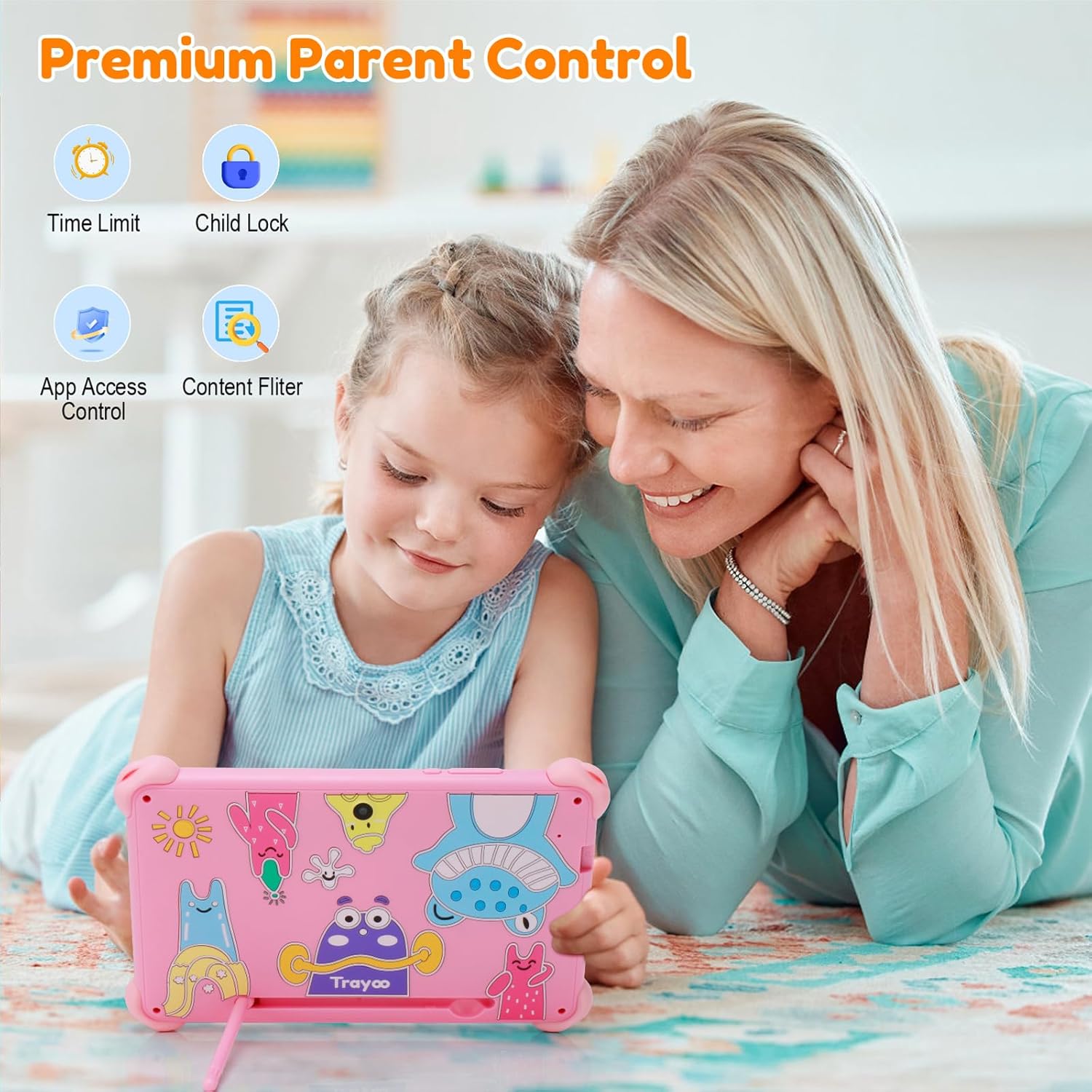
Figure 5: Parental control panel with options for time limits, child lock, app access, and content filtering.

Figure 6: Visual representation of easy-to-use parental controls including safe content, child lock, time limit, website filter, dual mode design, and account creation.
5.3 Downloading Apps
The tablet is Google GMS certified, allowing access to the Google Play Store. You can download additional apps such as Netflix, Disney+, Khan Academy, ABC Mouse, HULU, and YouTube Kids.

Figure 7: Google GMS Certified Tablet with access to various popular apps.

Figure 8: A child interacting with the tablet, showcasing the availability of Google GMS certified apps.
5.4 Media Playback
The tablet supports video and music playback. You can access these features through the pre-installed apps or downloaded media applications. The 7-inch HD display provides an outstanding visual experience.
Video 1: A brief overview of the 7-inch Kids Tablet PC, highlighting its features and usability for children.
Video 2: A demonstration of the 7-inch Kids Tablet, showcasing its interface and various applications.
Video 3: A short video highlighting the features of the 7-inch Android Kids Tablet.
5.5 Using the Camera
The tablet includes a camera function, accessible through the 'Camera' app in Kid Mode. Children can take photos and videos, which are stored in the 'Gallery' app.
6. Maintenance
6.1 Charging the Battery
To charge the tablet, connect the provided Type-C cable to the tablet's charging port and the charger head to a power outlet. The upgraded battery provides up to 10 hours of usage for reading, browsing, and music.

Figure 9: Tablet charging and illustrating battery duration for video, games, music, and reading.
6.2 Cleaning the Tablet
Use a soft, dry, lint-free cloth to clean the screen and body of the tablet. Avoid using harsh chemicals or abrasive materials.
6.3 Software Updates
Periodically check for software updates in the tablet's settings menu to ensure optimal performance and access to the latest features and security patches.
7. Troubleshooting
If you encounter any issues with your Trayoo KIDS710 tablet, please refer to the following common solutions:
- Tablet not turning on: Ensure the tablet is charged. Connect it to the charger and try again after a few minutes.
- Screen unresponsive: Try restarting the tablet by holding down the power button.
- Apps crashing or freezing: Close the app and reopen it. If the issue persists, clear the app's cache or reinstall it.
- Wi-Fi connectivity issues: Check your Wi-Fi router and ensure it's working correctly. Restart the tablet and try reconnecting.
- Parental control password forgotten: If you forget your parental control password, please refer to the full user manual or contact customer support for assistance.
8. Specifications
| Feature | Specification |
|---|---|
| Standing screen display size | 7 Inches |
| Screen Resolution | 1024x600 pixels |
| Max Screen Resolution | 1024x600 Pixels |
| Processor Brand | Allwinner |
| Operating System | Android |
| Flash Memory Size | 32 GB |
| RAM | 2 GB |
| Expandable Storage | Up to 1TB (Micro SD card) |
| Wireless Type | 802.11b, 802.11g, 802.11n |
| Average Battery Life | 8 Hours (up to 10 hours for reading/browsing) |
| Item Weight | 12 ounces |
| Product Dimensions | 7.8 x 2 x 0.6 inches |
9. Warranty and Support
Your Trayoo KIDS710 tablet comes with a 30-day free replacement or refund policy. Additionally, we offer whole-life technology service support. If you have any questions or require assistance, please feel free to contact us. We are committed to providing the best service to every customer.
WARNING: Choking hazard - small parts. Not for kids under 3 years.