1. Introduction
Thank you for choosing the ECOWITT WS3900 Weather Station Console. This 7.5-inch LCD display console features built-in indoor temperature, humidity, and barometric pressure sensors. It supports connection to a 2.4 GHz Wi-Fi network, enabling you to view data remotely via your phone, tablet, or computer browser. The WS3900 also functions as an IoT gateway, capable of pairing with up to 16 Ecowitt IoT devices. This manual provides detailed instructions for setup, operation, maintenance, and troubleshooting to ensure optimal performance of your device.
2. Safety Information
- Do not expose the console to extreme temperatures, direct sunlight, or excessive moisture.
- Avoid dropping or subjecting the console to strong impacts.
- Use only specified power sources (USB-DC cord or batteries).
- Keep out of reach of children.
- Do not attempt to disassemble or repair the unit yourself. Contact qualified service personnel.
3. Package Contents
- Instruction Manual
4. Product Overview
The WS3900 console provides a clear 7.5-inch LCD display for various weather parameters and system information. It integrates essential indoor sensors and serves as a central hub for Ecowitt outdoor sensors and IoT devices.

Figure 4.1: Front view of the ECOWITT WS3900 Weather Station Console, showing the 7.5-inch LCD display with various weather data points such as outdoor temperature and humidity, wind speed, rain accumulation, indoor temperature and humidity, barometric pressure, forecast, UVI, and solar radiation.
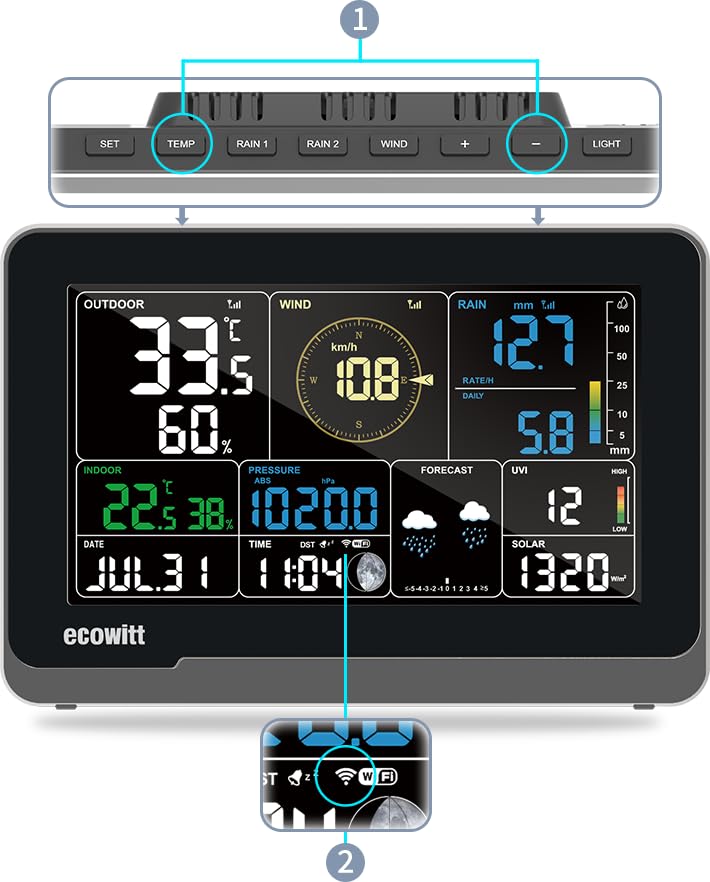
Figure 4.2: Top and front view of the ECOWITT WS3900 Weather Station Console, highlighting the control buttons on the top panel (SET, TEMP, RAIN 1, RAIN 2, WIND, +, -, LIGHT) and the Wi-Fi connection indicator on the display.
5. Setup
5.1 Powering the Console
The WS3900 console can be powered via the included USB-DC cord or by batteries (not included). Ensure proper polarity if using batteries.
5.2 Wi-Fi Configuration
Connecting your console to Wi-Fi is essential for remote data viewing and cloud uploads. There are two primary methods for Wi-Fi configuration:
- Ecowitt APP: Download the official Ecowitt application on your smartphone or tablet and follow the in-app instructions for device setup.
- Web Page (192.168.4.1): Access the console's built-in web interface by connecting your device to the console's temporary Wi-Fi hotspot and navigating to
192.168.4.1in your web browser. Detailed guidance is provided in the full user manual.
Once connected, the console can upload data to various weather station servers including ecowitt.net, wunderground, weathercloud, wow.metoffice.gov.uk, or customized servers.
6. Operating Instructions
6.1 Sensor Data Display on WS3900 Console
The WS3900 display console can pair with and display data from the following Ecowitt sensors (sold separately):
- 1 × WS90 outdoor compact sensor array
- 1 × WS80 ultrasonic anemometer sensor
- 1 × WS69 sensor array
- 1 × WS68 anemometer sensor
- 1 × WH40 rain gauge sensor
- 1 × WN32 outdoor thermo-hygrometer sensor
- 1 × WN32P indoor thermo-hygrometer-barometric pressure sensor
- 1 × WH45/WH46 air quality sensor
- 8 × WN31/WN30/WN36 sensors
6.2 IoT Supported Gateway Functionality
The WS3900 acts as an IoT gateway, allowing it to pair with Ecowitt IoT devices such as the WFC01 watering timer and the AC1100 smart outlet plug. The console supports pairing with up to 16 IoT devices.
7. Sensor Data Display Priority
When multiple compatible sensors are connected, the WS3900 console prioritizes which sensor's data is displayed on screen:
- Outdoor Temperature and Humidity: If you own WN32 outdoor sensor, WS90, WS80, and WS69 sensors simultaneously, the display priority is: WN32 > WS90 > WS80 > WS69.
- Wind Speed/Direction: If you own WS90, WS80, WS68, and WS69 sensors simultaneously, the display priority is: WS90 > WS80 > WS68 > WS69.
8. Cloud Upload Only Sensors
The following sensors can be paired with the WS3900 console, and their data will be uploaded to the cloud server, but their readings will NOT be displayed directly on the console screen (sensors sold separately):
- 1 × WH57 lightning detector sensor
- 4 × WH41/WH43 PM2.5 detector sensors
- 4 × WH55 water leak detector sensors
- 8 × WH51/WH51L soil moisture sensors
- 8 × WN34L/WN34D/WN34S sensors
- 8 × WN35 leaf wetness sensors
9. Maintenance
- Clean the console display and casing with a soft, damp cloth. Avoid abrasive cleaners.
- If using batteries, replace them when the low battery indicator appears to ensure continuous operation.
- Ensure the console is placed in a stable location, away from direct heat sources or excessive vibrations.
10. Troubleshooting
- No Display: Check power connection (USB-DC cord) or battery installation and charge level.
- No Wi-Fi Connection: Ensure your Wi-Fi network is 2.4 GHz. Re-attempt Wi-Fi configuration using either the Ecowitt APP or the web page method. Verify correct Wi-Fi password entry.
- Sensor Data Not Appearing: Ensure sensors are powered on and within range of the console. Check sensor battery levels. Verify that the sensor type is supported for display on the console (refer to Section 6.1).
- Inaccurate Readings: Ensure sensors are installed correctly and in appropriate locations (e.g., outdoor sensors are not obstructed).
11. Specifications
| Feature | Detail |
|---|---|
| Item Model Number | WS3900BU_C |
| Manufacturer | ECOWITT |
| ASIN | B0F66RWHXQ |
| Country of Origin | China |
| Brand | ECOWITT |
| Recommended Uses | Office, Home |
| Specific Uses | 7.5'' LCD Display; with built-in indoor temperature/humidity/barometric pressure sensor; Can connect with ecowitt sensors; IoT Function |
| Power Source | USB-DC Corded Powered Or Batteries Powered (Batteries Not Included) |
| Special Feature | IoT Function |
| Material | Plastic |
| Connectivity Technology | Wi-Fi |
| Style | WS3900BU_C |
| Color | Black |
| RF Frequency | 915 MHz |
12. Warranty and Support
ECOWITT products are designed for reliability and performance. For warranty information, please refer to the specific warranty card included with your product or visit the official ECOWITT website. For technical support, troubleshooting assistance, or to inquire about additional sensors and accessories, please contact ECOWITT customer service or visit the ECOWITT Store on Amazon.