
Znclces p999
Znclces 2025 Upgraded Podcast Equipment Bundle (Model p999) Instruction Manual
Your comprehensive guide to professional audio recording and streaming.
Introduction
This manual provides detailed instructions for the setup, operation, and maintenance of your Znclces 2025 Upgraded Podcast Equipment Bundle. Designed for both beginners and professionals, this all-in-one package delivers studio-quality sound for podcasting, live streaming, gaming, recording, and singing. Please read this manual carefully to ensure correct usage and optimal performance of your product.

Image: The Znclces Podcast Equipment Bundle in use by two individuals, showcasing the mixer, microphones, and headphones for a dual-user setup.
What's in the Box
Your Znclces 2025 Upgraded Podcast Equipment Bundle includes the following components:
- 1 x Audio Interface Mixer
- 2 x Podcast Microphones
- 2 x Microphone Boom Arms
- 1 x 3.5mm Earphone
- 2 x Shock Mounts
- 2 x Pop Filters
- 2 x Foam Caps
- 2 x XLR Cables
- 1 x USB Cable
- 2 x 3.5mm Audio Cables
- 1 x User Manual
Setup Guide
Follow these steps to set up your podcast equipment bundle:
- Initial Charge: For first-time use or after long storage, fully charge the Audio Interface Mixer for 4-6 hours using the provided USB cable.
- Microphone Assembly: Attach the shock mounts to the microphone boom arms. Secure the condenser microphones into the shock mounts. Place the foam caps over the microphones and attach the pop filters in front of them.
- Connect Microphones: Use the provided XLR cables to connect the microphones to the Audio Interface Mixer.
- Power On: Press and hold the power button on the Audio Interface Mixer for 3 seconds. For normal microphone operation, press the 48V button if the microphone is not working.
- Connect Headphones/Earphones: Plug the 3.5mm earphone into the 'Headset' or 'Monitor' port on the mixer to monitor your audio.

Image: A complete podcast setup featuring two microphones on boom arms, a central audio mixer, and headphones, ready for a dual-host broadcast.
Video: Product Setup and Overview
Video: A seller's overview of the Brvomussy Podcast Equipment Bundle, demonstrating the components and basic setup for two users.
Operating Instructions
The Audio Interface Mixer features intuitive controls for a dynamic audio experience:
- Microphone Volume: Adjust the 'Mic' knob to control the input volume of your microphone.
- Treble, Mid, Bass: Use the dedicated knobs to fine-tune the tonal quality of your voice.
- Echo/Reverb: Adjust the 'Echo' knob to add reverberation effects. The reverberation is small for 'Recording Studio' mode and large for 'Karaoke' mode.
- Sound Effects: The mixer includes 10 built-in sound effects and 4 customizable sound effects. Press the corresponding buttons to activate them.
- Voice Changer: Short press the 'Voice Change' button to cycle through female, male, baby, and monster voice effects.
- Noise Reduction: Press the 'Denoise' button to reduce external background noise for clearer audio.
- Eliminate: One key to eliminate original sound from accompaniment music, allowing you to sing over tracks.
- Ducking: Automatically lowers accompaniment volume when you speak, and resumes normal playback when you stop.
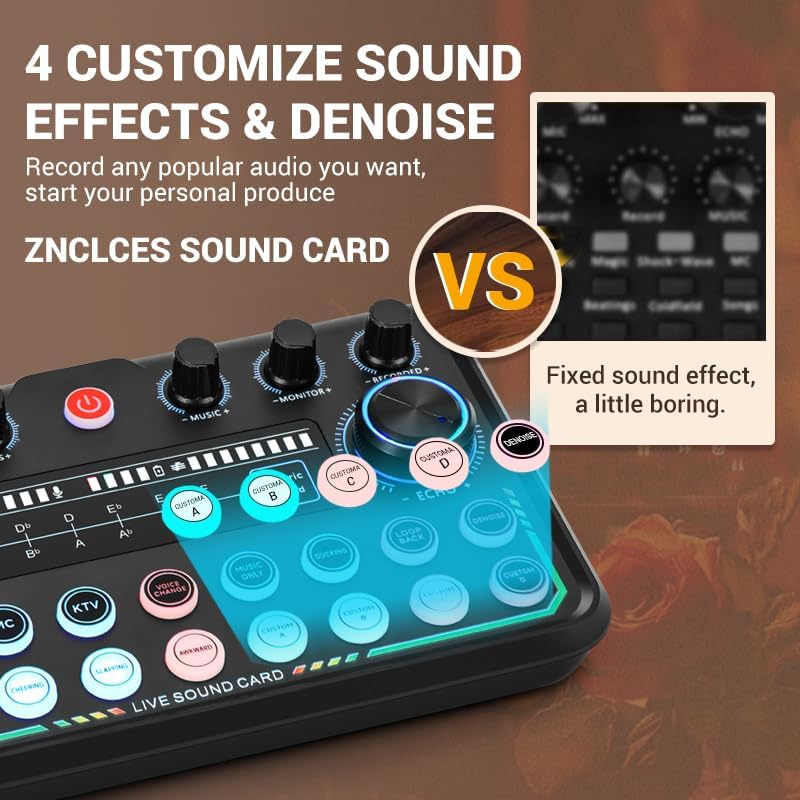
Image: Close-up of the Audio Interface Mixer highlighting the custom sound effects and denoise features.
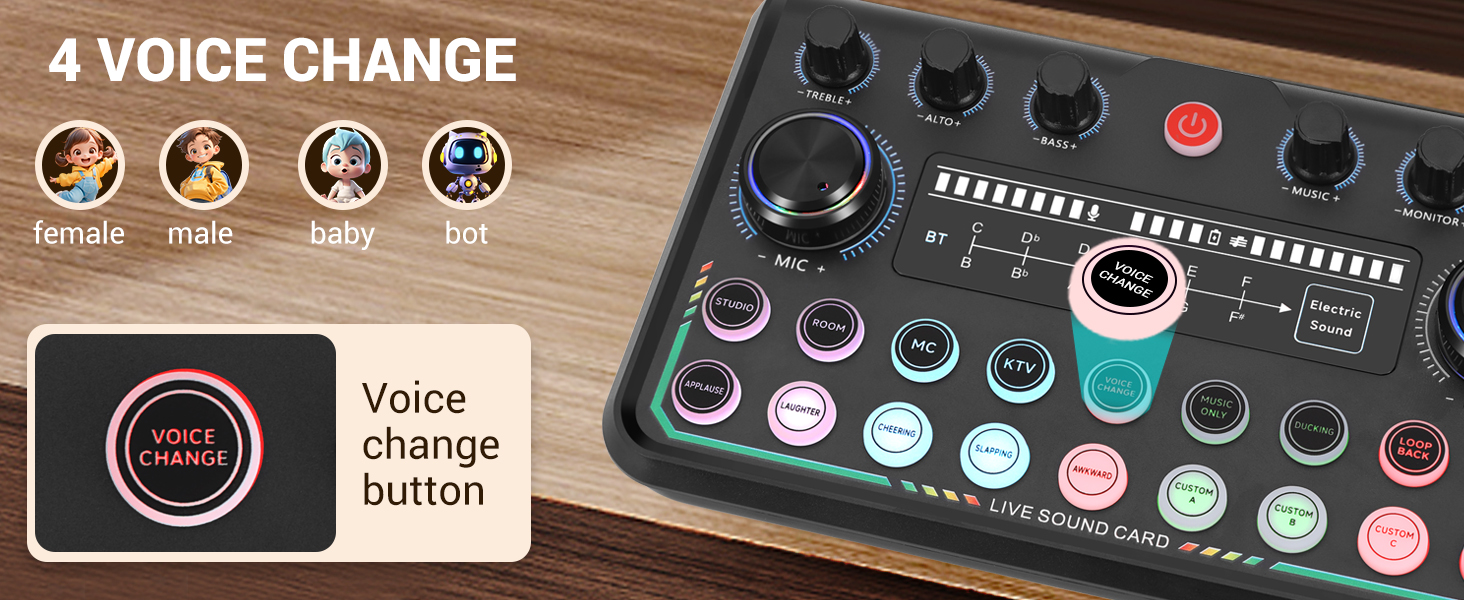
Image: The Audio Interface Mixer displaying the four voice change options: female, male, baby, and bot.
Connectivity
The Audio Interface Mixer offers versatile connectivity options:
- PC/Laptop: Connect via the USB cable to your computer for live broadcast or recording. The computer will recognize the sound card automatically.
- Smartphones/Tablets: Use the 3.5mm audio cables to connect to your mobile devices for live streaming, recording, or accompaniment.
- Bluetooth: Turn on Bluetooth on the mixer and search for 'M3' on your device to connect for wireless accompaniment music input.
- Gaming Consoles (PlayStation, Xbox): The Audio Interface Mixer is compatible with various gaming consoles.
- Musical Instruments: Connect guitars, basses, or other instruments directly to the mixer for live music streams.

Image: Detailed view of the Audio Interface Mixer's ports, including microphone inputs, headset, monitor, accompaniment, live output, OTG/PC, and charging ports.
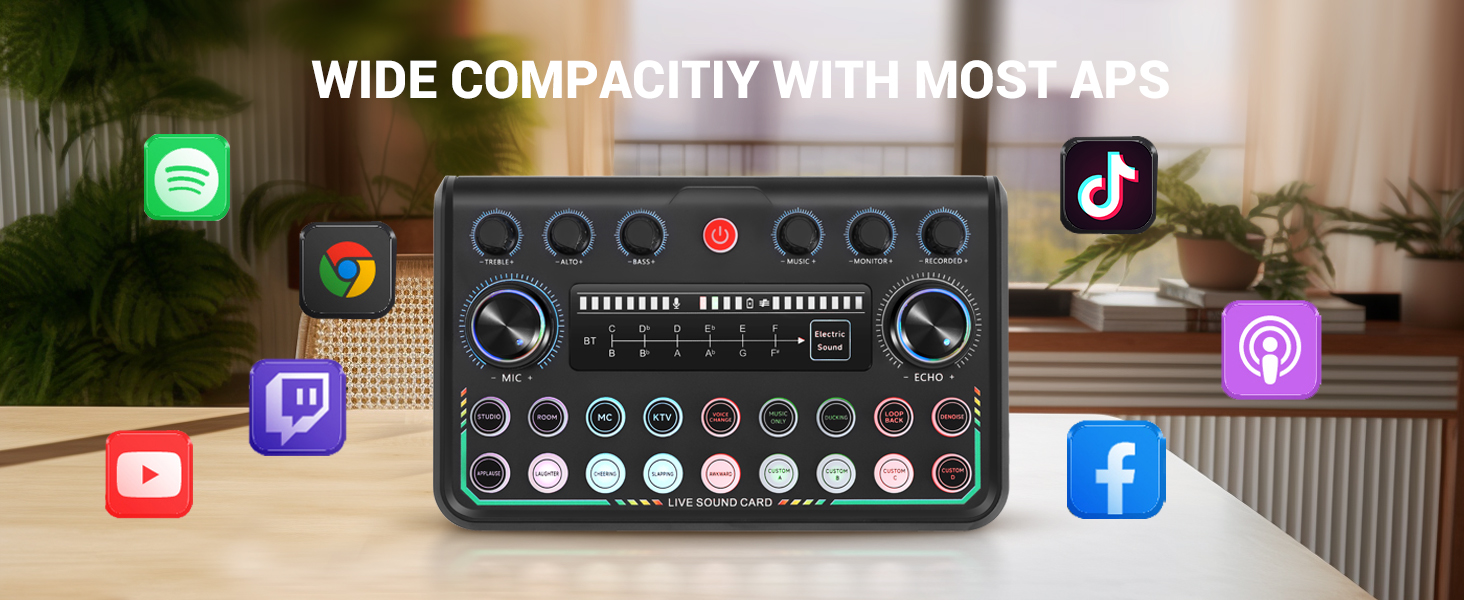
Image: The Audio Interface Mixer demonstrating compatibility with popular streaming platforms and devices like laptops, phones, and tablets.
Video: Podcast Equipment Bundle Overview
Video: A seller's demonstration of the podcast equipment bundle, highlighting its features and ease of use.
Specifications
| Feature | Detail |
|---|---|
| Audio Sensitivity | 48 Decibels |
| Item Weight | 4.5 Pounds |
| Microphone Form Factor | Condenser |
| Item Dimensions (L x W x H) | 15 x 8 x 4 inches |
| Power Source | USB Powered |
| Material | Metal, Plastic |
| Signal-to-Noise Ratio | 78 dB |
| Hardware Platform | Gaming Console, Mac, PC |
| Number of Channels | 2 |
| Frequency Response | 20 Hz |
| Polar Pattern | Unidirectional |
| Connectivity Technology | USB, XLR |
| Special Feature | All-in-one Mixer with 4 customize sound effects, Live Streaming, Mute Function, Noise Reduction |
| Compatible Devices | Gaming Console, Laptop, Personal Computer, Smartphone |
Troubleshooting
If you encounter any issues with your podcast equipment bundle, refer to the solutions below:
- Microphone does not work: Ensure the power supply is set to the 'ON' position. For condenser microphones, press the 48V button.
- Sound card doesn't work: Charge the sound card for 4-6 hours before first use.
- Cannot hear any sound: Check if the monitor is correctly connected to your earphones/headphones. Ensure the earphone volume is turned up.
- Howling: Check microphone and earphone sensitivity. Reduce microphone gain or move the microphone further from the earphone.
- Cannot input sound through headset interface: Verify the headset is correctly connected and functional.
- Bluetooth connection issues: Ensure the mixer's Bluetooth is 'ON' and visible. Re-pair the device.
Maintenance
To ensure the longevity and optimal performance of your Znclces Podcast Equipment Bundle:
- Cleaning: Use a soft, dry cloth to clean the surfaces of the mixer and microphones. Avoid liquid cleaners.
- Storage: Store the equipment in a cool, dry place away from direct sunlight and extreme temperatures.
- Battery Care: For optimal battery life, fully charge the device before first use and after long periods of storage.
Warranty and Support
Warranty: This product comes with a 1-year warranty for main performance failures from the date of purchase. Please refer to the included warranty card for detailed terms and conditions regarding returns, replacements, and repairs.
Support: If you encounter any driver issues or product quality problems, please contact ZNCLCES's support team. We are committed to replying within 24 hours to assist you.
Ask a question about this manual
Ask about setup, troubleshooting, compatibility, parts, safety, or missing instructions. Manuals+ will review the question and use this page’s manual context to help answer it.