
1. Introduction
This manual provides detailed instructions for the operation and maintenance of your MIZISNR CS-6 6-Channel Audio Mixer. Please read this manual thoroughly before using the device to ensure proper functionality and to maximize its performance. Keep this manual for future reference.
2. Product Overview
The MIZISNR CS-6 is a versatile 6-channel audio mixer designed for various applications, including live performances, studio recording, and streaming. It features comprehensive channel controls, integrated DSP effects, a 7-band graphic equalizer, Bluetooth connectivity, and USB audio capabilities.
Key Features:
- 6 Input Channels (4 Mono XLR/TRS, 1 Stereo TRS/USB/Bluetooth)
- 3-Band EQ and Compressor (COMP) on Mono Channels
- 99 Digital Signal Processor (DSP) Effects
- 7-Band Graphic Equalizer for Main Output
- Built-in Bluetooth for Wireless Audio Streaming
- USB Interface for Playback and Recording
- 48V Phantom Power for Condenser Microphones
- PAD Function for Input Signal Attenuation
- Dual AUX Sends for External Effects or Monitoring
- Real-Time Audio Monitoring via Headphone Output
Control Panel Layout:

Figure 2.1: MIZISNR CS-6 Control Panel Overview
The image above illustrates the various controls and connection points on the MIZISNR CS-6 mixer. Key components include XLR/TRS inputs, gain controls, 3-band EQ, compressor knobs, AUX sends, pan controls, channel volume knobs, main faders, DSP effect selector, 7-band graphic EQ, USB port, Bluetooth module, and various output jacks.
3. Setup
Follow these steps for initial setup of your MIZISNR CS-6 audio mixer.
3.1 Power Connection
- Ensure the mixer's power switch is in the OFF position.
- Connect the provided power adapter to the DC5V input on the rear panel of the mixer.
- Plug the power adapter into a suitable 110V AC power outlet.
- Turn on the mixer using the POWER button on the top right of the control panel. The power indicator light will illuminate.

Figure 3.1: Mixer Dimensions and Power Connection
This image displays the physical dimensions of the mixer and highlights the DC5V power input and the included power cord, essential for connecting the device to a power source.
3.2 Audio Connections
Connect your microphones, instruments, and output devices to the mixer.
- Microphones/Instruments: Use XLR or 1/4" TRS cables to connect microphones or instruments to channels 1-4.
- Stereo Inputs: Use 1/4" TRS cables for stereo line-level devices on channel 5/6.
- Main Output: Connect your main speakers or amplifier to the MAIN OUT (XLR or 1/4" TRS) jacks.
- AUX Outputs: Use AUX1 and AUX2 outputs for monitor speakers or external effects processors.
- Headphones: Connect headphones to the PHONES jack for monitoring.
4. Operating Instructions
This section details the operation of the MIZISNR CS-6 mixer's various functions.
4.1 Channel Controls (Channels 1-4)
- GAIN Knob: Adjusts the input sensitivity for each channel. Set this to achieve a strong signal without clipping (indicated by the PK! LED).
- PAD Button: Attenuates the input signal by a fixed amount (e.g., -20dB) for high-output sources. Press this button if the input signal is too strong even with the GAIN knob at minimum.
- 48V PHANTOM Button: Activates +48V phantom power for condenser microphones. Ensure this is only enabled for microphones that require it.
- COMP Knob: Adjusts the compression level for the channel. Turn clockwise to increase compression, which helps to even out dynamic range.
- EQ (HIGH, MID, LOW) Knobs: Adjusts the treble, midrange, and bass frequencies for each channel.
- AUX1/AUX2 Knobs: Controls the send level to the respective AUX output for monitoring or external effects.
- PAN Knob: Positions the channel's signal within the stereo field (left to right).
- Channel Volume Knob: Adjusts the overall output level of the individual channel.
4.2 DSP Effects
The mixer includes 99 built-in DSP effects to enhance your sound.
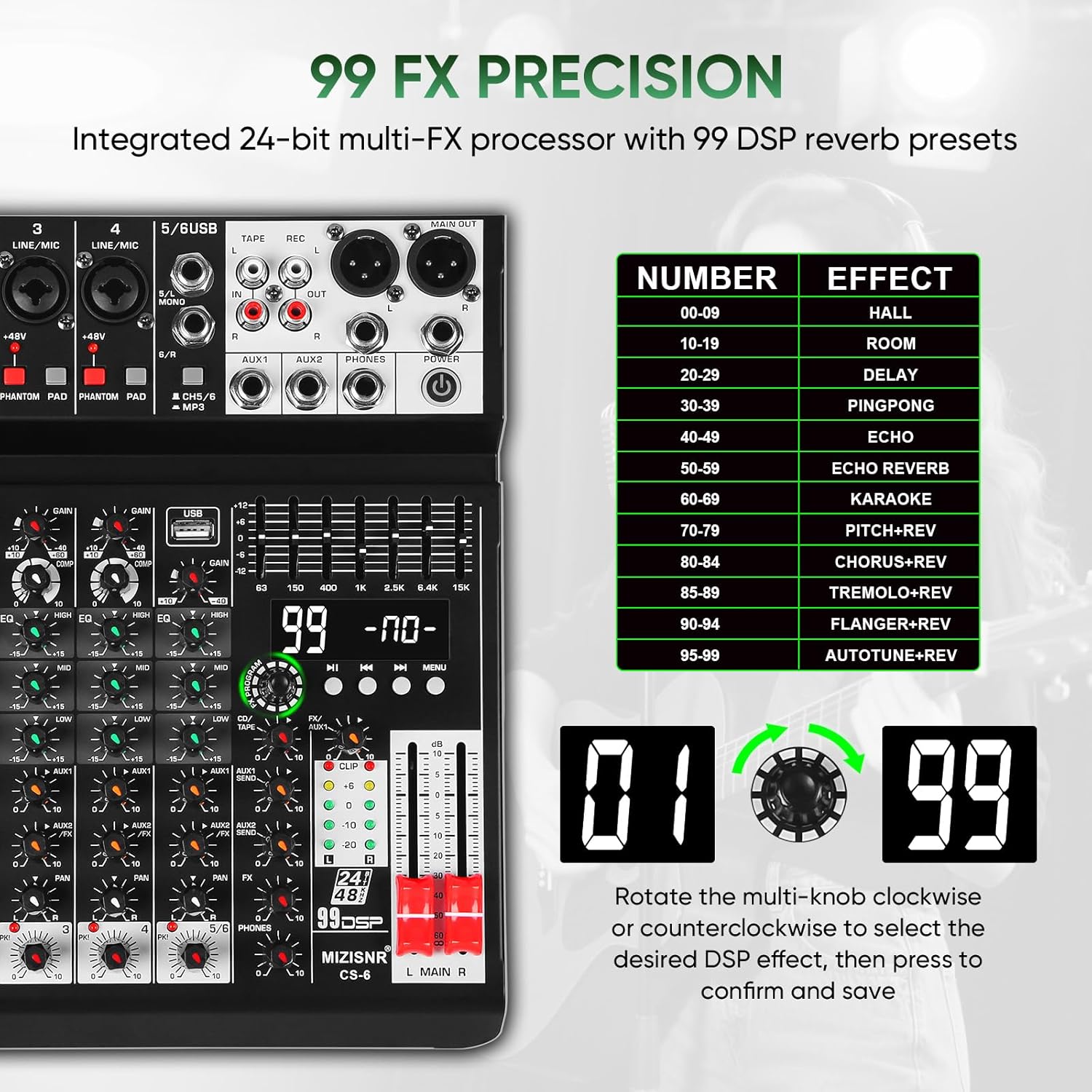
Figure 4.1: DSP Effects Interface
This image highlights the digital display and rotary encoder used to select and apply the 99 DSP effects, along with a table listing various effect categories.
- Rotate the multi-knob (labeled '99') to browse through the 99 available DSP presets.
- Press the multi-knob to confirm and save the selected effect.
- Adjust the FX/AUX knob on each channel to send the desired amount of that channel's signal to the DSP effect processor.
- Use the dedicated 'EFFECT VOLUME' fader to control the overall output level of the DSP effects.
4.3 7-Band Graphic Equalizer
The 7-band graphic EQ allows for precise tone shaping of the main output.

Figure 4.2: 7-Band Graphic Equalizer
The image focuses on the 7-band graphic equalizer, illustrating its faders for adjusting specific frequency ranges (63Hz, 150Hz, 400Hz, 1KHz, 2.5KHz, 6.4KHz, 15KHz) to fine-tune the overall sound.
Adjust the individual faders for each frequency band (63Hz, 150Hz, 400Hz, 1KHz, 2.5KHz, 6.4KHz, 15KHz) to boost or cut specific frequencies in the main mix. This is useful for room correction or overall sound sculpting.
4.4 Bluetooth Connectivity
Connect your smartphone or tablet wirelessly via Bluetooth for music playback.

Figure 4.3: Bluetooth Music Playback
This image demonstrates the wireless Bluetooth connection between the mixer and a mobile device, indicating the mixer's capability to stream audio directly.
- Press the 'MODE' button on the MP3 player section until 'BT' appears on the display.
- On your Bluetooth-enabled device (smartphone, tablet), search for 'MIZISNR CS-6' in the Bluetooth settings.
- Select 'MIZISNR CS-6' to pair. Once paired, you can stream audio from your device to the mixer.
- Adjust the 'BT/MP3 Player' volume knob to control the playback level.
4.5 USB Audio Playback and Recording
The USB interface supports direct audio playback from a USB flash drive and recording to a computer.

Figure 4.4: USB Interface and Recording
The image highlights the USB port on the mixer, demonstrating its use for both playing audio from a USB drive and connecting to a computer for recording or playback, alongside headphones for monitoring.
- USB Playback: Insert a USB flash drive containing MP3 files into the USB port. The mixer will automatically detect and begin playback. Use the control buttons (play/pause, next/previous) on the MP3 player section to navigate tracks. Adjust the 'BT/MP3 Player' volume knob.
- USB Recording: Connect the mixer to a computer via a USB cable. The mixer will function as an audio interface. Use your computer's recording software to capture the main mix output.
4.6 Real-Time Monitoring
Monitor your audio mix using headphones.

Figure 4.5: Real-Time Monitoring Setup
This image illustrates the use of the headphone output for real-time monitoring, showing headphones connected to the mixer's 'PHONES' jack.
Connect your headphones to the PHONES jack. Adjust the 'PHONE volume' knob to control the headphone output level. This allows you to listen to the main mix without affecting the main output to speakers.
5. Connections
The MIZISNR CS-6 offers a variety of input and output options for flexible integration into your audio setup.

Figure 5.1: MIZISNR CS-6 Input/Output Panel
This image provides a clear view of the mixer's top panel, detailing the arrangement of all input and output connectors for various audio sources and destinations.
Input Connections:
- LINE/MIC (Channels 1-4): Combo XLR/TRS jacks for connecting microphones (XLR) or line-level instruments (1/4" TRS).
- 5/6 USB (Stereo): 1/4" TRS jacks for stereo line-level input, also serves as the input for USB audio playback and Bluetooth.
- TAPE IN (RCA): Stereo RCA inputs for connecting external playback devices like CD players or tape decks.
Output Connections:
- MAIN OUT (XLR/TRS): Balanced XLR and 1/4" TRS outputs for connecting to main speakers or power amplifiers.
- AUX1/AUX2 OUT (1/4" TRS): Outputs for connecting to monitor speakers or external effects processors.
- PHONES (1/4" TRS): Stereo headphone output for monitoring.
- TAPE REC OUT (RCA): Stereo RCA outputs for connecting to a recording device.
6. Specifications
| Feature | Specification |
|---|---|
| Model | CS-6 |
| Number of Channels | 6 |
| Connectivity Technology | Bluetooth, USB |
| Power Source | Corded Electric |
| Voltage | 110 Volts (AC) |
| Item Weight | 4.05 pounds (1.84 kg) |
| Package Dimensions | 12.83 x 12.13 x 3.39 inches |
| DSP Effects | 99 Presets |
| Equalizer | 3-band per channel, 7-band graphic EQ on main output |
| Phantom Power | +48V (switchable per channel) |
7. Troubleshooting
If you encounter issues with your MIZISNR CS-6 mixer, refer to the following common problems and solutions.
- No Sound Output:
- Ensure the mixer is powered on and connected correctly to speakers/amplifiers.
- Check all channel volume knobs, main faders, and headphone volume are turned up.
- Verify input sources are active and connected properly.
- Check if the correct input mode (e.g., USB, Bluetooth) is selected on channel 5/6.
- Distorted Sound:
- Reduce the GAIN knob on the input channel.
- Activate the PAD button for high-output sources.
- Check that the main faders and individual channel volumes are not set too high, causing clipping (indicated by red 'CLIP' LEDs).
- Ensure connected speakers/amplifiers are not overdriven.
- No Phantom Power:
- Ensure the +48V PHANTOM button is pressed for the specific channel requiring it.
- Verify your condenser microphone requires phantom power.
- Bluetooth Connection Issues:
- Ensure the mixer is in Bluetooth mode ('BT' displayed).
- Make sure your device's Bluetooth is enabled and within range.
- Forget the device on your smartphone/tablet and try pairing again.
- USB Playback/Recording Not Working:
- For playback, ensure the USB flash drive is formatted correctly and contains compatible audio files (e.g., MP3).
- For recording, ensure the mixer is recognized as an audio device by your computer's operating system and recording software.
8. Safety Information
Please observe the following safety precautions to prevent electric shock, fire, or damage to the device.
- Do not open the mixer casing. There are no user-serviceable parts inside. Refer all servicing to qualified personnel.
- Do not expose the device to rain, moisture, dripping, or splashing liquids.
- Do not place objects filled with liquids, such as vases, on the device.
- Keep the device away from heat sources such as radiators, heat registers, stoves, or other apparatus (including amplifiers) that produce heat.
- Use only the power adapter supplied with the unit.
- Protect the power cord from being walked on or pinched, particularly at plugs, convenience receptacles, and the point where they exit from the apparatus.
- Unplug the apparatus during lightning storms or when unused for long periods of time.
- Ensure proper ventilation; do not block any ventilation openings.
9. Warranty and Support
Warranty information for the MIZISNR CS-6 audio mixer is typically provided with the product packaging or available on the official MIZISNR website. Please retain your proof of purchase for warranty claims.
For technical support, troubleshooting assistance beyond this manual, or service inquiries, please contact MIZISNR customer support through their official channels. Refer to the product packaging or the MIZISNR website for contact details.