
Perfiware HS71-81UB
Perfiware Cash Register User Manual
Model: HS71-81UB
1. Introduction
This manual provides comprehensive instructions for the setup, operation, maintenance, and troubleshooting of your Perfiware Cash Register. Designed for small businesses, this all-in-one unit features a high-quality cash drawer, a built-in speed receipt printer, and clear dual displays for efficient transaction management. Its user-friendly design and integrated software aim to streamline your business operations.

2. Setup and Initial Configuration
2.1 Unboxing and Component Identification
Carefully remove all components from the packaging. Ensure the following items are present:
- Cash register with integrated cash drawer and receipt printer
- USB cable
- Power cable
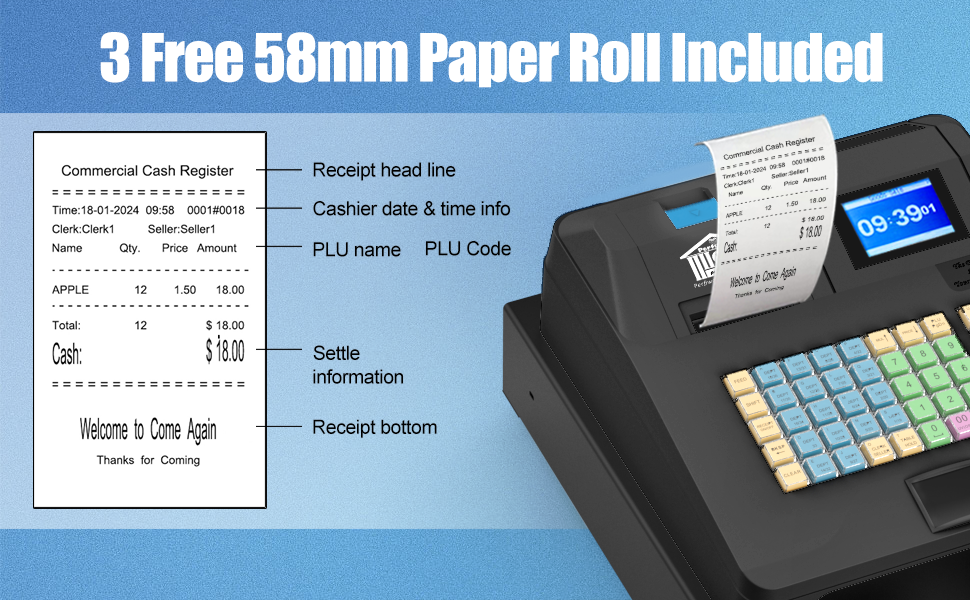
- Thermal paper rolls (3 included for test)
- Cash drawer keys (2 included)

2.2 Connecting Peripherals
The cash register offers various connectivity options for external devices. Refer to the port diagram below for proper connection points:
- Power: Connect the power cable to the designated port.
- Switch: Power on/off switch.
- External Receipt Printer: Connect an optional external receipt printer via the RX232 port.
- Barcode Scanner: Connect a barcode scanner via the RX232 port.
- Keyboard: Connect an external keyboard via the RS2 port.
- Connect Computer: Use the USB port to connect to a computer for software management.

2.3 Initial Programming Steps
The following video provides a step-by-step guide for quick programming of the cash register, including Department (DEPT) programming, Product (PLU) entry, and Tax Program settings.
Video 1: Step-by-step guide on programming the Perfiware Cash Register for department, product, and tax settings.
For detailed instructions on tax settings, refer to the "Tax Program" section in this manual.
3. Operating Instructions
3.1 Keyboard Layout and Functions
The cash register features a user-friendly keyboard designed for ease of operation. Keys are color-coded to differentiate their functions:
- Blue buttons represent departments, which can be used as separate products for fewer items or primarily as categories.
- Green buttons represent product codes, which can also be scanned by a barcode scanner.
- Yellow and Red buttons represent function keys for various operations.

3.2 Dual Display Functionality
The cash register is equipped with two displays to enhance transaction clarity:
- A 2.8-inch TFT LCD display for the cashier, showing detailed transaction information.
- An 8-digit LED display for customers, providing clear visibility of the total amount.

3.3 Receipt Printing
The built-in thermal printer provides fast and clear receipt printing. Receipts can be customized with titles at the top and bottom. Three 58mm thermal paper rolls are included for initial use.
3.4 Inventory Management Software
The cash register includes free software for managing inventory and product information. This software connects to your computer via USB and allows for streamlined business operations, sales tracking, and data management. The software is provided on a CD-ROM.

3.5 Tax Settings and One-Click Tax Free
The system supports 'One Click Tax Free' settings, allowing for quick exemption of tax for eligible transactions. Detailed instructions for setting up tax rates and binding them to departments are provided in the programming video in Section 2.3. Ensure you follow the steps carefully to configure tax items and apply them correctly.
4. Maintenance
4.1 Cleaning and Care
The Perfiware Cash Register features an oil-proof keyboard and design, making it easy to clean with a single wipe. Regularly clean the exterior surfaces with a soft, damp cloth. Avoid using abrasive cleaners or solvents that could damage the finish or electronic components.

4.2 Thermal Paper Replacement
When the thermal paper roll is depleted, replace it with a new 58mm thermal paper roll. Open the printer cover, remove the old roll, insert the new roll ensuring the paper feeds correctly, and close the cover.
5. Troubleshooting
If you encounter any issues with your Perfiware Cash Register, please refer to the programming video in Section 2.3 for common setup and configuration problems. For more complex issues or if the problem persists, please contact customer support. Common issues may include:
- Printer not responding: Check paper roll, ensure cover is closed, and verify power connection.
- Display issues: Ensure power is stable and connections are secure.
- Software connectivity problems: Verify USB connection and software installation on your computer.
- Incorrect tax calculations: Review tax settings and department bindings as shown in the programming video.
6. Specifications
| Feature | Detail |
|---|---|
| Model Number | HS71-81UB |
| Package Dimensions | 16.5 x 15 x 10.25 inches |
| Item Weight | 12.97 pounds |
| Cashier Capacity | 50 |
| Department Capacity | 36 |
| Storage Capacity | 60000 transactions |
| Product Capacity | 10000 |
| Taste Setting Options | 30 |
| Printing Specification | 57MM Thermal Printing |
| Settlement Methods | 8 (Customizable) |
| Keyboard | 48 Keys With Dust Proof Cap |
| Cash Drawer | 5 coin, 4 bill slots |
| Operator Display | 2.8-Inch Color Display |
| Customer Display | 8 Digital Display |
| Manufacturer | Perfiware |
| Date First Available | April 23, 2025 |
7. Warranty and Support
Perfiware is committed to providing excellent customer service. Your cash register comes with:
- Instant After-sales Support: For immediate assistance.
- 1 Month Replacement: If issues arise within the first month.
- 1 Year Warranty: Covering manufacturing defects for one year from the date of purchase.
For any inquiries or support needs, please contact the seller, XIAO SKY, through your purchase platform.
Ask a question about this manual
Ask about setup, troubleshooting, compatibility, parts, safety, or missing instructions. Manuals+ will review the question and use this page’s manual context to help answer it.