
Breloom WGH-1
Breloom WGH-1 Android 13 Handheld Barcode Scanner User Manual
1. Introduction
This manual provides detailed instructions for the Breloom WGH-1 Android 13 Handheld Barcode Scanner. It covers device setup, operation, maintenance, and troubleshooting to ensure optimal performance and longevity. Please read this manual thoroughly before using the device.
2. Product Overview
2.1 Device Components
The Breloom WGH-1 is a robust handheld data terminal designed for demanding environments. It features a 4-inch touchscreen, a physical keypad, and an integrated barcode scanner.

Image: Front and back view of the Breloom WGH-1 handheld scanner, showcasing its ergonomic design, physical keypad, and rear camera module with a detachable wrist strap.
2.2 Key Features
- Operating System: Android 13 for enhanced software compatibility and advanced privacy features.
- Processor & Memory: Qualcomm QCM2290 quad-core processor with 4GB RAM and 64GB internal storage, expandable up to 512GB via TF card.
- Scanning Capability: Integrated K1 scan heads for ultra-fast and precise decoding of 1D, 2D, and QR barcodes, even damaged ones, up to 1 meter distance.
- Durability: IP66 rated for dust and water resistance, 1.5-meter drop resistance, and ±8 KV electrostatic protection.
- Battery: Detachable 4500mAh battery providing over 12 hours of continuous operation, with 5V/3A fast charging.
- Connectivity: Dual nano SIM slots, 4G/3G/2G networks, dual-band Wi-Fi (2.4G/5G), and Bluetooth 5.0.
- Display & Controls: 4-inch HD capacitive touchscreen (480x800) with glove-friendly responsiveness and a 21-button physical keypad.
- Camera: 8MP auto-focus rear camera for image capture.
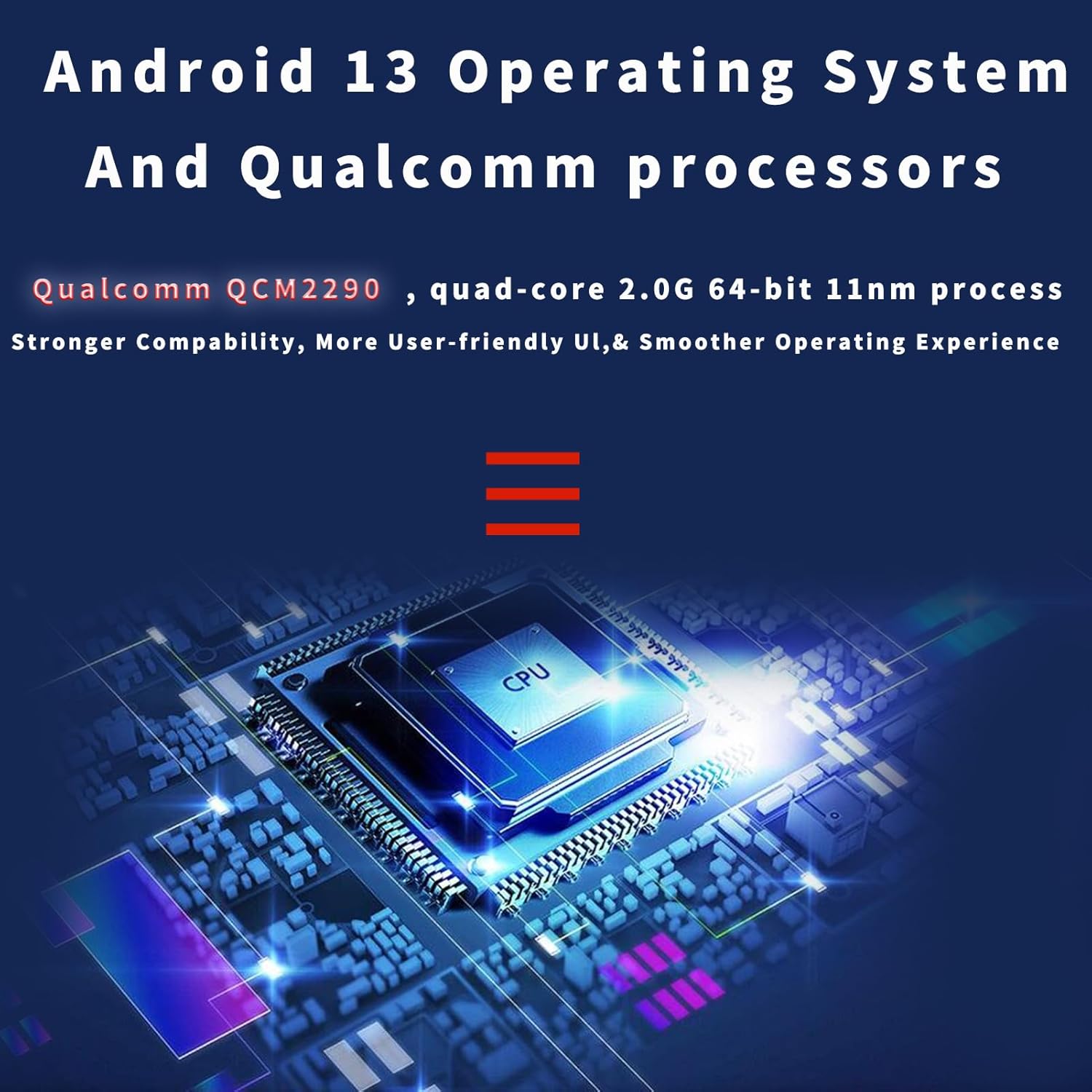
Image: Diagram illustrating the Android 13 operating system and the Qualcomm QCM2290 quad-core processor, highlighting enhanced compatibility and user experience.

Image: Visual representation of the device's connectivity features, including WiFi, 2G, 3G, 4G, and Bluetooth, indicating stable and efficient data interconnection.
3. Setup
3.1 Battery Installation
- Locate the battery compartment on the rear of the device.
- Open the compartment cover.
- Insert the 4500mAh detachable battery, ensuring the contacts align correctly.
- Close the battery compartment cover securely.
3.2 Charging the Device
Before first use, fully charge the device. Connect the provided USB-C cable to the device's USB 2.0 Type-C port and the other end to a compatible 5V/3A power adapter. A full charge typically takes approximately 2 hours.

Image: Illustration detailing the 4500mAh rechargeable battery, showing a standby time of 30 days, continuous working time of 8-10 hours, and a charging time of approximately 2 hours via USB-C.
3.3 SIM and TF Card Installation
The device supports dual nano SIM cards and a TF card for expanded storage (up to 512GB).
- Power off the device.
- Locate the SIM/TF card slot.
- Carefully insert the nano SIM card(s) and/or TF card into their respective slots.
- Ensure cards are seated correctly before powering on the device.
3.4 Initial Power On
Press and hold the power button until the device vibrates and the screen illuminates. Follow the on-screen prompts for initial Android 13 setup.
4. Operating Instructions
4.1 Basic Navigation
- Touchscreen: Use gestures (tap, swipe, pinch) to navigate the Android interface. The screen is glove-friendly.
- Physical Keypad: Utilize the 21-button keypad for data entry and quick access functions. Left/right scan shortcut keys are available.
4.2 Barcode Scanning
The Breloom WGH-1 is equipped with K1 scan heads for efficient barcode decoding.
- Open the scanning application on the device.
- Point the scanner head towards the barcode (1D, 2D, or QR).
- Press one of the dedicated scan buttons (left or right side).
- The device will emit a light beam and provide a visual or audible confirmation upon successful scan.
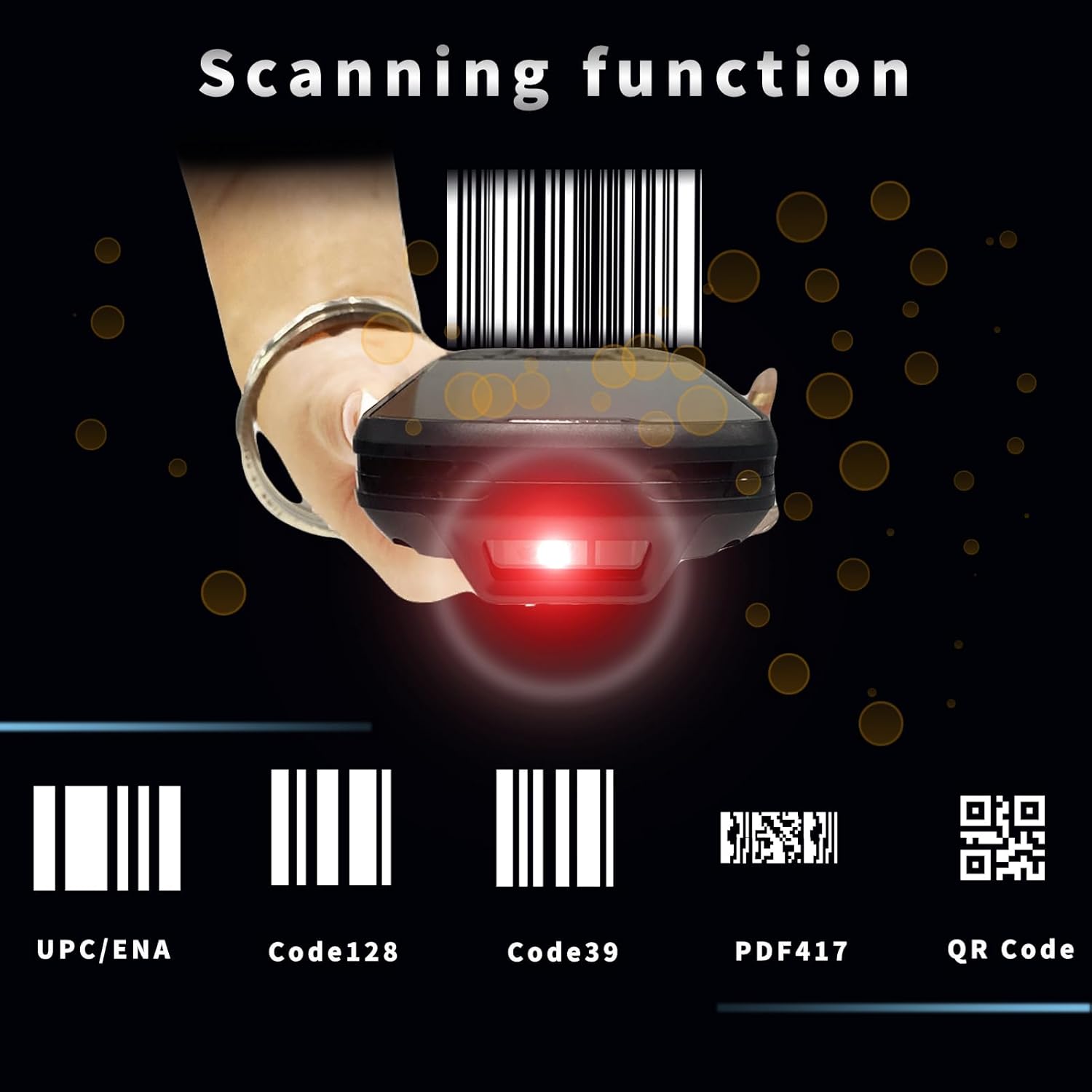
Image: Depiction of the device's scanning function, showing the red laser beam targeting various barcode types including UPC/ENA, Code128, Code39, PDF417, and QR Code.
4.3 Connectivity
- Wi-Fi: Access Wi-Fi settings to connect to available 2.4G or 5G networks.
- Bluetooth: Pair with Bluetooth 5.0 compatible devices for data transfer or peripheral connections.
- Mobile Data: With a nano SIM card installed, the device supports 2G, 3G, and 4G networks for mobile connectivity.
4.4 Camera Usage
The 8MP auto-focus rear camera can be used for capturing images for documentation or advanced tracking.
- Open the camera application.
- Frame your subject on the 4-inch screen.
- Tap the screen to focus or press the designated camera button (if available) to capture the image.
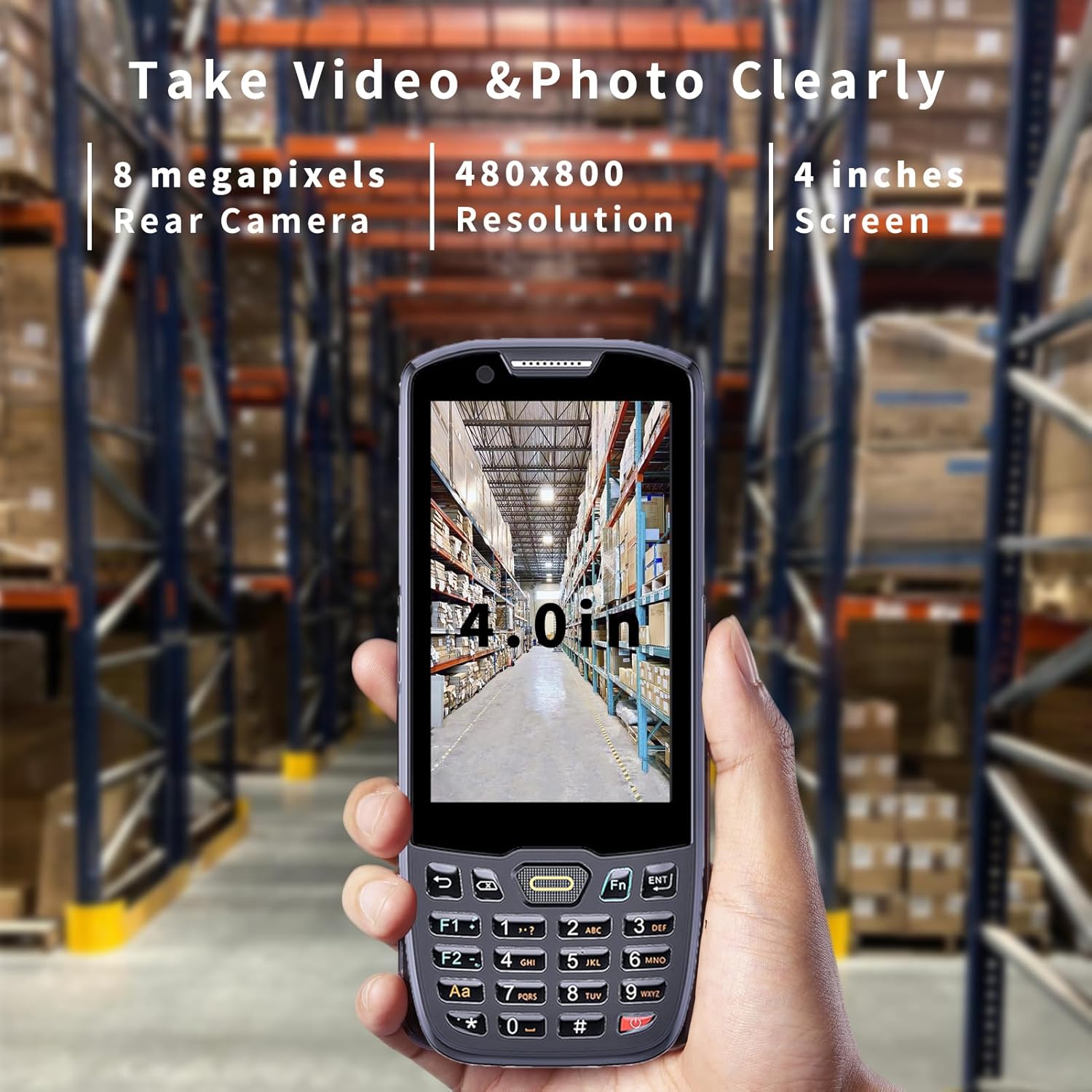
Image: Display of the device's 8-megapixel rear camera and 4-inch screen with 480x800 resolution, showing a clear image of a warehouse aisle.
5. Maintenance
5.1 Cleaning
- Wipe the device exterior with a soft, damp cloth. Avoid harsh chemicals or abrasive materials.
- For the screen, use a microfiber cloth specifically designed for electronic displays.
- Ensure all ports are free from dust and debris.
5.2 Battery Care
- To prolong battery life, avoid fully discharging the battery frequently.
- Store the device in a cool, dry place when not in use for extended periods.
- Use only the manufacturer-recommended charging accessories.
5.3 Durability Features
The Breloom WGH-1 is built to withstand challenging conditions:
- IP66 Rating: Provides protection against dust ingress and powerful water jets.
- Drop Resistance: Designed to survive drops from up to 1.5 meters.
- Temperature Tolerance: Operates reliably in temperatures ranging from -25 °C to 55 °C.

Image: A hand holding the Breloom WGH-1 scanner, highlighting the detachable wrist strap for secure and easy carrying.
6. Troubleshooting
6.1 Common Issues and Solutions
- Device not powering on: Ensure the battery is correctly installed and charged. Connect to the charger and try again.
- Scanning issues: Check if the scanning application is open. Ensure the barcode is clean, well-lit, and within the scanning range (up to 1m).
- Connectivity problems (Wi-Fi/Bluetooth/4G): Verify that the respective functions are enabled in settings. For Wi-Fi, ensure you are within range of a known network. For 4G, check SIM card installation and network coverage.
- Slow performance: Close unnecessary applications. Clear cache or restart the device.
If problems persist, refer to the support section or contact customer service.
7. Specifications
| Feature | Specification |
|---|---|
| Brand | Breloom |
| Model | Breloom WGH-1 |
| Operating System | Android 13 |
| Processor | Qualcomm QCM2290 |
| Memory (RAM) | 4 GB |
| Storage (ROM) | 64 GB |
| Expandable Storage | Up to 512 GB (TF card) |
| Barcode Scanner | 1D/2D/QR (K1 scan heads) |
| Display | 4-inch HD Capacitive Touchscreen (480 x 800) |
| Connectivity | Wi-Fi (2.4G/5G), Bluetooth 5.0, 2G/3G/4G |
| SIM Slots | Dual Nano SIM |
| Rear Camera | 8 MP Auto-focus |
| Battery | 4500 mAh (Detachable) |
| Charging | USB 2.0 Type-C, 5V/3A Fast Charging |
| Durability Rating | IP66 |
| Drop Resistance | 1.5 meters |
| Electrostatic Protection | ±8 KV |
| Operating Temperature | -25 °C to 55 °C |
| Dimensions | 23.5 x 11 x 8.48 cm |
| Weight | 649 g |
8. Warranty and Support
For warranty information and technical support, please contact your vendor or the manufacturer directly. Keep your purchase receipt as proof of purchase.
For further assistance, you may visit the official Breloom website or contact their customer service department.