
1. Introduction
This manual provides detailed instructions for the TUOHAITIME Android 15 Tablet K10. Please read this guide thoroughly to ensure proper use and to maximize your device's potential. Keep this manual for future reference.

Image: The TUOHAITIME Android 15 Tablet K10, showcasing the tablet in a stand, alongside its Bluetooth keyboard, mouse, and stylus pen.
2. What's in the Box
Upon opening your TUOHAITIME Android 15 Tablet K10 package, you should find the following items:
- Android 15 Tablet (K10 Model)
- USB Cable (Type-C)
- User Manual
- Charger
- Tablet Case
- Mouse
- Stylus Pen
- Screen Protector
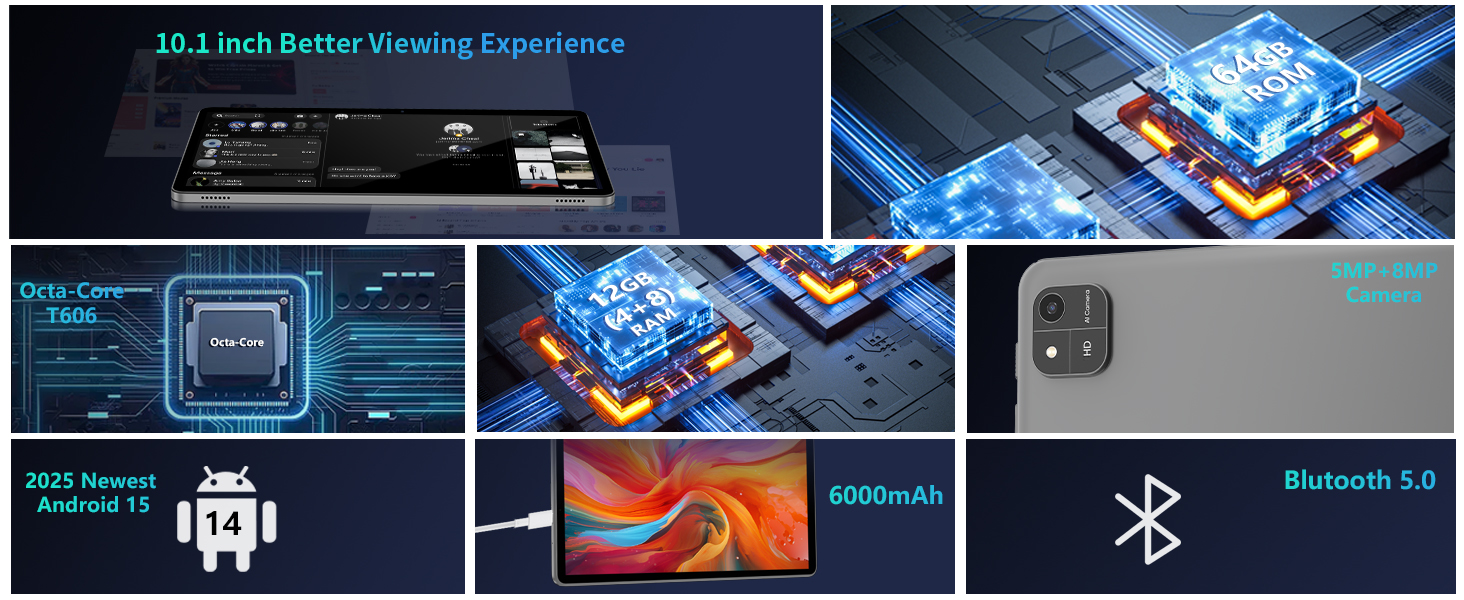
Image: An overview of all items included in the product package, neatly arranged.
3. Product Features
The TUOHAITIME Android 15 Tablet K10 is designed for enhanced performance and versatility. Key features include:
- Operating System: Android 15 (2025 Newest Version)
- Processor: Unisoc T606 Octa-Core, up to 2.0GHz for efficient multitasking.
- Memory & Storage: 12GB RAM (4GB physical + 8GB virtual expansion), 64GB ROM, expandable up to 1TB via SD card.
- Display: 10.1-inch Ultra-Clear LCD screen with 1280x800 resolution and narrow bezels.
- Cameras: Dual high-definition cameras (8MP rear, 5MP front) for clear photos and video calls.
- Connectivity: Dual-band WiFi 6 (5G/2.4G) and Bluetooth 5.0 for stable and fast connections.
- Battery: 6000mAh battery with 18W fast charging, providing extended usage times.
- Productivity Bundle: Includes a Bluetooth keyboard, mouse, and stylus for versatile use.
- Security: Supports Face Unlock for convenient and secure access.

Image: Visual representation of the tablet's core specifications and features.
4. Setup Guide
4.1 Initial Power On and Basic Setup
- Charge the Tablet: Connect the provided Type-C USB cable and charger to the tablet and a power outlet. Allow the tablet to charge fully before first use.
- Power On: Press and hold the power button located on the side of the tablet until the TUOHAITIME logo appears.
- Follow On-Screen Prompts: The tablet will guide you through initial setup steps, including language selection, region, and accepting terms and conditions.
- Connect to Wi-Fi: Select your preferred Wi-Fi network from the list and enter the password. Ensure a stable internet connection for updates and app downloads.
- Google Account Setup: Sign in with your Google account or create a new one. This is essential for accessing the Google Play Store and other Google services.
- Face Unlock Setup: During setup, you will have the option to configure Face Unlock. Follow the on-screen instructions to register your face for quick and secure access.
4.2 Connecting Bluetooth Accessories (Keyboard, Mouse)
- Enable Bluetooth: Go to Settings > Connected devices > Bluetooth and toggle Bluetooth ON.
- Pair Keyboard:
- Turn on the Bluetooth keyboard.
- Press the pairing button on the keyboard (often labeled "Connect" or a Bluetooth symbol) to make it discoverable.
- On your tablet, select the keyboard from the list of available devices. Follow any on-screen prompts to complete pairing.
- Pair Mouse:
- Turn on the Bluetooth mouse.
- Press the pairing button on the mouse.
- On your tablet, select the mouse from the list of available devices.

Image: The tablet configured with its external keyboard and mouse, demonstrating a typical setup for productivity.
5. Operating Instructions
5.1 Basic Navigation
- Touch Gestures: Use taps, swipes, and pinch-to-zoom for interacting with the screen.
- Home Screen: Swipe left or right to access different home screen panels. Swipe down from the top for notifications and quick settings.
- App Drawer: Swipe up from the bottom of the home screen to view all installed applications.
5.2 App Management
- Installing Apps: Open the Google Play Store, search for desired applications, and tap "Install".
- Uninstalling Apps: Long-press an app icon on the home screen or in the app drawer, then drag it to "Uninstall" or select the uninstall option. Alternatively, go to Settings > Apps > See all apps, select the app, and tap "Uninstall".
- Multitasking: Use the recent apps button (square icon) to switch between open applications or close them by swiping them away.
5.3 Storage Expansion
The tablet supports up to 1TB of additional storage via a microSD card. Insert the card into the designated slot. You can then manage files using a file manager app or configure the card for internal storage adoption (if supported by Android 15).

Image: A visual explanation of the tablet's memory and storage options, including expandable storage.
5.4 Camera Usage
Open the Camera app to capture photos and videos. Tap the screen to focus, and use the on-screen buttons to switch between front and rear cameras, change modes, or adjust settings.
5.5 Productivity and Entertainment
Utilize the included keyboard and mouse to transform your tablet into a portable workstation for document editing, email, and browsing. For entertainment, the 10.1-inch display is suitable for streaming videos, playing games, and browsing social media.

Image: The tablet in a productivity setting, showcasing its use with a keyboard for work-related tasks.

Image: The tablet being used for entertainment, displaying a video on its screen.
6. Maintenance
6.1 Battery Care
- Avoid extreme temperatures, which can degrade battery life.
- Do not leave the tablet charging for extended periods after it reaches 100%.
- Use only the provided charger and cable to prevent damage.
6.2 Cleaning
- Use a soft, lint-free cloth to clean the screen and body of the tablet.
- For stubborn smudges, slightly dampen the cloth with water or a screen-cleaning solution. Avoid harsh chemicals.
6.3 Software Updates
Regularly check for and install system updates to ensure optimal performance, security, and access to new features. Go to Settings > System > System update.
6.4 Storage Optimization
Periodically review and delete unnecessary files, apps, and media to free up storage space and maintain tablet speed. Consider moving large files to an external SD card.
7. Troubleshooting
If you encounter issues with your TUOHAITIME Android 15 Tablet K10, refer to the following common solutions:
| Problem | Solution |
|---|---|
| Tablet does not power on. | Ensure the tablet is charged. Connect the charger and wait a few minutes before attempting to power on again. |
| Wi-Fi connection issues. | Restart your Wi-Fi router and the tablet. Check if other devices can connect to the network. Re-enter the Wi-Fi password. |
| Bluetooth accessories not connecting. | Ensure Bluetooth is enabled on the tablet and the accessory is in pairing mode. Try unpairing and re-pairing the device. |
| Slow performance. | Close unused apps, clear cache, or uninstall unnecessary applications. Consider a factory reset if the issue persists (back up data first). |
| Face Unlock not working. | Ensure adequate lighting and that your face is clearly visible to the front camera. Re-register your face in settings if needed. |
For further assistance, please contact customer support as detailed in the Support section.
8. Specifications
Detailed technical specifications for the TUOHAITIME Android 15 Tablet K10:
| Feature | Detail |
|---|---|
| Model Name | K10 |
| Operating System | Android 15 |
| Processor | Unisoc T606 Octa-Core, 2 GHz |
| Graphics Coprocessor | Adreno 305 |
| Screen Size | 10.1 Inches |
| Screen Resolution | 1280 x 800 Pixels |
| RAM | 12 GB (4GB physical + 8GB virtual) |
| Internal Storage (ROM) | 64 GB |
| Expandable Storage | Up to 1 TB via MicroSD card |
| Wireless Type | 802.11ax (WiFi 6), 802.11b/g/n (Dual-band 5G/2.4G) |
| Bluetooth | Bluetooth 5.0 |
| Battery Capacity | 6000mAh |
| Fast Charge | 18W |
| Average Battery Life | 8 Hours (usage dependent) |
| Front Camera | 5 MP |
| Rear Camera | 8 MP |
| Item Weight | 2.99 pounds |
| Product Dimensions | 10 x 4 x 0.35 inches |
| Color | Blue (for this variant) |
9. Warranty and Support
TUOHAITIME Tablet PC Technical Support Division offers comprehensive technical solutions. Our team provides seamless resolution for any defective products, adhering to industry-certified expertise and ISO-compliant service protocols.
For immediate assistance, access our 24/7 customer care channel via designated enterprise communication platforms. Please refer to your product packaging or purchase documentation for specific contact details.
For general inquiries or to explore more TUOHAITIME products, visit the official TUOHAITIME Store on Amazon.