
Introduction
This manual provides comprehensive instructions for the setup, operation, and maintenance of your EASYTONE R69Plus Android 14 TV Box. This device is designed to transform your television into a smart entertainment hub, offering access to a wide range of applications, streaming services, and multimedia content. Featuring Android 14.0, an Allwinner H728 Octa-core chip, 4GB RAM, 64GB ROM, WIFI6, 1000M Ethernet, and support for 8K video output, the R69Plus delivers a smooth and immersive viewing experience. Please read this manual thoroughly before using the product to ensure optimal performance and longevity.

Image: The EASYTONE R69Plus Android 14 TV Box, accompanied by its dedicated remote control and a mini wireless keyboard, showcasing the complete package for enhanced user interaction.
Package Contents
Verify that all items listed below are included in your package. If any items are missing or damaged, please contact customer support.
- Android 14.0 TV Box 64GB (R69Plus)
- Bluetooth Voice Remote Control
- US Power Adapter
- HD Cable (HDMI Cable)
- User Manual
- Mini Keyboard

Image: A visual representation of the R69Plus TV Box's dimensions and a clear layout of all components included in the retail package, such as the power supply, HDMI cable, mini keyboard, remote control, and user manual.
Product Overview
The EASYTONE R69Plus Android 14 TV Box is equipped with various ports for connectivity and expansion. Familiarize yourself with the device's layout for proper setup and usage.
Image: An annotated diagram illustrating the various input and output ports on the R69Plus TV Box, including power, audio, video, network, and USB connections, along with an SD card slot.
Key Features:
- Operating System: Android 14.0
- Processor: Allwinner H728 Octa-core chip
- Memory: 4GB RAM, 64GB ROM
- Video Output: Supports 4K@60fps and 8K decoding, HDR10+, 3D display
- Network: WIFI6 (2.4G/5.8G Dual WiFi), 1000M Ethernet
- Connectivity: Bluetooth 5.0, USB 3.0, USB 2.0, HDMI, Optical
Setup Guide
Follow these steps to set up your EASYTONE R69Plus TV Box for the first time.
- Connect the HDMI Cable: Insert one end of the provided HD Cable (HDMI) into the HDMI port on the R69Plus TV Box and the other end into an available HDMI input on your television.
- Connect to Power Adapter: Plug the US Power Adapter into the DC/5V port on the TV Box and then into a power outlet. The device should power on automatically or can be powered on using the remote control.
- Connect to Network:
- Wi-Fi: Once powered on, navigate to the network settings on the TV Box interface. Select your Wi-Fi network from the list, enter the password, and connect. The device supports WIFI6 2.4G and 5.8G dual-band Wi-Fi.
- Ethernet: For a wired connection, connect an Ethernet cable from your router to the 1000M Ethernet port on the TV Box. The device will automatically detect and connect to the wired network.
- Initial Setup: Follow the on-screen prompts to complete the initial Android setup, including language selection, time zone, and Google account login.

Image: A step-by-step visual guide demonstrating how to connect the HDMI cable, power adapter, and establish a network connection (Wi-Fi or Ethernet) for the TV Box.
Operating Instructions
Remote Control and Mini Keyboard Usage
The R69Plus comes with a standard Bluetooth voice remote control and a mini wireless keyboard for versatile navigation and input.
- Use the directional pad and OK button on the remote for basic navigation and selection.
- The mini keyboard provides a full QWERTY layout for easier text input, web browsing, and application control.
- The Bluetooth voice remote allows for voice commands. Press and hold the voice button to speak your commands.
Connecting Peripherals via Bluetooth 5.0 and USB 3.0
Expand the functionality of your TV Box by connecting various external devices.
- Bluetooth 5.0: Pair Bluetooth devices such as speakers, headphones, game controllers, or additional keyboards/mice.
To manually establish a Bluetooth connection for the remote control or other devices:
- Approach the device you wish to pair.
- Press the voice button on the remote control.
- When the pairing page appears on the screen, press and hold the 'LEFT' and 'RIGHT' buttons simultaneously for 3 seconds.
- Release the buttons once the remote control's indicator light starts flashing.
- Wait for automatic pairing.
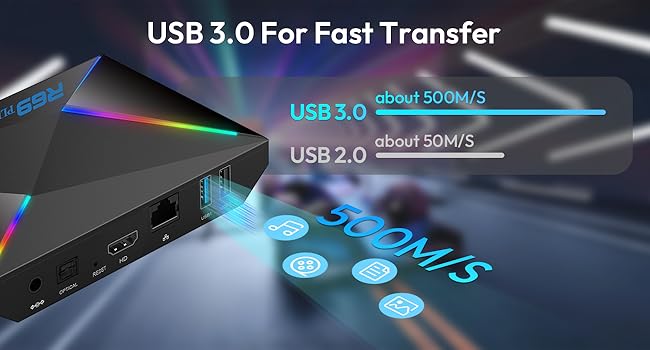
Image: A visual guide demonstrating the process of manually pairing the Bluetooth remote control with the TV Box by simultaneously pressing the 'LEFT' and 'RIGHT' buttons.

Image: A depiction of the TV Box's advanced wireless capabilities, highlighting its WIFI6 dual-band (2.4G and 5.8G) support and Bluetooth 5.0 for seamless connectivity with various devices.
- USB 3.0: Utilize the USB 3.0 port for faster data transfer speeds when connecting external storage devices like USB flash drives or external hard drives. The device also includes USB 2.0 ports for other peripherals.

Image: An illustration showcasing the R69Plus TV Box's extensive connectivity options, allowing users to connect a variety of devices such as mice, game controllers, headphones, and smartphones via USB 3.0 and Bluetooth 5.0 for diverse entertainment and productivity uses.
Display and Audio Settings
The R69Plus supports high-resolution video and advanced display technologies.
- 8K Ultra HD & 3D Display: The TV Box supports 8K video decoding and 4K@60fps output, along with HDR10+ for enhanced color and contrast. It also supports 3D display for compatible content. Ensure your TV supports these resolutions and features for the best experience.

Image: A visual demonstration of the TV Box's capability to deliver stunning 8K Ultra HD resolution with HDR10+ and immersive 3D effects, showcasing vivid colors and sharp details.
- Audio Output: Connect to your sound system via HDMI or the Optical audio port for high-quality sound.
Multi-Screen Interaction
The R69Plus supports screen casting technologies like Airplay and Miracast, allowing you to mirror content from your mobile devices to your TV.

Image: An illustration of various multi-screen interaction modes, including entertainment, fitness, office, and study, demonstrating the TV Box's versatility in casting content from small screens to a larger display.
Customizing Home Screen
The Android 14.0 system allows for customization of the home screen. You can add or remove app shortcuts and widgets to personalize your user experience. Refer to the Android system settings for detailed customization options.
Troubleshooting
This section addresses common issues you might encounter with your EASYTONE R69Plus TV Box.
- Q1: Remote control not working, no response, or voice assistant not responding?
A1: Manually establish a Bluetooth connection for the remote. Approach the device, press the voice button. When the pairing page appears on the screen, press and hold the 'LEFT' and 'RIGHT' buttons simultaneously for 3 seconds. Release the buttons once the remote control's indicator light starts flashing, then wait for automatic pairing.
- Q2: How to wake up the Bluetooth voice assistant of the remote control?
A2: The Android TV Box will automatically connect to the remote control when it starts. After connecting, click the Bluetooth voice assistant button to wake up, then long press to speak, and release it to operate according to the voice content.
- Q3: How to realize 1000M Ethernet connection?
A3: The connected router and Ethernet cable should both support 1000M (Gigabit) Ethernet speeds.

Image: A visual representation highlighting the TV Box's 1000M Ethernet port, capable of providing ultimate network speed for low latency and high-speed data transfer.
- Q4: Why doesn't the TV box respond when I use the TV remote control to turn it on or adjust its volume?
A4: This issue might be related to HDMI CEC (Consumer Electronics Control). Find CEC in the settings and turn it on/off according to your remote control needs.
CEC Path: Settings > Device Preferences > Inputs > HDMI control. - Q5: Why can't the hard disk be detected after plugging it in?
A5: The current supplied by the TV box's USB port might be insufficient for some hard disks. It is recommended to use a hard disk with an independent power supply.
Specifications
Detailed technical specifications for the EASYTONE R69Plus Android 14 TV Box.
| Feature | Specification |
|---|---|
| Brand | EASYTONE |
| Model Name | R69Plus 4GB+64GB+Mini Keyboard |
| Operating System | Android 14.0 |
| Processor | Allwinner H728 Octa-core chip |
| RAM | 4GB |
| ROM | 64GB |
| Resolution | 8K (supports 4K@60fps output, 8K decoding) |
| Special Features | HDR10+, 3D Display, Browser, Chromecast, Miracast |
| Connectivity Technology | Bluetooth 5.0, Ethernet (1000M), HDMI, USB, Wi-Fi (WIFI6 2.4G/5.8G Dual WiFi) |
| Connector Type | HDMI |
| Controller Type | Remote Control, Voice Control |
| Item Weight | 1.39 pounds |
| Product Dimensions | 5.5 x 3.9 x 1.1 inches |
| Batteries | 1 Lithium Ion battery required (included for remote/keyboard) |
| Color | Red (device color) |
Maintenance
To ensure the longevity and optimal performance of your EASYTONE R69Plus TV Box, follow these maintenance guidelines:
- Cleaning: Use a soft, dry cloth to clean the exterior of the device. Do not use liquid cleaners or abrasive materials, as they may damage the surface.
- Ventilation: Ensure the TV Box is placed in a well-ventilated area to prevent overheating. Do not block any ventilation openings.
- Power Off: When not in use for extended periods, it is recommended to power off the device and unplug it from the power outlet.
- Software Updates: Periodically check for system updates through the device's settings to ensure you have the latest features and security patches.
- Storage: Store the device in a cool, dry place away from direct sunlight and extreme temperatures.
Warranty and Support
Your EASYTONE R69Plus Android 14 TV Box is covered by a manufacturer's warranty. For specific warranty terms and conditions, please refer to the documentation provided with your purchase or contact EASYTONE customer support.
For technical assistance, troubleshooting, or any inquiries regarding your product, please visit the official EASYTONE support website or contact their customer service team.