
1. Introduction
This manual provides essential information for setting up, operating, and maintaining your HAOVM G12MINI Android 15 Tablet. Please read it thoroughly to ensure proper usage and to maximize your device's capabilities. The HAOVM G12MINI is an 8-inch Android 15 tablet featuring 4G SIM connectivity, an Octa-Core CPU, 12GB RAM, 64GB internal storage (expandable up to 2TB), an IPS display, 5G WiFi, dual cameras, and GPS functionality.
2. What's in the Box
Upon unboxing your HAOVM G12MINI tablet, verify that all the following items are included:
- Tablet (x1)
- Tablet Case (x1)
- Charging Cable (x1)
- Power Adapter (x1)
- Quick Start Guide (x1)
- Ejection Pin (x1)

Figure 2.1: Included items with the HAOVM G12MINI Tablet.
3. Setup
3.1. Initial Power On
To power on your tablet, press and hold the power button located on the side of the device until the HAOVM logo appears on the screen. Follow the on-screen prompts to select your language, connect to a Wi-Fi network, and set up your Google account.
Video 3.1: Demonstrates the initial setup process, including powering on and basic navigation.
3.2. Inserting a SIM Card
The HAOVM G12MINI supports 4G cellular connectivity. To insert a SIM card:
- Locate the SIM card tray on the side of the tablet.
- Use the provided ejection pin to gently press into the small hole on the tray until it pops out.
- Place your Nano-SIM card into the designated slot on the tray, ensuring proper orientation.
- Carefully reinsert the tray into the tablet.

Figure 3.2: Illustration of SIM and TF card insertion.
3.3. Expanding Storage with a TF Card
The tablet's storage can be expanded up to 2TB using a TF (MicroSD) card. The TF card slot is located within the same tray as the SIM card. Follow the steps for SIM card insertion, placing the TF card into its dedicated slot on the tray.
3.4. Attaching the Protective Case
The tablet comes with a protective case. Gently slide the tablet into the case, ensuring all edges are securely covered. The case also functions as a stand for convenient viewing.

Figure 3.3: Tablet with its included protective case.
4. Operating Instructions
4.1. Basic Navigation
The tablet operates on Android 15. Navigate the interface using touch gestures: tap to select, swipe to scroll, pinch to zoom. The home screen provides access to frequently used apps and widgets.

Figure 4.1: Android 15 interface on the HAOVM G12MINI Tablet.
4.2. 4G Cellular & GPS Navigation
With a SIM card inserted, your tablet can access 4G cellular data for internet connectivity and calls without Wi-Fi. The integrated 4-mode GPS (GPS + Galileo + Beidou + GLONASS) allows for precise location tracking and navigation using apps like Google Maps or Waze, even offline with downloaded maps.

Figure 4.2: Tablet demonstrating GPS navigation capabilities.
4.3. Multimedia and Entertainment
The 8-inch HD IPS display with 16.7 million colors and stereo speakers provides an immersive viewing experience. Connect Bluetooth 5.0 devices or use the 3.5mm headphone jack for audio. The tablet supports various media formats for movies, music, and e-books.

Figure 4.3: High-definition IPS display for multimedia.
4.4. Camera Functions
The tablet is equipped with a 5MP front camera for video calls and an 8MP rear camera for capturing photos and videos. Access the camera application from the home screen to utilize these features.

Figure 4.4: Front and rear camera capabilities.
4.5. Google Kids Space & Parental Control
For child users, the tablet comes preloaded with Google Kids Space and YouTube Kids. Google Family Link allows parents to manage content, screen time, and app access, ensuring a safe digital environment.
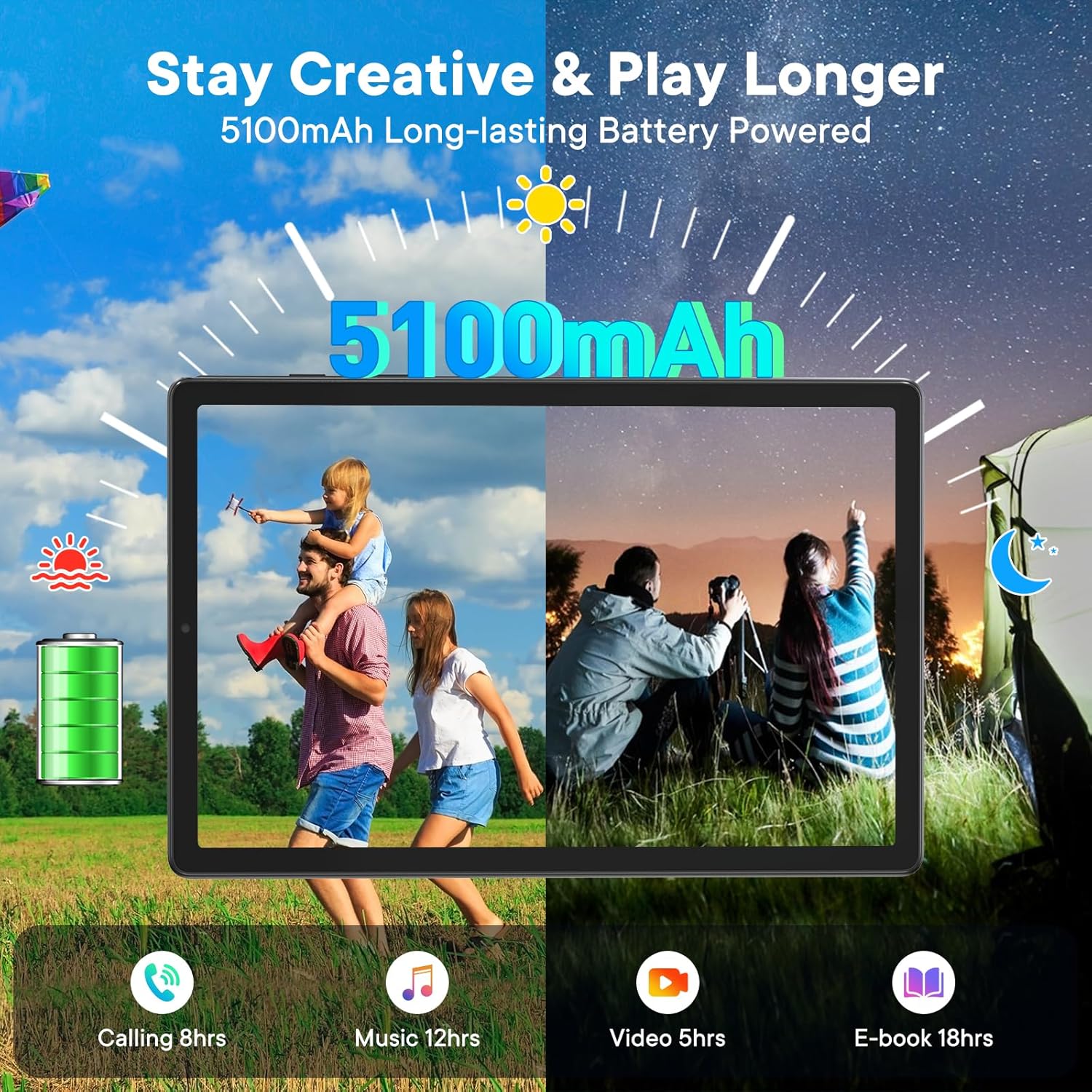
Figure 4.5: Google Kids Space interface.
5. Specifications
| Feature | Specification |
|---|---|
| Brand | HAOVM |
| Model Name | G12MINI |
| Operating System | Android 15 |
| Processor | MediaTek Helio G80 Octa-core (2.0GHz) |
| RAM Memory | 12 GB |
| Storage Capacity | 64 GB (Expandable up to 2 TB with TF Card) |
| Screen Size | 8 Inches |
| Display Resolution | 1280*800 Pixels (HD IPS) |
| Connectivity | 4G Cellular, 5G Wi-Fi (802.11ac), Bluetooth 5.0, GPS |
| Cameras | Front 5MP, Rear 8MP |
| Battery Capacity | 5100mAh (up to 10 hours average life) |
| Ports | USB Type-C, 3.5mm Audio Jack |
| Item Weight | 368 Grams |
| Dimensions (L x W x Th) | 8.3" x 4.9" x 0.35" |
6. Maintenance
6.1. Cleaning
Use a soft, lint-free cloth to clean the screen and body of the tablet. Avoid using harsh chemicals or abrasive materials that could damage the device.
6.2. Software Updates
Regularly check for and install software updates to ensure optimal performance, security, and access to the latest features. Navigate to Settings > System > System update to check for available updates.
6.3. Battery Care
To prolong battery life, avoid exposing the tablet to extreme temperatures. Charge the device using only the provided power adapter and cable. It is recommended to keep the battery level between 20% and 80% for long-term health.
7. Troubleshooting
7.1. Device Not Powering On
Ensure the tablet is sufficiently charged. Connect the tablet to the power adapter and allow it to charge for at least 30 minutes before attempting to power it on again.
7.2. Screen Unresponsive
If the screen becomes unresponsive, perform a force restart by pressing and holding the power button for approximately 10-15 seconds until the device restarts.
7.3. Wi-Fi Connectivity Issues
Check if Wi-Fi is enabled in Settings > Network & internet > Wi-Fi. Ensure you are within range of a known Wi-Fi network and that the password is correct. Restarting your router may also resolve the issue.
7.4. SIM Card Not Detected
Verify that the SIM card is correctly inserted into the tray. Ensure the SIM card is active and has a valid cellular plan. If issues persist, try restarting the tablet or contacting your cellular provider.
8. Warranty and Support
8.1. Warranty Information
The HAOVM G12MINI Tablet comes with a 1-year limited manufacturer warranty. This warranty covers defects in materials and workmanship under normal use. For specific terms and conditions, please refer to the warranty card included in your product packaging.
8.2. Customer Support
HAOVM provides 24/7 customer support for any inquiries or assistance you may need. Please visit the official HAOVM website or refer to the contact information provided in your Quick Start Guide for support options.


