
Hodozzy B0F6274DFG
Hodozzy Single Din Flip Out Car Stereo User Manual
Model: B0F6274DFG
1. Introduction
This manual provides detailed instructions for the installation, operation, and maintenance of your Hodozzy Single Din Flip Out Car Stereo. Please read this manual thoroughly before using the product to ensure proper function and safety. Keep this manual for future reference.
The Hodozzy Single Din Flip Out Car Stereo features a 7-inch retractable touch screen, wireless CarPlay and Android Auto compatibility, Bluetooth, FM Radio, EQ sound customization, Steering Wheel Control (SWC) support, and inputs for U Disk/USB/Type-C, along with reversing camera support.
2. Safety Information
- Do not operate the device in a way that distracts you from driving. Always prioritize road safety.
- Ensure proper installation by a qualified professional to prevent damage to the unit or vehicle.
- Avoid exposing the unit to extreme temperatures, direct sunlight for prolonged periods, or moisture.
- Use only specified power cables and accessories.
- If any abnormalities occur, such as smoke or unusual odors, immediately turn off the power and consult a service professional.
3. Package Contents
Verify that all items listed below are included in your package:

Image: Diagram showing the car stereo dimensions and included accessories such as horn cable, power cable, accessories, microphone, user manual, steering wheel control remote, and camera.
- Hodozzy Single Din Flip Out Car Stereo Unit
- Power Cable
- Horn Cable
- External Microphone
- Steering Wheel Control Remote
- Reversing Camera
- Mounting Accessories (brackets, screws)
- User Manual (this document)
4. Product Overview
Familiarize yourself with the main components and interfaces of your car stereo.

Image: Front panel view of the car stereo with labels for buttons (MIC, RST, CALL, MODE, BAND, MUTE, AUX, USB, Type-C) and a rear view showing wiring harness connections (A1-A8, B1-B8) and RCA ports (Audio Output, Video Input, Video Output, Camera Input, Microphone Input, Radio Antenna, WiFi Antenna).
4.1 Front Panel Controls
- MIC: External microphone input.
- RST: Reset button (use a thin object to press).
- CALL: Answer/End call button.
- MODE: Cycle through audio sources (Radio, USB, Bluetooth, CarPlay/Android Auto).
- BAND: Select radio bands (FM1, FM2, FM3).
- MUTE: Mute/unmute audio.
- AUX: Auxiliary input.
- USB/Type-C Ports: For media playback, charging, and wired CarPlay/Android Auto connection.
- Volume Knob: Rotate to adjust volume, press to power on/off.
4.2 Rear Panel Connections
- Power Harness: Connects to vehicle power (ACC, B+, Ground) and speaker outputs.
- RCA Audio Outputs: For connecting to external amplifiers.
- Video Input/Output: For external video sources or monitors.
- Rear View Camera Input: Dedicated input for the reversing camera.
- Radio Antenna Input: Connects to the vehicle's radio antenna.
- WiFi Antenna: For wireless connectivity.
5. Installation
Professional installation is highly recommended. Incorrect wiring can cause damage to the unit or vehicle electrical system.
5.1 Wiring Diagram
Refer to the provided wiring diagram in the package for specific connections. Key connections include:
- Power: Connect the yellow wire (B+) to constant 12V, red wire (ACC) to switched 12V, and black wire (Ground) to a chassis ground point.
- Speakers: Connect speaker wires according to polarity (e.g., white/white-black for front left, grey/grey-black for front right, etc.).
- Reverse Camera: Connect the camera's video output to the "CAM IN" RCA port and its power to the reverse light circuit. The reverse trigger wire (usually brown or pink) from the stereo should also connect to the reverse light circuit.
- Steering Wheel Control (SWC): Connect the SWC wires (Key1, Key2) to your vehicle's SWC interface, if applicable.
- Antenna: Connect the radio antenna and WiFi antenna.
5.2 Mounting
Install the single DIN chassis into your vehicle's dashboard opening. Secure it using the provided mounting brackets and screws. Ensure the unit is firmly seated and does not obstruct any vehicle controls or airbags.
6. Operating Instructions
6.1 Power On/Off and Screen Operation
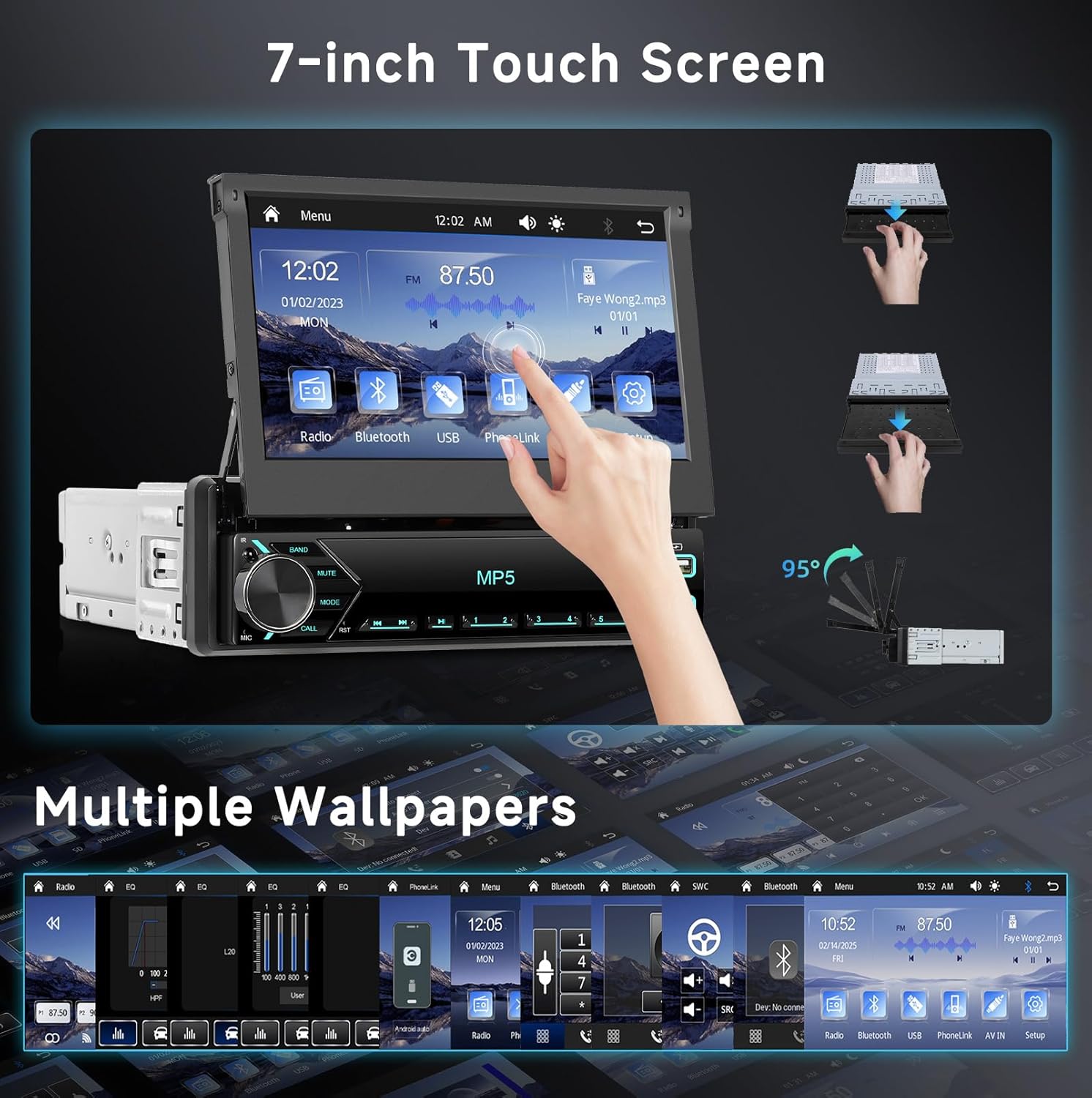
Image: The 7-inch touch screen displaying various app icons and settings. Illustrations show the screen retracting and extending, and examples of multiple wallpaper options.
- Power On: Press the volume knob.
- Power Off: Press and hold the volume knob.
- Screen Retraction: The screen can be retracted when not in use to keep the dashboard tidy. Refer to the on-screen controls or a dedicated button (if available) for retraction/extension.
- Touch Screen: Navigate menus and control functions by touching the screen.
6.2 Wireless CarPlay & Android Auto

Image: The car stereo screen displaying a CarPlay interface with various apps like Spotify, WhatsApp, YouTube Music, Phone, Calendar, and iHeartRadio. Below, a smartphone is shown connected, and icons for GPS Navigation, Online Music, Hands-free Calling, and Voice Control are present.
This unit supports both wireless and wired CarPlay and Android Auto for seamless smartphone integration.
- For Wireless Connection:
- Ensure Bluetooth and Wi-Fi are enabled on your smartphone.
- On the car stereo, select the CarPlay or Android Auto icon.
- Follow the on-screen prompts to pair your phone via Bluetooth. Once paired, the system will automatically establish a Wi-Fi connection for CarPlay/Android Auto.
- For Wired Connection:
- Connect your smartphone to the stereo's USB or Type-C port using a high-quality data cable.
- The system should automatically detect and launch CarPlay or Android Auto.
6.3 Bluetooth Connectivity
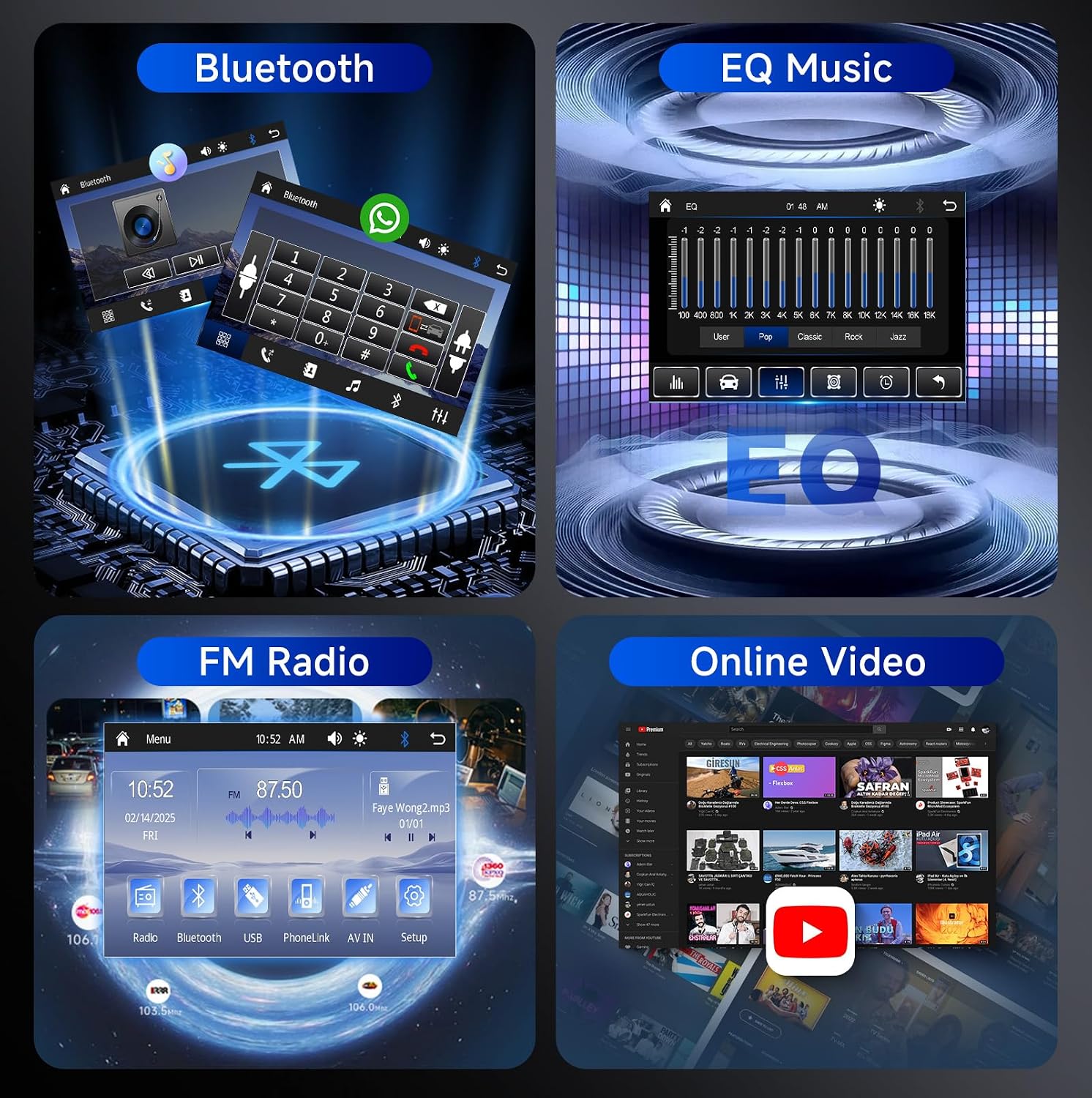
Image: A collage showing four main features: Bluetooth for hands-free calling and audio streaming, EQ Music settings with a graphic equalizer, FM Radio interface displaying frequency and station information, and an Online Video interface with YouTube content.
Connect your phone via Bluetooth for hands-free calling and audio streaming.
- On the stereo, go to the Bluetooth menu.
- Enable Bluetooth on your smartphone and search for available devices.
- Select "Hodozzy" (or similar device name) from the list on your phone.
- Confirm the pairing code if prompted.
Once connected, you can make/receive calls and play music wirelessly.
6.4 FM Radio Operation
Access the FM Radio function to listen to local broadcasts.
- Press the MODE button or select the "Radio" icon on the screen.
- Use the touch screen controls to scan for stations, save presets, or manually tune.
- Press the BAND button to switch between FM1, FM2, and FM3 bands.
6.5 Media Playback (USB/Type-C)

Image: The car stereo screen showing a menu with various color backlight options. Below, close-up images of a USB flash drive, a 3.5mm AUX cable, a USB-A cable, and a smartphone charging via a Type-C port are displayed, illustrating the unit's connectivity options.
Insert a USB flash drive or connect a device via the USB/Type-C ports to play audio or video files.
- The unit will automatically detect the connected device and display its contents.
- Navigate through folders and select files using the touch screen.
6.6 Audio Equalizer (EQ)
Customize your audio experience using the built-in equalizer.
- Access the EQ settings from the main menu or audio settings.
- Choose from preset EQ modes (e.g., Pop, Rock, Jazz, Classic) or adjust individual frequency bands manually to create a custom sound profile.
6.7 Display Settings
- Wallpapers: Personalize your screen by selecting from multiple pre-installed wallpapers. Access this option in the display settings.
- Colour Backlight Setting: Adjust the color of the unit's button backlighting to match your vehicle's interior or personal preference. This setting is typically found in the system or display settings.
6.8 Reversing Camera
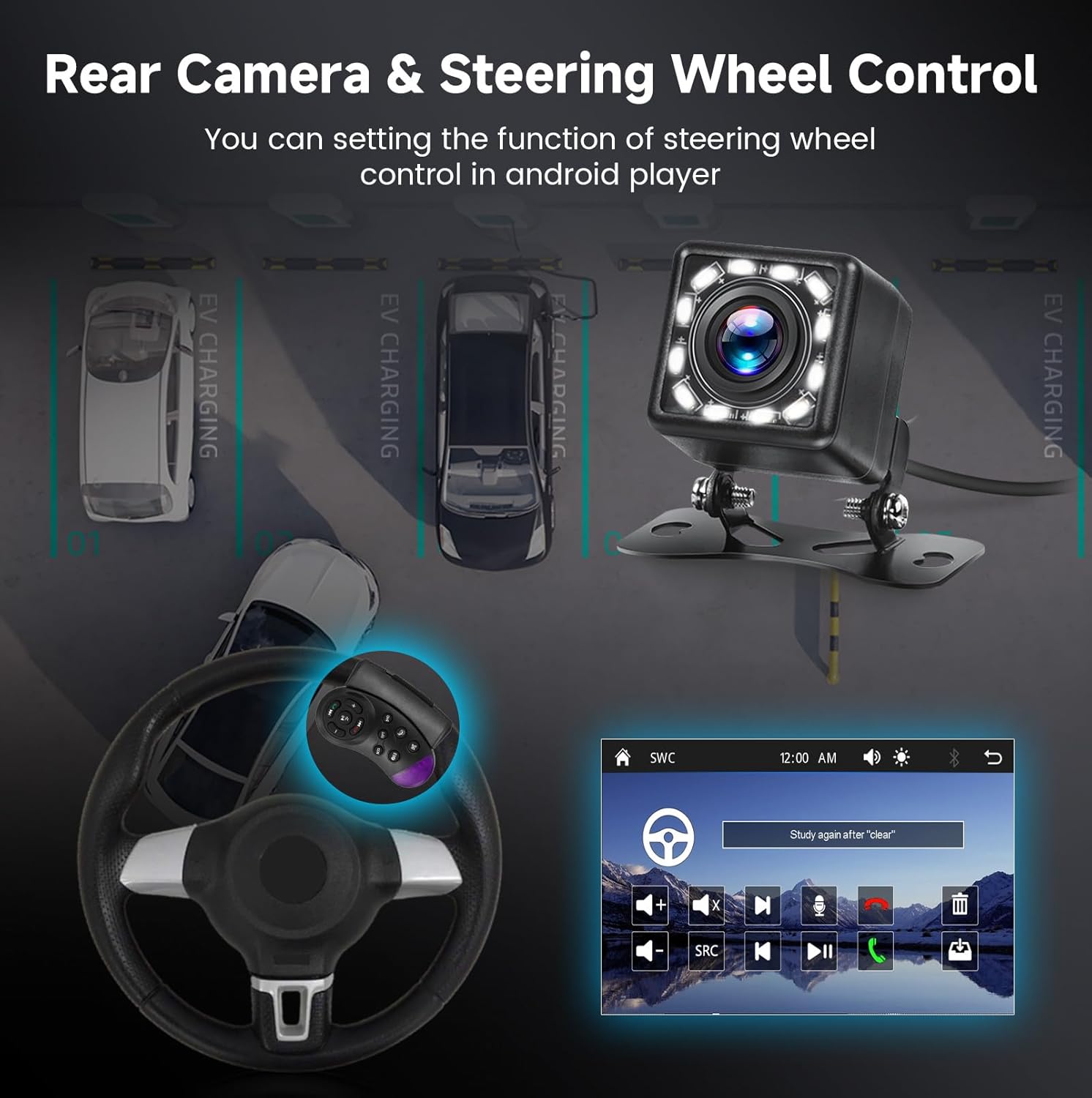
Image: A rear view camera is shown mounted on a vehicle, with parking lines overlaid. Below, a steering wheel with an attached remote control is depicted, along with a screen interface for steering wheel control settings.
When the vehicle is shifted into reverse gear, the stereo will automatically display the rear camera feed on the screen, enhancing visibility and safety during parking maneuvers.
6.9 Steering Wheel Control (SWC)
If your vehicle supports steering wheel controls and the unit is correctly wired, you can program the buttons to control various stereo functions (e.g., volume, track skip, mode change) without taking your hands off the wheel.
- Access the SWC settings menu on the stereo.
- Follow the on-screen instructions to map your vehicle's steering wheel buttons to the desired functions.
6.10 Online Video Playback
The unit supports online video playback, allowing you to enjoy content from platforms like YouTube when connected to the internet (e.g., via smartphone hotspot).
- Ensure the unit has an active internet connection.
- Select the "Online Video" or YouTube icon from the main menu.
- Browse and play videos as desired.
7. Maintenance
- Cleaning the Screen: Use a soft, lint-free cloth to gently wipe the touch screen. Do not use abrasive cleaners or solvents.
- General Cleaning: Wipe the unit's body with a soft, dry cloth.
- Software Updates: Periodically check the manufacturer's website for any available software updates to ensure optimal performance and new features.
8. Troubleshooting
| Problem | Possible Cause | Solution |
|---|---|---|
| No power | Incorrect wiring; Blown fuse; Loose connection. | Check power connections (B+, ACC, Ground). Verify vehicle fuse and unit fuse. Ensure all wires are securely connected. |
| No sound | Mute activated; Incorrect speaker wiring; Volume too low; Incorrect audio source. | Check if mute is active. Verify speaker connections and polarity. Increase volume. Select the correct audio source. |
| Bluetooth not connecting | Bluetooth not enabled on phone/stereo; Device not discoverable; Interference. | Ensure Bluetooth is enabled on both devices. Make sure the stereo is in pairing mode. Try restarting both devices. Clear previous pairings. |
| CarPlay/Android Auto not launching | Incorrect USB cable; Phone not compatible; Software issue; Wi-Fi/Bluetooth issue for wireless. | Use a high-quality data USB cable. Ensure your phone's OS is up to date. Check Wi-Fi and Bluetooth settings for wireless connection. Restart phone and stereo. |
| Rear camera not displaying | Incorrect camera wiring; Reverse trigger not connected; Faulty camera. | Verify camera video input and reverse trigger wire connections. Ensure camera is powered. Test camera functionality. |
| Screen unresponsive | Temporary software glitch; Unit frozen. | Press the RST (Reset) button with a thin object. Power cycle the unit. |
9. Specifications
| Feature | Detail |
|---|---|
| Product Name | Hodozzy Single Din Flip Out Car Stereo |
| Model Number | B0F6274DFG |
| Screen Size | 7 inch Touch Screen |
| Connectivity | Wireless/Wired CarPlay, Wireless/Wired Android Auto, Bluetooth, USB, Type-C |
| Audio Features | Built-in EQ, FM Radio, Stereo Audio Output |
| Special Features | Retractable Screen, Rear View Camera Support, Steering Wheel Control (SWC), Online Video Playback, Color Backlight Adjustment, Multiple Wallpapers |
| Compatible Devices | Smartphone |
| Controller Type | Hand Control (Touch Screen, Physical Buttons, Remote) |
| Package Dimensions | 12.29 x 9.65 x 3.62 inches |
| Item Weight | 3.52 pounds |
| Manufacturer | Hodozzy |
10. Warranty and Support
Hodozzy is committed to providing quality products and good after-sales service. For any questions or issues, please contact our customer support.

Image: Hodozzy customer support details, indicating 18-hour reply, 60-day return, 2-year replacement, and lifetime support, along with the support email address.
- Customer Support Email: hodozzyofficial@163.com
- Response Time: Typically within 18 hours.
- Return Policy: 60-day return period.
- Replacement Policy: 2-year replacement for eligible issues.
- Technical Support: Lifetime support is provided.
Please retain your proof of purchase for warranty claims.
Related Documents - B0F6274DFG
 |
User Manual for 10.1 Inch Android Double Din Car Stereo This user manual provides comprehensive instructions for operating and installing the 10.1 inch Android Double Din Car Stereo, including features, specifications, wiring, troubleshooting, and advanced functions like GPS navigation, Bluetooth, and mirror link. |
 |
Hodozzy Android Car Navigation System Operation Manual This operation manual provides detailed instructions for the Hodozzy Android car navigation system, covering its interface, features, modes, settings, installation, and offline map functionality. |
 |
EU Data Act Transparency Declaration for Android In-Vehicle Multimedia Device This document outlines the transparency declaration for an Android-based in-vehicle multimedia device in accordance with the EU Data Act, detailing data generation, processing, transmission, and software updates. |
Ask a question about this manual
Ask about setup, troubleshooting, compatibility, parts, safety, or missing instructions. Manuals+ will review the question and use this page’s manual context to help answer it.