
Introduction
This manual provides detailed instructions for the installation, operation, and maintenance of your Sellrich S7W Single DIN Flip-Out Car Stereo. This unit features a 7-inch IPS touchscreen, wireless/wired CarPlay and Android Auto compatibility, Bluetooth connectivity, YouTube playback, FM radio, and support for a backup camera. Please read this manual thoroughly before use to ensure proper functionality and safety.
Package Contents
Verify that all items listed below are included in your package:
- Single DIN Flip-Out Car Stereo
- Backup Camera
- Power Cable
- SWC Remote Control
- User Manual
- External Microphone
- Mounting Bracket

Figure 1: Package Contents and Dimensions
Product Overview
The Sellrich S7W features a manually retractable 7-inch IPS touchscreen for enhanced durability and a clear display. The unit is designed for single DIN installation and includes various connectivity options on its front panel and rear connections.

Figure 2: Product Dimensions and Rear Connections
Screen Operation
The 7-inch screen is manually foldable. To deploy the screen, gently pull it out from the unit. To retract, push it back into the unit until it clicks into place.

Figure 3: Manual Screen Deployment
Setup
Installation
Refer to the included wiring diagram for detailed instructions on connecting the power cable, horn cable, and other accessories. Ensure all connections are secure before powering on the unit. Professional installation is recommended.
Initial Power-On
Once installed and wired correctly, turn on your vehicle's ignition. The stereo will power on and display a welcome screen before entering radio mode or connecting to a previously paired device.
Operating Instructions
Wireless/Wired CarPlay & Android Auto
Connect your iOS or Android smartphone to the stereo via wireless connection or a USB cable. This feature allows you to access navigation, music, calls, and messages directly from the stereo's touchscreen, mirroring your phone's interface for a safer driving experience.

Figure 4: Wireless CarPlay & Android Auto Interface
Bluetooth Connectivity
Pair your smartphone with the stereo via Bluetooth for hands-free calling and wireless audio streaming. This reduces distractions and allows you to enjoy your favorite music or podcasts.

Figure 5: Bluetooth Interface
YouTube Playback
Connect the stereo to the internet to access YouTube for video playback. The IPS touchscreen and integrated audio system provide a high-quality viewing and listening experience for passengers.

Figure 6: YouTube Playback
FM Radio
Tune into your favorite FM radio stations. The built-in FM tuner provides access to a variety of music, news, and entertainment channels.
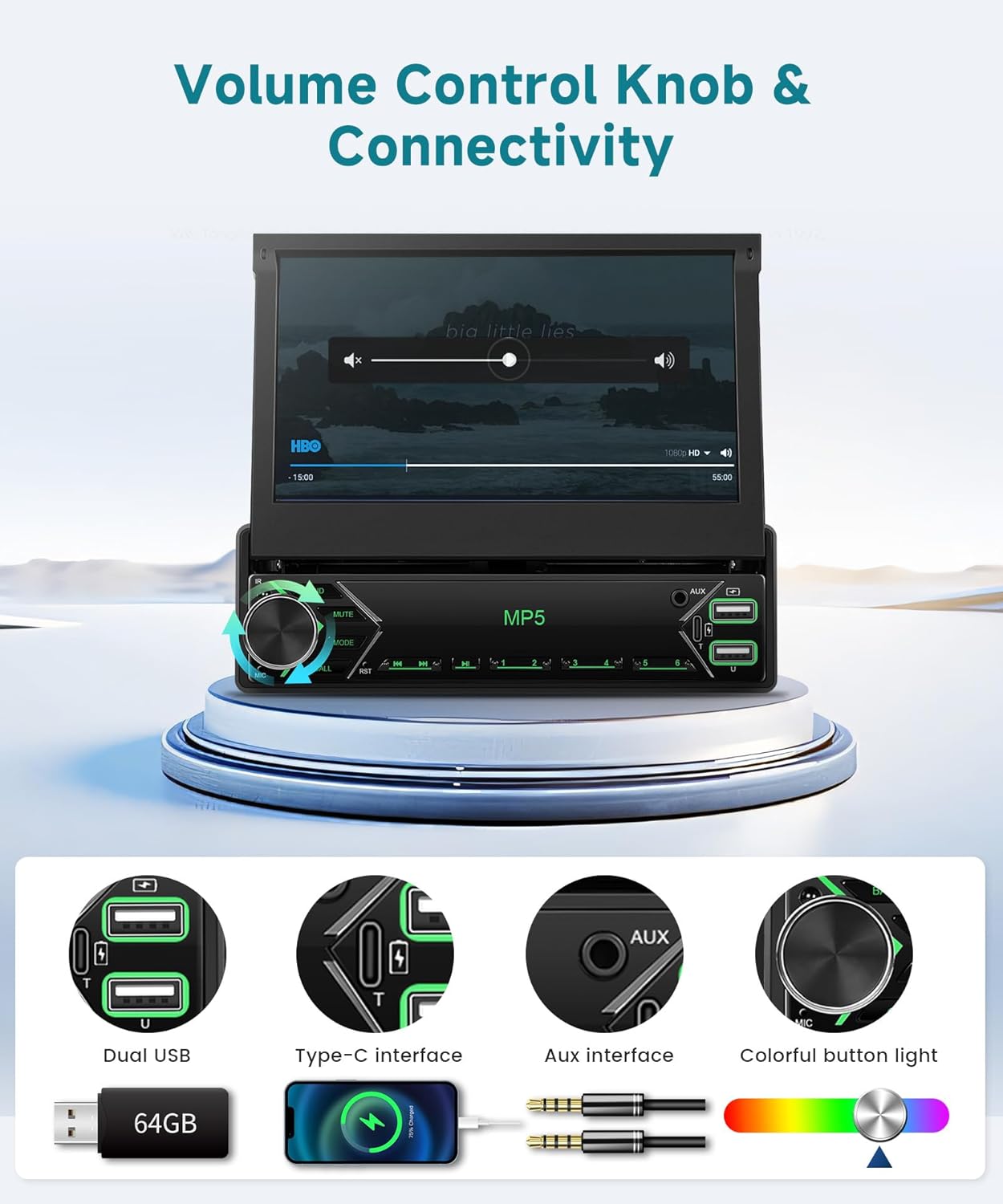
Figure 7: FM Radio Interface
EQ Adjustment
Customize your audio experience with the adjustable EQ sound effects. Fine-tune the equalizer to match your listening preferences for richer, more personalized sound.

Figure 8: EQ Adjustment Interface
Rear View Camera
The included rear view camera provides a clear image of the area behind your vehicle, enhancing safety during parking and reversing maneuvers. The display automatically switches to the camera feed when reversing.

Figure 9: Rear View Camera Display
Steering Wheel Control (SWC)
Utilize the steering wheel control function to adjust volume, switch tracks, and manage calls without removing your hands from the steering wheel, promoting safer driving.

Figure 10: Steering Wheel Control Interface
Mirror Link
The Mirror Link function allows you to mirror your smartphone's display onto the stereo screen in real-time. This provides a larger, clearer view of your phone's content, including navigation and videos.

Figure 11: Mirror Link Functionality
USB, Type-C, and AUX Ports
The unit is equipped with dual USB ports, a Type-C port, and an AUX input. These allow for device charging, USB music playback, and connection of external audio sources, offering versatile entertainment options.

Figure 12: Connectivity Ports
Maintenance
To ensure the longevity and optimal performance of your Sellrich S7W car stereo, follow these maintenance guidelines:
- Cleaning the Screen: Use a soft, lint-free cloth to gently wipe the touchscreen. Avoid abrasive cleaners or solvents that could damage the display.
- General Cleaning: Keep the unit free from dust and debris. Use a dry cloth to wipe the exterior.
- Cable Connections: Periodically check all cable connections to ensure they are secure and free from corrosion.
- Software Updates: Check the manufacturer's website for any available software updates to improve performance and add new features.
Troubleshooting
If you encounter issues with your Sellrich S7W, refer to the following common troubleshooting steps:
- No Power: Check all power connections. Ensure the vehicle's ignition is on and the fuse is not blown.
- No Sound: Verify speaker connections. Check volume levels on both the stereo and your connected device. Ensure the mute function is not active.
- CarPlay/Android Auto Not Connecting: Ensure your phone's operating system is up to date. Try restarting both your phone and the stereo. Check the USB cable for damage if using a wired connection.
- Screen Unresponsive: Perform a soft reset by pressing the reset button (if available) or by turning off the vehicle's ignition and restarting.
- Lagging Performance: While the unit is designed for responsiveness, heavy multitasking (e.g., navigation and audio playback simultaneously) can sometimes cause minor delays. Close unnecessary applications on your connected smartphone.
If problems persist, contact Sellrich customer support for further assistance.
Specifications
| Feature | Detail |
|---|---|
| Brand | Sellrich |
| Model Number | S7W |
| Screen Type | 7 inch HD IPS Manual Single Din Flip Out Touch Screen |
| Connectivity Technology | Bluetooth, USB Type A, USB Type-C, AUX |
| Controller Type | Carplay, Touch |
| Compatible Devices | Smartphone |
| Audio Output Mode | Stereo |
| Output Power | 45 Watts |
| Output Wattage | 180 Watts |
| Number of Channels | 4 |
| Video Encoding Support | AVI, MP4, MOV, MPG, MKV, VOB, RMVB, RM |
| Special Features | Built-In Bluetooth, FM Tuner, Online Video (YouTube), Same Screen Display, Wireless/Wired Carplay Android Auto, Steering Wheel Control, Custom Color Backlight |
| Color | Black |
Warranty and Support
The Sellrich S7W Single DIN Flip-Out Car Stereo comes with a 2-year warranty from the date of purchase. This warranty covers manufacturing defects and ensures reliable operation under normal use conditions.
For technical support, warranty claims, or any inquiries regarding your product, please contact Sellrich customer service through the retailer's platform or visit the official Sellrich website for contact information.