
1. Introduction
This user manual provides comprehensive instructions for the installation, operation, and maintenance of your Driauto 7-Inch Motorcycle CarPlay Screen. This device is designed to enhance your riding experience by integrating smartphone functionalities like navigation, music, and communication directly onto your motorcycle's dashboard. Please read this manual thoroughly before using the product to ensure safe and optimal performance.

Figure 1: Driauto 7-Inch Motorcycle CarPlay Screen with included accessories.
2. Product Features
- 7-Inch High-Definition IPS Touchscreen: Features a 1024x600 resolution for clear visuals and responsive touch control. Brightness is adjustable for optimal visibility in various lighting conditions.
- Wireless CarPlay & Android Auto: Seamlessly integrates your smartphone for navigation, music, calls, and messaging.
- Wireless Mirror Link: Supports wireless Apple Airplay and Android Cast for screen mirroring.
- Dual Bluetooth Connectivity: Allows simultaneous connection to your smartphone and a Bluetooth headset/helmet for hands-free communication and audio.
- IP67 Waterproof & Durable Design: Engineered to withstand rain, dust, and vibrations, ensuring reliable operation in diverse outdoor environments.
- EQ Sound Customization: Built-in preset EQ and user-customizable 10-band HD EQ for personalized audio experience.
- SD Card Support: Includes a 64GB SD card for local audio and video playback.
- Voice Control: Access Siri or Google Assistant for hands-free operation.
- Interchangeable Wallpapers: Customize the display's background.
3. Package Contents
Verify that all items listed below are included in your package:

Figure 2: Product dimensions and included accessories.
- Driauto 7-Inch CarPlay Screen Unit
- Universal Mounting Bracket Kit
- Power Cable
- 64GB SD Card
- User Manual (this document)
4. Setup
4.1. Mounting the Device
The device comes with a universal mounting bracket kit designed for easy installation on most motorcycles. The brackets are highly adjustable, allowing you to position the screen for optimal viewing angles and riding postures.
- Select a suitable location on your motorcycle's handlebars or dashboard that does not obstruct your view or controls.
- Assemble the mounting bracket components according to the diagram provided with the bracket kit.
- Securely attach the bracket to your motorcycle. Ensure it is tightened sufficiently to prevent movement during riding.
- Attach the CarPlay screen unit to the mounted bracket. Adjust the angle as needed for your preferred viewing position.
4.2. Wiring
The power cable requires a simple two-wire connection:
- Connect the ACC (+12V) wire to a switched 12V power source on your motorcycle (e.g., ignition wire).
- Connect the Ground wire to a suitable chassis ground point on your motorcycle.
Ensure all connections are secure and insulated to prevent short circuits and water ingress.
4.3. Initial Power On
After mounting and wiring, turn on your motorcycle's ignition. The CarPlay screen should power on automatically. Follow any on-screen prompts for initial setup, such as language selection or time zone settings.
5. Operating Instructions
5.1. Basic Screen Navigation
The device features a responsive touchscreen. Tap icons to select functions, swipe to navigate menus, and use pinch-to-zoom gestures where applicable (e.g., maps). Brightness can be adjusted via the display settings menu to suit ambient light conditions.
5.2. Wireless CarPlay and Android Auto Connection
To connect your smartphone wirelessly:
- Ensure Bluetooth and Wi-Fi are enabled on your smartphone.
- On the CarPlay screen, select the "CarPlay" or "Android Auto" icon.
- The screen will display a Bluetooth name. On your smartphone, search for and pair with this Bluetooth device.
- Once paired via Bluetooth, the device will automatically establish a Wi-Fi connection for CarPlay or Android Auto functionality.
- Confirm any prompts on your smartphone to allow connection.

Figure 3: Wireless CarPlay, Android Auto, and Mirror Link interfaces.
5.3. Wireless Mirror Link (Airplay / Android Cast)
The device supports wireless screen mirroring for both Apple (Airplay) and Android (Android Cast) devices. Follow the on-screen instructions after selecting the "Mirror Link" option to connect your phone.
5.4. Dual Bluetooth Connectivity
The integrated dual Bluetooth allows for versatile audio routing:
- Smartphone Connection: Pair your smartphone to the CarPlay screen for CarPlay/Android Auto, calls, and music playback.
- Bluetooth Headset/Helmet Connection: Pair your Bluetooth headset or helmet communication system directly to the CarPlay screen. This allows audio from the screen (navigation prompts, music, calls) to be transmitted directly to your helmet, enhancing safety and clarity.

Figure 4: Dual Bluetooth connectivity for phone and helmet headset.
5.5. Audio Settings and SD Card Playback
- EQ Sound Customization: Access the EQ settings menu to adjust audio frequencies. You can choose from preset equalizer modes or customize a 10-band HD EQ to match your preferences.
- SD Card Media: Insert the provided 64GB SD card into the designated slot. The device supports local playback of audio and video files stored on the card. Navigate to the "SD Card" or "Media Player" application on the screen to access your files.
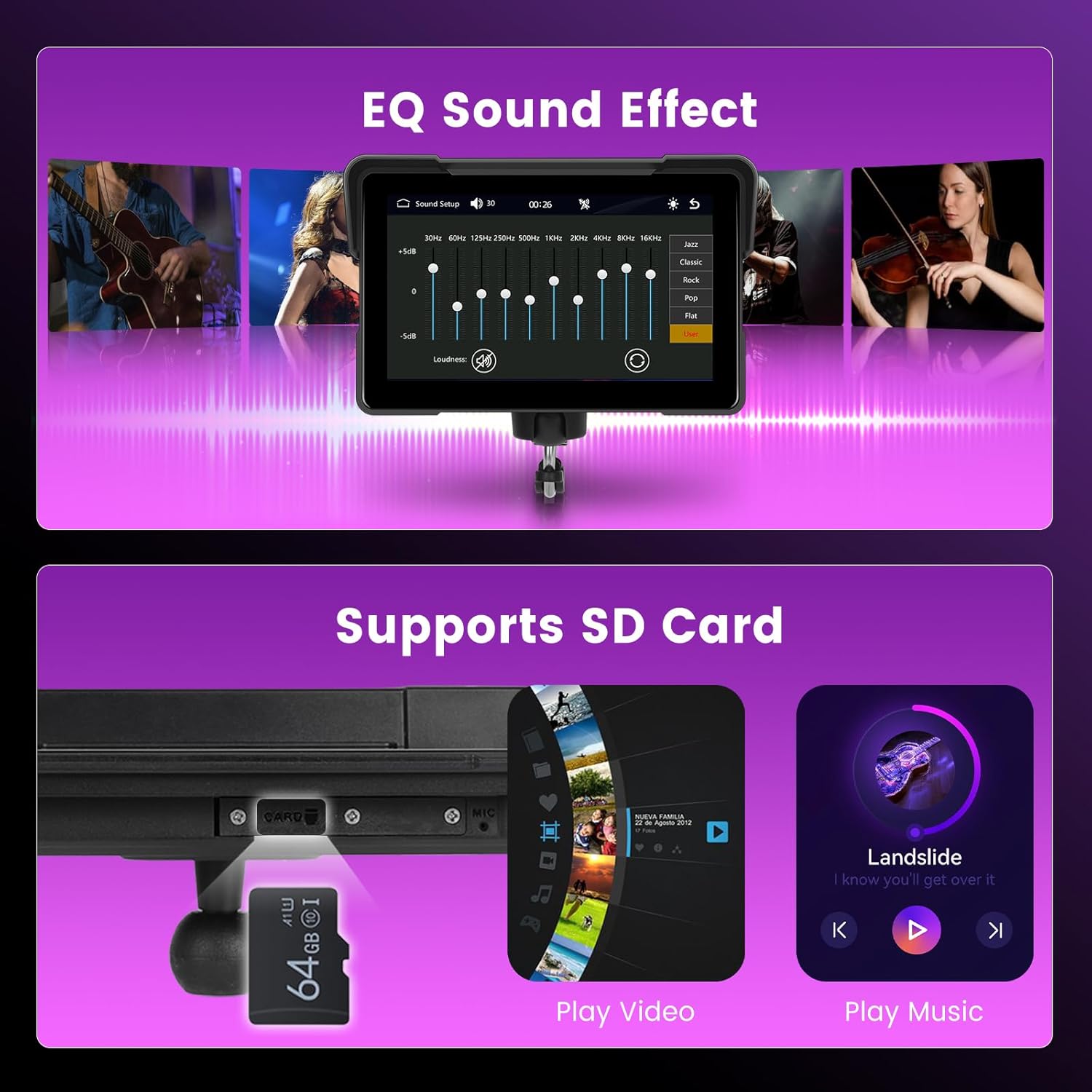
Figure 5: EQ sound settings and SD card media playback.
5.6. GPS Navigation
When connected to CarPlay or Android Auto, you can utilize your smartphone's navigation applications (e.g., Apple Maps, Google Maps, Waze) directly on the 7-inch screen. Voice prompts will be routed through your connected Bluetooth headset.
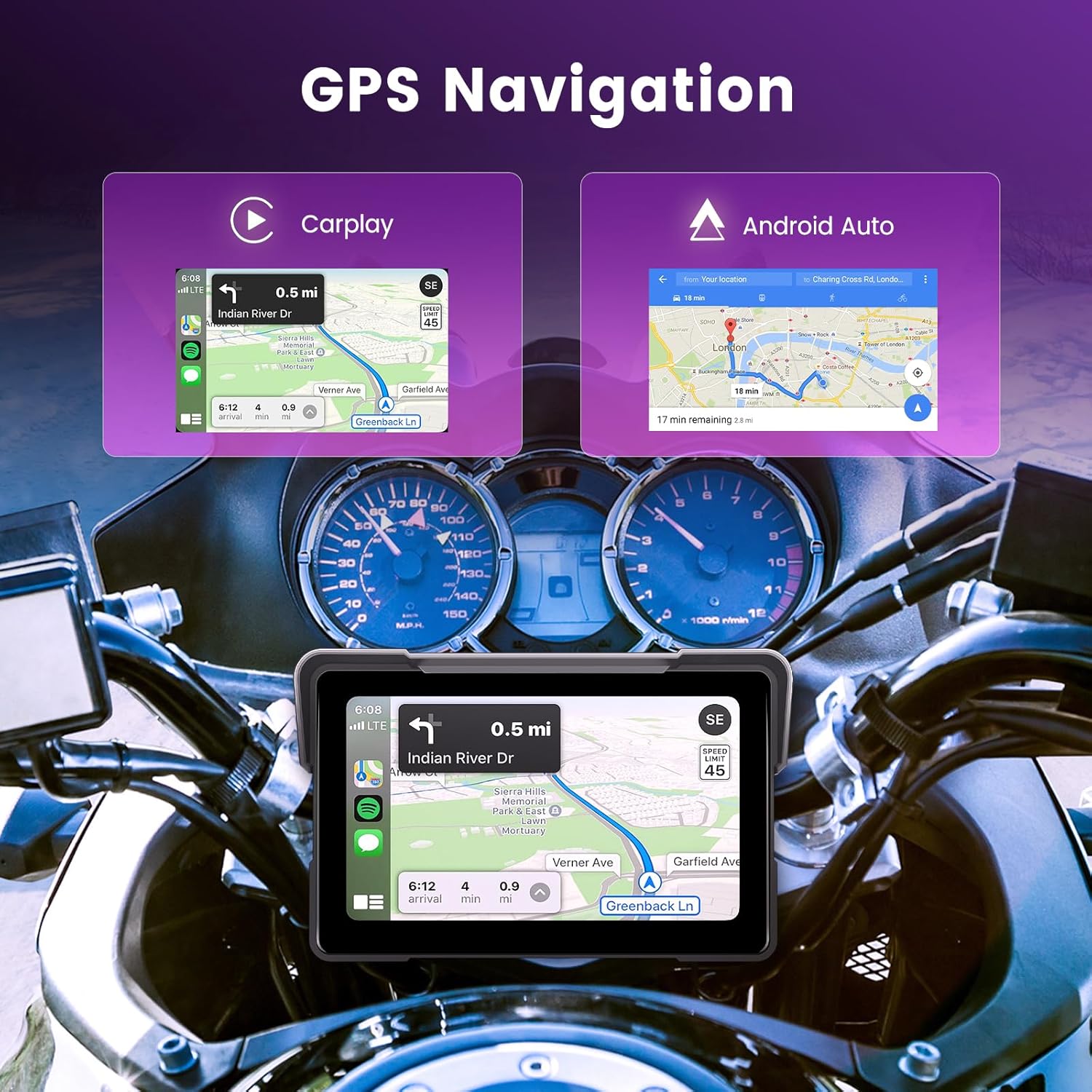
Figure 6: GPS Navigation via CarPlay and Android Auto.
5.7. Voice Control
Activate Siri (for Apple CarPlay) or Google Assistant (for Android Auto) by pressing the voice control button on the screen or your connected headset (if supported). This allows you to issue commands for navigation, calls, messages, and music playback without taking your hands off the handlebars.
5.8. Wallpaper Replacement
Personalize your screen by changing the wallpaper. Access the "Display Settings" or "Wallpaper" option in the main menu to select from available options or upload your own images (if supported via SD card).
6. Maintenance
6.1. Cleaning the Screen
To clean the touchscreen, gently wipe it with a soft, lint-free cloth. For stubborn smudges, slightly dampen the cloth with water or a screen-safe cleaning solution. Avoid using harsh chemicals, abrasive materials, or excessive moisture.
6.2. Waterproof and Dustproof Design
The device is rated IP67 waterproof, meaning it is protected against dust ingress and immersion in water up to 1 meter for 30 minutes. While designed for outdoor use, avoid prolonged submersion or high-pressure water jets. Ensure all cable connections are properly sealed to maintain water resistance.

Figure 7: The 7-inch HD screen is designed for all weather conditions.
7. Troubleshooting
If you encounter issues with your Driauto CarPlay Screen, refer to the following common problems and solutions:
- Device does not power on:
- Check power cable connections to the motorcycle's 12V ACC and ground.
- Ensure the motorcycle's ignition is on.
- Cannot connect to Wireless CarPlay/Android Auto:
- Ensure Bluetooth and Wi-Fi are enabled on your smartphone.
- Forget the device from your phone's Bluetooth settings and try pairing again.
- Restart both the CarPlay screen and your smartphone.
- Check for any pending software updates on your smartphone or the CarPlay screen.
- No audio or poor sound quality:
- Verify that your Bluetooth headset/helmet is properly paired and connected to the CarPlay screen.
- Adjust the volume on both the CarPlay screen and your headset.
- Check EQ settings; reset to default if necessary.
- Touchscreen is unresponsive:
- Restart the device.
- Ensure the screen is clean and free of debris or moisture.
- Perform a touch calibration if available in the settings menu.
- GPS signal issues:
- Ensure your smartphone has a clear view of the sky for GPS reception.
- Check your smartphone's location services settings.
If problems persist, please refer to the support section for further assistance.
8. Specifications

Figure 8: Rear view of the device with technical information.
| Feature | Specification |
|---|---|
| Brand | Driauto |
| Model Number | 543f45cc-ab60-48a2-84a9-8345ab8f66a7 |
| Screen Size | 7 Inches |
| Display Resolution | 1024x600 |
| Display Type | IPS |
| Voltage | 12V |
| Operating Temperature | -4~149 ℉ (-20~65 ℃) |
| Waterproof Level | IP67 |
| Connectivity Technology | Bluetooth, Wi-Fi (for CarPlay/Android Auto) |
| Special Features | Wireless Android Auto, Wireless Apple CarPlay, Bluetooth, Built-In Speakers, Mirror Link, EQ, SD Card Support |
9. Warranty and Support
For warranty information, please refer to the documentation provided at the time of purchase or contact your retailer. If you require technical support or have questions not covered in this manual, please contact Driauto customer service or your authorized dealer. Please have your product model number (543f45cc-ab60-48a2-84a9-8345ab8f66a7) ready when contacting support.