
Samsung E1SAMQN65LS03FA
Samsung 65" The Frame LS03FA QLED 4K TV 2025 User Manual
Model: E1SAMQN65LS03FA | Brand: Samsung
Introduction
This user manual provides comprehensive instructions for the setup, operation, and maintenance of your Samsung 65" The Frame LS03FA QLED 4K TV. Please read this manual thoroughly before using the product to ensure safe and optimal performance. Keep this manual for future reference.

Image: Front view of the Samsung 65" The Frame QLED 4K TV, showcasing its art mode with a vibrant painting displayed on the screen. The TV is designed to blend seamlessly into a living space.
Safety Information
Always follow basic safety precautions when using this television to reduce the risk of fire, electric shock, and injury. Refer to the separate safety guide included with your product for detailed warnings and instructions.
- Do not expose this apparatus to rain or moisture.
- Do not block any ventilation openings.
- Do not install near any heat sources.
- Protect the power cord from being walked on or pinched.
- Only use attachments/accessories specified by the manufacturer.
What's in the Box
Verify that all components are present before proceeding with setup.
- Samsung The Frame LS03FA QLED 4K Art Mode Vision AI Smart TV (2025)
- Remote Control (TM2361E)
- One Connect Box
- Slim Fit Wall Mount
- Power Cable
- User Manual (this document)
- Stand Components

Image: The Samsung The Frame TV shown with its remote control, One Connect Box, and stand components, illustrating the items typically included in the product packaging.
Setup
1. Unpacking
Carefully remove all components from the packaging. It is recommended to retain the original packaging for future transport or service needs.
2. Assembly (Stand or Wall Mount)
Your Samsung The Frame TV can be installed using the included stand or the Slim Fit Wall Mount.
Stand Installation:
- Place the TV screen face down on a soft, flat surface to prevent damage.
- Attach the stand components to the designated slots on the back of the TV, securing them with the provided screws.
- Ensure the stand is firmly attached before carefully lifting the TV to its upright position.

Image: Side profile view of the Samsung The Frame TV mounted on its included stand, demonstrating its slim design and stable base.
Slim Fit Wall Mount Installation:
The Slim Fit Wall Mount allows the TV to hang flush against the wall, mimicking a picture frame. Refer to the separate wall mount installation guide for detailed instructions. Professional installation is recommended for wall mounting.
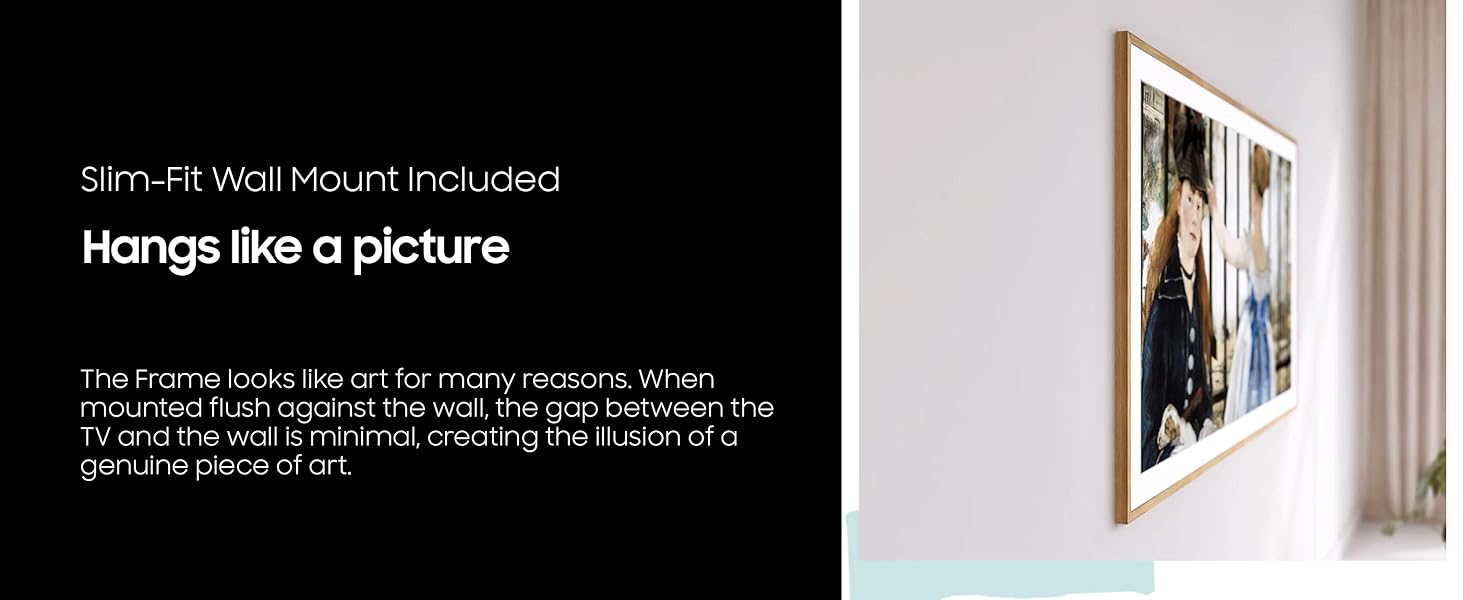
Image: The Samsung The Frame TV shown mounted flush against a wall, illustrating how the Slim Fit Wall Mount minimizes the gap between the TV and the wall, creating the illusion of a genuine piece of art.
3. Connecting Devices with the One Connect Box
The One Connect Box simplifies cable management by centralizing all connections. Connect your external devices (e.g., Blu-ray player, game console, soundbar) to the One Connect Box, then connect the single One Connect Cable from the box to the TV.
- Connect the power cable to the One Connect Box.
- Connect the One Connect Cable from the One Connect Box to the One Connect Port on the TV.
- Connect HDMI devices to the HDMI ports on the One Connect Box.
- Connect other peripherals (USB, Ethernet) as needed.
4. Initial Power On and Setup Wizard
Once all connections are made, plug the power cable into a wall outlet. The TV will power on and guide you through the initial setup wizard, including network connection, channel scanning, and Smart Hub configuration.
Operating Your TV
Basic Operation
- Power On/Off: Press the Power button on the remote control.
- Input Source: Press the Source button to select connected devices (HDMI 1, HDMI 2, TV, etc.).
- Volume Control: Use the Volume Up/Down buttons.
- Channel Change: Use the Channel Up/Down buttons.
- Smart Hub: Press the Home button to access the Smart Hub for apps, streaming services, and settings.
Art Mode
When the TV is off, Art Mode transforms your screen into a display of curated artwork or your personal photos. Access the Art Store for a vast collection of art from world-renowned museums and galleries.
- To enter Art Mode, press the Power button when the TV is off, or select Art Mode from the Smart Hub.
- Browse and select artwork from the Art Store.
- Upload your own photos via the SmartThings app.
- Customize mat styles and colors to complement the artwork.
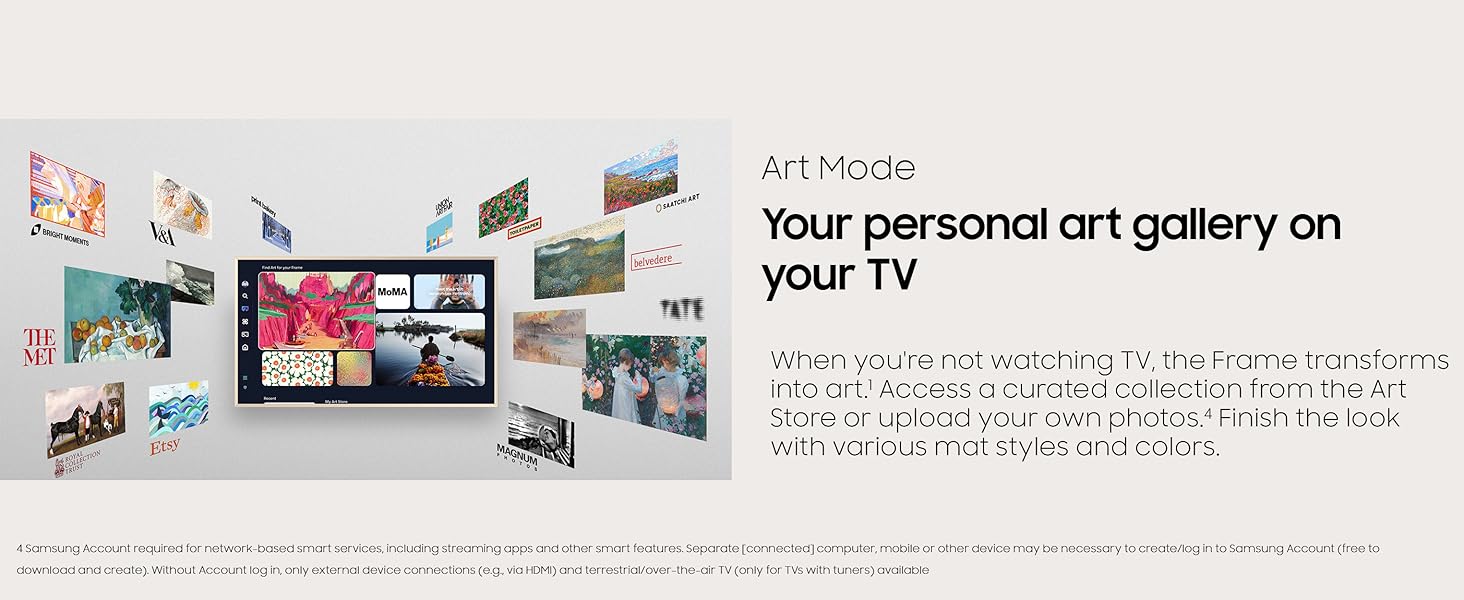
Image: A collage of various artworks displayed on the Samsung The Frame TV in Art Mode, demonstrating the TV's capability to function as a personal art gallery.
Samsung Vision AI
The integrated Vision AI processor enhances picture and sound quality, optimizing content to stunning resolution and audio. It also enables advanced features like real-time translation and gesture control (with compatible devices).
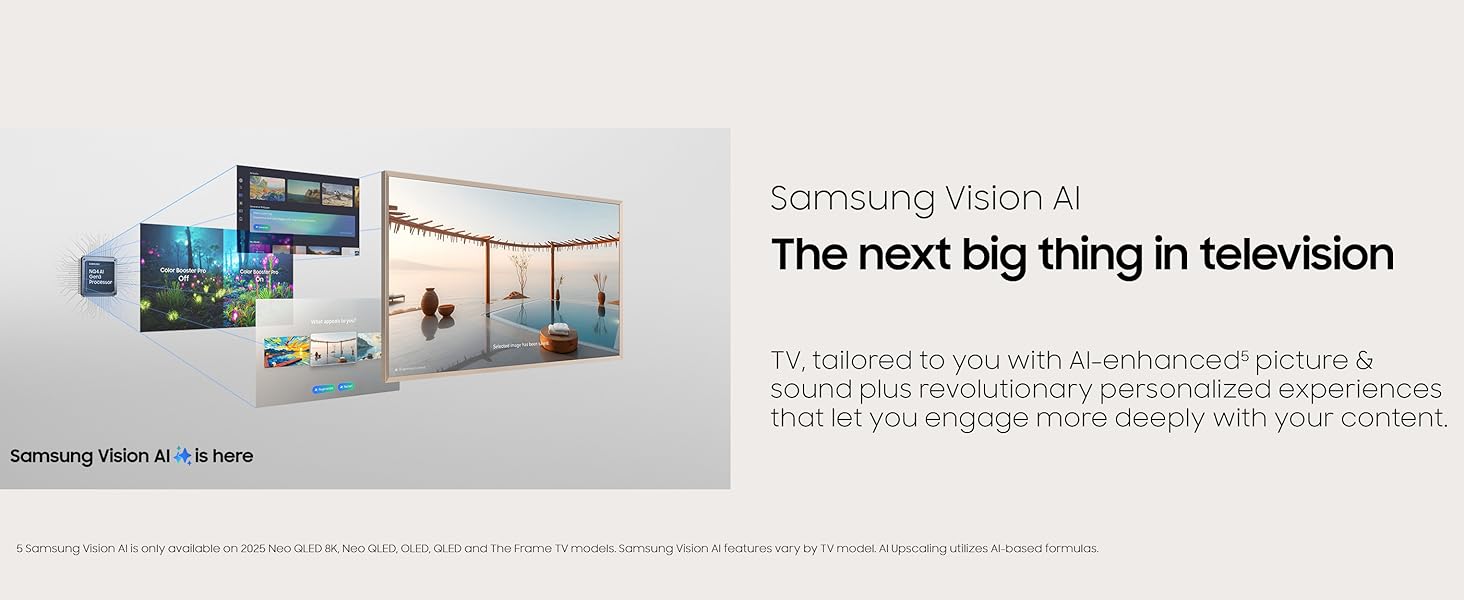
Image: A conceptual diagram showcasing the various functionalities of Samsung Vision AI, including enhanced picture and sound, and personalized content experiences.
Picture Settings
Adjust picture settings to optimize your viewing experience.
- Picture Mode: Select from Standard, Dynamic, Movie, Filmmaker Mode, or adjust custom settings.
- Brightness/Contrast/Sharpness: Fine-tune these parameters for desired visual output.
- Color Tone: Adjust the color temperature (Cool, Standard, Warm).
- Anti-Reflection with Matte Display: This feature minimizes glare, making art look like a real print.
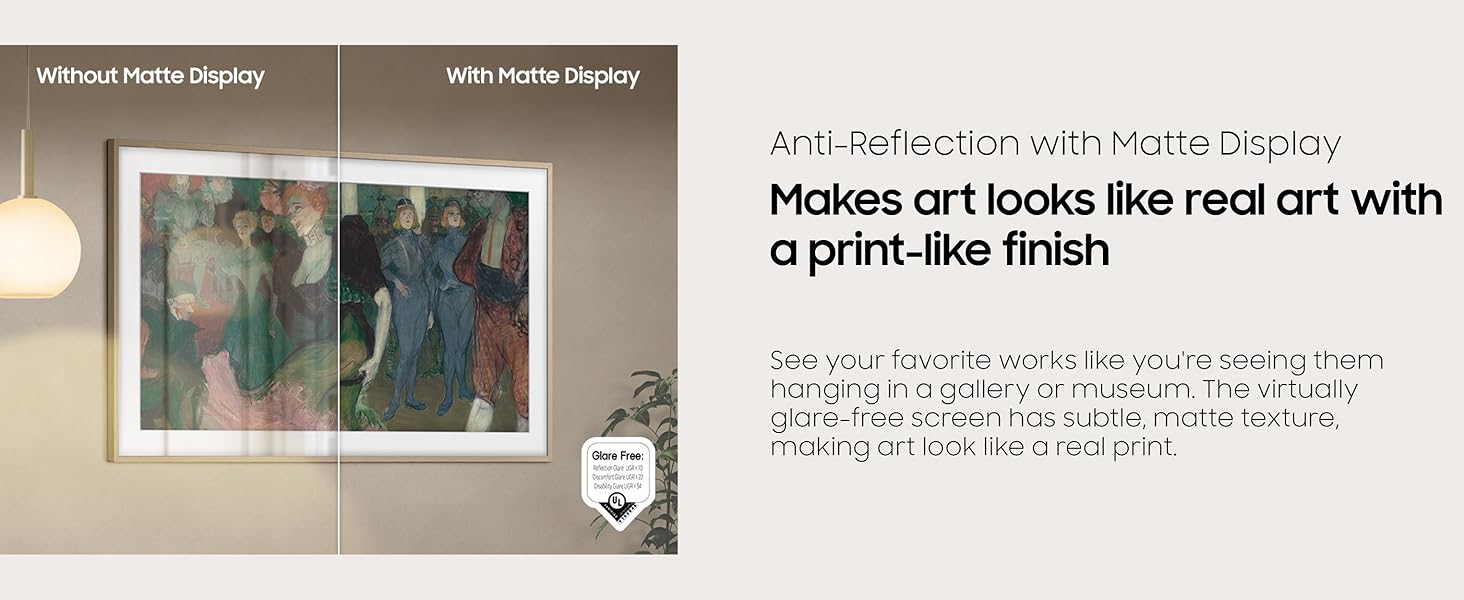
Image: A split image demonstrating the difference between a TV screen without a matte display (showing reflections) and one with a matte display (showing reduced glare), highlighting the anti-reflection feature.
Sound Settings
Customize audio output for optimal listening.
- Sound Mode: Choose from Standard, Adaptive Sound, Amplify, or Movie.
- Equalizer: Adjust specific frequency bands for personalized audio.
- Dolby Atmos/DTS:X: Enable for immersive audio experiences (if supported by content and external sound system).
Gaming Features
The TV supports Motion Xcelerator 144Hz for smooth motion and tear-free gaming, providing enhanced performance for compatible games.

Image: A dynamic gaming scene with a race car, visually representing the smooth motion and tear-free experience provided by Motion Xcelerator 144Hz technology for gaming.
Maintenance
Cleaning Your TV
- Screen: Gently wipe the screen with a soft, lint-free cloth. For stubborn marks, lightly dampen the cloth with water or a screen-specific cleaning solution. Do not spray liquid directly onto the screen.
- Frame and Body: Use a soft, dry cloth to wipe dust and smudges from the TV frame and body.
- One Connect Box: Keep the One Connect Box free of dust and ensure proper ventilation.
Software Updates
Regularly update your TV's software to ensure optimal performance, security, and access to new features. You can check for updates via the TV's settings menu (Settings > Support > Software Update).
Troubleshooting
If you encounter issues with your TV, refer to the following common problems and solutions before contacting service.
| Problem | Possible Cause / Solution |
|---|---|
| No Power | Ensure the power cable is securely plugged into the TV/One Connect Box and the wall outlet. Test the outlet with another device. |
| No Picture / Black Screen | Check the input source. Ensure all HDMI cables are properly connected to the One Connect Box and external devices. Try restarting connected devices. |
| No Sound | Check the volume level. Ensure external audio systems (soundbar, receiver) are properly connected and powered on. Check TV sound output settings. |
| Remote Control Not Working | Replace the batteries. Ensure there are no obstructions between the remote and the TV. Re-pair the remote if it's a Bluetooth remote. |
| Wi-Fi Connection Issues | Restart your router and modem. Check Wi-Fi password. Ensure the TV is within range of your Wi-Fi network. |
Specifications
| Feature | Detail |
|---|---|
| Model Number | E1SAMQN65LS03FA |
| Screen Size | 64.5 Inches (diagonal) / 65" |
| Display Technology | QLED |
| Resolution | 4K UHD (3840 x 2160) |
| Refresh Rate | 120 Hz (Motion Xcelerator 144Hz for gaming) |
| Special Features | Art Mode, Artful Picture Quality with QLED, Eye Comfort Mode, Modern Frame Design, Samsung Vision AI, Anti-Reflection with Matte Display, Motion + Brightness Sensor |
| Connectivity | Bluetooth, Wi-Fi, HDMI (via One Connect Box), USB, Ethernet |
| Product Dimensions (WxHxD) | 57.4" x 35.2" x 10.3" (with stand) |
| Item Weight | 50.2 pounds |
| On-mode Power Consumption | 183 watts |
| First Available Date | June 16, 2025 |
Warranty and Support
Your Samsung The Frame TV comes with a limited manufacturer protection. Additionally, this bundle includes a CPS 26 Months Extended Protection plan, which covers accidental damage and burn-in.
- For warranty claims or technical support, please contact Samsung Customer Service.
- For details regarding the CPS Extended Protection plan, refer to the documentation provided with your purchase or contact CPS directly.
- Online resources, FAQs, and software downloads are available on the official Samsung support website.
Samsung Support Website: www.samsung.com/us/support/
Related documentsE1SAMQN65LS03FA


Ask a question about this manual
Ask about setup, troubleshooting, compatibility, parts, safety, or missing instructions. Manuals+ will review the question and use this page’s manual context to help answer it.