
1. Introduction
Thank you for choosing the RICHCHO 4-Pack Wireless Security Cameras. This manual provides essential information for the proper installation, operation, and maintenance of your security system. These battery-powered cameras offer 2.5K QHD resolution, color night vision, AI motion detection, and two-way audio, designed for both indoor and outdoor surveillance. Please read this manual thoroughly before use and retain it for future reference.

Image 1.1: RICHCHO Wireless Battery Camera System Overview.
2. Package Contents
Before proceeding with installation, please verify that all items listed below are included in your package:
- 4 x Rechargeable Battery Security Cameras
- 4 x Metal Mounts
- 4 x Screws Sets (for mounting)
- 4 x USB Cables (for charging)
- 1 x User Manual
3. Product Overview
3.1 Key Features
- 2.5K QHD Video & 130° Wide-Angle View: Provides clear, comprehensive surveillance.
- Full-Color & Infrared Night Vision: Ensures detailed monitoring day and night, up to 33 feet.
- Two-Way Talk & Customizable Alarm: Communicate with visitors or deter intruders with a siren and flashing LED.
- Rechargeable & Wireless: 5200mAh battery for flexible placement and wire-free operation.
- IP65 Weatherproof Design: Durable for various outdoor conditions.
- Smart AI Motion Detection: Distinguishes human activity to minimize false alerts.
- Real-Time Alerts: Instant notifications to your smartphone.
- No Subscription Fee: Includes 1-day free cloud storage and supports up to 256GB SD card.
- Alexa Compatibility: Seamless integration for convenient voice control.
3.2 Camera Components

Image 3.1: Front view of the RICHCHO Wireless Security Camera highlighting key features.
Each camera unit typically includes:
- Lens: Captures video footage.
- Infrared (IR) Lights: For black and white night vision.
- Spotlight: For color night vision and deterring intruders.
- Microphone: For audio input and two-way talk.
- Speaker: For audio output and two-way talk.
- PIR Motion Sensor: Detects heat signatures for motion detection.
- Mounting Point: For attaching the camera to the metal mount.
- USB Charging Port: For recharging the internal battery.
- Reset Button: To restore factory settings or restart the camera.
- SD Card Slot: For local video storage (supports up to 256GB).
4. Setup Guide
4.1 Initial Charging
Before first use, fully charge each camera using the provided USB cables and a 5V/2A power adapter (not included). A full charge typically takes several hours. The indicator light will change color (e.g., red to blue) once charging is complete.
4.2 Downloading the O-KAM Pro App
Search for and download the O-KAM Pro app from the App Store (iOS) or Google Play Store (Android).
4.3 Account Registration
Open the O-KAM Pro app and follow the on-screen instructions to register a new account. Ensure you use a valid email address for verification.
4.4 Adding a Camera
- Open the O-KAM Pro app and tap the 'Add Device' or '+' icon.
- Select your camera model from the list.
- Power on the camera. The camera will enter pairing mode, indicated by a flashing light or voice prompt.
- Follow the app's instructions to connect the camera to your 2.4GHz Wi-Fi network. Ensure your phone is connected to the same 2.4GHz Wi-Fi network during setup.
- Scan the QR code displayed on your phone screen with the camera lens. Hold the phone approximately 4-8 inches (10-20 cm) from the camera until you hear a confirmation sound.
- Once connected, name your camera and complete the setup process.
Troubleshooting Tip: If you experience difficulty connecting to Wi-Fi, ensure your Wi-Fi password is correct, the camera is within range of your router, and you are connected to a 2.4GHz network. Resetting the camera (using the reset button) and retrying the pairing process can often resolve connectivity issues.
4.5 Mounting the Camera

Image 4.1: Flexible mounting options for indoor and outdoor use.
The cameras are designed for versatile installation, suitable for both indoor and outdoor environments thanks to their IP65 weatherproof rating.
- Choose a Location: Select a location that provides optimal viewing coverage and strong Wi-Fi signal. For outdoor use, consider placing the camera under an overhang for added protection, though it is IP65 rated.
- Install the Mount: Use the provided screws to securely attach the metal mount to a wall or ceiling.
- Attach the Camera: Securely attach the camera to the installed mount. Adjust the angle for the desired field of view.
5. Operating Instructions
5.1 Live View

Image 5.1: Screenshots of the O-KAM Pro app interface for easy access to live view and recordings.
Open the O-KAM Pro app and tap on the desired camera to access its live video feed. You can monitor your property in real-time from anywhere.

Image 5.2: Comparison of 2K HD and 130° wide-angle view versus standard camera view.

Image 5.3: Illustrates the 130° wide coverage for comprehensive home monitoring.

Image 5.4: Example of 2K resolution clarity.
5.2 Two-Way Audio

Image 5.5: Using two-way audio to communicate with a visitor.

Image 5.6: Effortless communication with loved ones using two-way audio.
From the live view screen, tap the microphone icon to speak through the camera's speaker. Tap the speaker icon to hear audio from the camera's microphone. This allows for real-time communication with individuals near the camera.
5.3 Motion Detection & Alerts

Image 5.7: AI motion detection identifying an intruder and sending an alert.

Image 5.8: Advanced AI human detection for accurate alerts.

Image 5.9: Setting up an activity zone to focus on vital areas.
The cameras feature advanced AI detection to identify human movement, reducing false alarms. When motion is detected, you will receive instant alerts on your phone. You can customize motion detection sensitivity and set specific activity zones within the app to focus on critical areas.
The cameras also include a customizable siren and spotlight. These can be activated manually or set to trigger automatically upon motion detection to deter unwanted guests.

Image 5.10: Spotlight and siren functionality for home security.
5.4 Night Vision

Image 5.11: Example of 2K HD color night vision capturing details at night.

Image 5.12: Clear color night vision footage of a cat.

Image 5.13: Comparison with regular black and white night vision.
The cameras offer both full-color night vision (activated by the spotlight) and infrared night vision, allowing you to see clearly in low-light conditions up to 33 feet. You can configure night vision settings within the app.
5.5 Recording & Playback
Recordings are triggered by motion detection. You can store footage locally on a microSD card (up to 256GB, not included) or utilize the 1-day free cloud storage. Access recorded events through the 'Playback' section in the O-KAM Pro app.
5.6 Alexa Integration

Image 5.14: RICHCHO cameras are compatible with Amazon Alexa for voice control.
Integrate your RICHCHO cameras with Amazon Alexa for convenient voice control. Follow the instructions in the O-KAM Pro app or your Alexa app to link your devices. You can then use voice commands to view live feeds on compatible Alexa-enabled devices.
5.7 Sharing Access

Image 5.15: Easily share camera access with family members.
The O-KAM Pro app allows you to share camera access with family members or trusted individuals. This enhances your home security network by enabling multiple users to monitor the cameras.
5.8 Digital Zoom

Image 5.16: 5x digital zoom for detailed close-ups.
Utilize the 5x digital zoom feature within the app to get a closer look at specific areas in the live view or recorded footage, capturing important details with precision.
6. Maintenance
6.1 Battery Management
The cameras are powered by a 5200mAh rechargeable battery. Battery life varies based on usage, motion detection frequency, and environmental factors. To maximize battery life:
- Reduce motion detection sensitivity if receiving excessive alerts.
- Optimize activity zones to monitor only necessary areas.
- Avoid placing cameras in high-traffic areas if continuous recording is not required.
- Ensure cameras are fully charged before deployment.
Recharge the cameras using the provided USB cables when the battery level is low, as indicated in the app.
6.2 Cleaning
Periodically clean the camera lens and casing with a soft, damp cloth to ensure clear image quality and proper sensor function. Do not use harsh chemicals or abrasive materials.
6.3 Weather Protection
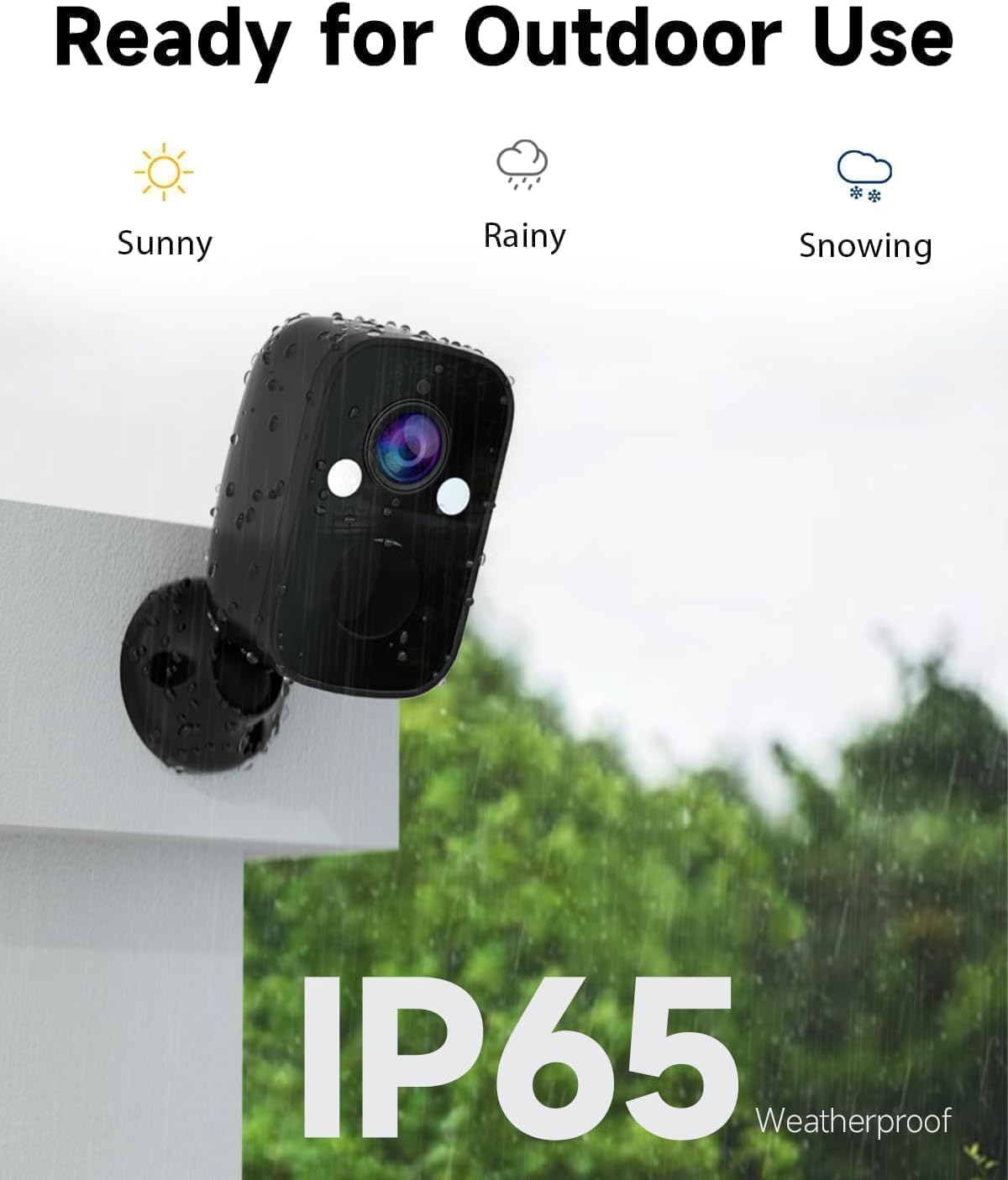
Image 6.1: The camera's IP65 rating ensures durability in various weather conditions.

Image 6.2: The IP65 rating allows for reliable operation in diverse environments, including snow and rain.
The cameras are rated IP65 waterproof, meaning they are protected against dust and low-pressure water jets. While designed for outdoor use, extreme weather conditions may still impact performance or battery life. Ensure all ports are securely sealed.
7. Troubleshooting
If you encounter issues with your RICHCHO security cameras, please refer to the following common troubleshooting steps:
- Camera not connecting to Wi-Fi:
- Ensure your Wi-Fi network is 2.4GHz. These cameras do not support 5GHz Wi-Fi.
- Verify the Wi-Fi password is entered correctly in the app.
- Place the camera closer to your Wi-Fi router during setup.
- Reset the camera by pressing and holding the reset button for 5-10 seconds, then attempt pairing again.
- Short Battery Life:
- High motion detection frequency or prolonged live view sessions can drain the battery faster.
- Adjust motion detection sensitivity and set activity zones to reduce unnecessary recordings.
- Ensure the camera is fully charged before deployment. Cold temperatures can also reduce battery performance.
- False Motion Alerts:
- Adjust the motion detection sensitivity in the app.
- Define specific activity zones to exclude areas with frequent non-human movement (e.g., trees swaying, passing cars).
- Ensure the AI human detection feature is enabled.
- No Night Vision:
- Check the night vision settings in the O-KAM Pro app to ensure it's enabled or set to auto.
- Ensure there are no obstructions blocking the IR lights or spotlight.
- Two-Way Audio Issues:
- Ensure your phone's volume is up and the microphone access is granted to the O-KAM Pro app.
- Check the camera's speaker and microphone settings in the app.
- Ensure there are no physical obstructions blocking the camera's microphone or speaker.
8. Specifications
Below are the technical specifications for the RICHCHO Wireless Security Cameras (Model BW6NB-4PC):
| Feature | Specification |
|---|---|
| Model Name | BW6NB-4PC |
| Video Capture Resolution | 2.5K QHD |
| Effective Still Resolution | 5 MP |
| Viewing Angle | 130 Degrees |
| Night Vision Range | 33 Feet |
| Power Source | Battery Powered (5200mAh) |
| Connectivity Protocol | Wi-Fi (2.4GHz) |
| Indoor/Outdoor Usage | Indoor, Outdoor |
| International Protection Rating | IP65 (Waterproof) |
| Storage Options | MicroSD Card (up to 256GB), Cloud Storage (1-day free) |
| Compatible Devices | Amazon Alexa, Smartphone |
| Controller Type | Amazon Alexa, O-Kam Pro App |
| Alert Type | Audio and Motion |
| Video Encoding | H.265 |
| Frame Rate | 15 frames per second |
| Digital Zoom | 5x |
| Material | Acrylonitrile Butadiene Styrene (ABS) |
| Product Dimensions | 2.36 x 2.16 x 3.62 inches |
| Item Weight | 2.8 pounds (total for 4 cameras, or per camera if not specified) |
9. Warranty and Support
9.1 Warranty Information
RICHCHO products are designed for reliability and performance. For specific warranty details regarding your 4-Pack Wireless Security Cameras, please refer to the warranty card included in your package or visit the official RICHCHO website. Typically, products come with a limited warranty covering manufacturing defects.
9.2 Customer Support
If you have any questions, require technical assistance, or encounter issues not covered in this manual, please contact RICHCHO customer support. You can usually find contact information (email, phone, or support portal) on the RICHCHO official website or within the O-KAM Pro app's 'Help' section.
Please have your product model number (BW6NB-4PC) and purchase information ready when contacting support.