
1. Introduction
Thank you for purchasing the FOGARI Keyboard Case. This product is designed to enhance your tablet experience by providing a protective case and a versatile Bluetooth keyboard. This manual provides detailed instructions for setup, operation, and maintenance to ensure optimal performance and longevity of your device.
2. Compatibility
This keyboard case is compatible with the following iPad models. Please verify your iPad model number on the back of your device before use.
- iPad Air 13 inch 2025 M3
- iPad Air 13 inch 2024 M2 (Models: A2898, A2899, A2900)
- iPad Pro 12.9 inch 6th Generation 2022 (Models: A2437, A2764, A2766)
- iPad Pro 12.9 inch 5th Generation 2021 (Models: A2379, A2461, A2462)
- iPad Pro 12.9 inch 4th Generation 2020 (Models: A2229, A2069, A2232, A2233)
- iPad Pro 12.9 inch 3rd Generation 2018 (Models: A1876, A2014, A1895, A1983)

Image: Compatibility chart for various iPad Air 13 and iPad Pro 12.9 models, including their model numbers. It also shows how to locate the model number on the back of an iPad.
3. Package Contents
Please check the package for the following items:
- 1 x Keyboard Case (Leather and TPU material)
- 1 x Bluetooth Keyboard (German QWERTZ layout)
- 1 x USB Charging Cable (Type-C)
- 1 x User Manual
4. Setup
4.1 Charging the Keyboard
Before first use, ensure the keyboard is fully charged. Connect the provided USB Type-C charging cable to the keyboard's charging port and a suitable USB power adapter (not included). The charging indicator light will show the charging status. A full charge typically takes 2-3 hours.
4.2 Installing Your iPad into the Case
Gently align your iPad with the TPU inner shell of the case and press it into place. Ensure all edges are securely fitted and the camera, speaker, and charging port cutouts align perfectly. The case provides comprehensive protection against shocks, dust, and fingerprints.

Image: Detailed view of the case showing precise cutouts for the camera, speaker, charging port, and volume controls, ensuring full functionality of the iPad.
4.3 Connecting the Bluetooth Keyboard
Follow these steps to connect your keyboard via Bluetooth:
- Ensure the keyboard is fully charged. Move the power switch on the keyboard to the "ON" position.
- Press the "Connect" button on the keyboard to activate its Bluetooth pairing mode. The Bluetooth indicator light will start blinking.
- On your iPad, go to Settings > Bluetooth and turn on Bluetooth.
- Your iPad will search for available devices. Select "Bluetooth 5.0 Keyboard" from the list.
- Once "Bluetooth 5.0 Keyboard" shows as "Connected", the pairing is successful, and you can begin using your keyboard.

Image: The removable magnetic Bluetooth keyboard, highlighting its compatibility with iOS, Windows, and Android operating systems, and its easy positioning within the case.
5. Operating Instructions
5.1 Backlit Keyboard Functions
The keyboard features a 7-color backlight with 3 adjustable brightness levels, making it convenient for typing in various lighting conditions.
- Changing Colors: Press the RGB key (often combined with Fn or a dedicated key) to cycle through the 7 available backlight colors.
- Adjusting Brightness: Use the Brightness Up/Down keys (often combined with Fn or dedicated keys) to select one of the three brightness levels.

Image: The keyboard showcasing its 7-color backlight options and three adjustable brightness levels, emphasizing its high-quality ABS material and responsive keys.
5.2 Adjustable Viewing Angles
The case is designed to function as a stand, allowing you to position your iPad at multiple viewing angles, similar to a laptop. This flexibility ensures comfort whether you are working, watching videos, or browsing.
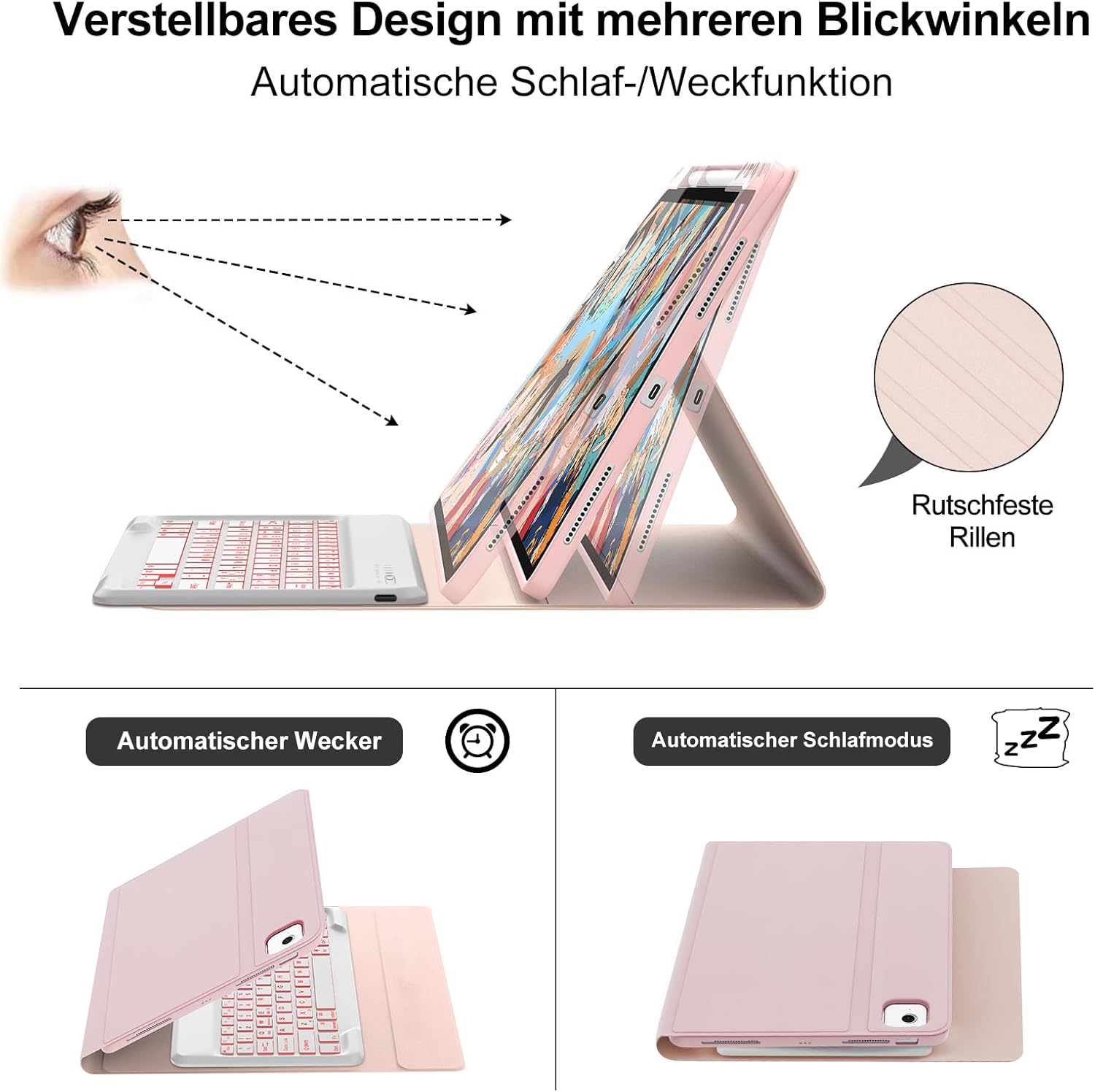
Image: The case configured to provide various viewing angles for the iPad, along with illustrations of the automatic sleep and wake functions.

Image: An iPad placed in the keyboard case, demonstrating its use as a laptop replacement for increased work efficiency in an office setting.
5.3 Automatic Sleep/Wake Function
The case supports an automatic sleep/wake function. Closing the case will put your iPad to sleep, and opening it will wake your iPad, conserving battery life and providing convenience.
5.4 Ergonomic Keyboard Design
The keyboard features a mechanical scissor button structure, which distributes pressure evenly across the keys. This design ensures sensitive and smooth key presses, reducing hand fatigue during prolonged use.
6. Maintenance
- Cleaning the Case: Wipe the faux leather exterior with a soft, damp cloth. Avoid harsh chemicals or abrasive cleaners.
- Cleaning the Keyboard: Use a soft, dry cloth to clean the keyboard. For stubborn dirt, a slightly damp cloth can be used, ensuring no moisture enters the key gaps.
- Storage: When not in use for extended periods, store the keyboard case in a cool, dry place. Ensure the keyboard is turned off to preserve battery life.
7. Troubleshooting
7.1 Keyboard Not Connecting via Bluetooth
- Ensure the keyboard is charged and turned ON.
- Make sure Bluetooth is enabled on your iPad.
- Press the "Connect" button on the keyboard to enter pairing mode.
- Forget the device "Bluetooth 5.0 Keyboard" in your iPad's Bluetooth settings and try pairing again.
- Restart both your iPad and the keyboard.
7.2 Backlight Not Working
- Ensure the keyboard battery is not critically low. Charge the keyboard.
- Press the backlight control keys (e.g., RGB key, brightness keys) to activate or adjust the backlight.
7.3 Keys Not Responding
- Check if the keyboard is properly connected via Bluetooth.
- Ensure the keyboard is charged.
- Restart the keyboard and your iPad.
8. Specifications
| Brand | FOGARI |
| Connectivity Technology | Bluetooth |
| Keyboard Layout | German QWERTZ |
| Backlight | 7 Colours, 3 Brightness Levels (RGB) |
| Battery Type | Lithium Ion |
| Battery Capacity | 450 mAh |
| Charging Time | 2-3 hours |
| Continuous Use Time | Up to 3 days (24 hours/day) |
| Standby Time | 3 months |
| Material | Faux Leather, TPU, Acrylonitrile Butadiene Styrene (ABS) |
| Colour | Pink |
| Special Features | Ergonomic, Rechargeable, Magnetic, Multi-angle Stand, Auto Sleep/Wake |
9. Warranty and Support
FOGARI is committed to providing high-quality products and customer satisfaction. If you encounter any issues or have questions regarding your keyboard case, please contact our customer support team. We will do our best to provide you with satisfactory service.
Please refer to your purchase documentation for specific warranty details and contact information.