1. Introduction
This manual provides comprehensive instructions for the setup, operation, and maintenance of your SAMSUNG 32” Smart Monitor M8 (M80F), model LS32FM803UNXZA. Please read this manual thoroughly before using your monitor to ensure proper and safe operation.
The Samsung 32” M8 Smart Monitor features a 4K UHD display powered by the NQM AI Processor, offering an AI-enhanced viewing experience. It integrates Smart TV Apps for direct content streaming, AI Picture Optimizer for tailored visuals, and Knox Security for data protection. Key features include the Gaming Hub, One UI Tizen OS, Active Voice Amplifier Pro, SmartThings integration, and a SlimFit Camera for video calls. Its ergonomic design and multiple connectivity ports (USB-C, HDMI, USB-A) provide versatility for various uses.

Figure 1.1: Samsung 32” Smart Monitor M8 (M80F) Overview
This image displays the front of the Samsung 32-inch Smart Monitor M8, highlighting its sleek design and the vibrant display. The screen shows a user interface with various streaming application icons and a picture of a girl with a dog, illustrating its multimedia capabilities.
2. Setup
2.1. What's in the Box
Before you begin, ensure all components are present:
- Power Cable
- Remote Control
- Batteries (for Remote Control)
- Stand Components
- Samsung 32” Smart Monitor M8 (M80F)
- SlimFit Camera
2.2. Assembling the Stand
Follow these steps to securely attach the stand to your monitor:
- Carefully place the monitor face down on a soft, clean cloth to prevent scratches.
- Attach the stand neck to the monitor's mounting area, ensuring it clicks into place or is secured with screws as per the included quick setup guide.
- Connect the stand base to the stand neck, tightening any screws required.
- Gently lift the monitor and place it on a stable, flat surface.
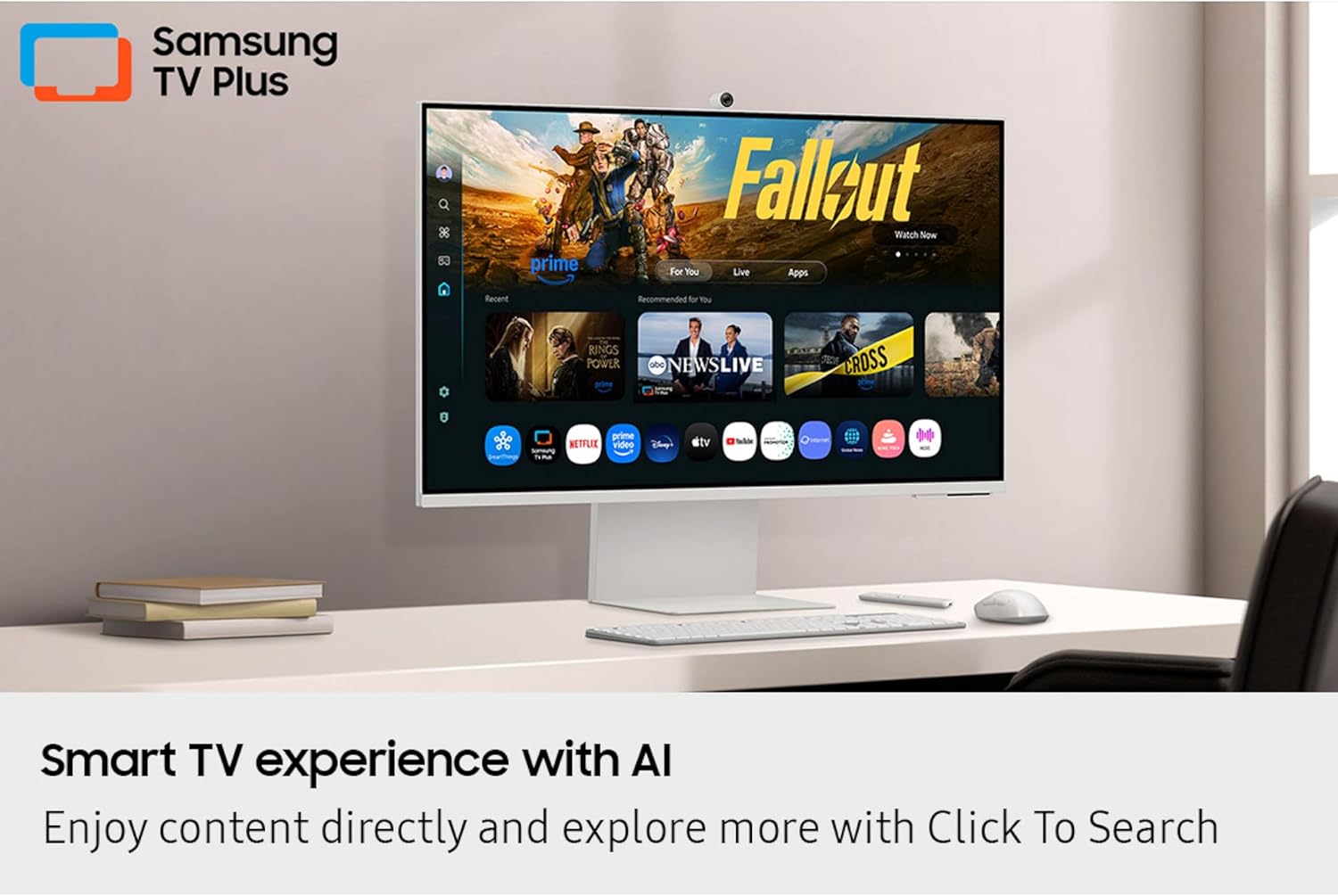
Figure 2.1: Monitor Dimensions
This image provides a detailed diagram of the Samsung 32-inch Smart Monitor M8's physical dimensions, including its width, height with the stand, and depth both with and without the stand, aiding in proper placement and setup.
2.3. Connecting Cables
Connect the necessary cables to the monitor's ports:
- Power Cable: Connect the power cable to the monitor's power input and then to a wall outlet.
- HDMI: For connecting external devices like computers or gaming consoles.
- USB-C: For connecting compatible devices, supporting video, data, and power delivery.
- USB-A: For connecting peripherals such as keyboards, mice, or USB drives.
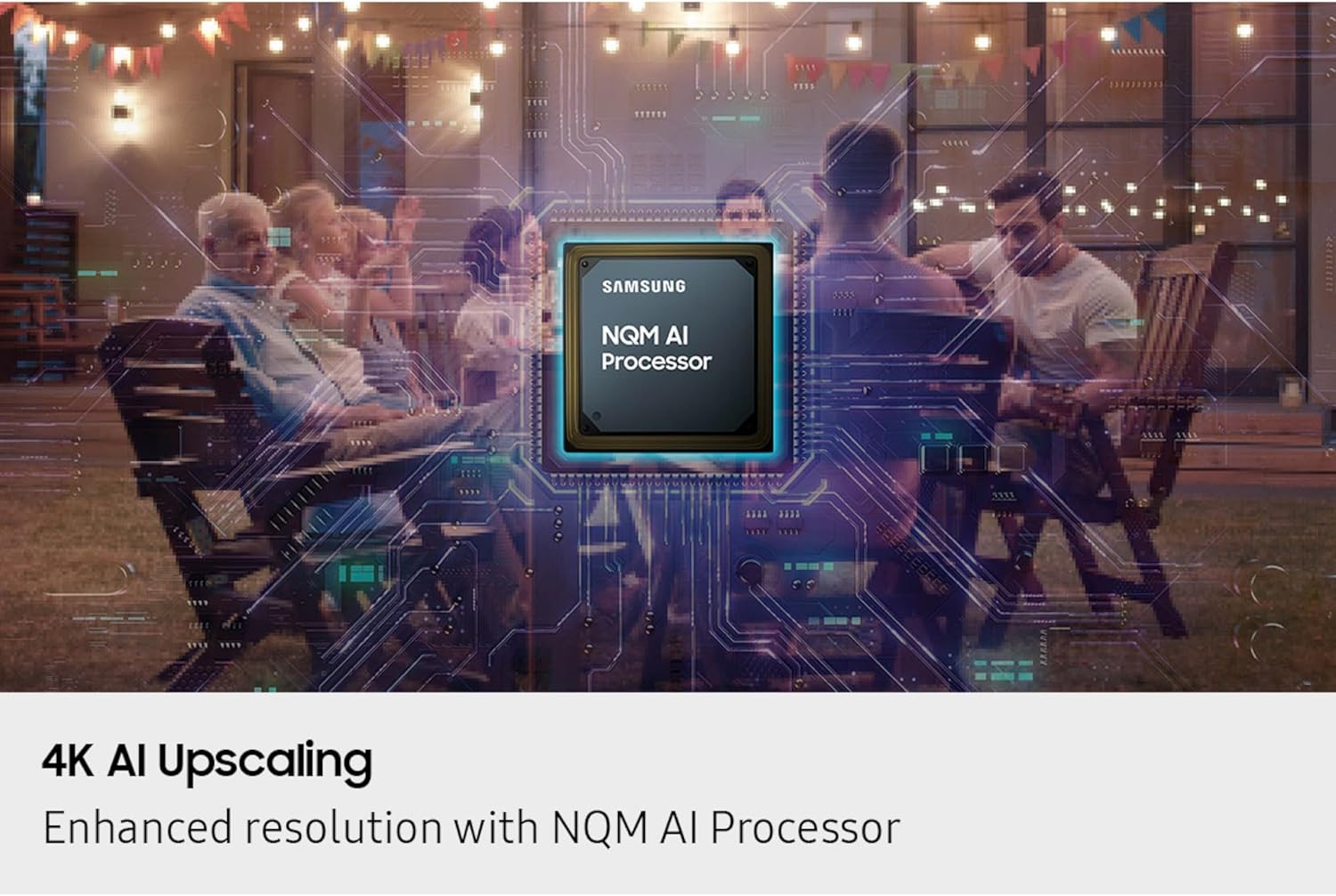
Figure 2.2: Monitor Ports
This image shows a detailed view of the connectivity ports located on the back of the Samsung Smart Monitor M8. The ports are clearly numbered and labeled, indicating connections for USB Type-C Upstream, HDMI input, two USB Type-A Downstream ports, and the power input, facilitating easy setup of external devices.
2.4. Attaching the SlimFit Camera
The SlimFit Camera can be easily attached to the top of your monitor for video calls:
- Locate the magnetic attachment point on the top center of the monitor.
- Align the SlimFit Camera with this point; it will snap into place magnetically.
- Ensure the camera is securely attached and facing forward.

Figure 2.3: SlimFit Camera
This image provides a close-up view of the SlimFit Camera, highlighting its sleek design and the magnetic connector that allows for easy attachment to the Samsung Smart Monitor M8. This camera is designed for seamless video conferencing.
3. Operating the Monitor
3.1. Smart TV Apps and Content Streaming
Your Smart Monitor M8 provides instant access to a wide range of streaming content and Smart TV apps. Stream directly from your monitor or tune into Samsung TV Plus for live channels and on-demand content.
- Navigate through the Smart Hub using the included remote control.
- Select your desired streaming service or app.
- Enjoy content without the need for an external PC or TV tuner.

Figure 3.1: Smart TV Experience
This image shows the Samsung Smart Monitor M8 positioned on a desk, actively displaying its Smart TV interface. The screen features various streaming applications and the Samsung TV Plus logo, demonstrating its capability to provide a comprehensive entertainment experience directly from the monitor.
3.2. AI-Powered Visuals and Audio
The NQM AI Processor enhances your viewing and listening experience:
- 4K AI Upscaling: The processor upscales lower-resolution content to 4K, providing enhanced clarity and detail.
- AI Picture Optimizer: This feature adapts visuals for optimal quality based on your activity (working, gaming, watching videos), ensuring comfort and immersion.
- Active Voice Amplifier Pro: Analyzes background noise and automatically adjusts content volume to ensure dialogue is clear, even in noisy environments.
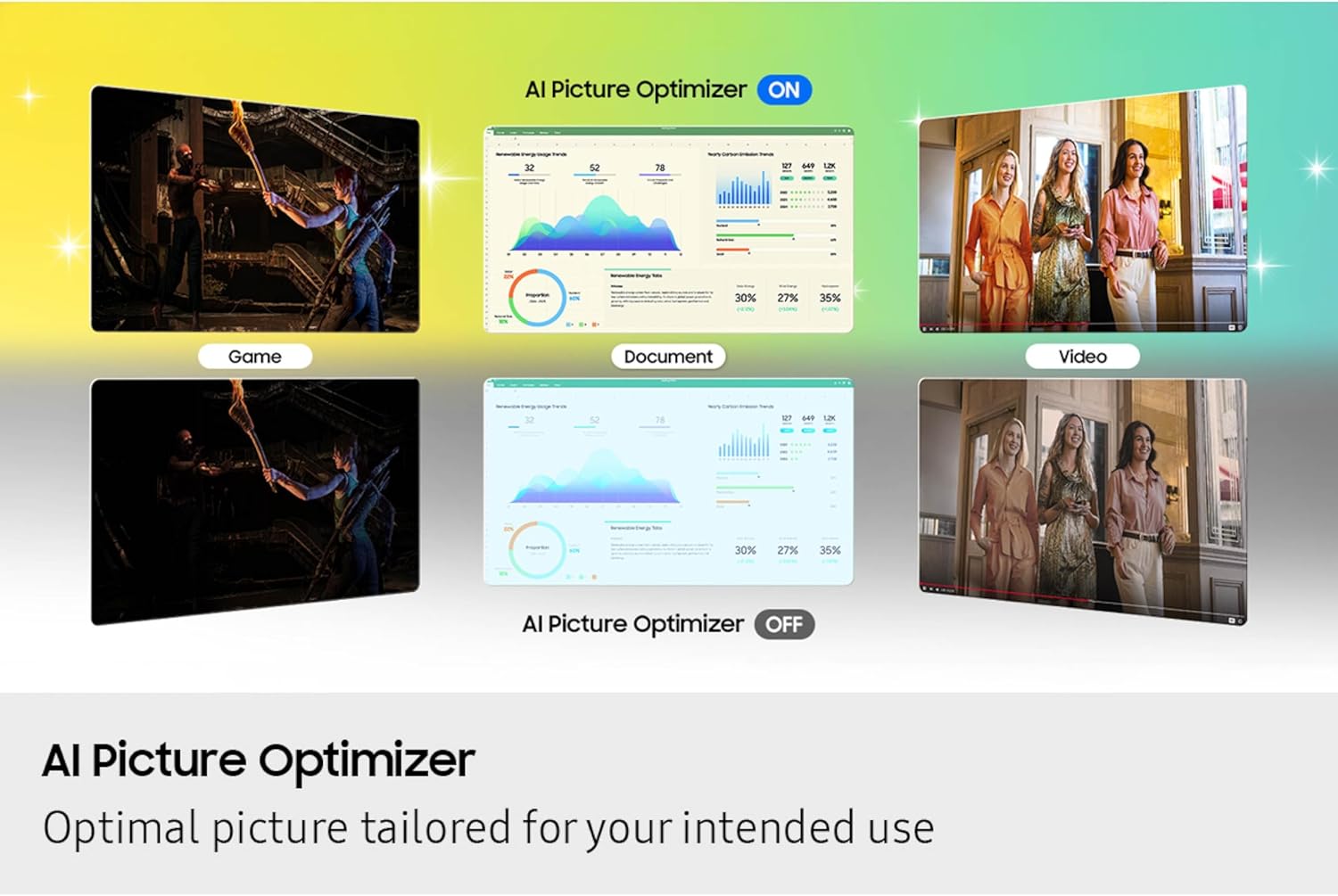
Figure 3.2: 4K AI Upscaling
This image visually represents the 4K AI Upscaling capability of the Samsung Smart Monitor M8, featuring the NQM AI Processor. It shows a scene of people gathered in a backyard, with a digital overlay of the processor chip, symbolizing how the monitor enhances lower-resolution content to a sharper 4K quality.

Figure 3.3: AI Picture Optimizer
This image illustrates the AI Picture Optimizer feature, demonstrating how it adjusts display settings for different usage scenarios such as gaming, document viewing, and video playback. It shows the visual differences between the 'ON' and 'OFF' states of the optimizer, highlighting its ability to tailor picture quality for optimal viewing.
3.3. Smart Home Integration and Security
- SmartThings: Control connected smart home devices through a 3D Map View, monitor energy usage, and activate energy-saving modes.
- Knox Security: Protects your monitor data and enhances the security of your IoT connections with robust, multi-layered security and tightly controlled access.

Figure 3.4: Knox Security
This image visually represents the Knox Security feature, showing a monitor displaying a secure login screen alongside a prominent shield icon. This illustrates the multi-layered security system designed to protect sensitive data and enhance the safety of IoT connections on the Samsung Smart Monitor M8.
3.4. Gaming Hub and Productivity Features
- Gaming Hub: Access a wide selection of games from top streaming partners without needing a PC or console. Discover and play games directly from your monitor.
- One UI Tizen: Powered by Samsung Tizen OS, it provides a personalized screen experience and access to the latest Samsung features.
- Click-to-Search: Enrich your viewing experience by instantly getting content recommendations and details on what you're watching.
- Ergonomic Design: The stand offers height adjustment, tilt, and pivot capabilities for comfortable viewing during long sessions.

Figure 3.5: Key Features Overview
This image is a collage showcasing several key features of the Samsung Smart Monitor M8. It includes visuals demonstrating the ergonomic design with pivot, tilt, and height adjustment, the Gaming Hub interface, the multiple connectivity ports, and the SlimFit Camera in use for video calls, providing a comprehensive look at the monitor's versatility.

Figure 3.6: Video Calls with SlimFit Camera
This image shows a woman engaged in a video call using the Samsung Smart Monitor M8, with the SlimFit Camera clearly visible at the top of the screen. The monitor displays multiple participants in the video conference, illustrating the camera's functionality for seamless communication.
4. Maintenance
Proper maintenance ensures the longevity and optimal performance of your Samsung Smart Monitor M8.
4.1. Cleaning the Monitor
- Always unplug the monitor from the power outlet before cleaning.
- Use a soft, lint-free cloth slightly dampened with water or a specialized screen cleaner.
- Do not spray liquid directly onto the screen or monitor casing.
- Avoid using abrasive cleaners, waxes, or solvents.
4.2. General Care
- Keep the monitor away from direct sunlight, heat sources, and excessive dust.
- Ensure adequate ventilation around the monitor to prevent overheating.
- Avoid placing heavy objects on the monitor or its cables.
- When moving the monitor, handle it carefully and support the base.
5. Troubleshooting
If you encounter issues with your monitor, refer to the following common solutions:
5.1. No Power
- Ensure the power cable is securely connected to both the monitor and a working electrical outlet.
- Check if the power outlet is functioning by plugging in another device.
- Press the power button on the monitor or remote control.
5.2. No Signal / Blank Screen
- Verify that the HDMI or USB-C cable is firmly connected to both the monitor and the source device (e.g., computer, gaming console).
- Ensure the source device is powered on and outputting a signal.
- Use the monitor's input selection menu (usually accessible via the remote) to select the correct input source.
- Try a different cable or port if available.
5.3. Picture Issues (Distorted, Flickering, Incorrect Colors)
- Check the cable connections for looseness or damage.
- Adjust the display resolution and refresh rate settings on your connected device to match the monitor's capabilities.
- Perform a factory reset of the monitor's display settings through the OSD (On-Screen Display) menu.
5.4. Sound Issues
- Ensure the monitor's volume is not muted or set too low.
- Check the audio output settings on your connected device to ensure sound is being sent to the monitor.
- If using external speakers, ensure they are properly connected and powered on.
For more detailed troubleshooting or persistent issues, please refer to the official Samsung support website or contact customer service.
6. Specifications
Detailed technical specifications for the SAMSUNG 32” Smart Monitor M8 (M80F):
| Feature | Detail |
|---|---|
| Brand | SAMSUNG |
| Model Number | LS32FM803UNXZA |
| Screen Size | 32 Inches |
| Resolution | 4K UHD 2160p (3840x2160) |
| Display Technology | LCD |
| Aspect Ratio | 16:9 |
| Screen Surface Description | Matte |
| Product Dimensions (L x W x H) | 7.9 x 28.9 x 24.3 inches |
| Item Weight | 15.4 pounds |
| Connectivity Technologies | Bluetooth, HDMI, USB, Wi-Fi |
| Special Features | Built-In Speakers, Height Adjustment, High Dynamic Range, Multiple Voice Assistance, USB Hub |
| Included Components | Batteries, Power Cable, Remote Control, Stand |
7. Warranty and Support
For warranty information and customer support, please refer to the following resources:
- Official User Manual (PDF): For detailed instructions and safety information, you can download the official PDF manual from here.
- Samsung Support: Visit the official Samsung website or contact their customer service for product registration, warranty claims, technical assistance, and service inquiries.
- Samsung Brand Store: Explore other Samsung products and accessories at the Samsung Store on Amazon.
Please retain your proof of purchase for warranty purposes.


