
SIXWIN A7907A3018A4MI2
SIXWIN Android 13 Car Stereo User Manual for Hyundai Sonata (2010-2015)
Model: A7907A3018A4MI2
1. Introduction
This manual provides detailed instructions for the installation, operation, and maintenance of your SIXWIN 9.7-inch Android 13 Car Stereo, designed specifically for Hyundai Sonata models from 2010 to 2015. Please read this manual thoroughly before using the product to ensure proper functionality and safety.

Image 1.1: SIXWIN Android 13 Car Stereo and included accessories.
2. Safety Information
- Ensure the vehicle's engine is off and the parking brake is engaged before installation.
- Disconnect the vehicle's battery negative terminal before beginning any wiring to prevent electrical shorts.
- Consult a professional installer if you are unsure about any installation steps.
- Do not operate the device in a way that distracts you from driving.
- Keep the device away from water and extreme temperatures.
3. Package Contents
Verify that all items listed below are present in your package:
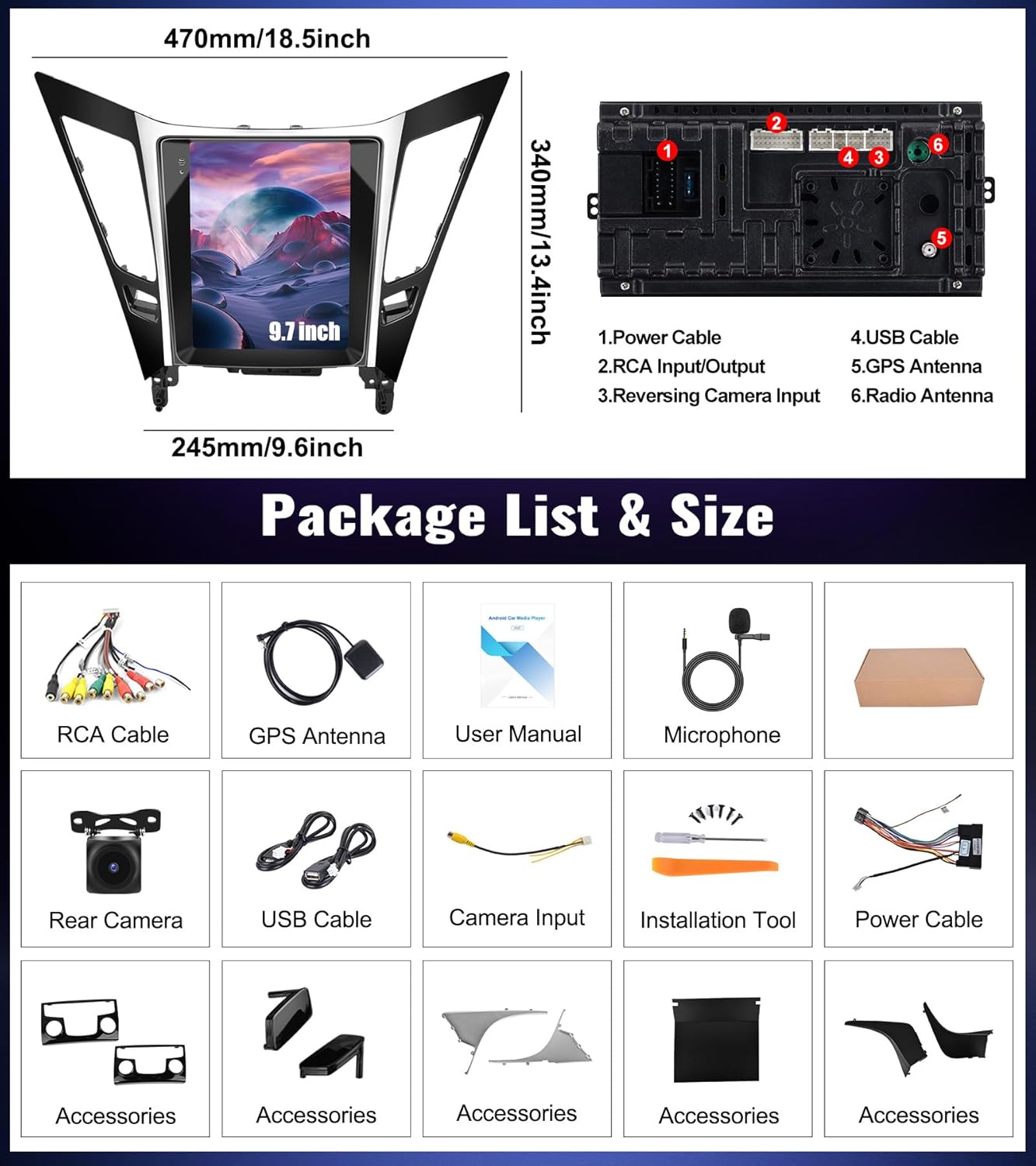
Image 3.1: Overview of included components and main unit dimensions.
- SIXWIN 9.7-inch Android 13 Car Stereo Unit
- Power Cable (Plug and Play)
- RCA Cable
- GPS Antenna
- User Manual (this document)
- Microphone
- Rear Camera (AHD Backup Camera)
- USB Cable (4-pin and 6-pin)
- Camera Input Cable
- Installation Tool
- Various Mounting Accessories
4. Installation
4.1 Compatibility Check
This car stereo is designed for Hyundai Sonata models from 2010 to 2015. It is compatible with basic versions of the vehicle that do not have a large screen or factory navigation system. Please verify your vehicle's dashboard configuration before proceeding with installation.
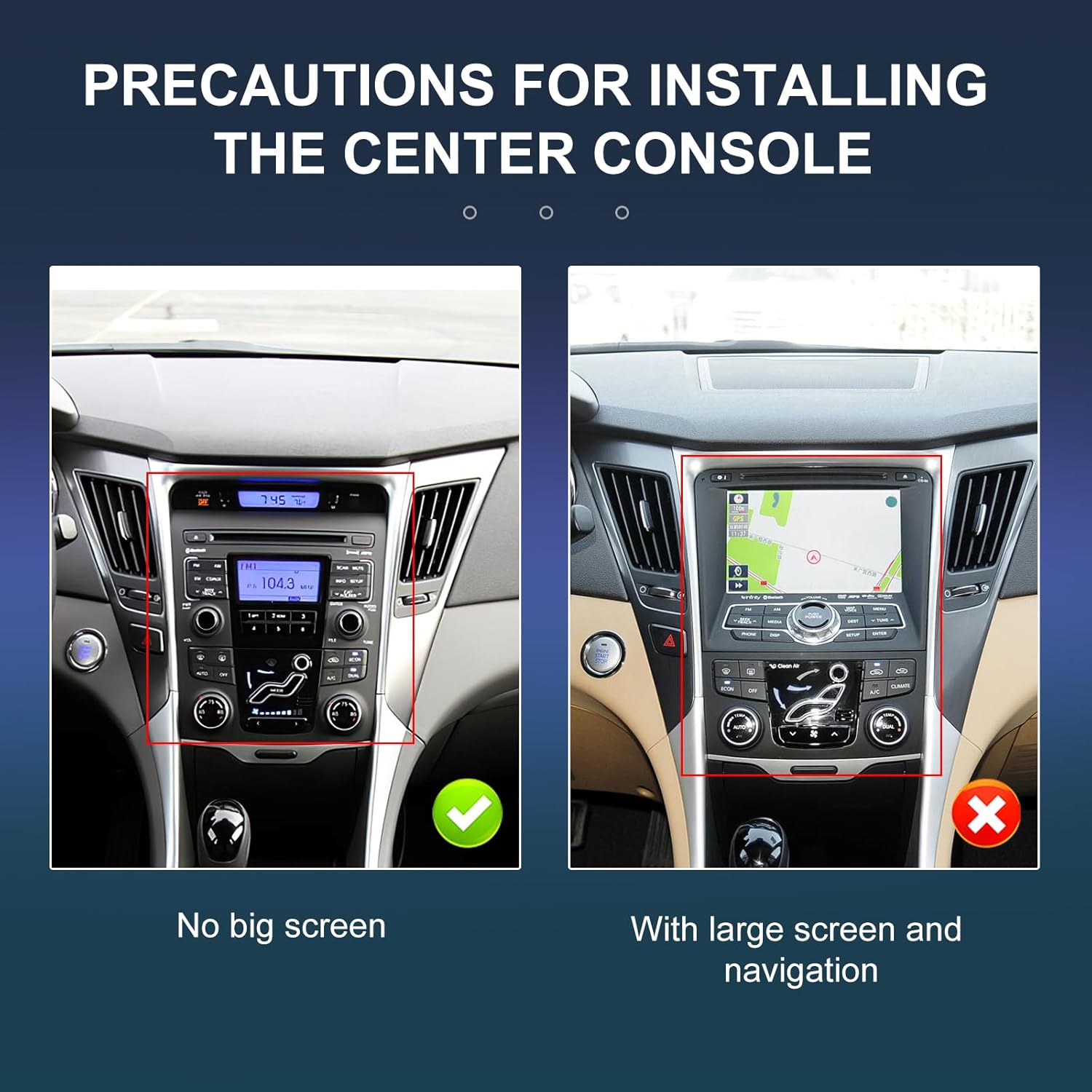
Image 4.1: Center console compatibility for Hyundai Sonata 2010-2015.
4.2 Wiring Diagram
Refer to the following diagrams for correct wiring connections. Ensure all cables are securely connected to their corresponding ports.
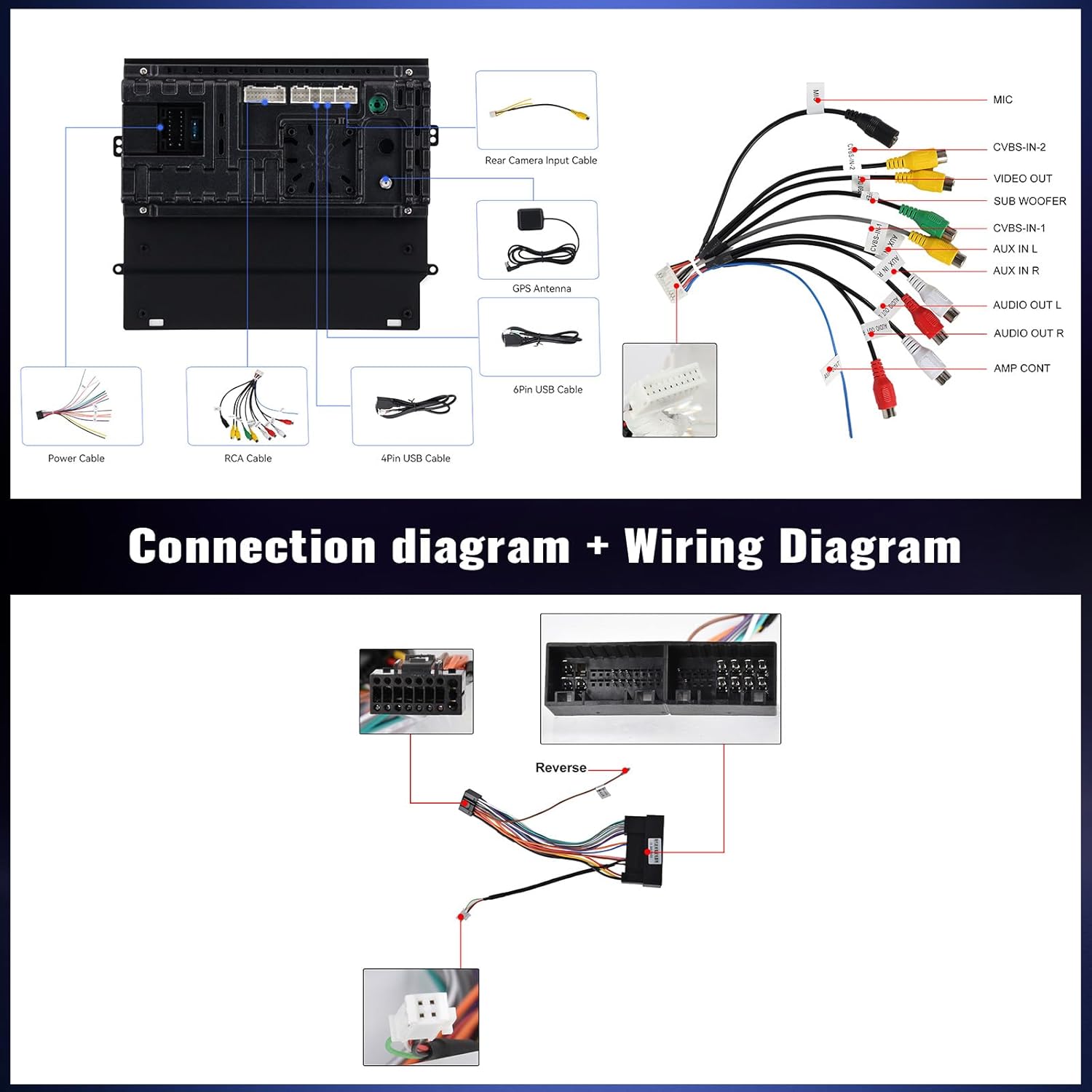
Image 4.2: Connection and Wiring Diagram.
- Power Cable: Connect the main power harness to the vehicle's wiring.
- RCA Input/Output: For external audio/video devices, subwoofer, etc.
- USB Cable: For data transfer, charging, and wired CarPlay/Android Auto connections.
- GPS Antenna: Mount in a location with a clear view of the sky for optimal signal reception.
- Reversing Camera Input: Connect the included backup camera.
- Radio Antenna: Connect the vehicle's FM/AM antenna.
- External Microphone: Connect for improved call quality.
- Steering Wheel Control (SWC) Cable: Connect to the vehicle's SWC wires to enable steering wheel button functionality.
4.3 Physical Installation
- Carefully remove the original car stereo and trim panels.
- Connect the new SIXWIN car stereo's wiring harness to the vehicle's factory harness.
- Connect the GPS antenna, radio antenna, USB cables, and backup camera input.
- If installing the backup camera, route the camera cable to the rear of the vehicle and mount the camera.
- Secure the new car stereo unit into the dashboard opening using the provided mounting accessories.
- Reinstall the trim panels.
- Reconnect the vehicle's battery negative terminal.
- Test all functions before finalizing the installation.
5. Operating Instructions
5.1 Basic Operation
- Power On/Off: The unit powers on automatically with the vehicle's ignition. Press and hold the power button (if available) to manually turn off or on.
- Touch Screen: Navigate the interface by tapping, swiping, and pinching on the 9.7-inch touch screen.
- Volume Control: Adjust volume using the on-screen controls or steering wheel controls.
5.2 Wireless CarPlay & Android Auto
The unit supports both wireless and wired Apple CarPlay and Android Auto. This allows seamless integration of your smartphone for navigation, music, calls, and more.

Image 5.1: Wireless CarPlay and Android Auto connection guide.

Image 5.2: CarPlay and Android Auto interfaces with voice command examples.
- Wireless CarPlay Connection:
- Enable Bluetooth on your iPhone and pair it with the car stereo.
- Open the "Zlink" application on the car stereo.
- Follow the on-screen prompts to establish the CarPlay connection.
- Wireless Android Auto Connection:
- Download the Android Auto application on your Android phone.
- Enable Bluetooth on your Android phone and pair it with the car stereo.
- Open the "Zlink" application on the car stereo.
- Follow the on-screen prompts to establish the Android Auto connection.
- Note: Wireless Android Auto may not support all Samsung phone models.
- Wired Connection: Connect your smartphone to the stereo via a USB cable. The system will automatically prompt you to launch CarPlay or Android Auto.
- Voice Control: Use voice commands (e.g., "Hey Siri" or "Hey Google") to control navigation, music, and calls.
5.3 Mirror Link
Mirror Link allows you to display your smartphone's screen directly onto the car stereo. This feature supports both Android (via WiFi/USB) and iOS (via WiFi).
- Refer to the specific Mirror Link application on your stereo for detailed connection instructions.
5.4 GPS Navigation
The unit features built-in GPS navigation with support for online and offline maps. The pre-installed "Here We Go" app allows for offline navigation after downloading regional map data.

Image 5.3: GPS Navigation interface.
- Online Navigation: Connect to WiFi and use pre-installed or downloaded navigation apps (e.g., Google Maps, Waze).
- Offline Navigation: Open the "Here We Go" app, download the necessary map data for your region, and navigate without an internet connection.
5.5 Bluetooth Functionality
Bluetooth 5.0 enables hands-free calling, audio streaming, and phonebook synchronization.

Image 5.4: Bluetooth 5.0 interface for calls and music.
- Pairing: Enable Bluetooth on your phone, search for the car stereo (e.g., "SIXWIN Car Stereo"), and pair the devices.
- Hands-free Calling: Make and receive calls directly from the stereo screen. The external microphone ensures clear communication.
- Bluetooth Music: Stream audio from your phone to the car stereo.
- Phonebook: Sync your phone's contacts for easy access.
5.6 FM/RDS Radio
Access FM radio with 18 preset stations and RDS (Radio Data System) functionality.

Image 5.5: FM/RDS Radio interface.
- Station Search: Use the on-screen controls to scan for available FM stations.
- Presets: Save your favorite stations for quick access.
- RDS: Displays station information (e.g., song title, artist) where available.
5.7 UI Desktop Themes & Split Screen
Customize your user experience with multiple UI themes and enhance productivity with the split-screen function.

Image 5.6: UI customization and split-screen functionality.
- Desktop Themes: Access settings to choose from various pre-installed desktop themes.
- Split Screen: Activate split-screen mode to run two applications simultaneously (e.g., navigation and music player).
- Shortcuts: Customize shortcuts on your homepage for frequently used apps.
5.8 Steering Wheel Control (SWC)
If connected, the steering wheel controls allow you to manage the stereo's functions without taking your hands off the wheel.
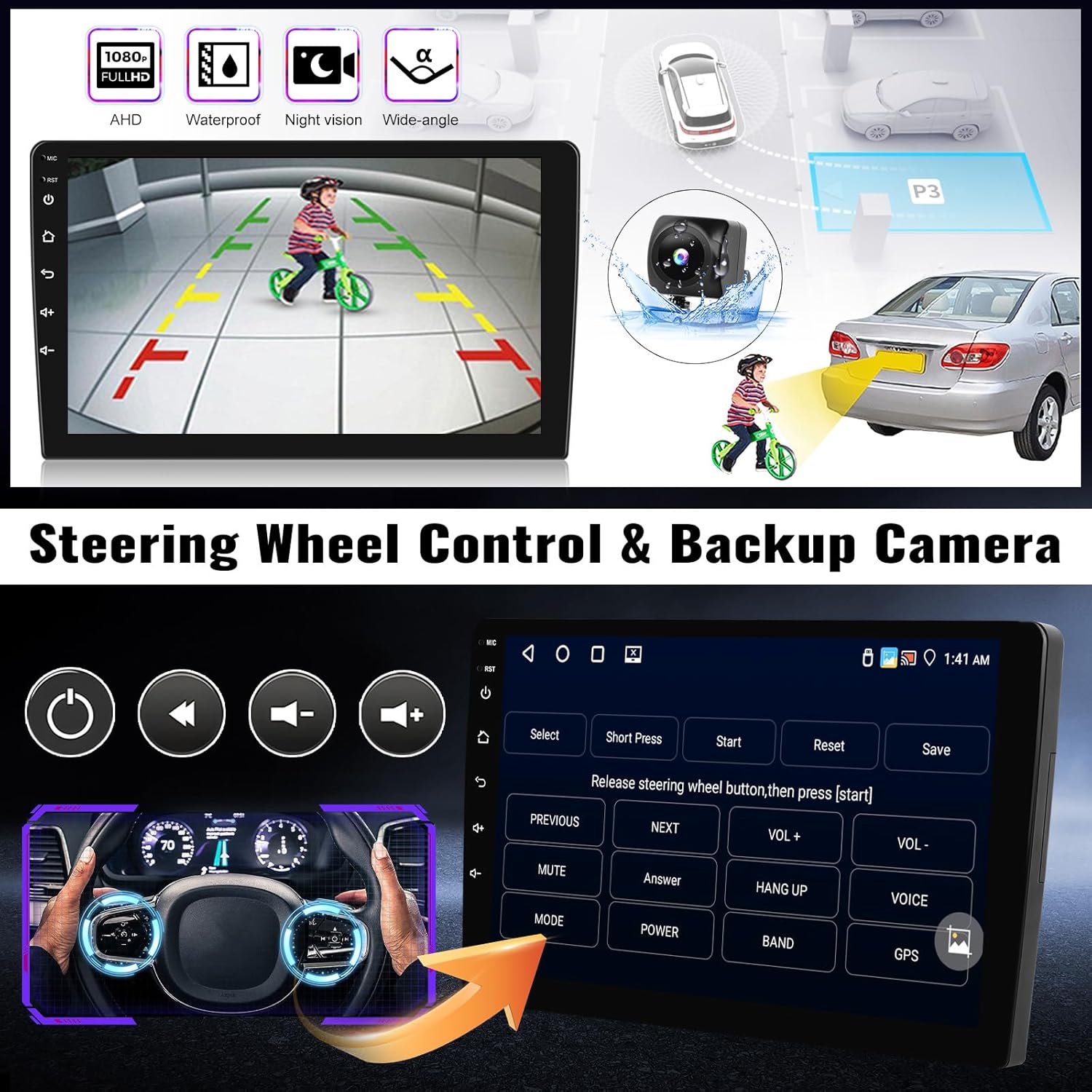
Image 5.7: Steering Wheel Control setup interface.
- Setup: Access the SWC settings menu on the stereo. Follow the on-screen instructions to map your vehicle's steering wheel buttons to the desired functions (e.g., volume, track skip, answer call).
- Ensure the SWC cable is correctly connected during installation.
5.9 Backup Camera
The included AHD backup camera automatically displays a clear view of the area behind your vehicle when reversing.

Image 5.8: Backup Camera view with parking guidelines.
- The camera view automatically activates when the vehicle is shifted into reverse gear.
- The camera provides a wide-angle, waterproof, and night vision view for enhanced safety.
5.10 WiFi Connection
Connect the car stereo to a WiFi hotspot (e.g., from your smartphone) to access online features, download apps, and use online navigation.

Image 5.9: WiFi connection enables online apps and services.
- Connecting: Go to the system settings, select "WiFi," and connect to an available network.
- Once connected, you can download apps from the app store, browse the internet, and use online navigation services.
6. Maintenance
- Cleaning: Use a soft, dry cloth to clean the screen and unit. Avoid abrasive cleaners or solvents.
- Software Updates: Periodically check for software updates through the system settings to ensure optimal performance and access to new features.
- Temperature: Avoid exposing the unit to extreme temperatures or direct sunlight for extended periods.
7. Troubleshooting
| Problem | Possible Cause | Solution |
|---|---|---|
| Unit does not power on. | Incorrect wiring; Blown fuse; Vehicle battery disconnected. | Check power connections; Inspect vehicle fuses; Ensure battery is connected. |
| No sound. | Volume too low; Mute activated; Speaker wires disconnected. | Increase volume; Deactivate mute; Check speaker wiring. |
| CarPlay/Android Auto disconnects frequently. | Weak WiFi/Bluetooth signal; Phone compatibility issue; Interference. | Ensure strong signal; Try wired connection; Check phone compatibility (e.g., Samsung for wireless Android Auto). |
| GPS signal weak or inaccurate. | GPS antenna obstructed or improperly installed. | Relocate GPS antenna to a clear area; Ensure secure connection. |
| Steering Wheel Controls not working. | SWC cable not connected; Incorrect SWC settings. | Verify SWC cable connection; Reconfigure SWC settings in the unit's menu. |
| Screen frozen or unresponsive. | Software glitch; Temporary system error. | Perform a soft reset (refer to manual for specific button combination or disconnect power briefly). |
8. Specifications


Image 8.1: Key system specifications.
| Feature | Detail |
|---|---|
| Model Number | A7907A3018A4MI2 |
| Operating System | Android 13 |
| RAM | 4GB |
| ROM (Internal Storage) | 64GB |
| Display Size | 9.7 Inches |
| Connectivity | Wireless CarPlay, Wireless Android Auto, Mirror Link, Bluetooth 5.0, WiFi, GPS |
| Audio Output Mode | Stereo (32-band EQ) |
| Radio | FM/RDS (18 preset stations) |
| Backup Camera | AHD, Waterproof, Night Vision, Wide-angle |
| Product Dimensions (Overall Frame) | Approx. 18.5 inches (W) x 13.4 inches (H) |
| Item Weight | 4.27 pounds |
9. Warranty and Support
The SIXWIN car stereo comes with a 1-year warranty from the date of purchase, covering manufacturing defects. Please retain your proof of purchase for warranty claims.
For technical assistance, troubleshooting, or warranty inquiries, please contact SIXWIN customer support.

Image 9.1: Customer support is available for assistance.
- Online Help & User Manual: Refer to the online resources provided by SIXWIN.
- Email Support: sixwin_vip@163.com
- Please provide your model number (A7907A3018A4MI2) and a detailed description of your issue when contacting support.
Ask a question about this manual
Ask about setup, troubleshooting, compatibility, parts, safety, or missing instructions. Manuals+ will review the question and use this page’s manual context to help answer it.