
Introduction
Thank you for purchasing the BenqBot Portable Soundbar. This manual provides essential information for the safe and efficient operation of your device. Please read it thoroughly before use and retain it for future reference.
This soundbar features wireless Bluetooth 5.0 connectivity, as well as wired options including AUX, USB, and Optical inputs. It is designed for use with desktop computers, laptops, televisions, and projectors, offering a versatile audio solution for both indoor and outdoor environments.
Product Overview
Package Contents
Ensure all items are present in the package:
- BenqBot Portable Soundbar
- Remote Control
- Optical Cable
- Power Adapter
- 3.5mm AUX Cable
- USB Cable
- User Manual (this document)
Soundbar Components and Controls
Familiarize yourself with the soundbar's physical features and connections.
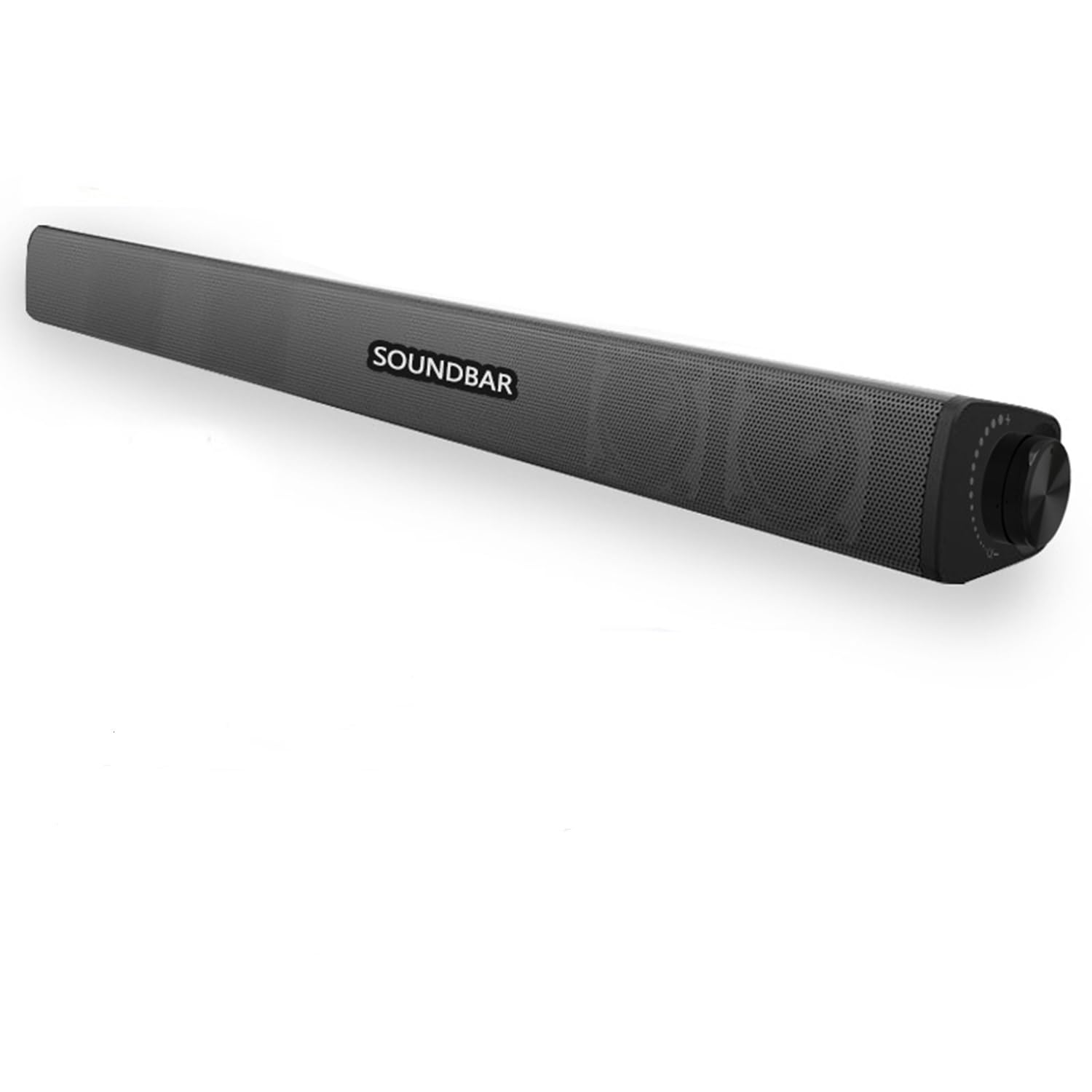
Image Description: This image displays the BenqBot Portable Soundbar, illustrating its various connection ports and the cables included in the package. The top right shows a detailed view of the rear panel with ports for power, optical, AUX, and USB. The bottom section shows individual images of the power adapter, 3.5mm AUX cable, and USB cable. Key specifications like Bluetooth version 5.3, built-in 2000mAh lithium battery, and support for 3.5mm audio input, fiber optic, and wireless connection are also listed.
- Power Button/Volume Knob: Located on the side, this controls power and adjusts volume.
- Input Ports: Rear panel includes ports for Optical, AUX (3.5mm), and USB.
- Power Input: For connecting the power adapter.
- LED Indicator: Provides status feedback (e.g., power on, Bluetooth pairing).
Setup
Charging the Soundbar
- Connect the provided power adapter to the soundbar's power input port.
- Plug the adapter into a standard wall outlet.
- The LED indicator will show charging status. A full charge typically takes several hours.
- The soundbar can be used while charging.
Placement
Place the soundbar on a stable, flat surface, such as a tabletop, in front of your TV, monitor, or projector. Ensure there are no obstructions blocking the sound output.
Operating Instructions
Power On/Off and Volume Control
- Power On: Rotate the volume knob clockwise until the soundbar powers on.
- Power Off: Rotate the volume knob counter-clockwise until the soundbar powers off.
- Volume Adjustment: Rotate the volume knob clockwise to increase volume, counter-clockwise to decrease.
- Alternatively, use the provided remote control for power and volume adjustments.
Selecting Input Mode
Press the "Mode" button on the remote control or the corresponding button on the soundbar (if available) to cycle through input modes: Bluetooth, AUX, Optical, USB.
Bluetooth Connection
- Power on the soundbar.
- Select Bluetooth mode. The LED indicator will flash, indicating it's in pairing mode.
- On your device (smartphone, tablet, computer), enable Bluetooth and search for available devices.
- Select "BenqBot Soundbar" (or similar name) from the list.
- Once paired, the LED indicator will stop flashing and remain solid.
- You can now play audio wirelessly from your device.
AUX (3.5mm Audio) Connection
- Connect one end of the provided 3.5mm AUX cable to the AUX port on the soundbar.
- Connect the other end to the 3.5mm audio output jack on your device (TV, PC, projector, etc.).
- Select AUX input mode on the soundbar.
- Play audio from your connected device.
Optical Connection
- Connect one end of the provided optical cable to the OPT port on the soundbar.
- Connect the other end to the optical audio output port on your TV or other audio source.
- Select Optical input mode on the soundbar.
- Ensure your TV's audio output settings are configured for "Optical Out" or "PCM" format, as some devices may require this for optical audio to function correctly.
- Play audio from your connected device.
USB Playback
- Insert a USB flash drive containing audio files into the USB port on the soundbar.
- Select USB input mode on the soundbar.
- The soundbar will automatically begin playing audio files from the USB drive. Use the remote control to navigate tracks.
Maintenance
- Cleaning: Use a soft, dry cloth to clean the surface of the soundbar. Do not use liquid cleaners or abrasive materials.
- Storage: When not in use for extended periods, store the soundbar in a cool, dry place away from direct sunlight and extreme temperatures.
- Battery Care: To prolong battery life, avoid fully discharging the battery frequently. Charge the soundbar regularly, even if not in active use.
Troubleshooting
| Problem | Possible Cause | Solution |
|---|---|---|
| No power | Battery discharged; Power adapter not connected or faulty. | Charge the soundbar using the provided power adapter. Ensure the adapter is securely connected to both the soundbar and a working power outlet. |
| No sound | Incorrect input mode; Volume too low; Cables not connected properly; Device audio output settings incorrect. |
|
| Bluetooth pairing failed | Soundbar not in pairing mode; Device too far; Interference. |
|
| Remote control not working | Dead battery; Obstruction; Out of range. |
|
Specifications
| Feature | Detail |
|---|---|
| Model | B0F5QWFK12 |
| Brand | BenqBot |
| Bluetooth Version | 5.3 |
| Speaker Maximum Output Power | 20 watts |
| Frequency Response | 20 KHz |
| Connectivity Technology | Bluetooth, Optical, AUX (3.5mm), USB |
| Audio Output Mode | Stereo |
| Power Source | Built-in 3.7V 2000mAh Lithium Battery, Corded Electric (via adapter) |
| Control Method | Volume Knob, Remote Control |
| Compatible Devices | Desktop, Laptop, Projector, Television |
| Item Weight | 2.2 pounds (approx. 1 kg) |
| UPC | 762849591285 |
Warranty and Support
Warranty Information
BenqBot products are manufactured to high quality standards. For specific warranty details, please refer to the warranty card included with your purchase or contact BenqBot customer support.
Customer Support
If you encounter any issues or have questions regarding your BenqBot Portable Soundbar, please contact our customer support team. Contact information can typically be found on the product packaging, the official BenqBot website, or the warranty card.
Please have your model number (B0F5QWFK12) and purchase date ready when contacting support.