
PHILIPS DDL242X-1HW
Philips Wi-Fi Smart Lock Instruction Manual
Model: DDL242X-1HW
1. Introduction
The Philips Wi-Fi Smart Lock offers advanced keyless entry solutions for your home, combining convenience with robust security. Featuring built-in Wi-Fi, this deadbolt allows remote control via smartphone, voice commands through Alexa and Google Assistant, fingerprint recognition, and traditional passcode or physical key access. Designed for easy installation and reliable performance, it enhances your home security with smart features like auto-locking and real-time notifications.

Image: The Philips Wi-Fi Smart Lock, showing both the exterior keypad unit with fingerprint scanner and the interior unit, alongside its product packaging.
2. Key Features
- Remote Unlock Anywhere: Built-in Wi-Fi enables remote locking and unlocking via your smartphone, eliminating the need for an additional hub.
- Multiple Unlock Methods: Choose from app control, custom passcodes, fingerprint recognition, physical key, or voice commands via Alexa/Google Assistant for flexible access.
- Voice Control Integration: Seamlessly integrate with Amazon Alexa or Google Assistant for hands-free locking and unlocking.
- Fingerprint Access: Instant one-touch unlocking with a high recognition rate (99.9%) and storage for up to 20 fingerprints.
- Personalized Passcodes: Create up to 100 unique passcodes, including one-time or scheduled access codes for guests, cleaners, or deliveries.
- Auto-Lock Functionality: Configure the lock to automatically secure your door after a set period (10 to 180 seconds) for added security.
- Real-time Notifications: Receive instant alerts on your smartphone for door activity, keeping you informed of who enters and exits your home.
- Away Mode: Enhance security when away by disabling all unlock methods except the master code.
- Easy Installation: Designed for straightforward installation on most standard doors (1-3/8" to 2" thick) with a rectangular latch faceplate cutout.
- Timely Customer Service: Access to Philips US-based customer support via phone and email.
3. Package Contents
The Philips Wi-Fi Smart Lock package includes:
- 1 x Philips Wi-Fi Door Lock unit (exterior keypad and interior assembly)
- Installation hardware (screws, plates, etc.)
- Physical keys (for emergency override)
- User Manual / Quick Start Guide
Note: Batteries are not included and are required for operation.
4. Installation and Setup
Before beginning installation, ensure your door meets the compatibility requirements. The lock is designed for doors 1-3/8" to 2" thick and requires a rectangular latch faceplate cutout. It is not compatible with round faceplate cutouts or unchiseled doors.
4.1 Door Compatibility Check

Image: A diagram illustrating key door measurements for compatibility, including cross bore, door hole diameter, backset, door thickness, minimum distance, and latch hole depth, emphasizing the need for a chiseled rectangular faceplate.
- Cross Bore: 1-1/2" (38mm) or 2-1/8" (54mm)
- Door Hole Diameter: 1" (25.4mm)
- Backset: 2-3/8" (60mm) or 2-3/4" (70mm)
- Door Thickness: 1-3/8" (35mm) to 2" (50mm)
- Minimum Distance: 2-3/8" (60mm)
- Latch Hole Depth: 1" (25mm)
- Ensure your door has a rectangular latch faceplate cutout. Round faceplate cutouts are not compatible.
4.2 Installation Steps
Installation can typically be completed in minutes with just a screwdriver. Refer to the detailed instructions provided in the included Quick Start Guide for precise steps. The process generally involves:
- Remove your existing deadbolt.
- Install the new latch and strike plate.
- Install the exterior keypad assembly.
- Install the interior assembly.
- Insert the required batteries (not included).
- Perform the door handing process to calibrate the lock.
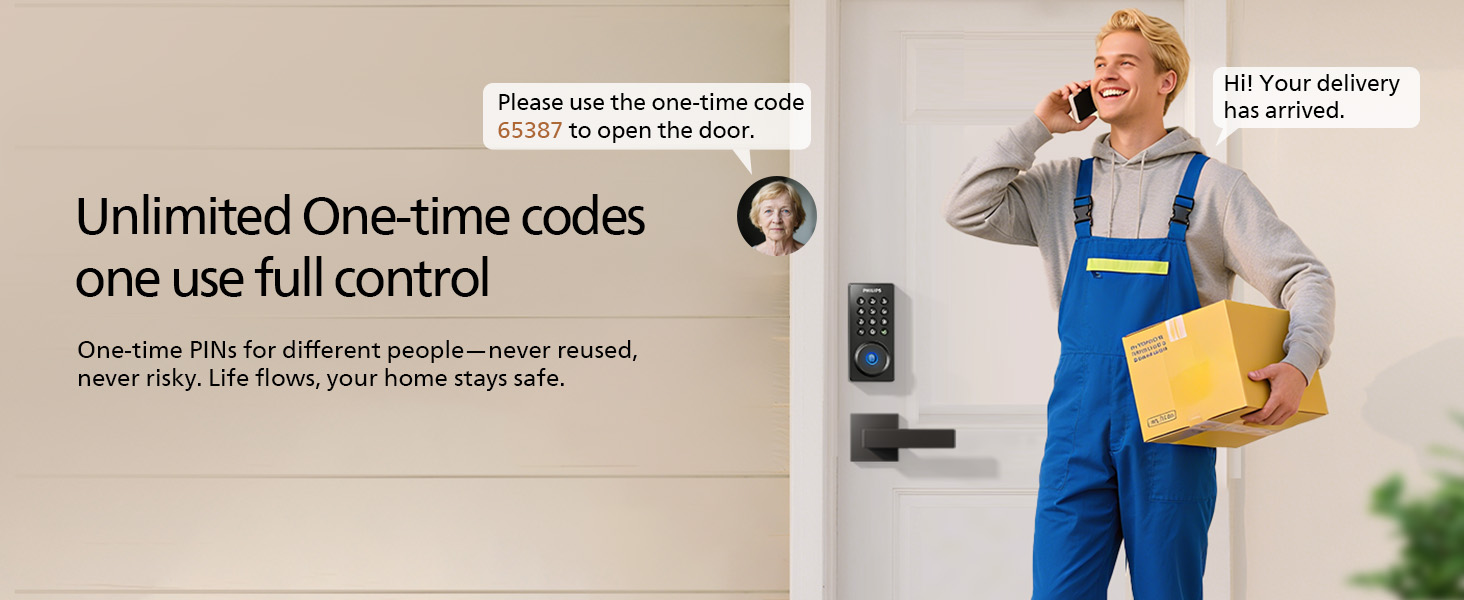
Image: A woman installing the Philips smart lock on a door using a screwdriver, demonstrating the ease of installation.
5. Operation
The Philips Wi-Fi Smart Lock offers multiple convenient ways to secure and access your home.
5.1 Unlocking Your Door

Image: A visual representation of the multiple ways to unlock the Philips smart lock, including app control, fingerprint, physical key, and PIN code entry.
- Fingerprint Unlock: Place your registered finger on the fingerprint sensor for instant access. The lock supports up to 20 unique fingerprints.

Image: A hand pressing a finger onto the fingerprint sensor of the Philips smart lock, highlighting the biometric identification feature.
- Passcode Entry: Enter your personalized 6-10 digit passcode on the keypad followed by the checkmark button. The lock supports up to 100 custom passcodes.

Image: Illustrations showing different users (daughter, renter, nanny, repairman) with their respective personalized PIN codes for the Philips smart lock.
- Smartphone App: Use the Philips Home Access app to remotely lock or unlock your door from anywhere with a Wi-Fi connection.

Image: A woman and child sitting on stairs, both looking at a smartphone displaying the Philips Home Access app interface for remote unlocking.
- Voice Control: Pair your lock with Amazon Alexa or Google Assistant. Say "Hey Google, unlock the door" or "Alexa, unlock the door" (voice code may be required for security).

Image: A family in a living room interacting with a smart speaker to unlock the door using voice commands, demonstrating compatibility with Alexa and Google Assistant.
- Physical Key: In case of power failure or emergency, use the provided physical keys to manually unlock the deadbolt.
5.2 Locking Your Door
- Manual Lock: Press any key on the keypad or turn the thumb-turn on the interior unit.
- Auto-Lock: Enable the auto-lock feature in the app to automatically lock the door after a customizable delay (10-180 seconds) once it closes.

Image: A man walking his dog away from his house, with an overlay indicating the auto-lock feature of the Philips smart lock, ensuring the home stays secure.
- Remote Lock: Use the Philips Home Access app to lock your door remotely.
- Voice Lock: Use voice commands via Alexa or Google Assistant to lock the door.
5.3 Advanced Features
- Real-time Notifications: Receive alerts on your phone when the door is unlocked or locked, and by whom.

Image: A young boy smiling as he enters a home, with a smartphone notification indicating "Unlock-Front Door" and that "The door was unlocked by Son's Passaword."
- Away Mode: Activate this mode when leaving for extended periods. It disables all unlock methods except the master code, providing enhanced security.
- Virtual Passwords (Anti-Peeping): When entering your passcode, you can input random digits before or after your actual code. The lock will still recognize the correct sequence while obscuring it from onlookers.
- Silent Mode: Switch to silent mode for noise-free entry and exit, ideal for late nights or early mornings.
6. Maintenance
To ensure optimal performance and longevity of your Philips Wi-Fi Smart Lock, follow these maintenance guidelines:
- Battery Replacement: The lock requires batteries for operation. Replace them promptly when the low battery alarm is triggered.
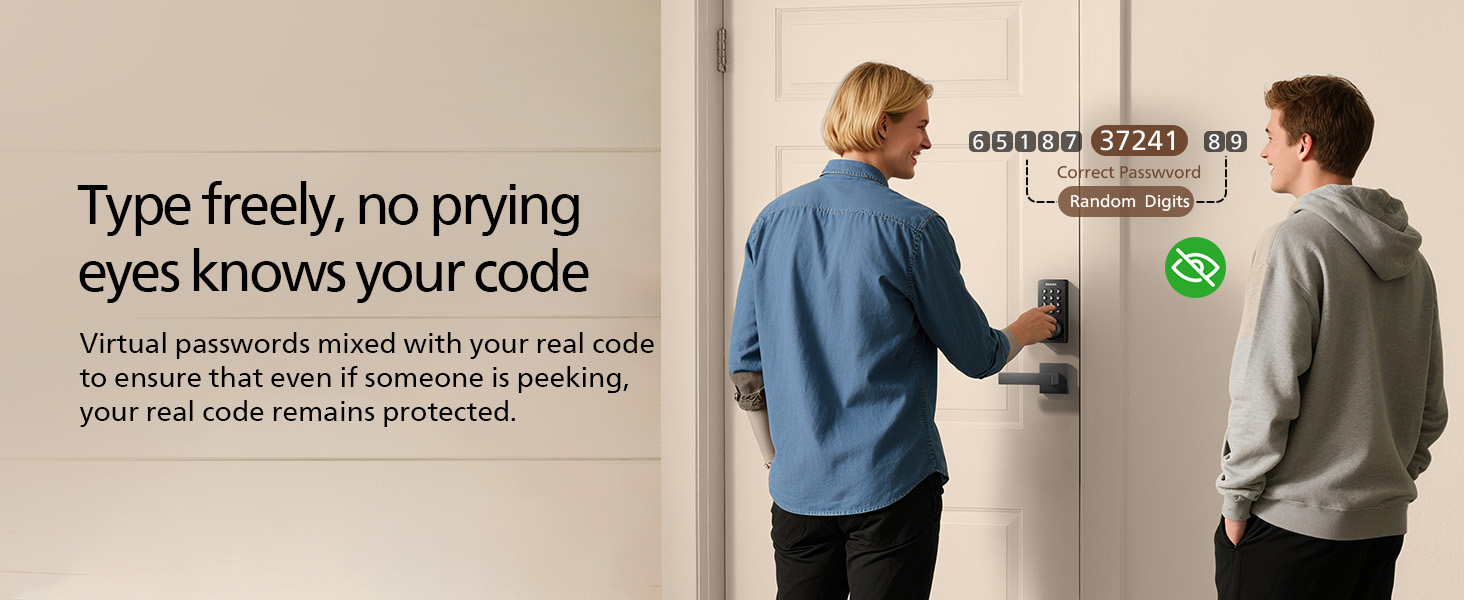
Image: A smartphone displaying a "Low battery alarm" notification for the Philips smart lock, indicating it's time to replace batteries.
- Cleaning: Wipe the keypad and lock body with a soft, dry cloth. Avoid abrasive cleaners or solvents that could damage the finish or electronic components.
- Environmental Conditions: While designed for various seasons, avoid placing the lock in areas with extreme temperature fluctuations that could lead to condensation inside the battery box. The lock has an IP54 rating for dust and splash resistance.
7. Troubleshooting
If you encounter issues with your Philips Wi-Fi Smart Lock, consider the following common solutions:
- Lock Not Responding: Check battery levels and replace if necessary. Ensure the lock is properly installed and calibrated.
- Fingerprint Not Recognized: Ensure your finger is clean and dry. Re-register your fingerprint if issues persist. The lock has a 99.9% recognition rate.
- Passcode Issues: Double-check the entered passcode. If multiple incorrect attempts are made, the lock will activate protection mode and send a real-time alert.
Image: A woman looking frustrated at the Philips smart lock, which is circled in red, indicating a "Wrong entry limit" and activation of protection mode after multiple failed attempts.
- Remote Access Problems: Verify your Wi-Fi connection and ensure the lock is connected to your home network. Check the Philips Home Access app for connectivity status.
- Voice Control Not Working: Confirm that your lock is correctly paired with Alexa or Google Assistant and that your smart speaker is online.
- Physical Key Not Working: Ensure the key is fully inserted and turned correctly. Do not force the key.
For further assistance, please refer to the Warranty & Support section.
8. Specifications
| Feature | Detail |
|---|---|
| Brand | PHILIPS |
| Model Name | DDL242X-1HW |
| Lock Type | Wi-Fi Lock |
| Special Features | Anti-Peeping Password, Auto-Lock, Fingerprint, Passcode Unlock, Remote Unlock |
| Material | Aluminum |
| Color | Matt Black |
| Item Dimensions (L x W x H) | 6 x 2 x 1.5 inches |
| Item Weight | 1.4 Pounds |
| Controller Type | Amazon Alexa, Google Assistant |
| Control Method | App, Remote, Voice |
| Connectivity Protocol | Wi-Fi |
| Batteries Required? | Yes (Not Included) |
| Usage Test | 15000 cycles |
| Salt Spray Test | 96 Hours |
| Impact Test | 100J x 5 Times |
| Latch Strength Test | 5000 N |
9. Warranty and Support
Philips is committed to providing excellent customer service and product support.
- Customer Service: A US-based support team is available by phone Monday-Friday 8 AM - 8 PM PST & Saturday 9 AM - 5 PM PST, and 24/7 via email.
- Phone Support: +1(833)599-911
- Email Support: phillips.ddl.usa@idlespacetech.com
- Quality Protection: The product comes with 2-year quality protection.
- Return Policy: Enjoy a 30-day free return or exchange.
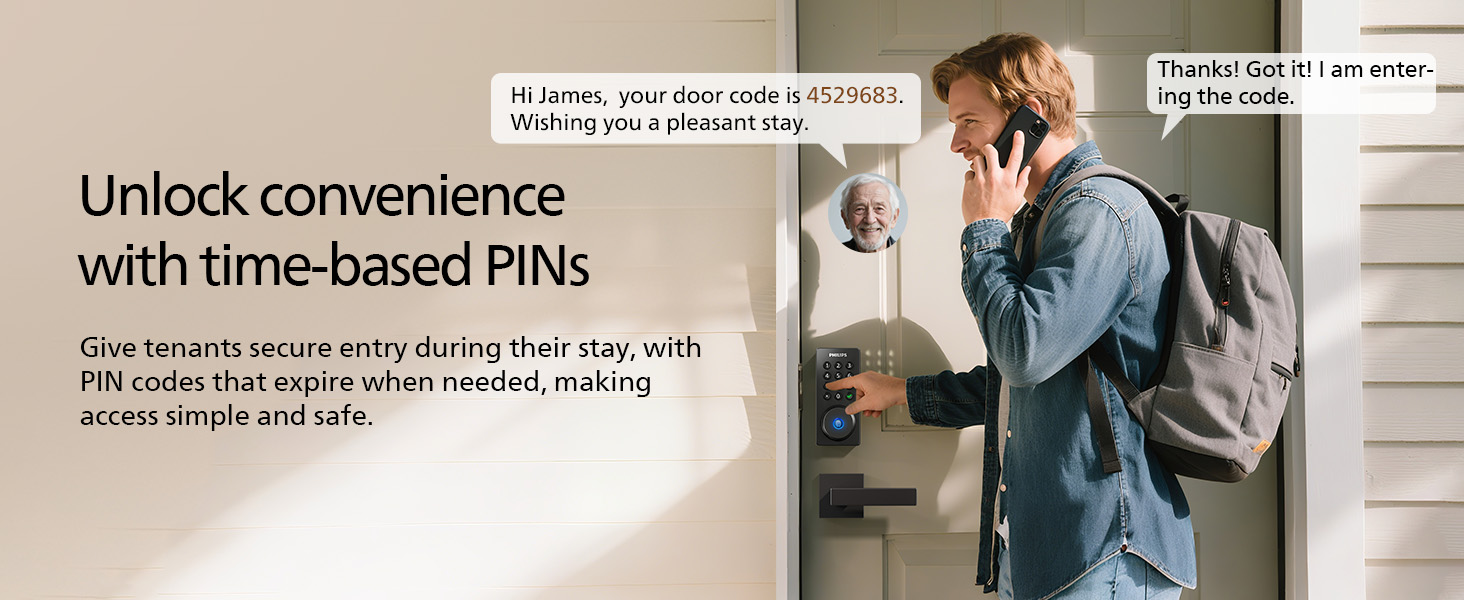
Image: A customer service representative wearing a headset, with text overlay detailing Philips' U.S.-based support, including 2-year quality protection, lifetime phone support, 24/7 email support, and a 30-day return policy.
Ask a question about this manual
Ask about setup, troubleshooting, compatibility, parts, safety, or missing instructions. Manuals+ will review the question and use this page’s manual context to help answer it.