
Introduction
Thank you for choosing the WOREGOO Tablet Android 14. This manual provides essential information for setting up, operating, maintaining, and troubleshooting your device. Please read it thoroughly to ensure optimal performance and longevity of your tablet.
What's in the Box
Upon unboxing, please verify that all the following items are included:
- WOREGOO Tablet Android 14
- Bluetooth Keyboard
- Wireless Mouse
- Protective Case
- Sensitive Pen (Stylus)
- Charger (Power Adapter)
- USB Cable
- User Manual (this document)
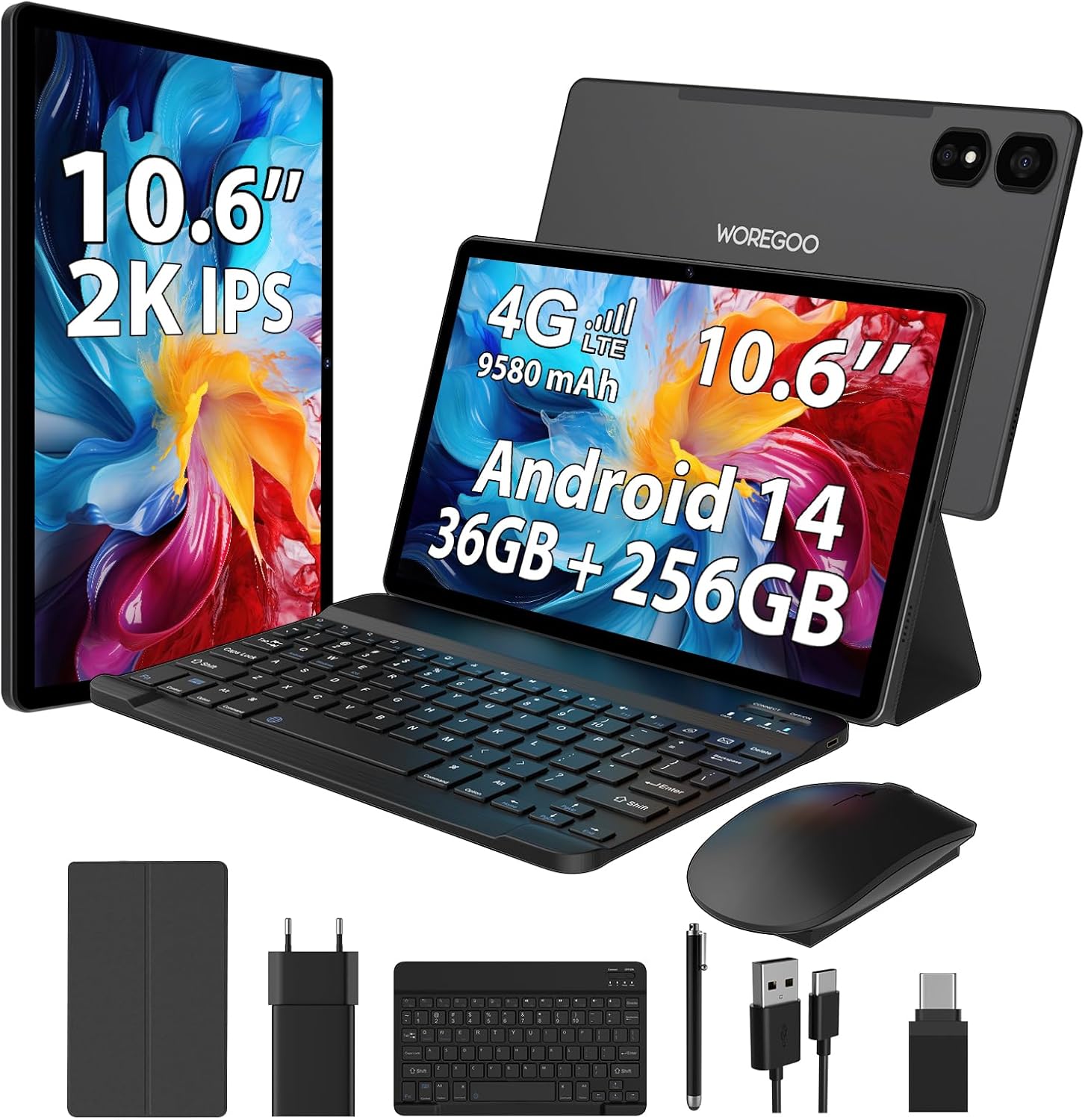
Image: The WOREGOO Tablet displayed with its full set of accessories, including the detachable keyboard, wireless mouse, stylus, protective case, and charging components.
Product Overview
The WOREGOO Tablet is designed for versatile use, offering powerful performance and a rich multimedia experience.
Key Features:
- Display: 10.6-inch INCELL HD display with 2000x1200 resolution, TÜV-certified for eye protection.
- Performance: Octa-Core processor (2.0 GHz) with Android 14 GMS certification.
- Memory: 36 GB RAM (12 GB + 24 GB expandable) and 256 GB ROM, expandable up to 1 TB via TF card.
- Connectivity: 4G LTE for calls, 5G Dual Band WiFi (2.4/5GHz), Dual SIM support, Bluetooth 5.0.
- Cameras: 13 MP rear camera and 8 MP front camera.
- Battery: High-capacity 9580 mAh battery for extended use.
- Audio: Dual speakers for immersive sound.
- Security: Face unlock feature.

Image: Visual representation of the tablet's memory specifications (36GB RAM + 256GB ROM, 1TB TF support) and core features like Octa-core CPU and SIM card slot, alongside various application icons.

Image: An illustration highlighting the tablet's advanced connectivity (4G LTE and 5G WiFi), audio capabilities (dual speakers), wireless technology (Bluetooth 5.0), and biometric security (face unlock).
Setup Guide
1. Charging the Tablet
- Connect the charger to a power outlet.
- Insert the USB cable into the tablet's Type-C charging port.
- Allow the tablet to charge fully before first use. The battery indicator on the screen will show charging status.

Image: A visual emphasizing the tablet's large 9580 mAh battery and its Type-C 5V/2A charging capability, illustrating its suitability for various activities like gaming, video playback, and web browsing.
2. Powering On/Off
- To Power On: Press and hold the Power button until the WOREGOO logo appears.
- To Power Off: Press and hold the Power button, then select "Power off" from the options.
- To Restart: Press and hold the Power button, then select "Restart" from the options.
3. SIM Card and TF Card Installation
The tablet supports Dual SIM cards for 4G LTE connectivity and a TF (microSD) card for storage expansion up to 1 TB.
- Locate the SIM/TF card tray on the side of the tablet.
- Use the provided SIM ejector tool to open the tray.
- Carefully place your SIM card(s) and/or TF card into the designated slots. Ensure correct orientation.
- Gently push the tray back into the tablet until it clicks into place.
4. Connecting Accessories (Keyboard & Mouse)
The included keyboard and mouse connect via Bluetooth.
- Ensure the keyboard and mouse are charged and powered on.
- On your tablet, go to Settings > Connected devices > Bluetooth.
- Turn Bluetooth On.
- The tablet will scan for available devices. Select the keyboard and mouse from the list to pair them.
- Follow any on-screen prompts to complete the pairing process.
Operating Instructions
1. Android 14 Interface
Your tablet runs on Android 14, offering a user-friendly interface.
- Home Screen: Swipe left/right to navigate between screens, tap icons to open apps.
- Notifications: Swipe down from the top of the screen to access notifications and quick settings.
- App Drawer: Swipe up from the bottom of the screen to view all installed applications.
- Navigation Gestures: Utilize gestures for back, home, and recent apps, or enable traditional navigation buttons in settings.
2. Camera Usage
Capture photos and videos using the 13 MP rear camera and 8 MP front camera.
- Open the Camera app.
- Tap the camera icon to switch between front and rear cameras.
- Tap the shutter button to take a photo or start/stop video recording.
- Explore various modes and settings within the camera app for enhanced photography.

Image: A visual representation of the tablet's integrated camera system, highlighting the 8-megapixel front camera and the 13-megapixel rear camera, designed for capturing moments.
3. Connectivity
- Wi-Fi: Go to Settings > Network & internet > Wi-Fi to connect to available networks.
- 4G LTE: Ensure your SIM card is installed correctly. Mobile data can be enabled/disabled in Settings > Network & internet > Mobile network.
- Bluetooth: For connecting wireless headphones, speakers, or other devices, navigate to Settings > Connected devices > Bluetooth.
4. Parental Controls and Digital Health
Android 14 includes features for managing screen time and content access.
- Parental Controls: Set up content restrictions and screen time limits for children's profiles via Settings > Digital Wellbeing & parental controls.
- Digital Wellbeing: Monitor your device usage, set app timers, and manage notifications to promote healthy digital habits.
5. Installing Applications
The tablet is GMS certified, allowing full access to the Google Play Store.
- Open the Play Store app.
- Search for your desired applications (e.g., Netflix, Prime Video, YouTube, Hulu).
- Tap Install to download and install the app.
Maintenance
1. Battery Care
- Avoid extreme temperatures, which can degrade battery life.
- Do not let the battery drain completely regularly.
- Use the original charger for optimal charging performance.
2. Cleaning the Device
- Use a soft, lint-free cloth to clean the screen and body.
- For stubborn marks, slightly dampen the cloth with water or a screen cleaner.
- Avoid harsh chemicals or abrasive materials.
3. Software Updates
Regularly check for and install software updates to ensure your tablet has the latest features, security patches, and performance improvements.
- Go to Settings > System > System update.
- Follow the on-screen instructions to check for and install any available updates.
Troubleshooting
If you encounter issues with your WOREGOO Tablet, try the following solutions before contacting support.
- Tablet not turning on: Ensure the battery is charged. Connect the charger and wait a few minutes before attempting to power on again.
- Apps crashing or freezing:
- Close and reopen the app.
- Clear the app's cache: Settings > Apps > [App Name] > Storage & cache > Clear cache.
- Restart the tablet.
- Wi-Fi/4G LTE connectivity issues:
- Toggle Wi-Fi/Mobile Data off and on.
- Restart your router (for Wi-Fi).
- Ensure your SIM card is properly inserted and active (for 4G LTE).
- Slow performance:
- Close unused apps running in the background.
- Clear unnecessary files and data to free up storage space.
- Restart the tablet periodically.
- Accessories not connecting:
- Ensure Bluetooth is enabled on the tablet.
- Check if the accessories are charged and in pairing mode.
- Unpair and re-pair the accessories in Bluetooth settings.
Specifications
| Feature | Detail |
|---|---|
| Brand | WOREGOO |
| Model Name | M109-EEA |
| Operating System | Android 14 |
| Processor | Octa-Core, 2.0 GHz (MediaTek) |
| RAM | 36 GB (12 GB + 24 GB) |
| Internal Storage (ROM) | 256 GB |
| Expandable Storage | Up to 1 TB via TF Card |
| Screen Size | 10.6 Inches |
| Screen Resolution | 2000x1200 Pixels (2K FHD) |
| Rear Camera | 13 MP |
| Front Camera | 8 MP |
| Battery Capacity | 9580 mAh |
| Connectivity | 4G LTE, 5G WiFi (802.11ac), Bluetooth 5.0 |
| Color | Black |
| Dimensions (Package) | 33.5 x 19.5 x 4 cm; 1.3 kg |
Warranty and Support
WOREGOO offers comprehensive customer support for your tablet.
- Customer Service: 24-hour customer service is available to assist you with any inquiries or issues.
- Money-Back Guarantee: The product comes with a money-back guarantee. Please refer to your purchase documentation for specific terms and conditions.
- For further assistance, please contact WOREGOO customer support through the platform where you purchased the device or visit the official WOREGOO website.