
E EAZEYAI A5
E EAZEYAI AI Voice Recorder User Manual
Model: A5
Introduction
The E EAZEYAI AI Voice Recorder is an advanced audio recording device designed for high-performance workflows. It integrates cutting-edge AI technology to provide accurate transcription, smart summarization, and simultaneous translation across multiple languages. This manual provides comprehensive instructions for setting up, operating, maintaining, and troubleshooting your device, ensuring you can maximize its capabilities for meetings, lectures, interviews, and calls.
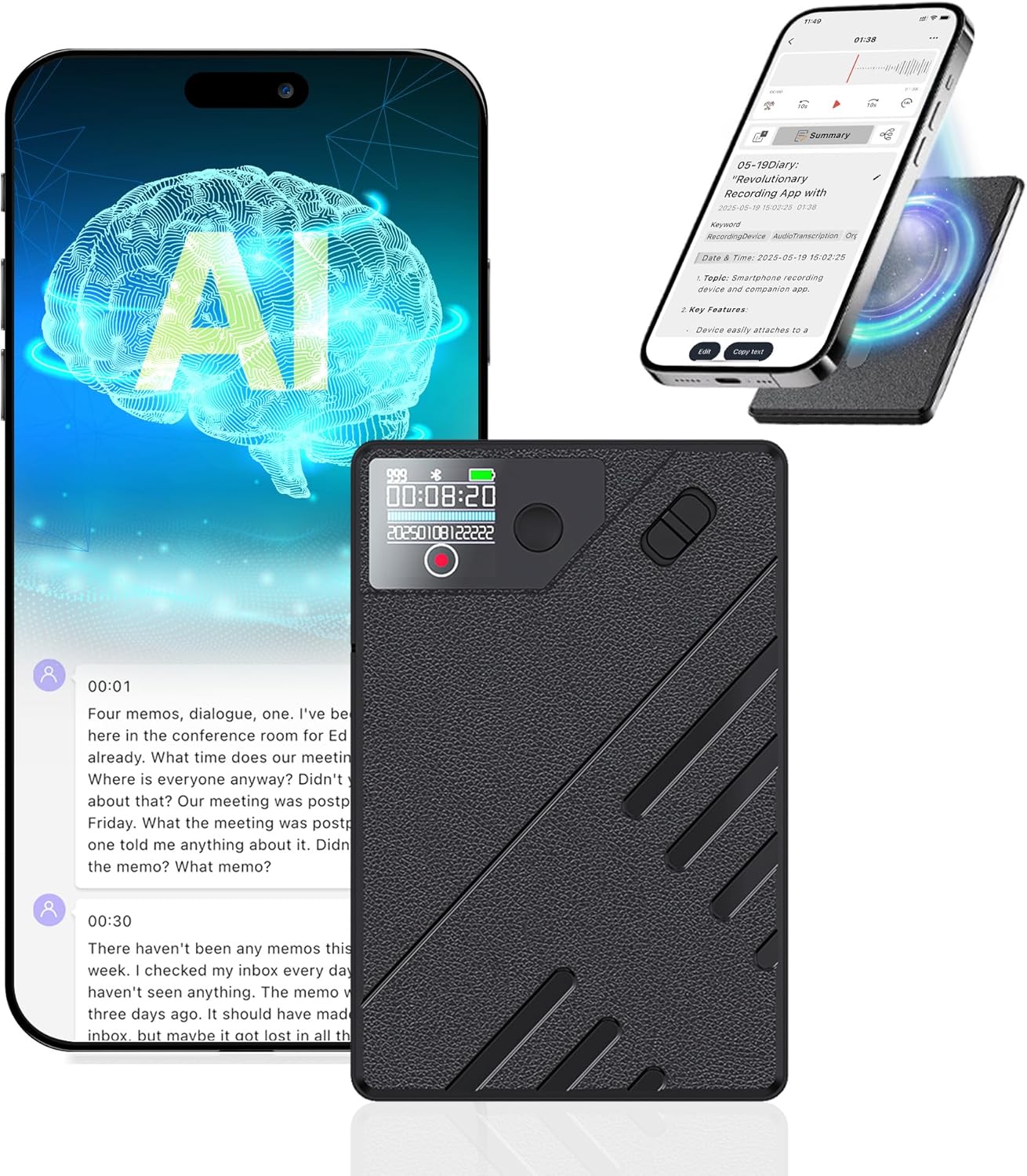
The E EAZEYAI AI Voice Recorder, showcasing its compact design and integration with a smartphone application for advanced AI features.
What's in the Box
Upon opening your E EAZEYAI AI Voice Recorder package, please verify that all the following items are included:
- 1 x AI Voice Recorder
- 1 x USB-C Charging Cable
- 1 x Magnetic Ring
- 1 x User Manual (this document)

Illustration of the package contents, including the AI Voice Recorder, USB-C charging cable, and magnetic ring.
Product Overview and Features
The E EAZEYAI AI Voice Recorder is engineered to simplify your recording and note-taking process with its advanced features:
- Accuracy Transcribe & AI Summarize: Utilizes cutting-edge AI (GPT-4o and Claude 3.5 Sonnet models) for real-time transcription in 140 languages and smart summarization, generating concise summaries and mind maps.
- AI Noise Cancellation Technology: Equipped with a dual-mode engine and AI noise cancellation for crystal-clear audio quality, even in noisy environments.
- 64GB Memory & Data Privacy: Provides ample storage for up to 540 hours of recording. Data is securely encrypted locally and in the cloud.
- Long Battery Life: Built-in 1000mAh battery supports up to 50 hours of continuous recording.
- One-Touch Recording & Tiny Design: Instant recording activation directly on the device or via the AIREC app. Features a sleek 0.31" thickness and weighs 0.12lb for portability.
- Mobile App Control: Seamless control and management of recordings and AI features via the dedicated AIREC app (Bluetooth 5.1 Smart Connection).
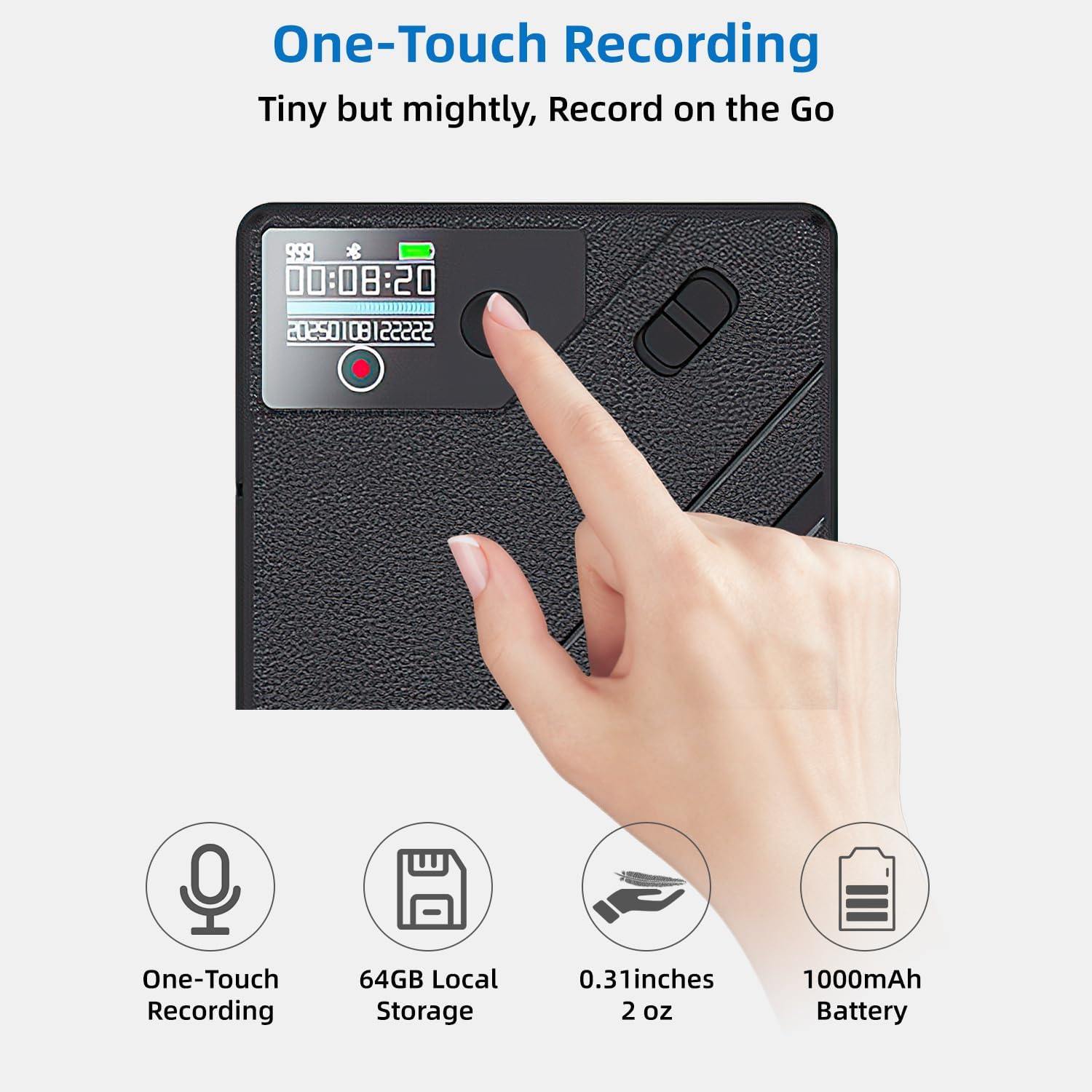
The device features a prominent one-touch recording button for instant activation.

The AIREC app's smart summary feature, showing a concise overview of a recorded meeting.
Setup Guide
1. Initial Charging
Before first use, fully charge your AI Voice Recorder. Connect the provided USB-C charging cable to the device's charging port and the other end to a USB power adapter (not included) or a computer's USB port. The device's indicator light will show charging status and turn off when fully charged.
2. Installing the AIREC App
The AIREC app is essential for accessing advanced features like transcription, summarization, and translation. Scan the QR code provided in the quick start guide or search for "AIREC" in your smartphone's app store (available for Android and iOS).
3. Pairing with Your Smartphone
- Ensure Bluetooth is enabled on your smartphone.
- Turn on the AI Voice Recorder.
- Open the AIREC app on your smartphone.
- Follow the on-screen prompts in the app to search for and connect to your AI Voice Recorder via Bluetooth. The device name will typically appear as "EAZEYAI_A5" or similar.
- Once paired, the app will display a connected status.

The AI Voice Recorder connects seamlessly to your smartphone via Bluetooth for app control.
Operating Instructions
1. Basic Recording
To start recording, slide the power switch on the top right corner of the device to the 'ON' position. The device will automatically begin recording. To pause or stop recording, press the dedicated button near the display. You can also control recording directly from the AIREC app.
2. Using the AIREC App for Advanced Features
Once connected to the app, you can:
- View Recordings: Access all recorded audio files stored on the device.
- Transcription: Select a recording to initiate transcription. The app will convert audio to text in your chosen language (supports 140 languages).
- Summarization: After transcription, generate a smart summary of the content. You can choose from various context-specific templates (Meeting, Call, Interview, Speech, Sales) or customize your own.
- Simultaneous Translation: Utilize the translation feature for real-time or post-recording translation of transcribed text.
- Mind Mapping: Create visual mind maps from your recordings to highlight key points and relationships.

The workflow from one-press recording to accurate transcription and smart summarization via the app.
3. Recording Scenarios
The device is versatile for various recording needs:
- Meetings: Place the recorder centrally for clear capture of all participants.
- Phone Calls: Attach the magnetic ring to your phone case and the recorder to the ring for convenient call recording.
- Voice Memos/Lectures/Interviews: Hold the device within 9.8 feet (3 meters) of the speaker for optimal audio quality.

The device supports dual-mode recording for both phone calls and general note-taking.
Maintenance
- Cleaning: Use a soft, dry cloth to clean the device. Do not use liquid cleaners or aerosols.
- Storage: Store the device in a cool, dry place away from direct sunlight and extreme temperatures.
- Battery Care: To prolong battery life, avoid fully discharging the device frequently. Charge it regularly, even if not in use for extended periods.
- Software Updates: Periodically check the AIREC app for software updates to ensure optimal performance and access to new features.
Troubleshooting
| Problem | Possible Cause | Solution |
|---|---|---|
| Device not turning on | Low battery; Power switch off | Charge the device; Ensure power switch is in 'ON' position. |
| Cannot connect to app | Bluetooth off; Device not in pairing mode; App issue | Ensure Bluetooth is on; Restart device and app; Re-pair device in app settings. |
| Poor transcription accuracy | Background noise; Speaker too far; Heavy accents | Record in quieter environments; Keep device within 9.8ft of speaker; Speak clearly. |
| Battery drains quickly | Continuous recording; Old battery | Ensure device is turned off when not in use; Contact support if battery life significantly degrades. |
| App freezing/crashing | Outdated app; Software bug | Update the app to the latest version; Reinstall the app; Contact support. |
Specifications
| Feature | Detail |
|---|---|
| Model Number | A5 |
| Dimensions | 0.3 x 2.5 x 3.8 inches (0.3"D x 2.5"W x 3.8"H) |
| Item Weight | 1.76 ounces |
| Memory Storage Capacity | 64 GB (up to 540 hours recording) |
| Battery | 1000mAh Nonstandard Battery (up to 50 hours continuous recording) |
| Charging Interface | USB Type C |
| Microphone Form Factor | Built-In |
| Headphones Jack | 3.5 millimeters |
| Transcription Languages | 140 languages |
| AI Models Supported | GPT-4o, Claude 3.5 Sonnet |
| Connectivity | Bluetooth 5.1 |
| Compatible Devices | Smartphone (Android, iOS) |
Warranty and Support
E EAZEYAI provides a standard manufacturer's warranty for this product. Please refer to the warranty card included in your package for specific terms and conditions. For technical support, troubleshooting assistance, or warranty claims, please contact E EAZEYAI customer service through the contact information provided on our official website or within the AIREC app.
Additionally, all users receive a complimentary 540 minutes/month of AI transcription & summary time. Pro plans are available for unlimited summaries and team collaboration features.
Related Documents - A5
 |
How to Complete Google Play Certification for AINOTE Devices A step-by-step guide on how to enable and complete Google Play certification on AINOTE devices, including GSF ID retrieval and account setup. |
 |
ZOOAOXO Digital Voice Recorder User Manual Comprehensive user manual for the ZOOAOXO Digital Voice Recorder, detailing its features including MP3 playback, Bluetooth connectivity, FM radio, e-book reader, voice recording functions, and essential troubleshooting tips. |
 |
User Manual: Portable Voice Recorder Keychain Official user manual for the portable voice recorder keychain, detailing product information, safety warnings, usage instructions, and disposal guidelines. |
 |
Vandlion X19 Digital Media Player User Manual Comprehensive user manual for the Vandlion X19 digital media player, covering features, operation, troubleshooting, and technical specifications. Learn how to use music playback, video, e-books, voice recording, FM radio, and more. |
 |
Olympus Voice Recorder Microphone and Headphone Guide A comprehensive guide from Olympus detailing various microphones and headsets designed for voice recorders, including specifications, product numbers, and compatibility information. |
 |
iFLYTEK AINOTE Quick Start Guide: Setup, Features, and Usage Comprehensive guide to setting up and using your iFLYTEK AINOTE digital notebook, covering features like Quick Bar, Smart Pen, note-taking, reading, and system management. |
Ask a question about this manual
Ask about setup, troubleshooting, compatibility, parts, safety, or missing instructions. Manuals+ will review the question and use this page’s manual context to help answer it.