
Introduction
This manual provides detailed instructions for the setup, operation, and maintenance of your OYOSUOGG Keyboard Case for iPad Air 13-inch (M3 2025 / M2 2024). Please read this manual thoroughly before using the product to ensure proper function and longevity.
Package Contents
- 1 x OYOSUOGG Keyboard Case for iPad Air 13-inch
- 1 x Detachable Wireless Keyboard
- 1 x USB-C Charging Cable
- 1 x User Manual
Note: iPad and Apple Pencil are not included.
Setup
1. Installing the iPad into the Case
Carefully align your iPad Air 13-inch with the case's frame. Gently press the iPad into the case, ensuring all edges are securely seated within the protective shell. Verify that all cutouts for ports, buttons, and speakers align correctly.
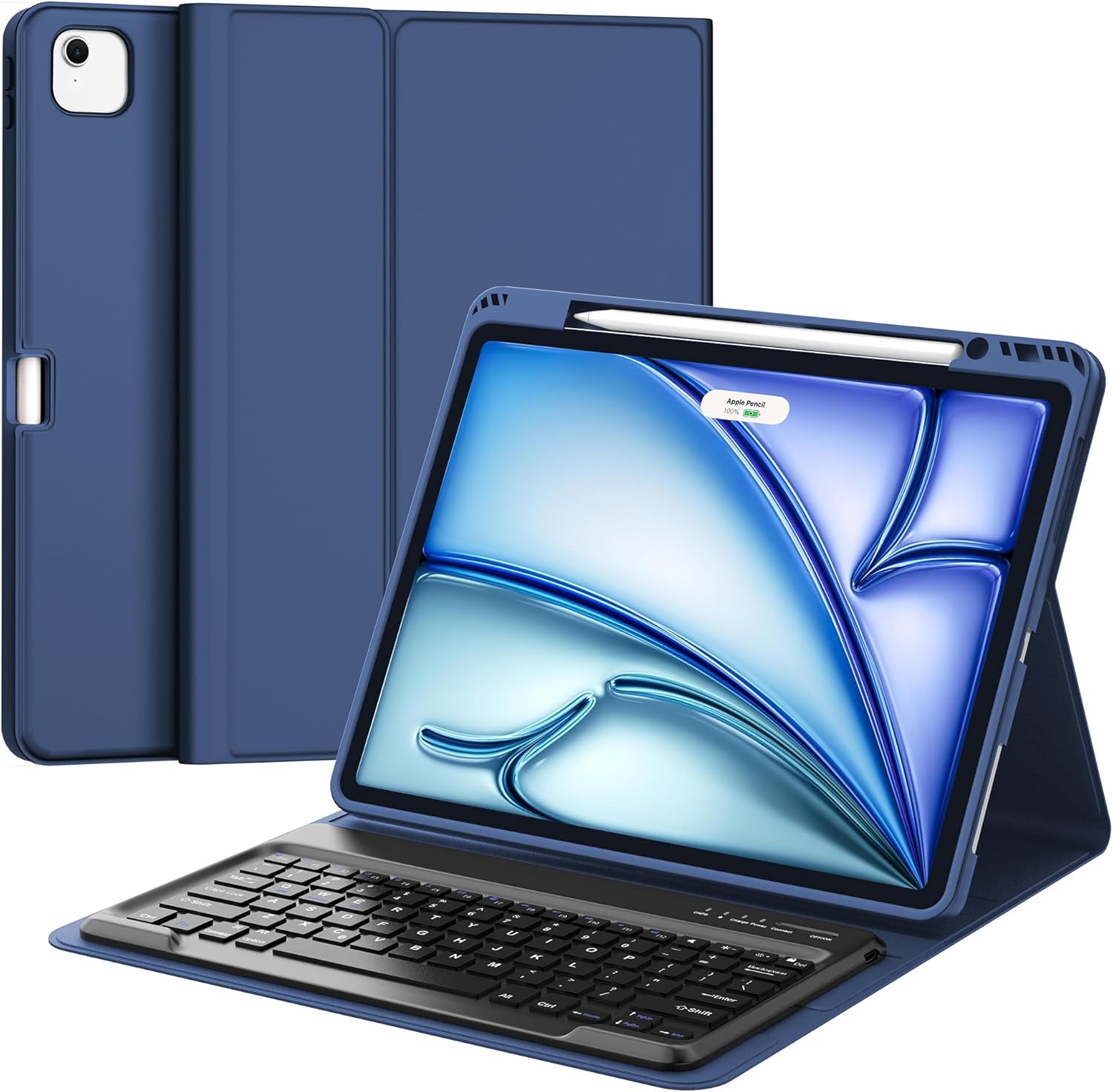
Image: The OYOSUOGG Keyboard Case with an iPad Air 13-inch securely installed, showing the detachable keyboard in place.
2. Charging the Keyboard
Before initial use, fully charge the wireless keyboard. Connect the provided USB-C charging cable to the keyboard's charging port and the other end to a USB power adapter (not included). The charging indicator light will illuminate during charging and turn off or change color when fully charged.

Image: The detachable wireless keyboard connected to a USB-C charging cable, illustrating the charging process.
3. Connecting the Wireless Keyboard (Bluetooth Pairing)
- Ensure the keyboard is charged and powered on.
- On your iPad, go to Settings > Bluetooth.
- Turn on Bluetooth. The iPad will search for discoverable devices.
- Locate "Bluetooth Keyboard" (or similar name) in the list of devices and tap to connect.
- If prompted, enter the pairing code displayed on your iPad using the keyboard and press Enter.
- Once connected, the keyboard's indicator light will confirm successful pairing.

Image: The detachable wireless keyboard, highlighting its compatibility with various operating systems including iOS, Android, and Windows.
Operating Instructions
1. Adjustable Viewing Angles
The case features multiple magnetic grooves that allow you to adjust the iPad's viewing angle for typing, viewing, or sketching. Simply position the iPad's edge into the desired groove on the case cover.

Image: The keyboard case demonstrating its adjustable viewing angles, supported by internal magnets for stability.
2. Auto Sleep/Wake Function
The case supports the iPad's auto sleep/wake feature. Opening the folio cover will automatically wake your iPad, and closing it will put your iPad to sleep, conserving battery life.

Image: The keyboard case highlighting the auto sleep/wake functionality and the integrated Apple Pencil holder.
3. Using the Pencil Holder
The integrated pencil holder is designed to securely store your Apple Pencil. It also supports wireless charging for compatible Apple Pencils without needing to remove the iPad from the case.
Note: The pencil holder is located on the side of the case.
4. Keyboard Functions and Shortcuts
The wireless keyboard provides a full range of keys for efficient typing. Standard iOS keyboard shortcuts are supported. Refer to your iPad's operating system documentation for a comprehensive list of shortcuts.
- Function Keys: The top row of keys often includes dedicated function keys for media control, volume, screen brightness, and home screen access.
- Command Key: Use the Command key (⌘) for common shortcuts like Command+C (copy), Command+V (paste), Command+Z (undo).
Maintenance
1. Cleaning the Case and Keyboard
To clean the case, gently wipe it with a soft, damp cloth. For the keyboard, use a dry, soft cloth. Avoid using harsh chemicals, abrasive cleaners, or excessive moisture, as these can damage the product.

Image: The keyboard case being wiped clean, illustrating its stain-resistant properties.
2. Storage
When not in use, store the keyboard case in a cool, dry place away from direct sunlight and extreme temperatures. Ensure the keyboard is turned off to conserve battery life.
Troubleshooting
1. Keyboard Not Connecting via Bluetooth
- Check Power: Ensure the keyboard is turned on and fully charged.
- Bluetooth On: Verify that Bluetooth is enabled on your iPad.
- Re-pair: Go to iPad Bluetooth settings, "Forget This Device" for the keyboard if previously paired, then attempt to re-pair.
- Restart Devices: Restart both your iPad and the keyboard.
2. Keys Not Responding
- Battery Level: Check if the keyboard battery is low. Charge it if necessary.
- Connection: Ensure the Bluetooth connection is stable. Reconnect if needed.
- Interference: Move away from other wireless devices that might cause interference.
3. Auto Sleep/Wake Not Working
- iPad Settings: Ensure "Lock/Unlock" is enabled in your iPad's settings under Settings > Display & Brightness.
- Case Alignment: Verify that the iPad is correctly seated in the case and the cover closes completely.
Specifications
| Model Compatibility | Apple iPad Air 13-inch (M2 2024), Apple iPad Air 13-inch (M3 2025) |
| Material | Plastic |
| Connectivity | Bluetooth Wireless |
| Battery Type | Built-in Lithium-ion |
| Charging Port | USB-C |
| Special Features | Magnetic Detachable Keyboard, Pencil Holder (supports wireless charging), Adjustable Angles, Auto Sleep/Wake |
| Dimensions (Case) | Approximately 12.28 x 9.92 x 1.26 inches (31.2 x 25.2 x 3.2 cm) |
| Weight (Item) | Approximately 2.2 pounds (1 kg) |
Note: Specifications are subject to change without prior notice.
Warranty and Support
OYOSUOGG products come with a standard manufacturer's warranty. For detailed warranty information, technical support, or customer service inquiries, please refer to the contact information provided on the product packaging or visit the official OYOSUOGG website.
Please retain your proof of purchase for warranty claims.