
1. Introduction
This manual provides comprehensive instructions for the installation, operation, and maintenance of your new Sellrich 4Core+64G Car Radio. This unit is designed to upgrade the stereo system in compatible Chevrolet Silverado, GMC Yukon, Tahoe, and Suburban models from 2007 to 2013. It features a 9-inch IPS touch screen, Android 15 operating system, 4-Core processor with 2GB RAM and 64GB ROM, DSP, Wireless CarPlay/Android Auto, Bluetooth, FM/RDS radio, Steering Wheel Control (SWC) support, and includes an AHD backup camera.
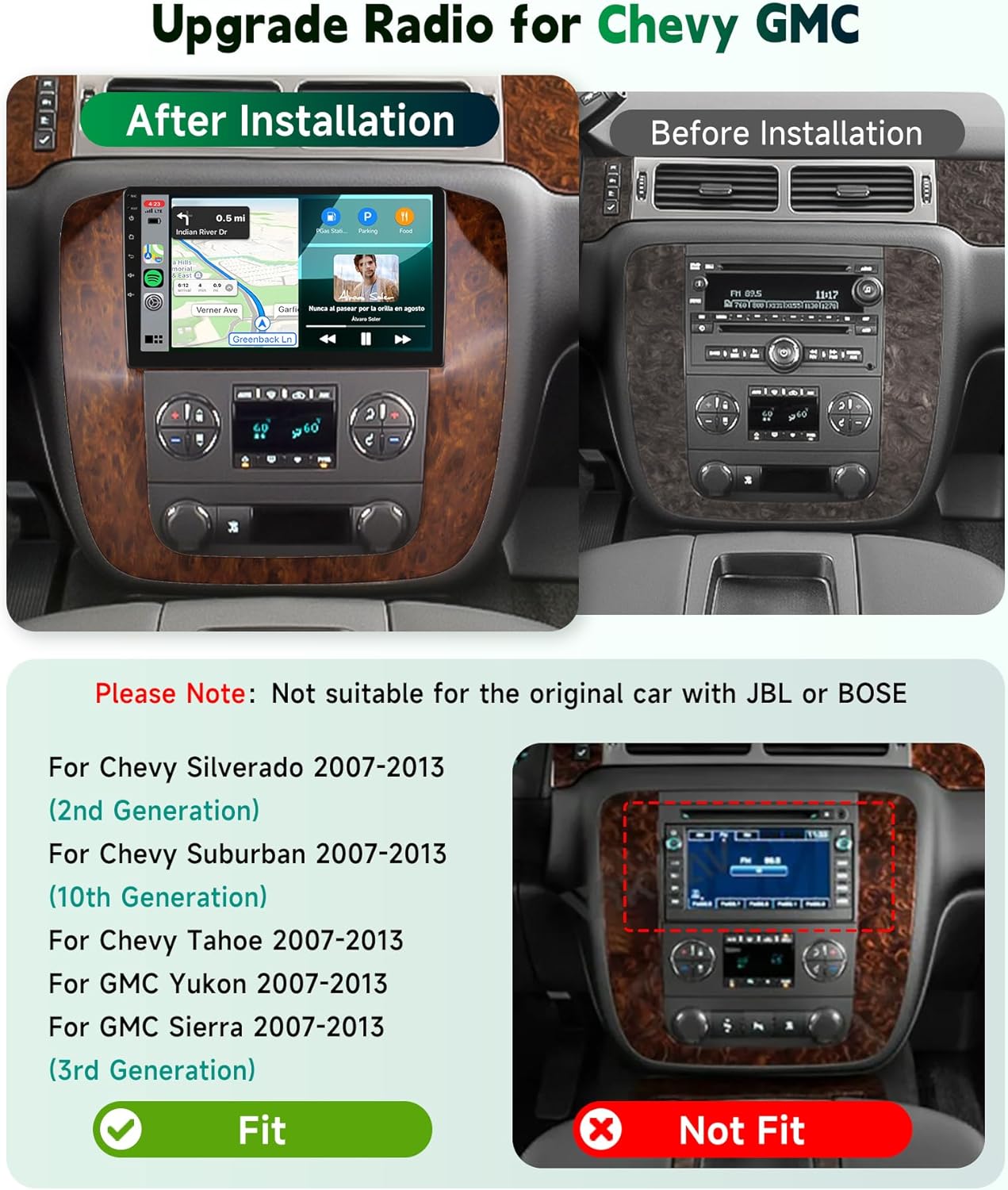
Important Note: This unit is not suitable for vehicles equipped with the original JBL/BOSE sound system or large-screen factory units.
2. Safety Information
- Always ensure the vehicle's battery is disconnected before beginning installation to prevent electrical shorts or damage.
- Consult a professional if you are unsure about any installation steps. Improper installation can lead to vehicle damage or malfunction.
- Do not operate the device in a manner that distracts you from driving. Always prioritize road safety.
- Keep the unit away from water and excessive moisture.
- Use only specified power cables and accessories to avoid damage or fire hazards.
3. Package Contents
Verify that all items listed below are included in your package:
- Chevy Car Stereo (with integrated frame)
- AHD Backup Camera
- Canbus Decoder
- External Microphone
- GPS Antenna
- Radio Antenna
- RCA Cable Set
- Power Cable Set
- Installation Tool Kit
- User Manual

4. Setup and Installation
The Sellrich car radio is designed for plug-and-play installation in compatible vehicles. Ensure your vehicle is listed as compatible before proceeding.
4.1 Compatibility Check
This unit is compatible with:
- Chevy Silverado 2007-2013 (2nd Generation)
- Chevy Suburban 2007-2013 (10th Generation)
- Chevy Tahoe 2007-2013
- GMC Yukon 2007-2013
- GMC Sierra 2007-2013 (3rd Generation)
Note: Not compatible with vehicles that have the original JBL/BOSE sound system or large-screen factory units.
4.2 Wiring the Backup Camera
Connect the AHD backup camera as follows:
- Connect the camera's positive wire to the positive terminal of the reverse light.
- Connect the camera's negative wire to the negative terminal of the reverse light.
- Connect the camera's video output to the 'Camera Input' port on the car stereo.
- No need to connect a reverse trigger wire if the radio automatically detects the reverse signal via Canbus or WiFi.

5. Operating Instructions
5.1 Wireless CarPlay & Android Auto
Connect your smartphone wirelessly to access navigation, music, calls, and other apps directly on the car radio's screen. Ensure your phone's Bluetooth and Wi-Fi are enabled.
- On the car radio, select the CarPlay or Android Auto icon.
- On your phone, search for the car radio's Bluetooth name and pair.
- Follow on-screen prompts to establish the wireless connection.

5.2 Bluetooth Connectivity
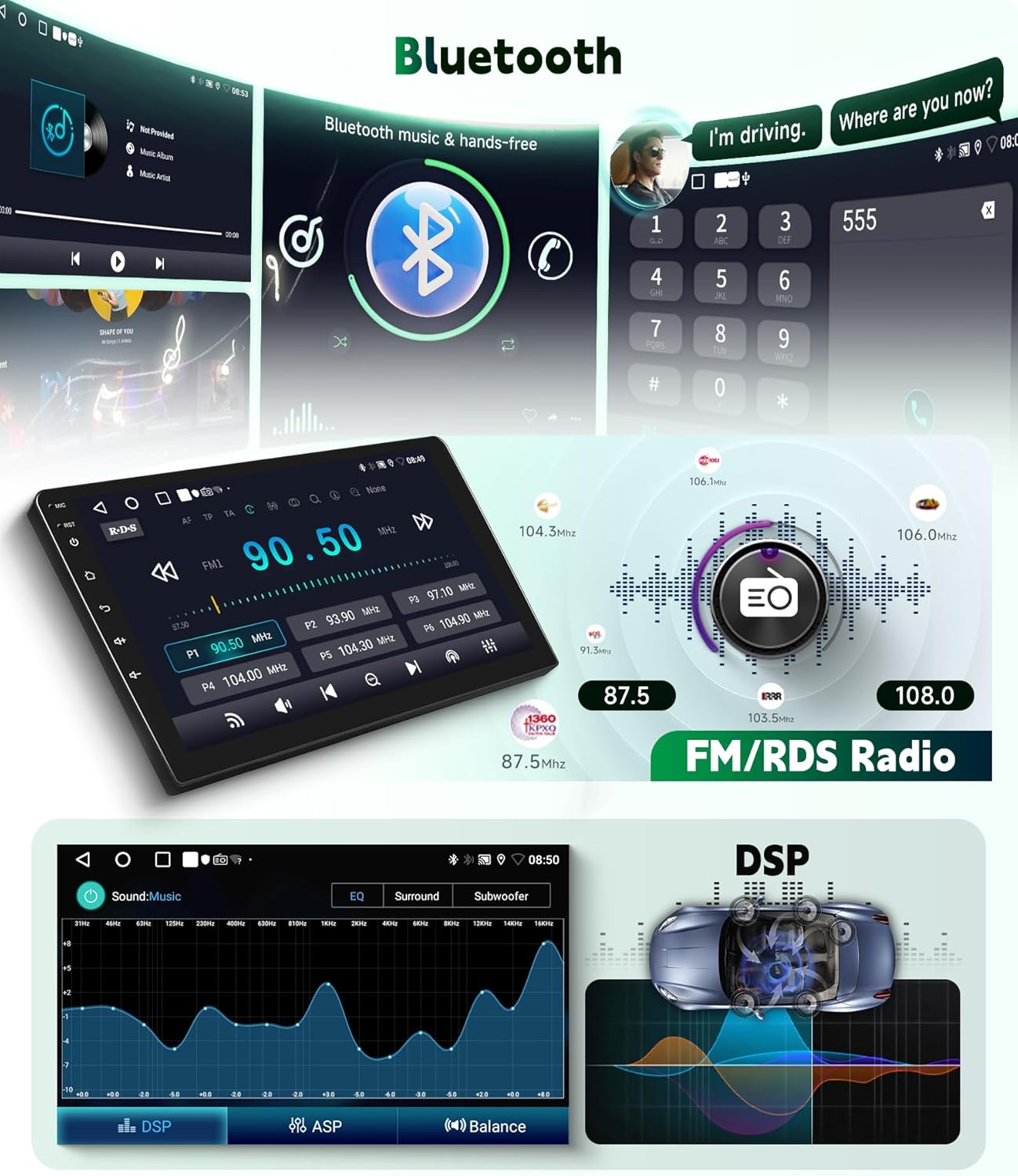
The unit supports Bluetooth 5.0 for hands-free calling and audio streaming.
- Go to the Bluetooth menu on the car radio.
- Enable Bluetooth on your smartphone and search for available devices.
- Select the car radio's Bluetooth name (e.g., "Sellrich Car Radio") and pair.
- Confirm the pairing code on both devices if prompted.
5.3 FM/RDS Radio
Access local radio stations with clear reception and RDS information.
- Select the "Radio" application from the main menu.
- Use the scan function to automatically find and save stations.
- Manually tune to frequencies using the touch screen controls.
5.4 GPS Navigation
The built-in GPS module supports both online and offline navigation.
- To use offline maps, connect the unit to Wi-Fi, sign in to your Google account, and download desired map regions.
- Select the "Navigation" or "Maps" application to start.
- Enter your destination and follow the voice-guided directions.
5.5 Steering Wheel Control (SWC)
The unit retains your vehicle's original steering wheel controls.
- Access the SWC settings in the system menu.
- Follow the on-screen instructions to program each button on your steering wheel to its corresponding function (e.g., volume up/down, skip track, answer call).
5.6 Backup Camera
When properly installed, the backup camera automatically displays a clear rear image when the vehicle is shifted into reverse.
- Shift the vehicle into reverse gear.
- The screen will automatically switch to the camera view.
- Parking guidelines may be displayed to assist with maneuvering.

6. Features Overview
6.1 HD IPS Touch Screen & Split Screen
The 9-inch IPS display offers clear visuals and responsive touch control. The split-screen function allows you to run two applications simultaneously, such as navigation and music playback.
6.2 Digital Sound Processor (DSP)
The built-in DSP allows for advanced audio customization with adjustable EQ settings, providing a personalized sound experience.
6.3 Multiple User Interfaces (UIs)
The system offers various customizable user interfaces to suit your preference, enhancing the visual experience.

7. Maintenance
- Screen Cleaning: Use a soft, lint-free cloth to gently wipe the screen. For stubborn smudges, slightly dampen the cloth with water or a screen-safe cleaner. Avoid harsh chemicals.
- Software Updates: Periodically check for system software updates via the Wi-Fi connection in the system settings. Updates can improve performance and add new features.
- General Care: Avoid exposing the unit to extreme temperatures or direct sunlight for prolonged periods.
8. Troubleshooting
| Problem | Possible Cause | Solution |
|---|---|---|
| Unit does not power on | Incorrect wiring; Blown fuse; Vehicle battery issue | Check power connections and fuses. Ensure vehicle battery is charged. |
| No sound or poor sound quality | Speaker wiring issues; Volume too low; DSP settings misconfigured | Verify speaker connections. Adjust volume. Check DSP/EQ settings. |
| Wireless CarPlay/Android Auto not connecting | Bluetooth/Wi-Fi off; Phone not paired; Software glitch | Ensure phone's Bluetooth/Wi-Fi is on. Re-pair device. Restart both phone and car radio. |
| GPS signal lost or inaccurate | GPS antenna obstructed or disconnected; Outdated maps | Ensure GPS antenna has a clear view of the sky and is securely connected. Update maps if necessary. |
| Backup camera not displaying | Camera wiring incorrect; Reverse signal not detected | Check camera power and video input connections. Ensure reverse gear is engaged. |
| System lag or unresponsiveness | Too many apps running; System overload; Software issue | Close unnecessary applications. Restart the unit. Check for software updates. |
9. Specifications
| Feature | Specification |
|---|---|
| Brand | Sellrich |
| Model Name | Sellrich Android 13 9in GPS Car Radio |
| Screen Size | 9 Inches |
| Operating System | Android 15 |
| Processor | 4 Core |
| Memory (RAM) | 2GB |
| Storage (ROM) | 64GB |
| Special Features | DSP, FM/RDS Radio, GPS/Wifi, Wireless Carplay Android Auto |
| Connectivity Technology | Bluetooth 5.0, Wi-Fi |
| Map Type | Worldwide (online/offline) |
| Display Type | LCD, Capacitive Touchscreen |
| Compatible Devices | Chevrolet Chevy Silverado 2010-2013, GMC Yukon Tahoe Suburban 2007-2012 |
| Control Method | App, Touch |
10. Warranty and Support
10.1 Warranty Information
This Sellrich car radio comes with a 2-year warranty from the date of purchase, covering manufacturing defects and malfunctions under normal use. Please retain your proof of purchase for warranty claims.
10.2 Customer Support
For technical assistance, troubleshooting, or warranty inquiries, please contact Sellrich customer service. Refer to the contact information provided with your product packaging or visit the official Sellrich website for support details.