Introduction
This manual provides detailed instructions for the installation, operation, and maintenance of your CAMECHO Qualcomm Snapdragon 8-Core Autoradio. This multimedia system is specifically designed for Hyundai i10 models manufactured between 2007 and 2013, offering advanced features such as Wireless Carplay, Android Auto, GPS navigation, DSP audio processing, and a 9-inch Android 13 touchscreen display.
Please read this manual thoroughly before installation and use to ensure proper functionality and to maximize your experience with the device.
1. Setup and Installation
1.1 Package Contents
- 1 x Car Multimedia Player
- 1 x Power Cable
- 1 x RCA Cable
- 1 x GPS Antenna
- 1 x User Manual (this document)
- 2 x USB Cables
- 1 x Reversing Camera Input Cable
- 1 x Radio Adapter Cable
- 2 x Mounting Brackets
1.2 Installation Guidelines
It is highly recommended that installation be performed by a qualified professional to avoid damage to the unit or your vehicle. Ensure the vehicle's power is disconnected before beginning installation.
- Remove Original Radio: Carefully remove your vehicle's existing radio unit and trim.
- Connect Power Cable: Connect the provided power cable to the vehicle's wiring harness. Ensure all connections match correctly (ACC, B+, GND, ILL, etc.).
- Connect RCA Cables: Attach the RCA cables for audio output (speakers, subwoofer if applicable) and video input/output.
- Install GPS Antenna: Mount the GPS antenna in a location with a clear view of the sky, typically on the dashboard or under the windshield, ensuring it is securely fastened.
- Connect USB Cables: Route the USB cables to an accessible location, such as the glove compartment, for connecting external devices or USB drives.
- Connect Reversing Camera (Optional): If using the included reversing camera, connect its input cable to the designated port on the autoradio and route the camera cable to the rear of the vehicle.
- Connect Radio Antenna: Attach the radio adapter cable to your vehicle's antenna.
- Secure Unit: Use the provided mounting brackets to secure the autoradio into the dashboard opening.
- Initial Power On: Reconnect the vehicle's power. Turn on the ignition and power on the autoradio.
- Language and Time Settings: Follow the on-screen prompts to select your preferred language and set the correct time zone.

Figure 1: Overview of the CAMECHO Autoradio's main features, including Qualcomm Snapdragon 8-core processor, Android 15 system, 4GB RAM + 64GB ROM, WiFi 6, Wireless Carplay/Android Auto, Screen Mirroring, Hi-Res Audio, Dolby, Bluetooth 5.1, IPS Screen, and FM/RDS Radio.
2. Operating Instructions
2.1 Wireless Carplay & Android Auto
The unit supports both Wireless Carplay and Wireless Android Auto for seamless smartphone integration.
- Ensure Bluetooth and Wi-Fi are enabled on your smartphone.
- On the autoradio, open the Carplay or Android Auto application.
- Follow the on-screen instructions to pair your phone via Bluetooth. Once paired, the system will automatically establish a Wi-Fi connection for Carplay/Android Auto.
- You can now access navigation, make calls, send messages, and play music directly from your phone's interface on the autoradio screen.
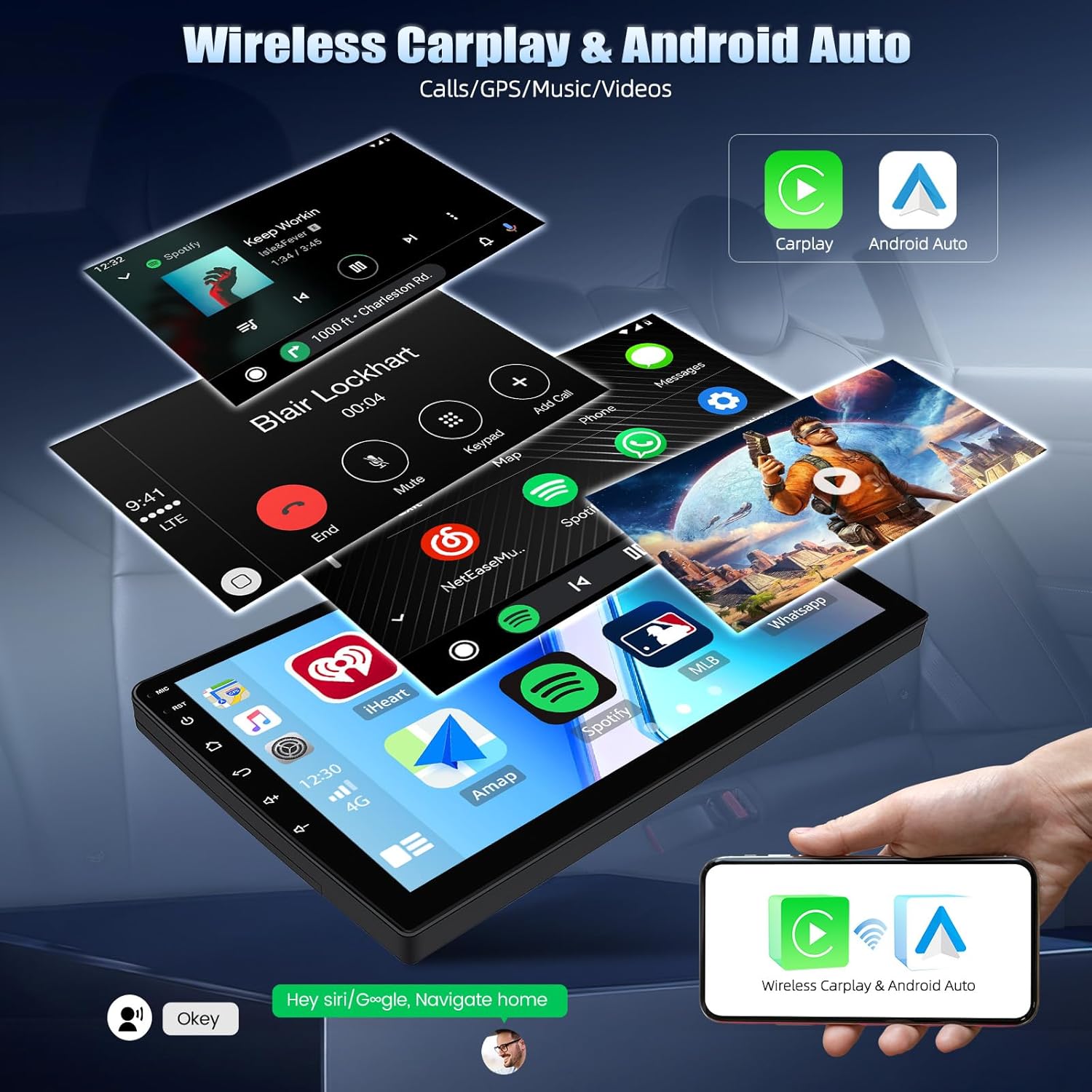
Figure 2: Display showing the Wireless Carplay and Android Auto interface, allowing access to phone functions like calls, GPS, music, and messages.
2.2 GPS Navigation
The autoradio features an integrated GPS module supporting both online and offline navigation.
- Online Navigation: Connect the unit to Wi-Fi to use online mapping applications.
- Offline Navigation: Pre-installed offline maps are available. Internet access is required to download map data initially or for updates.
- To use, open the navigation application and enter your destination.

Figure 3: Screen displaying GPS navigation with online and offline map support, alongside the FM/RDS radio interface.
2.3 Radio (FM/AM/RDS)
Access the Radio application to listen to FM/AM stations. The RDS function provides additional information like station name and traffic announcements.
- Tuning: Use the on-screen controls to scan for stations or manually tune to a specific frequency.
- Presets: Save your favorite stations for quick access.
- RDS: When available, RDS will display station information.
2.4 Bluetooth 5.1
Connect your smartphone or other Bluetooth devices for hands-free calling and audio streaming.
- Go to the Bluetooth settings on the autoradio.
- Enable Bluetooth on your phone and search for available devices.
- Select the autoradio's Bluetooth name (e.g., "CAMECHO") from your phone's list and pair.
- Once connected, you can make/receive calls and play music through the car's speakers.
2.5 Mirror Link
Mirror Link allows you to display your smartphone's screen directly onto the autoradio's display.
- Open the Mirror Link application on the autoradio.
- Follow the specific instructions for iOS or Android devices to establish the connection. This typically involves connecting via USB or Wi-Fi and enabling screen mirroring on your phone.
2.6 DSP Audio Processing
The integrated Digital Signal Processor (DSP) enhances sound quality. Access the DSP settings to customize your audio experience.
- Adjust equalizer settings (e.g., 36-band EQ, 10-band EQ).
- Modify sound field, bass, and other audio parameters to suit your preferences.

Figure 4: Visual representation of Hi-Res Audio and Dolby support, Bluetooth 5.1 connectivity, and the DSP interface for advanced sound processing.
2.7 Split Screen Function
The split-screen feature allows you to run two applications simultaneously on the display.
- To activate, open one application, then long-press the recent apps button or drag another app from the recent apps list to the side of the screen.
- You can adjust the size and position of each application window.
2.8 Steering Wheel Control
The unit supports learning functions for your vehicle's steering wheel controls.
- Navigate to the Steering Wheel Control settings in the system menu.
- Follow the on-screen instructions to assign functions to your steering wheel buttons.
2.9 Voice Assistance
Voice assistance can be activated to control various functions hands-free (activation may be required).
- Once activated, use voice commands for navigation, calls, music playback, and more.
2.10 External Device Support
The autoradio supports various external devices:
- DVR (Digital Video Recorder): Connect an external DVR for recording driving footage.
- DAB+ (Digital Audio Broadcasting): An external DAB+ module can be connected for digital radio reception.
- OBD (On-Board Diagnostics): Connect an OBD device to monitor vehicle data (requires activation).
- Reversing Camera: The unit automatically displays the rear view when the vehicle is in reverse gear.
- External Microphone: For improved call quality.
- Subwoofer: Connect an external subwoofer for enhanced bass.

Figure 5: Features such as reverse assist with camera input, voice assistance, DAB+ radio support, OBD2 diagnostics, and steering wheel control integration.
3. Maintenance
- Cleaning: Use a soft, dry cloth to clean the screen and unit. Avoid abrasive cleaners or solvents.
- Software Updates: Periodically check for system software updates via the settings menu to ensure optimal performance and access to new features. Updates may require a Wi-Fi connection.
- Temperature: Avoid exposing the unit to extreme temperatures, direct sunlight for prolonged periods, or high humidity.
4. Troubleshooting
| Problem | Possible Cause | Solution |
|---|---|---|
| Unit does not power on. | Incorrect power wiring; blown fuse; vehicle battery low. | Check power cable connections; inspect vehicle fuses; check vehicle battery voltage. |
| No sound output. | Volume too low; speaker wiring issue; mute function active. | Increase volume; check speaker connections; disable mute. |
| GPS signal weak or unavailable. | GPS antenna improperly installed or obstructed; unit in an area with poor satellite reception. | Ensure GPS antenna has a clear view of the sky; relocate antenna if necessary; move vehicle to an open area. |
| Bluetooth connection unstable. | Interference; device too far; phone's Bluetooth issue. | Ensure phone is close to the unit; restart phone and autoradio; re-pair the device. |
| Touchscreen unresponsive. | System freeze; screen protector interference. | Restart the unit; ensure screen protector is correctly applied or remove it for testing. |
5. Technical Specifications
| Feature | Specification |
|---|---|
| System | Android 15 |
| Chip | SM4250 Qualcomm Snapdragon (8-Core, 1.8GHz) |
| Screen Size | 9 inches |
| Resolution | 1280*720 (IPS Touchscreen) |
| Memory (RAM + ROM) | 4GB RAM + 64GB ROM |
| Output Power | MOSFET 4*50W |
| Bluetooth Version | 5.1 |
| Radio Band | FM/RDS |
| GPS | Supported (Online/Offline Maps) |
| Reverse Input | AHD/CVBS |
| External Microphone | Supported |
| Wi-Fi | Supported (Dual Band 2.4GHz/5GHz) |
| USB | Dual USB Interface |
| Audio Formats | MP3/M4A/AAC/AMR/WAV/MID/FLAC/OGG, etc. |
| Video Formats | 3G2/AVI/TS/M2TS/MKV/WEBM/MPG/HEIC/HEIF/ASF/MOV/3GP/MPEG-4, etc. |
| Supported Languages | Chinese/English/French/Italian/Korean/Japanese/Arabic/Spanish/Portuguese/Russian/Turkish/Vietnamese/Hebrew/Polish/German/Romanian, etc. |
6. Warranty Information
This CAMECHO Autoradio comes with a 2-year manufacturer warranty. This warranty covers defects in materials and workmanship under normal use. Please retain your proof of purchase for warranty claims. The warranty does not cover damage caused by improper installation, misuse, accidents, or unauthorized modifications.
7. Customer Support
For technical assistance, troubleshooting, or warranty inquiries, please contact our customer support team:
Email: CAMECHOVIP@126.com
Please provide your product model and a detailed description of the issue when contacting support to ensure a prompt resolution.

Figure 6: CAMECHO customer support is available to assist with product inquiries and technical issues.


