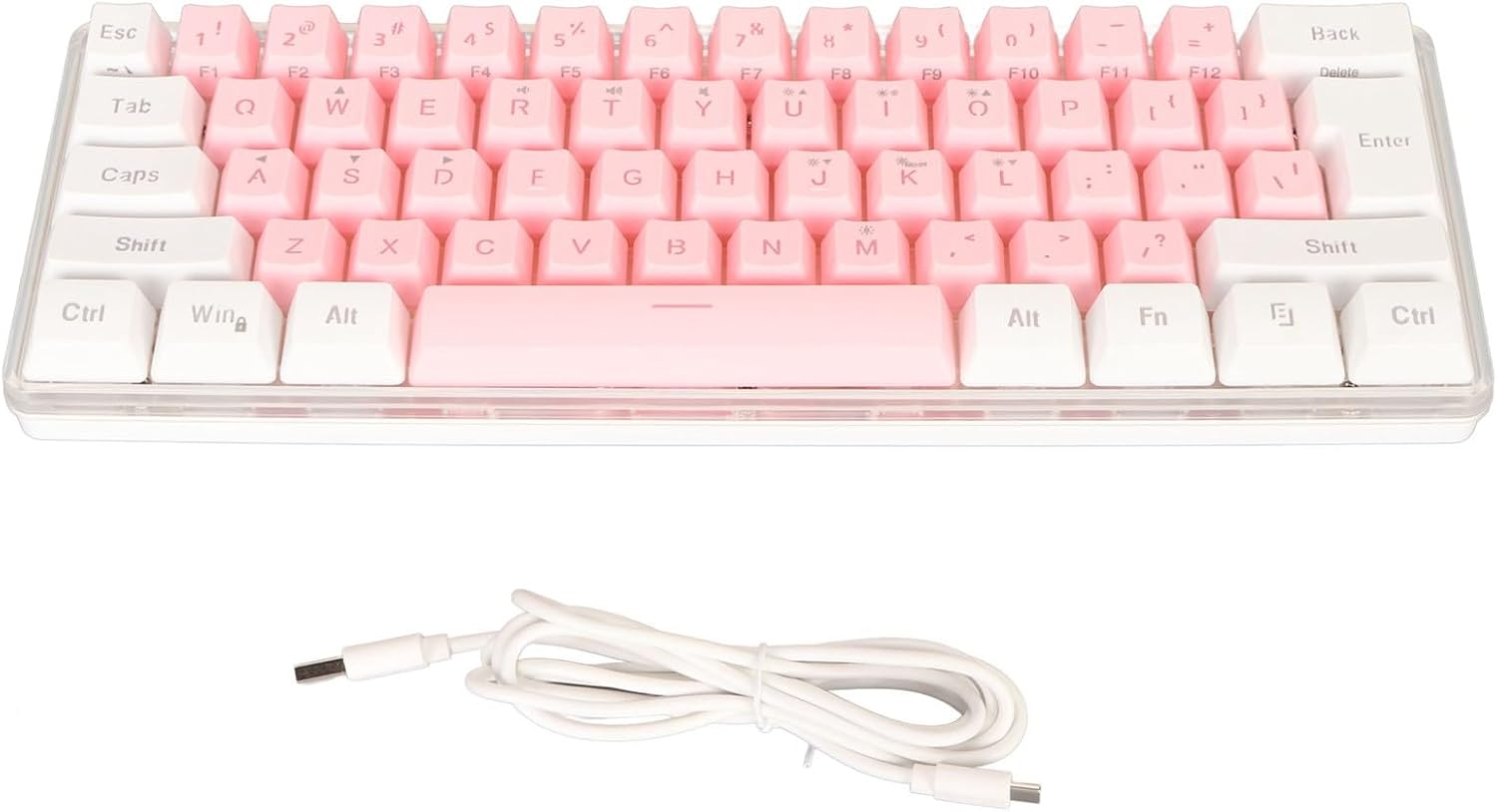
Tomantery DC 5V Wired RGB Backlight Gaming Keyboard User Manual
Model: Tomantery8ipb9zok3q-14
Introduction
This manual provides instructions for the Tomantery DC 5V Wired RGB Backlight Gaming Keyboard. Please read this manual carefully before using the product to ensure proper operation and to maximize its features. This keyboard is designed for use with personal computers and offers an ergonomic design with customizable RGB backlighting.
Package Contents
1 x Tomantery 60% Wired Gaming Keyboard
1 x USB Cable
1 x User Manual (this document)
Setup
The Tomantery Wired RGB Backlight Gaming Keyboard is a plug-and-play device, requiring no additional driver installation for basic functionality.
Connect the USB Cable: Locate the USB port on your computer. Connect the smaller end of the provided USB cable to the keyboard's USB-C port (if applicable) and the standard USB-A end to an available USB port on your computer.
System Recognition: Your operating system should automatically detect and install the necessary drivers. This process typically takes a few seconds.
Verify Functionality: Once connected, the keyboard's RGB backlight should illuminate. Test key presses in a text editor to confirm proper operation.
Image: The Tomantery 60% Wired Gaming Keyboard shown with its detachable white USB cable, ready for connection.
Operating Instructions
RGB Backlight Control
The keyboard features customizable RGB backlighting with multiple effects and colors. Specific key combinations are used to adjust these settings.
Backlight Effects: The keyboard includes 6 distinct backlight effects. Refer to the keyboard's function keys (often combined with the 'Fn' key) for specific effect cycling.
Backlight Colors: There are 8 backlight color options. Use the designated key combinations to switch between these colors.
Lighting Speed Adjustment: The speed of dynamic backlight effects can be increased or decreased.
Brightness Levels: Adjust the backlight brightness to your preference.
Note: Specific key combinations for backlight control are typically printed on the keycaps or detailed in a quick-start guide. Common combinations involve the 'Fn' key plus arrow keys or specific function keys (F1-F12).
Image: A close-up view of the keyboard's F-keys (F11, F12) showing secondary functions, which may include backlight controls.
Ergonomic Design
The keyboard is designed with ergonomics in mind to reduce fatigue during extended use. The keycap profile and keyboard angle are optimized for comfortable typing.
Maintenance
Proper maintenance ensures the longevity and performance of your keyboard.
Cleaning the Keycaps: Use a soft, damp cloth to wipe the keycaps. For deeper cleaning, a small brush or compressed air can remove dust and debris between keys. Avoid harsh chemicals.
Cleaning the Keyboard Body: Wipe the keyboard's body with a soft, dry, or slightly damp cloth.
Avoid Liquid Spills: Keep liquids away from the keyboard to prevent damage to internal components. In case of a spill, immediately disconnect the keyboard from your computer and allow it to dry completely before reconnecting.
Storage: When not in use for extended periods, store the keyboard in a clean, dry environment away from direct sunlight.
Troubleshooting
If you encounter issues with your Tomantery keyboard, refer to the following common solutions:
Keyboard Not Responding:
Ensure the USB cable is securely connected to both the keyboard and the computer.
Try connecting the keyboard to a different USB port on your computer.
Test the keyboard on another computer to determine if the issue is with the keyboard or the original computer.
Restart your computer.
Backlight Not Working or Incorrect:
Check if the backlight brightness is set to the lowest level. Adjust using the designated key combinations.
Ensure no software is overriding the keyboard's native backlight settings.
Keys Not Registering:
Clean around the affected key(s) to remove any debris that might be obstructing the key switch.
If multiple keys are affected, try the steps for "Keyboard Not Responding."
If the problem persists after trying these steps, please contact customer support.
Specifications
Brand
Tomantery
Model Name
Tomantery8ipb9zok3q-14
Connection Type
USB Wired
Number of Keys
61 Keys (60% Layout)
Lighting
RGB Backlight (6 effects, 8 colors)
Rated Voltage
DC 5V
Rated Current
100mA
Dimensions
Approx. 288.5 x 101 x 34mm (11.4 x 4.0 x 1.3 inches)
Item Weight
1.12 pounds
Keycap Material
ABS (Injection molded engraved, fade-resistant)
Compatible Systems
Windows 11, 10, 8, 7, Vista; OS X
Image: A clear, angled view of the Tomantery 60% Wired Gaming Keyboard, highlighting its compact layout and white and pink keycap design.
Warranty and Support
For warranty information and customer support, please refer to the retailer's policy or contact the manufacturer directly. Keep your purchase receipt as proof of purchase.
For further assistance, please visit the Tomantery official website or contact their customer service department.
Ask a question about this manual
Ask about setup, troubleshooting, compatibility, parts, safety, or missing instructions. Manuals+ will review the question and use this page’s manual context to help answer it.