
1. Product Overview
The PUSOKEI 5K Digital Camera is a versatile device designed for capturing high-quality photos and videos. It features 5K video recording, 72MP image capture, a 12x optical zoom lens, and a 3-inch flip screen for flexible shooting angles. This camera supports various creative modes including macro and time-lapse photography, and offers convenient features like a hot shoe mount for external accessories and wireless WiFi transfer.

Image 1.1: Front view of the PUSOKEI 5K Digital Camera, showcasing its compact design and main lens.
2. Safety Information
- Do not expose the camera to water or moisture.
- Avoid dropping the camera or subjecting it to strong impacts.
- Keep the camera away from extreme temperatures and direct sunlight.
- Use only approved accessories and power adapters.
- Do not attempt to disassemble or repair the camera yourself. Contact customer support for assistance.
- Keep out of reach of children.
3. Package Contents
Please check that all the following items are included in your package:
- PUSOKEI 5K Digital Camera
- Rechargeable Battery
- USB Charging Cable
- User Manual
- Lens Cap
- Camera Strap
4. Camera Components
Familiarize yourself with the various parts of your PUSOKEI 5K Digital Camera.

Image 4.1: Key camera features including the rotating lens for focus adjustment, the flexible flip screen, and the textured grip.
- Lens: 12x optical zoom lens for capturing distant subjects.
- Flip Screen: 3-inch HD screen that can be flipped for selfies and low-angle shots.
- Power Button: Turns the camera on or off.
- Shutter Button: Press to take photos or start/stop video recording.
- Zoom Lever: Adjusts the optical zoom.
- Menu Button: Accesses camera settings and options.
- Directional Pad/OK Button: Navigates menus and confirms selections.
- LED Light: Provides illumination in low-light conditions.
- Hot Shoe Mount: For connecting external accessories like microphones or additional lights.
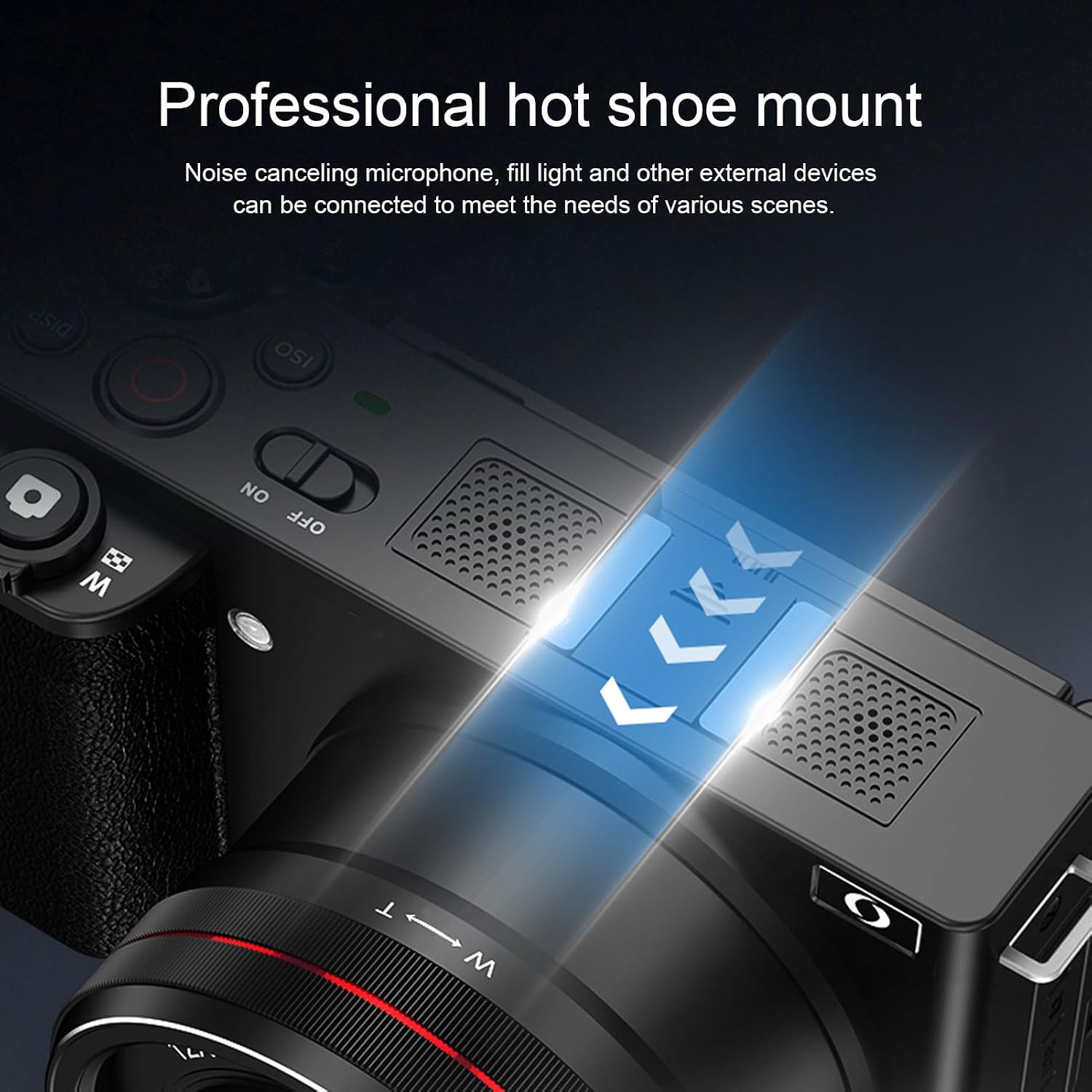
Image 4.2: The professional hot shoe mount, designed for attaching external microphones, fill lights, and other compatible devices.
5. Setup
5.1 Battery Installation
- Locate the battery compartment cover on the bottom of the camera.
- Slide the latch to open the cover.
- Insert the battery according to the polarity indicators (+/-).
- Close the battery compartment cover until it clicks securely.
5.2 Memory Card Installation
The camera supports TF cards up to 256GB.
- Open the memory card slot cover, usually located on the side or bottom of the camera.
- Insert the TF card with the metal contacts facing the front of the camera until it clicks into place.
- To remove, gently press the card until it springs out, then pull it out.
5.3 Charging the Battery
- Connect the USB charging cable to the camera's USB port.
- Connect the other end of the USB cable to a power adapter or a computer's USB port.
- The charging indicator light will illuminate. It will turn off or change color when charging is complete.
5.4 Powering On/Off
- To power on, press and hold the Power button until the screen illuminates.
- To power off, press and hold the Power button again until the screen turns off.
6. Operating
6.1 Basic Photography
The camera supports 72MP image filming for high-definition photos.
- Turn on the camera.
- Frame your shot using the 3-inch flip screen. The screen can be rotated 270°+180° for various angles, including selfies.
- Adjust the zoom using the zoom lever. The camera features a 12x optical zoom.
- Press the Shutter button halfway to focus, then press fully to take a photo.

Image 6.1: Demonstrating the 72MP image capability and the convenience of the flip screen for selfies.

Image 6.2: The 12x optical zoom lens, allowing for lossless image quality when bringing distant subjects closer.
6.2 Video Recording
The camera supports 5K video recording for high-definition footage.
- Switch the camera to video mode (refer to the on-screen menu or a dedicated button).
- Press the Shutter button to start recording. A red indicator will typically appear on the screen.
- Press the Shutter button again to stop recording.

Image 6.3: The camera in 5K video recording mode, capturing a scene with high clarity.
6.3 Special Modes
- Macro Photography: Access this mode through the camera's menu to capture detailed close-up shots of small subjects.
- Time-Lapse Mode: Select this mode from the menu to record sequences of images over time, which are then compiled into a video.
6.4 Settings and Menus
Press the Menu button to access camera settings. Use the directional pad to navigate and the OK button to select options. Available settings include:
- Filters: Apply various visual effects to your photos and videos.
- Grid Composition: Enable a grid overlay on the screen to assist with framing and composition.
- Exposure Compensation: Adjust the brightness of your images.
- White Balance: Correct color casts based on lighting conditions.
6.5 Wireless WiFi Transfer
The camera supports wireless WiFi transfer for easy file uploads to a connected device.
- Enable WiFi on the camera via the menu.
- On your smartphone or tablet, connect to the camera's WiFi network.
- Use the dedicated camera app (if available, check product documentation for app name) to browse and transfer files.

Image 6.4: Illustrating the wireless WiFi transfer feature, allowing seamless sharing of photos and videos to a mobile device.
6.6 Using the LED Light
The built-in LED flash ensures bright and clear images even in low-light conditions. It can be activated or deactivated through the camera's settings or a dedicated button, depending on the model.
7. Maintenance
- Cleaning the Lens: Use a soft, lint-free cloth specifically designed for camera lenses. Do not use harsh chemicals.
- Cleaning the Screen: Wipe the flip screen gently with a microfiber cloth.
- Battery Care: Store the battery in a cool, dry place when not in use. Avoid fully discharging the battery for extended periods.
- Storage: When not in use, store the camera in a protective case to prevent dust and scratches. Remove the battery if storing for a long time.
8. Troubleshooting
| Problem | Possible Cause | Solution |
|---|---|---|
| Camera does not turn on | Battery is dead or incorrectly inserted. | Charge the battery fully. Reinsert the battery correctly. |
| Cannot take photos/videos | Memory card is full, locked, or not inserted. | Insert a memory card. Check if the card is locked. Delete unnecessary files or replace the card. |
| Images are blurry | Lens is dirty, camera shake, or incorrect focus. | Clean the lens. Hold the camera steady or use a tripod. Ensure proper focus before shooting. |
| WiFi connection issues | Incorrect WiFi settings or app issues. | Ensure WiFi is enabled on camera and device. Restart both devices. Check app permissions. |
| Screen is blank or frozen | Software glitch or low battery. | Remove and reinsert the battery to reset. Charge the battery. |
9. Specifications
| Feature | Specification |
|---|---|
| Brand | PUSOKEI |
| Model Name | PUSOKEIt60suvz5e3-12 |
| Photo Sensor Technology | 3-chip-ccd |
| Sensor Type | 3-chip-ccd |
| Connectivity Technology | USB |
| Screen Size | 3 Inches |
| Flash Memory Type | Memory Stick Pro (Note: Product description mentions 256GB TF Support, please use compatible TF/MicroSD cards) |
| Special Feature | USB |
| Color | White |
| ASIN | B0F5HRJ84B |
10. Warranty and Support
This PUSOKEI product is covered by a manufacturer's warranty. For specific warranty terms and conditions, please refer to the warranty card included in your package or visit the official PUSOKEI website.
For technical support, troubleshooting assistance, or service inquiries, please contact PUSOKEI customer support through their official channels. Please have your model number (PUSOKEIt60suvz5e3-12) and purchase information ready when contacting support.