
1. Product Overview
The Eforcase 4+64G Car Stereo is an advanced 9-inch touchscreen Android 14 in-dash head unit designed for Dodge RAM ProMaster City models from 2015 to 2021. This system integrates modern automotive technology to enhance your driving experience with features such as wireless CarPlay, Android Auto, WiFi, GPS navigation, Bluetooth, and support for various media formats.
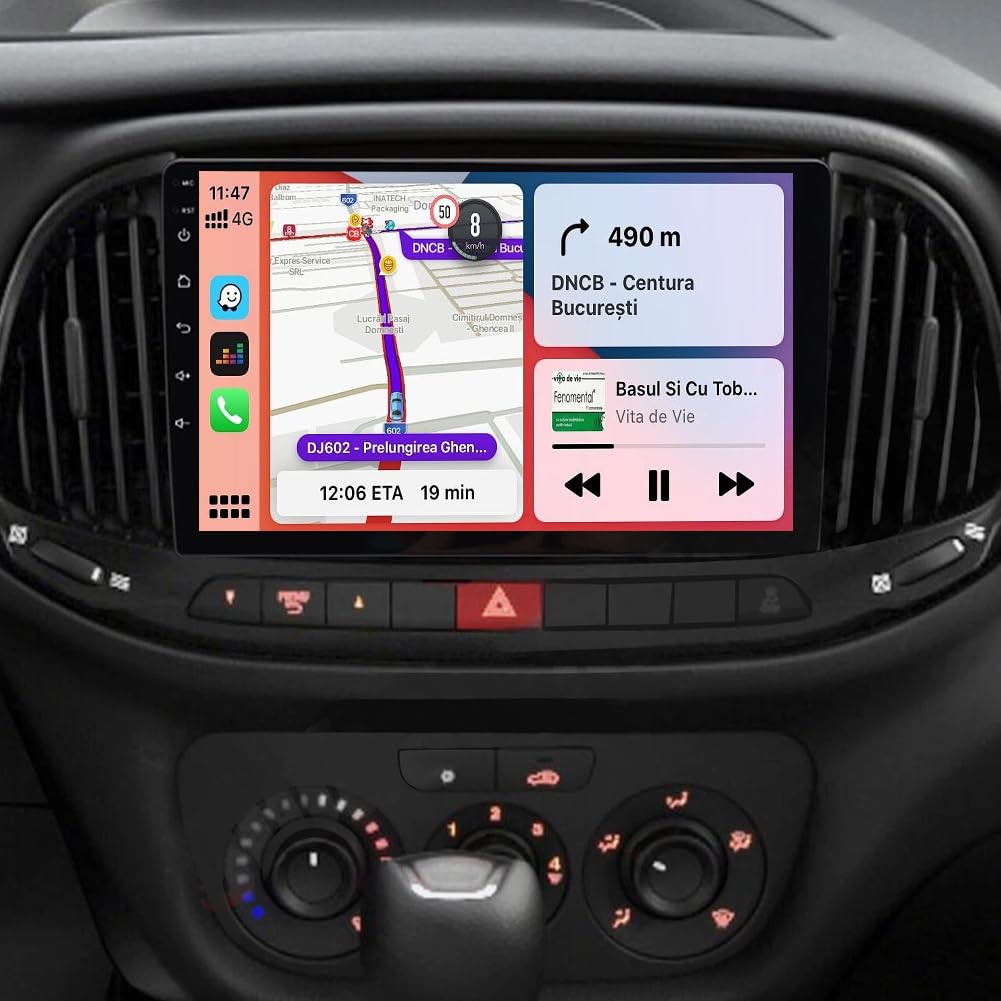
Figure 1: Eforcase 4+64G Car Stereo main unit and accessories.
2. Setup
2.1. Applicable Car Models
This head unit is compatible with Dodge RAM ProMaster City models manufactured between 2015 and 2021. It is not designed for the standard RAM ProMaster.
2.2. What's in the Box
Verify that all components are present before beginning installation:
- Navigation Car Stereo Radio for RAM ProMaster City (Main Unit)
- Radio Adapter Cable
- Camera Input Cable
- 2 x USB Cables
- Microphone
- GPS Antenna
- Power Cable
- RCA Input/Output Cables
- Backup Camera (if included in package)
- Instruction Manual
- Canbus Box

Figure 2: Included components.
2.3. Installation
Installation of the car stereo involves electrical wiring and integration with your vehicle's existing systems. It is highly recommended to have this unit professionally installed by a qualified car audio technician to ensure proper functionality and avoid damage to your vehicle or the head unit.
For general connection guidance, refer to the video below:
Video 1: How to connect car stereo radio. This video demonstrates the general connection process for a car stereo unit.
2.4. Screen Calibration
After installation, you may need to calibrate the touchscreen for optimal responsiveness. Follow the steps shown in the video below:
Video 2: Calibrate Car Radio Screen. This video guides you through the touchscreen calibration process.
3. Operation
3.1. Wireless CarPlay & Android Auto
The head unit supports both wireless CarPlay and wired Android Auto. Connect your smartphone to access navigation, make calls, send messages, and enjoy music through the car stereo's display. This feature provides a safer and more convenient way to use your phone while driving.

Figure 3: Wireless CarPlay and Android Auto functionality.
3.2. WiFi & GPS Navigation
Connect the head unit to a WiFi hotspot (e.g., from your smartphone) to access online features, download apps, and receive real-time traffic updates for GPS navigation. You can also download maps for offline use. The system provides real-time road conditions to help avoid traffic congestion.

Figure 4: WiFi and GPS Navigation features.
3.3. Bluetooth Connectivity
The unit supports Bluetooth calls, allowing you to synchronize your phone book and make hands-free calls. You can also stream music wirelessly from your Bluetooth-enabled devices.
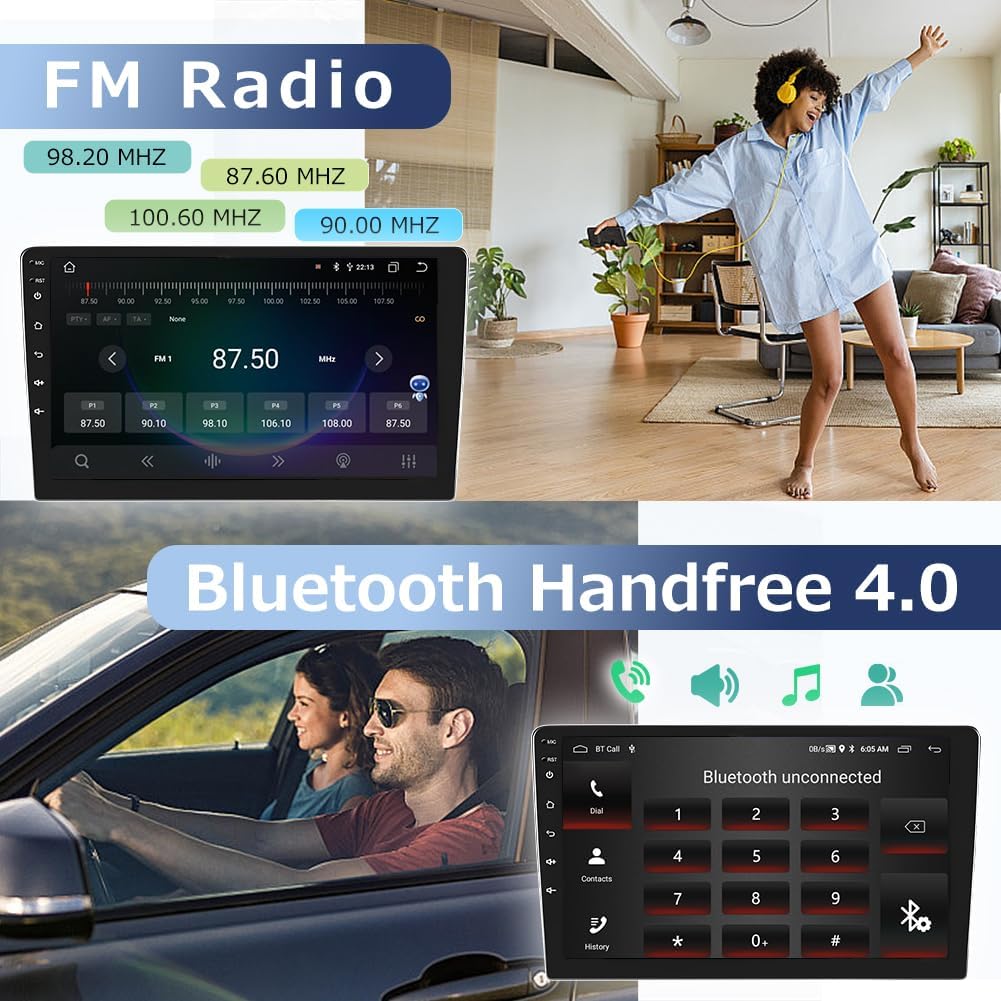
Figure 5: Bluetooth and FM Radio interfaces.
3.4. FM/AM Radio
Tune into your favorite FM/AM radio stations for news, sports, and entertainment. The radio function provides clear audio reception.
3.5. Media Playback
The car stereo supports USB input for multi-format music and video playback, allowing you to enjoy your media library on the go.
3.6. Steering Wheel Control (SWC)
The unit is compatible with your vehicle's existing steering wheel controls, allowing you to manage audio and other functions without taking your hands off the wheel.
3.7. Backup Camera Compatibility
Enhance safety with rearview camera compatibility. The system automatically displays the camera feed when reversing, providing a clear view of the area behind your vehicle. (Note: Backup camera is not included and must be purchased separately).
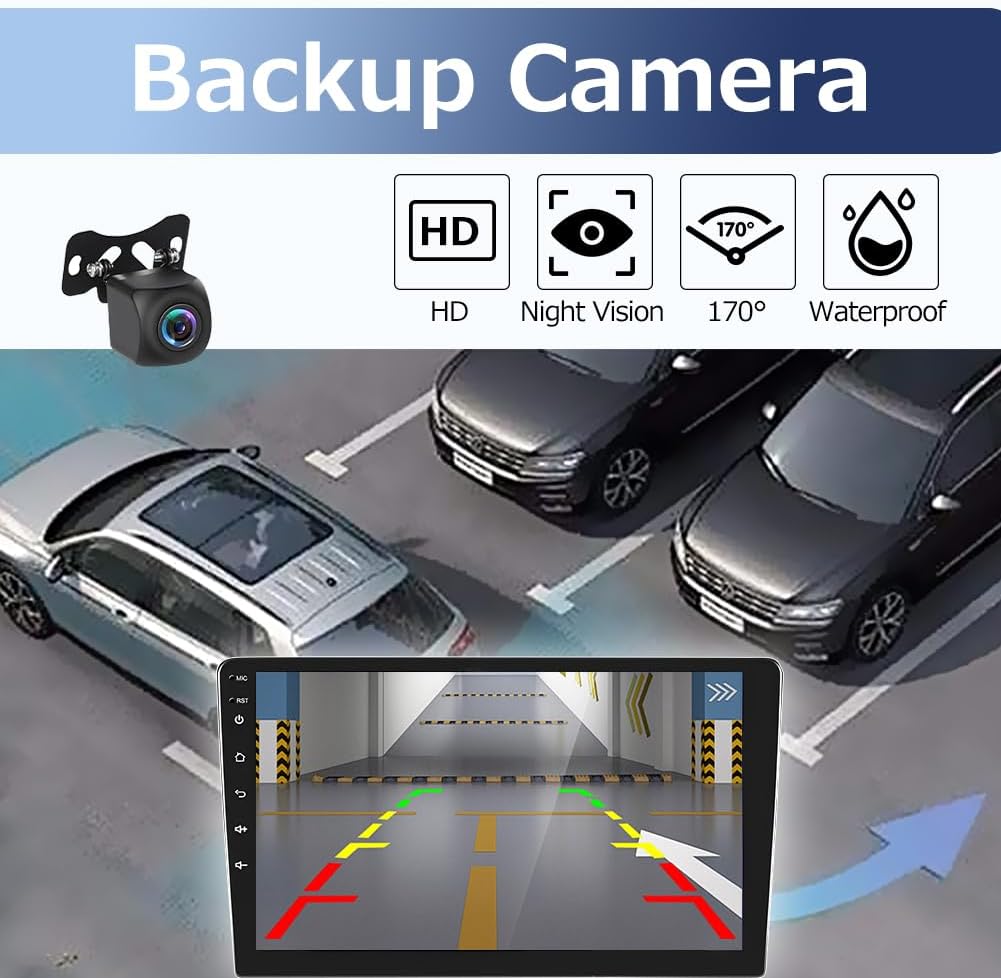
Figure 6: Backup camera display with parking assistance lines.
4. Maintenance
To ensure the longevity and optimal performance of your Eforcase car stereo, follow these general maintenance guidelines:
- Keep the touchscreen clean using a soft, lint-free cloth. Avoid abrasive cleaners.
- Ensure proper ventilation around the unit to prevent overheating.
- Regularly check for software updates to improve performance and add new features.
- Avoid exposing the unit to extreme temperatures or direct sunlight for extended periods.
5. Troubleshooting
If you encounter issues with your car stereo, consider the following common solutions:
- No Power/Unit Not Turning On: Check all power connections and fuses. Ensure the vehicle's ignition is on.
- No Audio: Verify speaker connections, volume settings, and audio source selection.
- Bluetooth Connection Issues: Ensure Bluetooth is enabled on both the head unit and your smartphone. Try restarting both devices. If the connection is unsuccessful, manually connect to WiFi and then try ZLINK again (refer to Video 1 for WiFi connection steps).
- GPS Not Working: Ensure the GPS antenna is properly connected and has a clear view of the sky. Check navigation app settings.
- Touchscreen Unresponsive/Inaccurate: Perform a screen calibration (refer to Video 2).
- Backup Camera Display Issues: Ensure the camera is properly connected. Check the video settings on the unit (e.g., NTSC/PAL format).
- Screen Goes Black When Shifting: This can occur briefly when shifting to reverse as the unit activates the rear camera. Press the "Home" button or shift again to return to the main screen.
- Door Open Icon Appears Incorrectly: This is a known minor quirk. Tap the icon to dismiss it.
For persistent issues, consult a professional technician or contact Eforcase customer service.
6. Specifications
| Feature | Detail |
|---|---|
| Model Number | Auto-M0165 |
| Operating System | Android 14 |
| Memory (RAM) | 4GB |
| Storage (ROM) | 64GB |
| Screen Size | 9 Inches |
| Connectivity | Bluetooth, USB, Wi-Fi |
| Special Features | Backup Camera compatibility, Touch Screen, Wireless Carplay & Android Auto, GPS Navigation, FM/AM Radio, External Microphone, SWC Steering Wheel Control, DSP |
| Audio Output Mode | Stereo |
| Item Weight | 3.52 ounces |
| Product Dimensions | 2 x 1 x 1 inches |
7. Warranty & Support
This product does not include a manufacturer's warranty as per the provided information. For any product-related inquiries, technical assistance, or support, please contact Eforcase customer service directly through their official channels or the retailer where the product was purchased.