
Introduction
This manual provides detailed instructions for the setup, operation, and maintenance of your Voistek Wireless Headset VS886BTC-US. Designed for clear communication and comfortable use, this headset features a noise-canceling microphone, dual connectivity options, and long battery life, making it suitable for various professional and personal applications.
What's in the Box
Verify that all items are present in your package:
- Voistek Wireless Headset
- Charging Station
- USB Dongle (USB-A/USB-C compatible)
- USB-C Charging Cable
- User Manual (this document)

Image: The Voistek Wireless Headset package contents, showing the headset, charging station, USB dongle, and charging cables.
Product Overview
Familiarize yourself with the components and controls of your Voistek Wireless Headset.
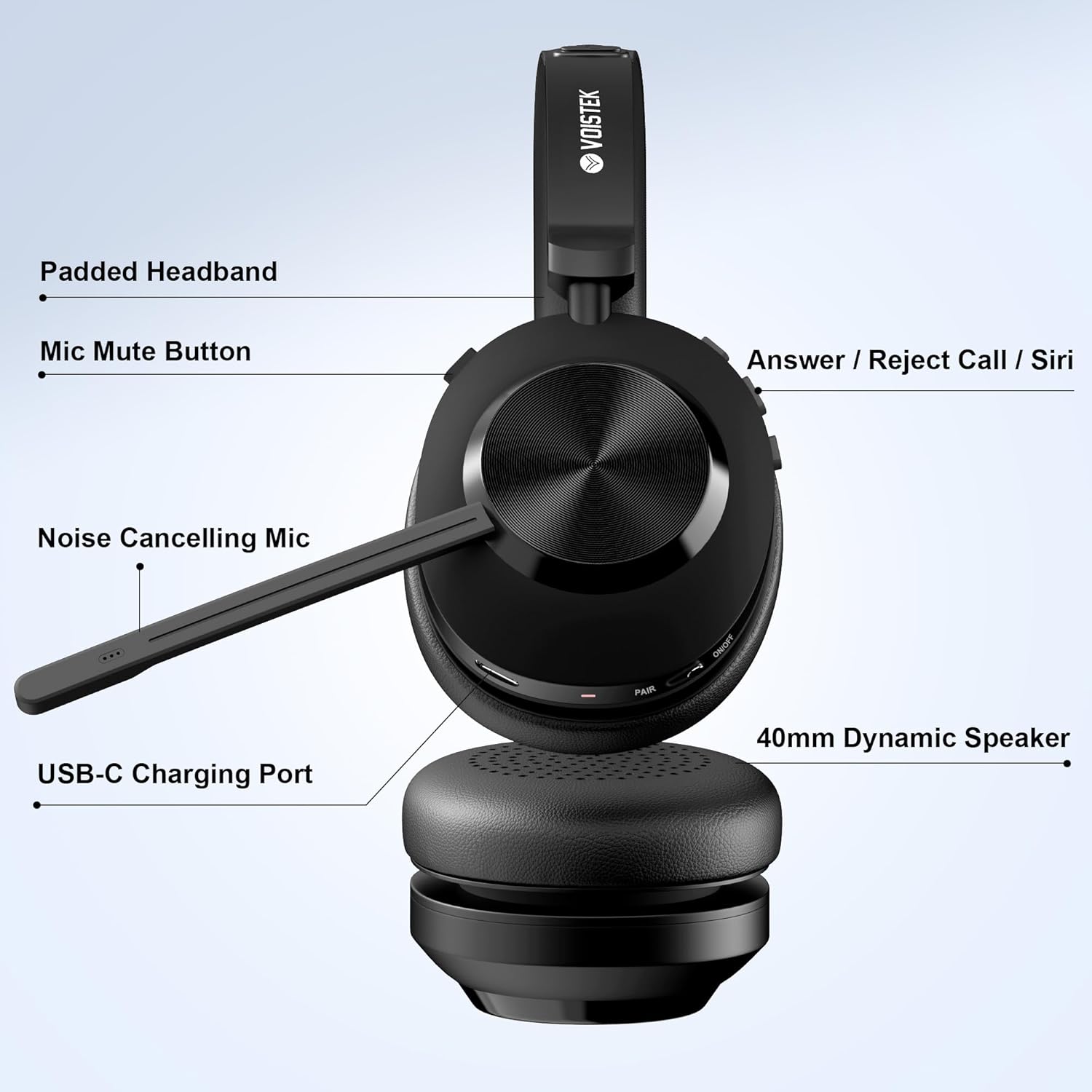
Image: Labeled diagram of the Voistek Wireless Headset, highlighting key features such as the padded headband, mic mute button, call control button, noise-canceling microphone, USB-C charging port, and 40mm dynamic speaker.
Key Features:
- Noise-Canceling Microphone: Dual beamforming microphones reduce background noise for clear voice transmission.
- Dual Connectivity: Connects via Bluetooth 5.3 or the included USB-A/C dongle.
- Premium Audio: 40mm dynamic drivers deliver clear sound for calls and media.
- Long Battery Life: Up to 45 hours of working time on a single charge.
- Fast Charging: A 5-minute quick charge provides power for urgent calls.
- Universal Compatibility: Optimized for Microsoft Teams, Zoom, Skype, Google Meet, VoIP, Windows, MacOS, iOS, iPadOS, and Android devices.
- Ergonomic Design: Features a padded headband, 90° rotatable soft memory foam earmuffs, adjustable metal headband, and a 270° flexible microphone.
- Lightweight: Weighs approximately 190g for comfortable extended wear.
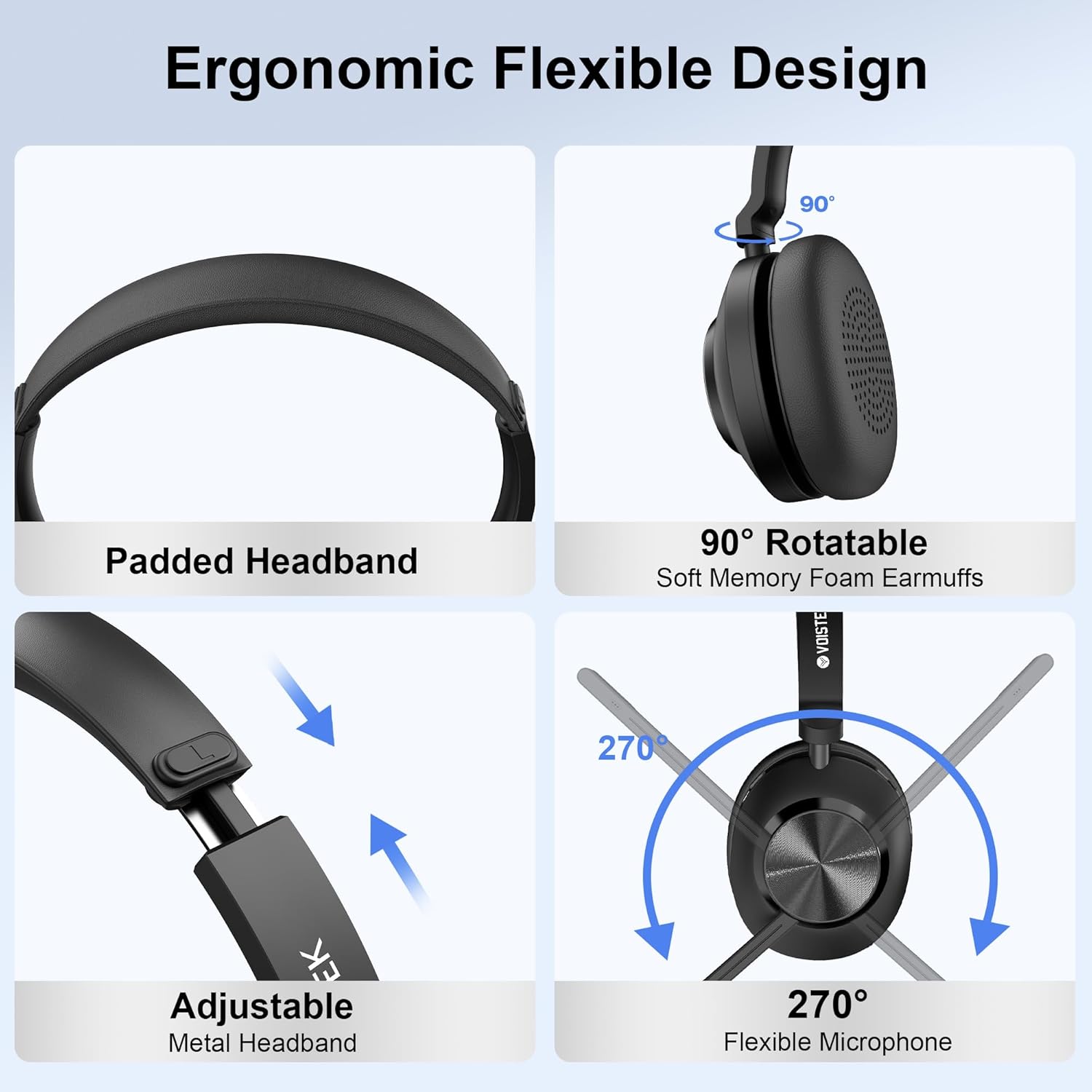
Image: Visual representation of the headset's ergonomic features, including its padded headband, rotatable earmuffs, adjustable headband, and flexible microphone.
Setup
1. Initial Charging
Before first use, fully charge your headset. You can charge it using the included charging station or by connecting the USB-C cable directly to the headset.
- Using the Charging Station: Place the headset onto the charging station. Ensure the charging contacts align. The indicator light on the station will show charging status.
- Direct Charging: Connect the USB-C charging cable to the headset's USB-C port and to a power source (e.g., computer USB port, wall adapter).
2. Connecting to a Device
Your Voistek headset offers two primary connection methods: Bluetooth and USB Dongle.
Bluetooth Connection:
- Power On: Press and hold the Power button on the headset until you hear a power-on prompt.
- Enter Pairing Mode: With the headset powered on, press and hold the Multi-function button (often the call answer/reject button) until the LED indicator flashes blue and red, indicating pairing mode.
- Enable Bluetooth on Device: On your smartphone, tablet, or computer, go to Bluetooth settings and ensure Bluetooth is enabled.
- Select Headset: In the list of available devices, select "BT-88" (or similar name). Once connected, the LED indicator will turn solid blue.
Video: This video demonstrates the process of connecting the Voistek Wireless Headset to a device via Bluetooth, showing the headset being worn, answering a call, and the Bluetooth pairing screen on a smartphone.
USB Dongle Connection (for PC/Laptop):
- Insert Dongle: Plug the USB dongle into an available USB-A or USB-C port on your computer.
- Power On Headset: Turn on your headset. It will automatically attempt to connect to the dongle.
- Driver Installation: Your computer should automatically install the necessary drivers. This may take a few moments.
- Verify Connection: Once connected, the LED on the dongle will typically turn solid blue, and the headset will indicate a successful connection. You may need to select the headset as the default audio input/output device in your computer's sound settings.
Operation
Call Management:
- Answer/End Call: Press the Multi-function button once.
- Reject Call: Press and hold the Multi-function button for 2 seconds.
- Mute/Unmute Microphone: Press the dedicated Mic Mute button on the microphone boom.
Volume Control:
- Increase Volume: Press the Volume Up button.
- Decrease Volume: Press the Volume Down button.
Voice Assistant (Siri/Google Assistant):
- Activate: Double-press the Multi-function button to activate your device's voice assistant.
Multipoint Pairing:
The headset supports connecting to two Bluetooth devices simultaneously (e.g., a computer and a smartphone). To use multipoint pairing:
- Pair the headset with the first device.
- Disable Bluetooth on the first device.
- Put the headset back into pairing mode and pair it with the second device.
- Re-enable Bluetooth on the first device. The headset should now be connected to both devices.

Image: A user wearing the Voistek Wireless Headset, demonstrating its comfortable fit and suitability for extended work sessions.
Charging Your Headset
The Voistek Wireless Headset offers flexible charging options to ensure you're always ready for your next call or task.
Charging via Charging Station:
Simply place your headset onto the charging station. The station's indicator light will confirm that charging has begun. This method provides a convenient storage and charging solution.
Direct Charging via USB-C:
For direct charging, connect the provided USB-C cable to the charging port on the headset and to a compatible USB power source. The headset's LED indicator will show charging status.
Battery Life and Charging Time:
- Working Time: Up to 45 hours on a full charge.
- Charging Time: Approximately 1.5 hours for a full charge.
- Quick Charge: A 5-minute charge can provide sufficient power for urgent calls.
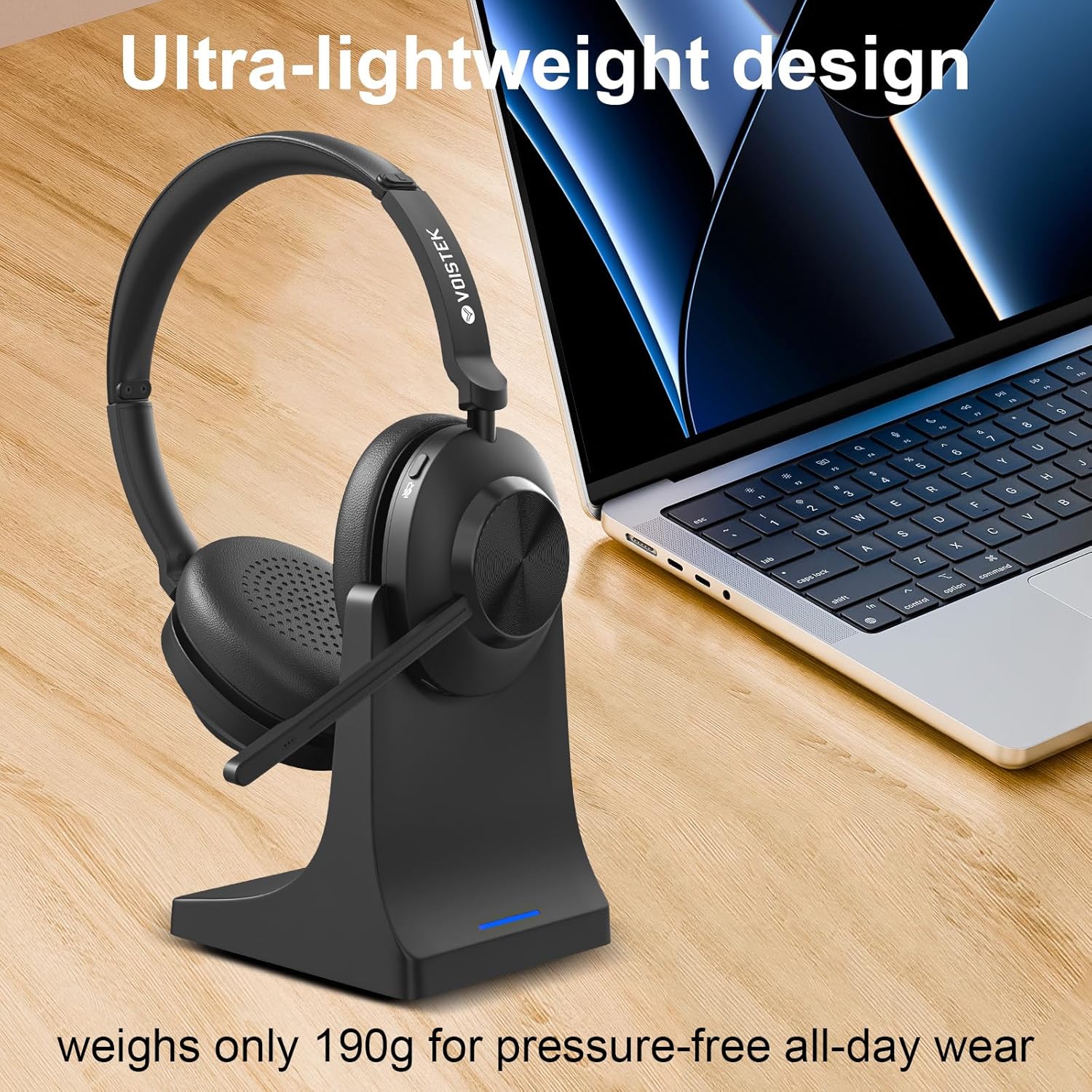
Image: The Voistek Wireless Headset on its charging dock, highlighting its lightweight design and ease of charging.
Specifications
| Model Name | Dual Ear |
| Item Model Number | VS886BTC-US |
| Connectivity Technology | Wireless (Bluetooth 5.3) |
| Bluetooth Range | 10 Meters |
| Audio Driver Size | 40 Millimeters |
| Frequency Response | 20 KHz |
| Sensitivity | 121 dB |
| Impedance | 32 Ohms |
| Battery Life | 45 Hours |
| Charging Time | 1.5 Hours |
| Item Weight | 250 Grams (8.8 ounces) |
| Material | ABS, Aluminum, Faux Leather |
| Compatible Devices | Cellphones, Laptops, Desktops, Tablets |
| Special Features | Adjustable Headband, Lightweight, Multipoint Pairing |
Troubleshooting
If you encounter issues with your Voistek Wireless Headset, refer to the following common solutions:
No Power / Not Charging:
- Ensure the charging cable is securely connected to both the headset/charging station and the power source.
- If using the charging station, verify that the headset is correctly seated and the charging contacts are aligned.
- Try a different USB port or power adapter.
Cannot Pair / Connect:
- Make sure the headset is in pairing mode (LED flashing blue and red).
- Ensure Bluetooth is enabled on your device and it is discoverable.
- Move the headset closer to your device.
- Forget the headset from your device's Bluetooth list and attempt to pair again.
- If using the USB dongle, ensure it is properly inserted and your computer's audio settings are configured to use the headset.
Poor Audio Quality / Microphone Issues:
- Check the headset's volume levels and your device's volume settings.
- Ensure the microphone is not muted.
- Confirm the headset is selected as the default input/output device in your application (e.g., Zoom, Teams) and operating system settings.
- Move away from sources of interference (e.g., Wi-Fi routers, other Bluetooth devices).
Warranty and Customer Support
Your Voistek headset includes a 30-day return and refund policy. Additionally, lifetime customer support is provided. For assistance, please contact Voistek customer support via Amazon. Our expert support team is available to respond quickly and reliably to any inquiries or issues you may have.