
Voistek Single Ear
Voistek Wireless Headset, Single Ear - Instruction Manual
Your guide to setting up, operating, and maintaining your Voistek Wireless Headset.
1. Introduction
Thank you for choosing the Voistek Wireless Headset. This single-ear headset is designed for clear communication in various environments, featuring a noise-cancelling microphone and dual wireless connectivity options (Bluetooth and USB dongle). This manual provides detailed instructions to help you get the most out of your device.

Image: The Voistek Wireless Headset, a single-ear design, shown with its accompanying USB dongle.
2. Package Contents
Please verify that all items are present in your package:
- Voistek Wireless Headset
- USB Dongle (2.4GHz)
- USB-C Charging Cable
- USB-C to USB-A Cable (15 cm)
- User Manual (this document)
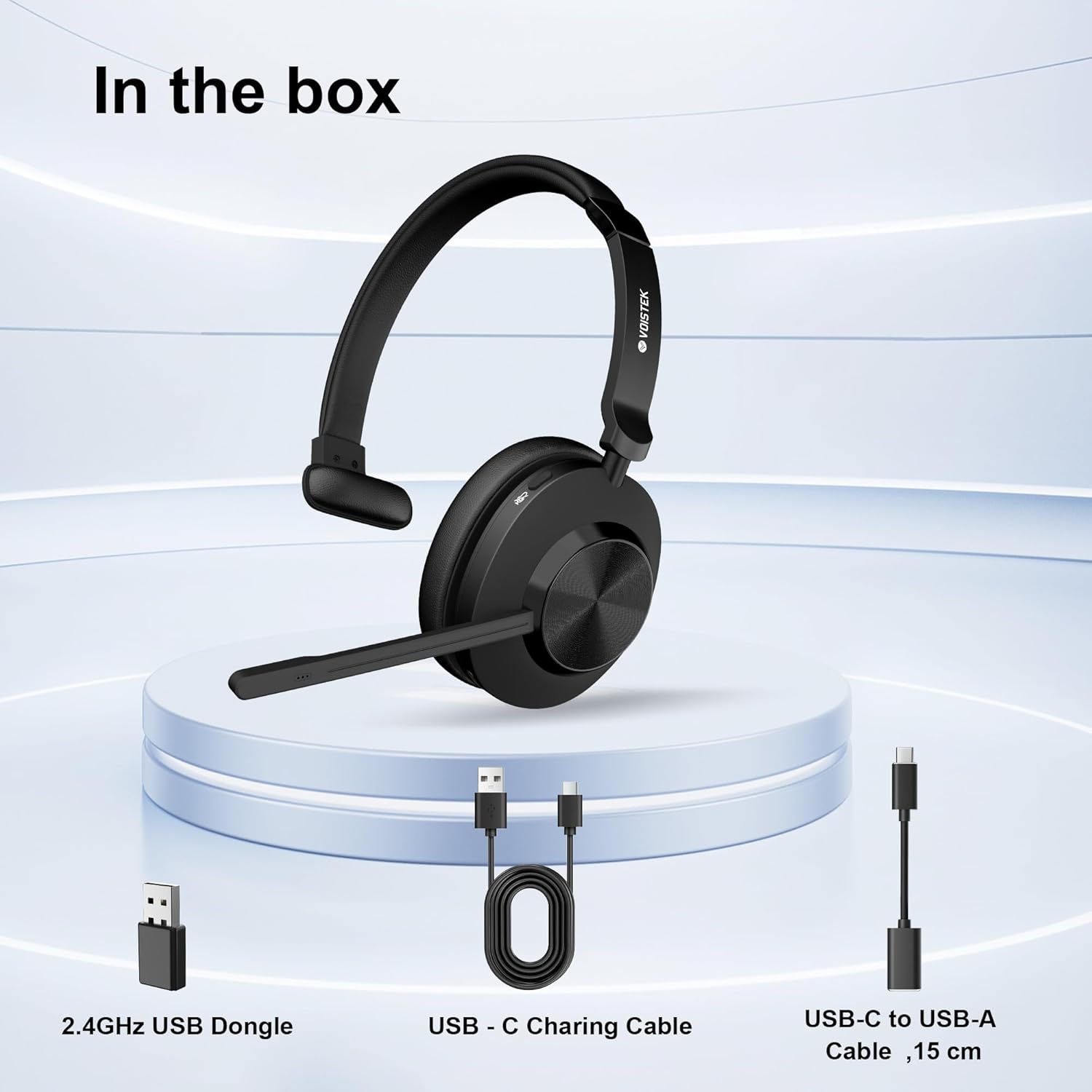
Image: Contents of the Voistek Wireless Headset package, including the headset, USB dongle, USB-C charging cable, and USB-C to USB-A cable.
3. Product Overview
Familiarize yourself with the various components and controls of your Voistek Wireless Headset.

Image: Detailed diagram showing the Padded Headband, Mic Mute Button, Noise Cancelling Mic, USB-C Charging Port, 40mm Dynamic Speaker, and Answer/Reject Call/Siri button.
- Padded Headband: Provides comfort for extended wear.
- Adjustable Metal Headband: Allows for a customized fit.
- 90° Rotatable Soft Memory Foam Earmuffs: Enhances comfort and fit.
- Noise Cancelling Microphone: Reduces ambient noise for clear voice transmission. The microphone is flexible and can rotate 270°.
- Mic Mute Button: Quickly mute or unmute your microphone.
- Answer/Reject Call / Siri Button: Manages calls and activates voice assistant.
- 40mm Dynamic Speaker: Delivers clear audio for calls and media.
- USB-C Charging Port: For charging the headset battery.
- Power Button: Turns the headset on/off.
- Volume Controls: Adjust audio output level.
4. Setup and Connection
4.1. Charging the Headset
Before first use, fully charge the headset. Connect the USB-C charging cable to the headset's charging port and the other end to a USB power source (e.g., computer USB port, wall adapter). A full charge takes approximately 2 hours and provides over 45 hours of talk time. A 5-minute quick charge can provide additional runtime for urgent calls.

Image: The headset connected to a charging cable, illustrating the USB-C charging port.
4.2. Connecting via USB Dongle (2.4GHz)
This method provides a stable, driver-free connection for computers.
- Turn on the Voistek Wireless Headset by pressing and holding the Power button until the indicator light illuminates.
- Insert the 2.4GHz USB Dongle into an available USB-A port on your computer.
- The headset and dongle will automatically pair. The indicator light on the headset will change to a solid color (e.g., blue) when connected.
- Ensure the Voistek Headset is selected as the audio input and output device in your computer's sound settings.
4.3. Connecting via Bluetooth 5.3
Connect your headset to smartphones, tablets, or Bluetooth-enabled computers.
- Turn on the Voistek Wireless Headset.
- Press and hold the Bluetooth pairing button (often combined with the power button or a dedicated button, refer to the product overview diagram) until the indicator light flashes rapidly, indicating pairing mode.
- On your device (smartphone, tablet, computer), go to Bluetooth settings and enable Bluetooth.
- Search for available devices and select "Voistek Headset" from the list.
- Once connected, the headset's indicator light will become solid.
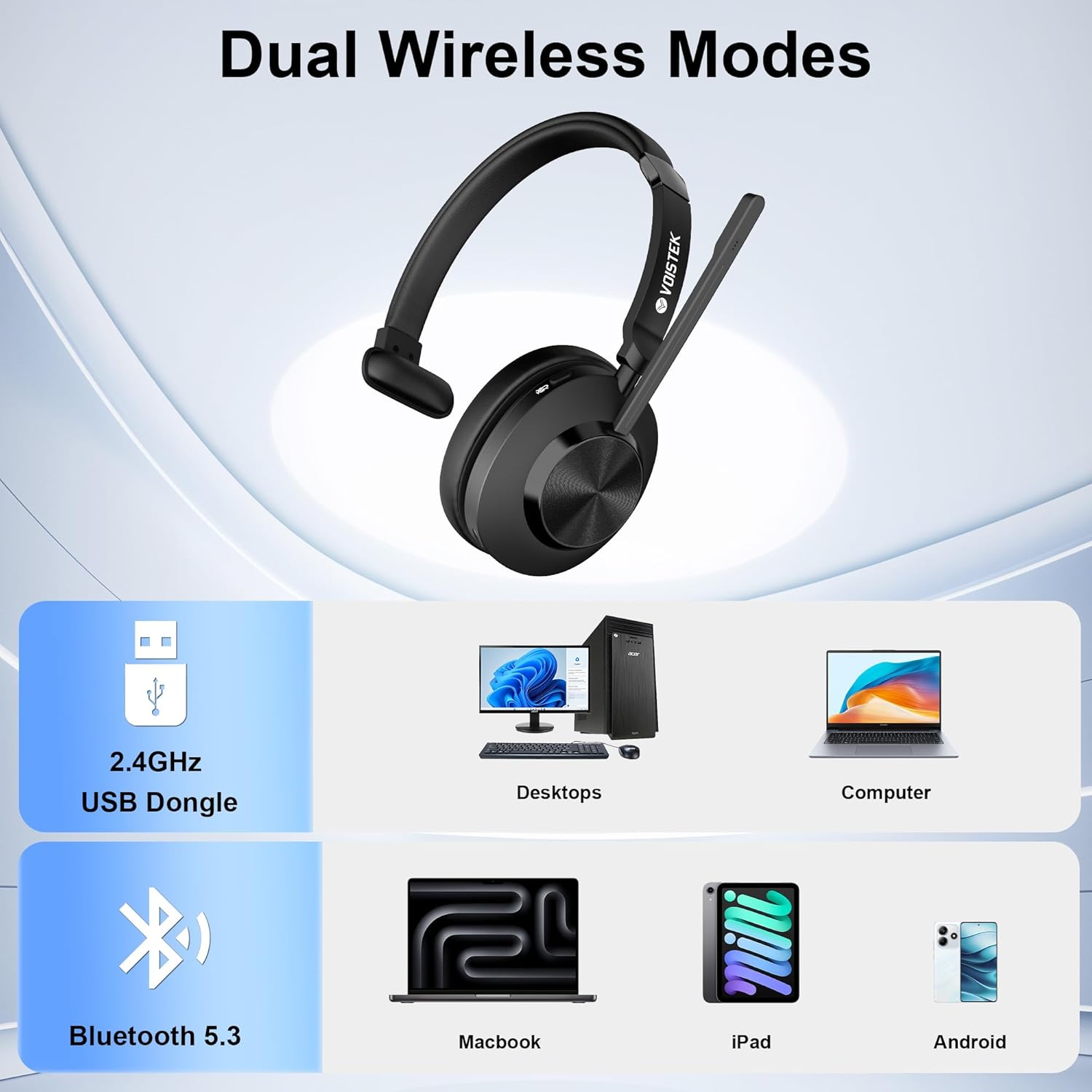
Image: Illustration of the headset's dual wireless connectivity options: 2.4GHz USB Dongle for desktops and computers, and Bluetooth 5.3 for Macbooks, iPads, and Android phones.
5. Operating Instructions
5.1. Power On/Off
- Power On: Press and hold the Power button for approximately 3 seconds until the indicator light illuminates.
- Power Off: Press and hold the Power button for approximately 3 seconds until the indicator light turns off.
5.2. Call Management
- Answer Call: Press the Answer/Reject Call button once.
- End Call: Press the Answer/Reject Call button once during an active call.
- Reject Call: Press and hold the Answer/Reject Call button for 2 seconds.
- Activate Voice Assistant (Siri/Google Assistant): Double-press the Answer/Reject Call button when not on a call.
5.3. Volume Control
- Increase Volume: Press the Volume Up button.
- Decrease Volume: Press the Volume Down button.
5.4. Microphone Mute
- Mute Microphone: Press the Mic Mute button once. An indicator light (if present) may show the mute status.
- Unmute Microphone: Press the Mic Mute button once again.
5.5. Wearing the Headset
Adjust the headband for a comfortable fit. Position the microphone approximately 1-2 inches from your mouth for optimal voice pickup. The microphone boom can be rotated 270 degrees to suit your preference.

Image: A woman wearing the single-ear headset, demonstrating its comfortable fit and microphone positioning.
6. Maintenance
- Cleaning: Use a soft, dry cloth to clean the headset. Do not use harsh chemicals or abrasive materials.
- Storage: Store the headset in a cool, dry place away from direct sunlight and extreme temperatures.
- Battery Care: To prolong battery life, avoid fully discharging the headset frequently. Charge it regularly, even if not in use for extended periods.
- Water Resistance: The headset is not water-resistant. Avoid exposure to liquids.
7. Troubleshooting
| Problem | Solution |
|---|---|
| Headset does not power on. | Ensure the headset is fully charged. Connect it to a power source using the USB-C cable. |
| No audio or poor audio quality. |
|
| Microphone not working. |
|
| Headset not pairing via Bluetooth. |
|
8. Specifications
| Feature | Detail |
|---|---|
| Model Name | Single Ear |
| Connectivity Technology | Wireless (Bluetooth 5.3, 2.4GHz USB Dongle) |
| Bluetooth Range | 10 Meters |
| Audio Driver Size | 40 Millimeters |
| Frequency Range | 20 Hz - 20,000 Hz |
| Sensitivity | 121 dB |
| Impedance | 32 Ohm |
| Microphone | Noise Cancelling |
| Battery Life (Talk Time) | Up to 45 Hours |
| Charging Time | Approximately 2 Hours |
| Item Weight | 127 Grams (4.5 ounces) |
| Material | Acrylonitrile Butadiene Styrene (ABS), Aluminum, Faux Leather |
| Compatible Devices | Cellphones, Laptops, Desktops, Tablets |
| Water Resistance Level | Not Water Resistant |
9. Warranty and Support
Voistek provides customer support for your product.
- Return Policy: The product includes a 30-day return and refund policy.
- Lifetime Support: Lifetime support is available via Amazon. For assistance, please contact the seller "YO Headset" through your Amazon order history.
Ask a question about this manual
Ask about setup, troubleshooting, compatibility, parts, safety, or missing instructions. Manuals+ will review the question and use this page’s manual context to help answer it.