
CAMECHO 8-Core 6+128G
CAMECHO Android 15 Car Radio User Manual
For Mercedes Benz B-Class W245, Viano, Vito W639, Sprinter (8-Core, 6GB RAM, 128GB ROM)
1. Introduction
Thank you for choosing the CAMECHO Android 15 Car Radio. This high-performance multimedia system is designed for Mercedes Benz B-Class W245, Viano, Vito W639, and Sprinter models. It features a Qualcomm Snapdragon 8-Core processor, a 9-inch touch screen with 1280x720 resolution, 6GB RAM, and 128GB ROM, ensuring a smooth and responsive user experience. This manual provides essential information for installation, operation, and maintenance of your new car radio.

2. Safety Information
Please read all safety instructions carefully before installation and operation. Failure to follow these guidelines may result in injury, damage to the device, or vehicle damage.
- Professional Installation Recommended: Due to the complexity of car electrical systems, professional installation is highly recommended.
- Power Disconnection: Always disconnect the vehicle's battery before performing any electrical work to prevent short circuits and electrical shock.
- Wiring: Ensure all wiring is correctly connected according to the provided diagrams. Incorrect wiring can cause damage or malfunction.
- Driving Safety: Do not operate the device in a way that distracts you from driving. Always prioritize road safety.
- Ventilation: Ensure adequate ventilation around the unit to prevent overheating.
3. Package Contents
Verify that all items are present in the package:
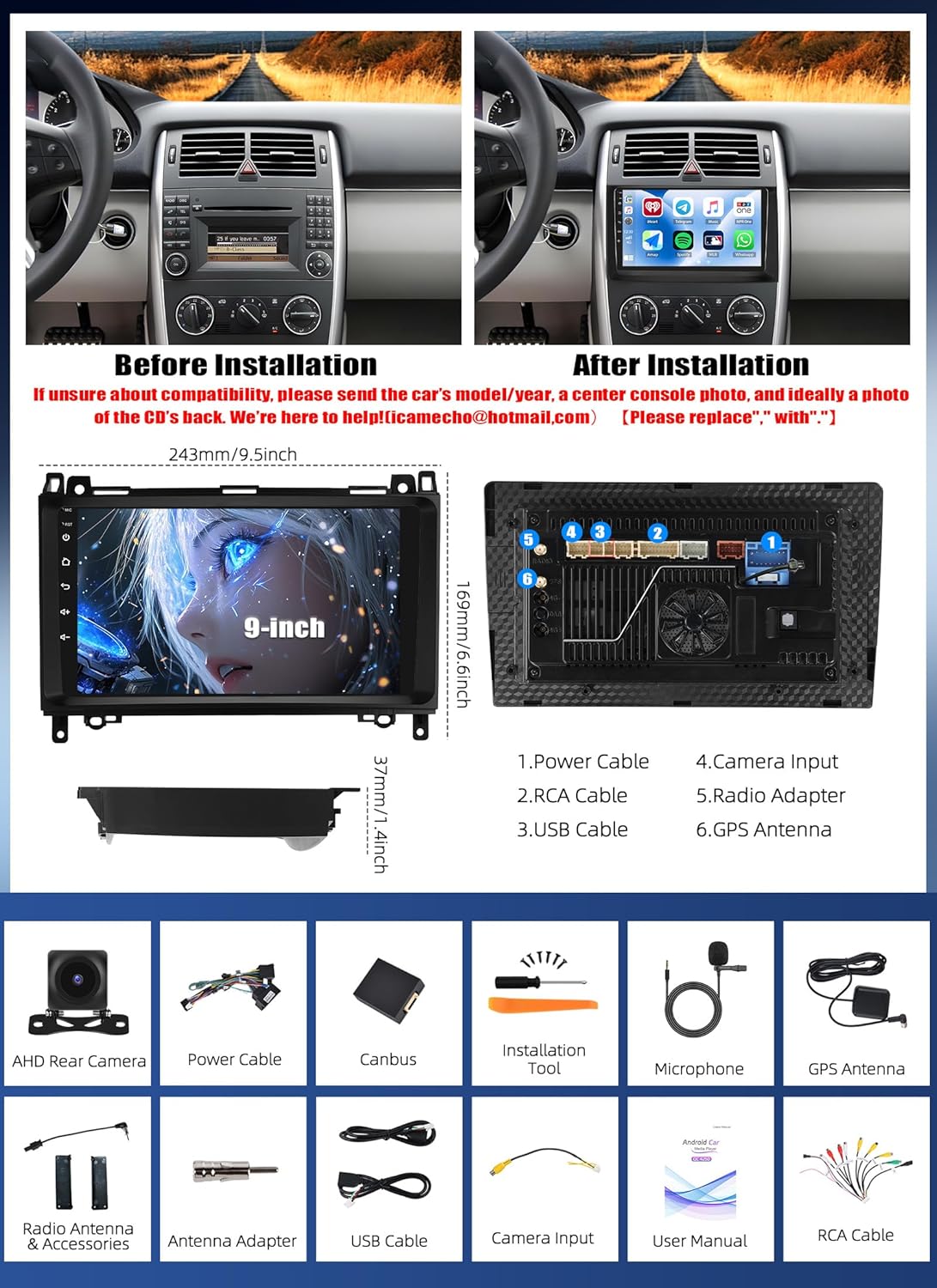
- 1 x Android Car Radio (with frame)
- 1 x GPS Antenna
- 1 x Antenna Adapter
- 1 x Power Cable
- 1 x RCA Cable
- 2 x USB Cables
- 1 x User Manual
- 1 x Rear Camera
- 1 x Canbus Decoder
- 1 x Microphone
4. Setup and Installation
This section outlines the general steps for installing your CAMECHO car radio. Specific vehicle models may require slight variations. Refer to your vehicle's service manual for detailed dashboard disassembly instructions.
4.1 Pre-Installation Check
- Ensure the vehicle's ignition is off and the battery is disconnected.
- Carefully remove the original car radio and dashboard trim.
- Compare the new unit's dimensions and connectors with your vehicle's existing setup.
4.2 Wiring Connections
Refer to the wiring diagram provided with your unit and the image below for common connections:
- Power Cable: Connect the main power harness to the vehicle's power supply. Ensure correct positive, negative, and accessory wire connections.
- RCA Cable: For external amplifiers or additional audio/video inputs/outputs.
- USB Cables: Connect for USB devices, data transfer, or charging.
- GPS Antenna: Mount the GPS antenna in a location with a clear view of the sky, typically on the dashboard or under the windshield.
- Camera Input: Connect the included rear camera cable to the designated input.
- Canbus Decoder: Connect the Canbus decoder to integrate with vehicle systems like steering wheel controls.
- Microphone: Connect the external microphone for improved call quality.
4.3 Unit Installation
- Carefully insert the new car radio into the dashboard opening.
- Secure the unit using the mounting brackets and screws.
- Reinstall the dashboard trim and panels.
- Reconnect the vehicle's battery.
- Turn on the ignition and test the unit's functionality.
5. Operating Instructions
This section details the primary functions and how to operate your CAMECHO Android 15 Car Radio.
5.1 Basic Operation
- Power On/Off: Press and hold the power button (usually on the front panel) to turn the unit on or off. A short press typically mutes or unmutes audio.
- Volume Control: Use the volume knob or on-screen controls to adjust audio levels.
- Touch Screen: The 9-inch IPS touch screen responds to taps, swipes, and pinches for navigation and control.
5.2 Wireless Carplay & Android Auto
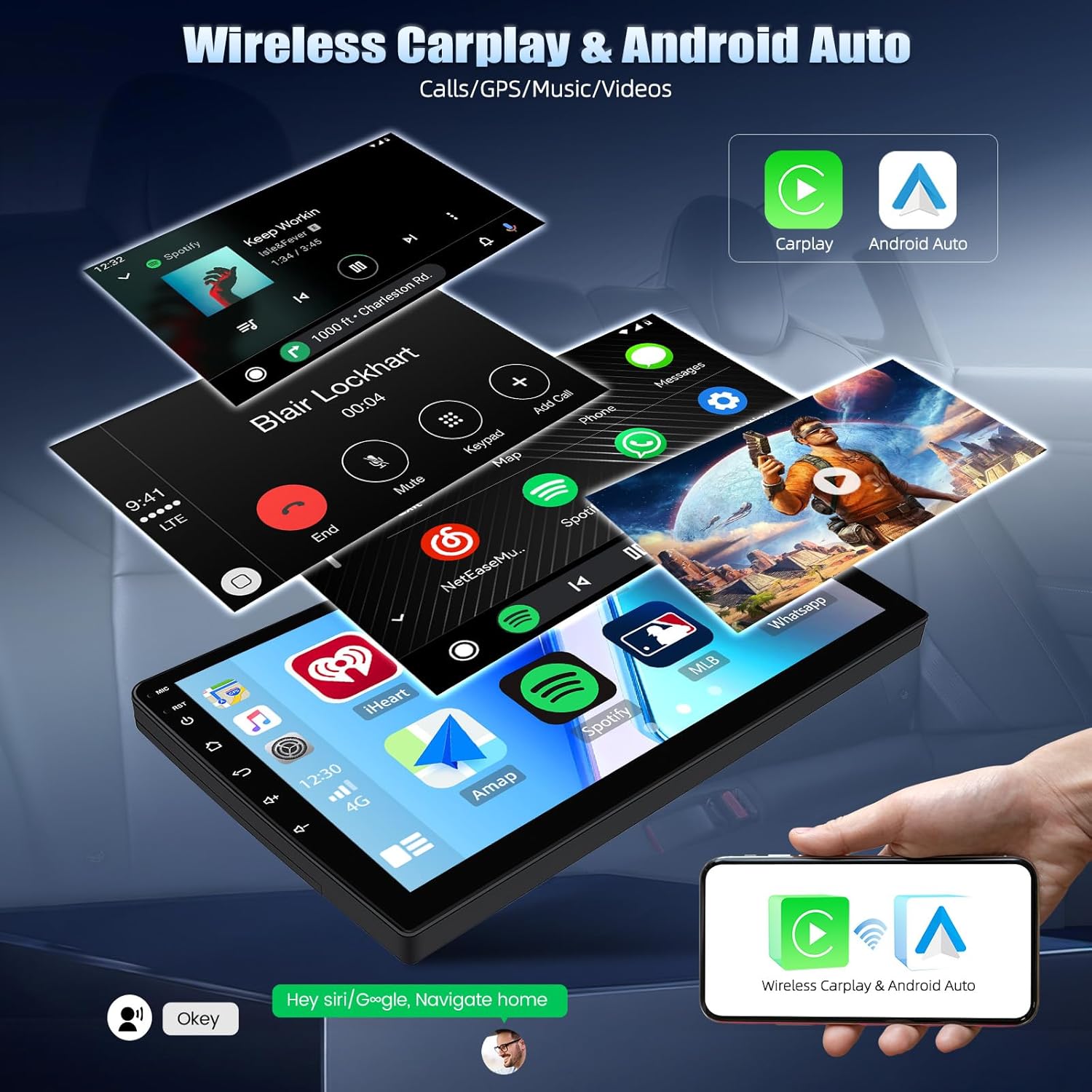
Connect your smartphone wirelessly to access navigation, music, calls, and messages directly on the car radio display.
- Ensure Bluetooth and Wi-Fi are enabled on your smartphone.
- On the car radio, open the Carplay or Android Auto application.
- Follow the on-screen prompts to pair your device.
5.3 Mirror Link
The Mirror Link function allows you to display your smartphone's screen content directly onto the car radio's larger display. This can be done via USB cable or Wi-Fi connection, depending on your phone model and the app used.
5.4 GPS Navigation
The unit supports various online and offline navigation applications. Connect to Wi-Fi to download maps and receive real-time traffic updates.
- Open your preferred navigation app (e.g., Google Maps, Waze).
- Enter your destination and follow the voice and visual prompts.

5.5 Wi-Fi Connectivity
Connect to a Wi-Fi hotspot (e.g., from your smartphone) to access online features, download apps, and browse the internet.
- Go to Settings > Wi-Fi.
- Select your desired network and enter the password.

5.6 Audio Features (DSP, FM/RDS)
The integrated Digital Sound Processor (DSP) allows for advanced audio customization, including 36-band EQ, to achieve optimal sound quality. The FM/RDS radio supports 18 pre-tuned stations with enhanced noise reduction.
- DSP: Access the DSP settings through the audio application to fine-tune frequency, balance, and equalizer presets.
- FM/RDS: Select the Radio app to tune into FM stations. RDS (Radio Data System) provides station information and traffic announcements where available.

5.7 Bluetooth 5.1
Connect your phone via Bluetooth 5.1 for hands-free calling and audio streaming.
- Enable Bluetooth on your phone and the car radio.
- Search for available devices on the car radio and select your phone.
- Confirm the pairing code on both devices.

5.8 Rear Camera & Steering Wheel Control
- Rear Camera: When the vehicle is in reverse gear, the display automatically switches to the rear camera view, aiding in safe parking.
- Steering Wheel Control: The unit supports learning functions for your vehicle's steering wheel buttons, allowing you to control media playback, volume, and calls without taking your hands off the wheel. Access this feature in the system settings.

5.9 Additional Features
- Voice Assistance: (Activation required) Integrate with voice assistants for hands-free commands.
- DAB Function: (Optional, requires DAB module ASIN: B0B457NJBY) For enhanced digital radio reception.
- OBD2 Function: (Requires activation) Supports fault detection, real-time data monitoring, and emission control via an OBD2 adapter.
- UI Customization: Personalize the user interface with multiple UI options and a 3D dynamic car model display.
6. Maintenance
Proper maintenance ensures the longevity and optimal performance of your car radio.
- Screen Cleaning: Use a soft, lint-free cloth to gently wipe the screen. For stubborn smudges, slightly dampen the cloth with water or a screen-safe cleaner. Avoid harsh chemicals.
- General Cleaning: Keep the unit free from dust and debris. Use a soft brush or compressed air to clean vents and buttons.
- Cooling Fan: The unit includes a cooling fan to maintain optimal operating temperature. Ensure the fan vents are not obstructed.
- Software Updates: Periodically check for software updates to improve performance and add new features. Updates can usually be found on the manufacturer's website or through the unit's system settings.

7. Troubleshooting
If you encounter issues, refer to the following common problems and solutions before contacting support.
| Problem | Possible Cause | Solution |
|---|---|---|
| Unit does not power on | Incorrect wiring, blown fuse, power issue | Check power connections, inspect vehicle fuses, ensure battery is connected. |
| No sound | Volume muted, incorrect speaker wiring, amplifier issue | Check volume level, verify speaker connections, test with different audio sources. |
| GPS signal lost/inaccurate | Antenna obstruction, faulty antenna, software issue | Ensure GPS antenna has clear sky view, check antenna connection, restart navigation app. |
| Bluetooth not connecting | Bluetooth off, device not discoverable, pairing issue | Ensure Bluetooth is on for both devices, make phone discoverable, delete previous pairings and re-pair. |
| Steering wheel controls not working | Canbus not connected, incorrect settings, incompatible vehicle | Verify Canbus connection, perform steering wheel button learning in settings. |
If the problem persists after trying these solutions, please contact customer support.
8. Specifications
| Feature | Detail |
|---|---|
| Brand | CAMECHO |
| Model | 8-Core 6+128G |
| Operating System | Android 15 |
| Processor | Qualcomm Snapdragon SM4250, 8-Core (4x Cortex-A53 @ 1.8GHz + 4x Cortex-A53 @ 1.6GHz) |
| GPU | Adreno 610 |
| RAM | 6 GB |
| ROM | 128 GB |
| Screen Size | 9 Inches |
| Screen Resolution | 1280x720 IPS Touch Screen |
| Connectivity | Bluetooth 5.1, Dual-band Wi-Fi (2.4GHz/5GHz), USB, Ethernet |
| Special Features | Wireless Carplay, Android Auto, Mirror Link, DSP (36-band EQ), FM/RDS Radio, GPS Navigation, Rear Camera Support, Steering Wheel Control, Voice Assistance, DAB+ (optional), OBD2 (optional) |
| Audio Output Mode | Stereo |
| Power Output | 50 Watts (per channel), 200 Watts (total) |
| Compatible Devices | Android, iPhone |
| Item Weight | 1 Kilogram |
| Package Dimensions | 34 x 22 x 8.5 cm |
9. Warranty and Support
For warranty information, technical assistance, or any questions not covered in this manual, please contact CAMECHO customer support.
Customer Support Email: icamecho@hotmail.com

Related Documents - 8-Core 6+128G
 |
Single Din Android 13 Car Stereo 9.5" Touchscreen Receiver - User Manual Comprehensive user manual for the Single Din Android 13 car stereo receiver (Model 9510A) featuring a 9.5" touchscreen, wireless CarPlay, Android Auto, GPS navigation, Bluetooth, WiFi, and mirror link functionality. Includes installation, operation, and troubleshooting guides. |
 |
CAMECHO Android Car Stereo for Audi TT MK2 8J (2006-2012) - User Manual User manual for the CAMECHO Android car stereo system, designed for Audi TT MK2 8J (2006-2012). Covers installation, safety, wiring, CarPlay, Android Auto, and other features. |
 |
CAMECHO Android Car Media Player User Manual This user manual provides comprehensive instructions for the CAMECHO Android Car Media Player, covering installation, wiring, features like AI DSP sound effects, voice assistant, wireless mirroring (Airplay and Android Link), wireless Carplay/Android Auto, offline maps, supported accessories, and technical specifications. It guides users through setup and operation for an enhanced in-car experience. |
 |
Android Car Stereo Instruction Manual for Volkswagen Tiguan (2009-2017) Comprehensive user manual for the CAMECHO Android 11 car stereo system designed for Volkswagen Tiguan vehicles from 2009 to 2017. Includes installation guides, wiring diagrams, feature explanations, and troubleshooting tips. |
 |
Android Car Stereo Installation and User Manual for Honda Civic (2000-2005) Comprehensive guide for installing and operating an Android car stereo system designed for Honda Civic models (2000-2005). Covers safety, wiring, GPS, Bluetooth, Carplay, Android Auto, and troubleshooting. |
 |
Android Car Stereo Installation Guide for BMW X1 E84 (2009-2015) Comprehensive user manual for the CAMECHO Android car stereo system, specifically designed for the BMW X1 E84 model range manufactured between 2009 and 2015. It details installation procedures, wiring diagrams, essential safety precautions, and operational instructions to ensure a smooth setup and optimal user experience. |
Ask a question about this manual
Ask about setup, troubleshooting, compatibility, parts, safety, or missing instructions. Manuals+ will review the question and use this page’s manual context to help answer it.