1. Introduction
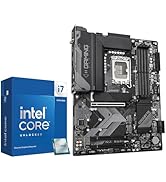
This manual provides detailed instructions for the installation, operation, maintenance, and troubleshooting of your Micro Center CPU Motherboard Combo, featuring the Intel Core i7-14700KF processor and the MSI PRO Z790-P WiFi motherboard. Please read this manual thoroughly before beginning installation to ensure proper setup and optimal performance.
2. Package Contents
Verify that all items listed below are present in your package. If any items are missing or damaged, please contact your retailer.
- Intel Core i7-14700KF Processor
- MSI PRO Z790-P WiFi Motherboard
- 3 x M.2 Clips
- 2 x SATA Cables
- Wi-Fi Antenna
- I/O Shield
- Driver DVD
- European Union Regulatory Notice (Document)
- Quick Installation Guide (Document)

3. Key Features
This combo offers advanced features for high-performance computing:
3.1. Intel Core i7-14700KF Processor
- Core Configuration: 20 Cores (8 Performance-cores + 12 Efficient-cores) and 28 Threads.
- Max Clock Speed: Up to 5.6 GHz.
- Performance: Designed for demanding tasks including gaming, video editing, and multitasking.
- Graphics: Requires a discrete graphics card (KF designation).

3.2. MSI PRO Z790-P WiFi Motherboard
- CPU Socket: LGA 1700, supporting Intel 12th, 13th, and 14th Gen processors.
- Memory: Supports DDR5 memory, with speeds up to 7000+(OC) MHz.
- Expansion Slots: PCIe 5.0 x16 slot for graphics cards.
- Storage: Four PCIe 4.0 M.2 slots and six SATA 6Gb/s ports.
- Connectivity: Integrated Wi-Fi and USB 3.2 Gen 2x2 Type-C for high-speed data transfer.
- Power Design: 14+1+1 DRPS with 55A DrMOS for stable power delivery.
- Thermal Solution: Extended Heatsink, MOSFET thermal pads (7W/mK), and M.2 Shield Frozr.
- PCB Design: 6-layer PCB with 2oz thickened copper for durability and performance.



4. Setup Guide
4.1. Safety Precautions
- Always disconnect the power cord from the wall outlet before touching any components.
- Wear an anti-static wrist strap or frequently touch a grounded metal object to discharge static electricity.
- Handle components by their edges to avoid touching sensitive circuitry.
4.2. Component Installation
Follow these steps for installing the CPU and motherboard into your system:
- CPU Installation:
- Open the CPU socket lever on the motherboard.
- Carefully align the Intel Core i7-14700KF processor with the LGA 1700 socket, ensuring the gold triangle on the CPU matches the triangle on the socket.
- Gently place the CPU into the socket without forcing it.
- Close the socket lever to secure the CPU.
- CPU Cooler Installation:
- Apply thermal paste to the CPU if your cooler does not have it pre-applied.
- Install your compatible LGA 1700 CPU cooler according to its manufacturer's instructions.
- RAM (DDR5) Installation:
- Open the clips on both ends of the DDR5 memory slots.
- Align the memory module with the slot, ensuring the notch on the module matches the key in the slot.
- Press down firmly on both ends of the memory module until the clips snap into place.
- M.2 SSD Installation:
- Locate the M.2 slots on the motherboard.
- Remove the M.2 Shield Frozr heatsink if present.
- Insert the M.2 SSD into the slot at an angle.
- Secure the SSD with an M.2 clip or screw.
- Reattach the M.2 Shield Frozr heatsink for optimal cooling.
- Graphics Card Installation:
- Open the retention clip on the PCIe 5.0 x16 slot.
- Align your graphics card with the slot and press down firmly until it clicks into place.
- Secure the graphics card to your PC case with screws.
- SATA Drive Installation:
- Connect one end of a SATA cable to a SATA port on the motherboard and the other end to your SATA storage device (HDD/SSD).
- Connect a SATA power cable from your power supply to the SATA storage device.
- Power Supply Connections:
- Connect the 24-pin ATX power connector from your power supply to the motherboard.
- Connect the 8-pin (or 4+4-pin) CPU power connector(s) to the motherboard.
- Front Panel Connectors:
- Connect the power button, reset button, HDD LED, and power LED cables from your PC case to the corresponding pins on the motherboard's front panel header. Refer to the motherboard's quick installation guide for exact pin layouts.
- I/O Shield and Wi-Fi Antenna:
- Install the I/O shield into your PC case before installing the motherboard.
- Screw the Wi-Fi antenna onto the connectors on the motherboard's rear I/O panel.

4.3. Initial Boot-up and Driver Installation
- After assembling all components, connect your monitor, keyboard, and mouse.
- Power on your system. Access the BIOS/UEFI by pressing the designated key (usually Del or F2) during startup.
- Configure boot order to install your operating system from a USB drive or DVD.
- Once the operating system is installed, install all necessary drivers from the included Driver DVD or by downloading the latest versions from the MSI website.
5. Operating Instructions
Once your system is set up and the operating system is installed, you can begin using your computer. The MSI PRO Z790-P WiFi motherboard's BIOS/UEFI interface allows for advanced configuration of system settings, including CPU and memory overclocking, fan control, and boot options. Refer to the detailed motherboard manual (available on the MSI support website) for comprehensive BIOS/UEFI settings and advanced features.
6. Maintenance
Regular maintenance helps ensure the longevity and stable performance of your system:
- Dust Cleaning: Periodically clean dust from inside your PC case, especially from fans, heatsinks, and vents, using compressed air.
- Thermal Paste: Consider replacing the CPU thermal paste every few years to maintain optimal cooling performance.
- BIOS/UEFI Updates: Check the MSI website for the latest BIOS/UEFI updates. Updates can improve stability, compatibility, and performance. Follow update instructions carefully.
- Driver Updates: Keep your motherboard and graphics card drivers updated to ensure compatibility and access to the latest features and performance optimizations.
7. Troubleshooting
This section addresses common issues you might encounter:
| Problem | Possible Cause | Solution |
|---|---|---|
| System does not power on | Loose power cables, faulty power supply, incorrect front panel connections. | Check all power connections (24-pin ATX, 8-pin CPU). Ensure power supply is switched on. Verify front panel power button connection. |
| No display on monitor | Monitor not connected, faulty graphics card, incorrect display output, RAM issues. | Ensure monitor is connected to the graphics card (not motherboard I/O). Reseat graphics card and RAM modules. Test with a different display cable or monitor. |
| System instability or crashes | Overheating, unstable overclock, faulty RAM, outdated drivers. | Monitor CPU/GPU temperatures. Reset BIOS to default settings. Run memory diagnostic tests. Update all system drivers. |
| USB devices not recognized | Outdated USB drivers, faulty USB port, incorrect BIOS settings. | Update motherboard chipset drivers. Try different USB ports. Check BIOS settings for USB controller status. |
8. Specifications
Detailed technical specifications for the Micro Center Intel Core i7-14700KF and MSI PRO Z790-P WiFi Motherboard Combo:
| Component | Specification |
|---|---|
| CPU Model | Intel Core i7-14700KF |
| CPU Cores / Threads | 20 Cores (8P + 12E) / 28 Threads |
| CPU Max Clock Speed | 5.6 GHz |
| CPU Socket | LGA 1700 |
| Motherboard Model | MSI PRO Z790-P WiFi |
| Chipset | Intel Z790 |
| Memory Type | DDR5 |
| Memory Speed (Max) | 7000+(OC) MHz |
| PCIe Slots | 1x PCIe 5.0 x16, 2x PCIe 4.0 x1, 1x PCIe 3.0 x1 |
| M.2 Slots | 4x PCIe 4.0 M.2 |
| SATA Ports | 6x SATA 6Gb/s |
| USB Ports (Rear) | USB 3.2 Gen 2x2 Type-C, USB 3.2 Gen 2 Type-A, USB 3.2 Gen 1 Type-A, USB 2.0 |
| LAN | Realtek 2.5Gbps LAN |
| Wireless Connectivity | Wi-Fi 6E, Bluetooth 5.2 |
| Audio | Realtek ALC897 Codec |
| Form Factor | ATX |
| Item Weight | 4.3 pounds |
| Package Dimensions | 14 x 12 x 6 inches |
9. Warranty and Support
This product is manufactured by Micro Center. For specific warranty details, please refer to the documentation included with your purchase or visit the official Micro Center website. General support and driver downloads for the MSI PRO Z790-P WiFi motherboard can be found on the official MSI support website.
- Manufacturer: Micro Center
- Micro Center Store: Visit Micro Center Store on Amazon
- Protection Plans: Additional protection plans may be available for purchase. For example, a 4-Year Protection Plan is available for $84.99, and a Complete Protect plan for $16.99/month.