
VEVOR Programmable LED Sign
VEVOR Programmable LED Sign Instruction Manual
Model: Programmable LED Sign
1. Introduction
Thank you for choosing the VEVOR Programmable LED Sign. This full-color LED scrolling panel is designed for versatile display applications, including advertising in stores, businesses, cars, and bars. Featuring Bluetooth app control, it allows for easy customization of text, images, and GIFs. This manual provides essential information for the safe and efficient operation of your device.
2. Safety Information
- Ensure the power supply matches the specified input voltage (DC5V).
- Do not expose the device to extreme temperatures or direct sunlight for prolonged periods.
- Avoid bending the panel excessively to prevent damage to internal components.
- Keep the device away from water and moisture, despite its IP65 rating, to ensure longevity.
- Do not attempt to disassemble or repair the device yourself. Contact customer support for assistance.
3. Package Contents
Verify that all items are present in your package:
- VEVOR Programmable LED Sign (1 unit)
- 5m Power Cable (1 unit)
- 3A Car Charger (White) (1 unit)
- 3M Adhesive Tape (1 roll)
- Instruction Manual (1 copy)

Image 3.1: The VEVOR Programmable LED Sign shown with its 5m cable, 3A car charger, 3M adhesive tape, and instruction manual. The sign displays 'LOVE YOU' and its dimensions are indicated as 15 inches (380 mm) in length and 4 inches (102 mm) in height.
4. Product Overview
The VEVOR Programmable LED Sign is a flexible, full-color display panel designed for dynamic messaging. It features a P5 pixel pitch and a 16x64 resolution, ensuring bright and clear visuals. Its slim and flexible design, coated with drip glue, allows for easy installation and adaptability to various surfaces. The sign is rated IP65 for stability and waterproofing, contributing to a longer lifespan.

Image 4.1: An overview of the VEVOR Programmable LED Sign, demonstrating its use on a car's rear window, alongside the mobile application interface for content control. The sign is powered via a USB cable and car charger.

Image 4.2: This image illustrates the flexibility and various display orientations possible with the VEVOR Programmable LED Sign, including flat, curved, and vertical setups, showcasing its adaptability for different applications.
5. Setup and Installation
5.1 Physical Installation
- Choose a Location: Select a flat, clean, and dry surface for installation, such as a car rear window, store window, or wall.
- Prepare the Surface: Clean the chosen surface thoroughly to ensure optimal adhesion of the 3M tape.
- Apply Adhesive: Peel the backing from the 3M adhesive tape and carefully attach it to the back of the LED sign.
- Mount the Sign: Press the sign firmly onto the prepared surface. Ensure it is securely attached.
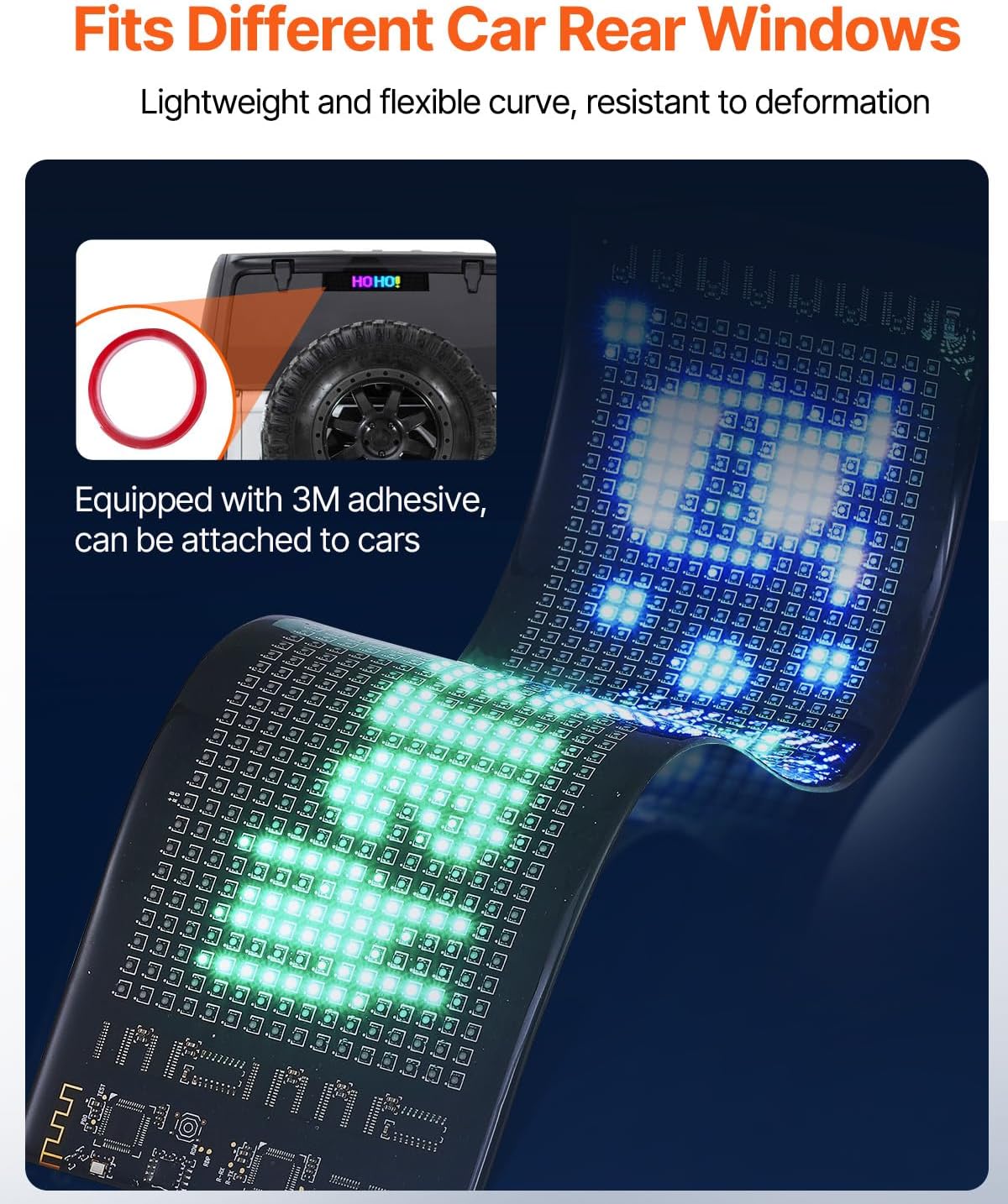
Image 5.1: The VEVOR Programmable LED Sign is shown installed on the rear window of a car, demonstrating its use with the included 3M adhesive for secure mounting.
5.2 Power Connection
- Connect the 5m power cable to the LED sign's USB interface.
- Plug the other end of the USB cable into the provided 3A car charger or any compatible DC5V USB power source.
- Ensure the power source is active. The sign should illuminate.
5.3 App Download and Bluetooth Connection
- Download the App: Scan the QR code provided in the physical instruction manual or search for the designated app (e.g., 'SpotLED' or similar, as indicated in the product packaging) on your smartphone's app store (iOS/Android).
- Enable Bluetooth: Turn on Bluetooth on your smartphone.
- Connect to Device: Open the app, search for available devices, and select your VEVOR LED Sign to establish a Bluetooth connection.

Image 5.2: A smartphone screen showing the app interface with a Bluetooth connection symbol, indicating the process of pairing with the VEVOR Programmable LED Sign, which displays 'WELCOME'.
6. Operating Instructions
Once connected via Bluetooth, you can control and customize your LED sign using the dedicated mobile application.
6.1 App Interface Overview
The app typically features sections for text input, image/GIF upload, display effects, and settings. Familiarize yourself with the layout.
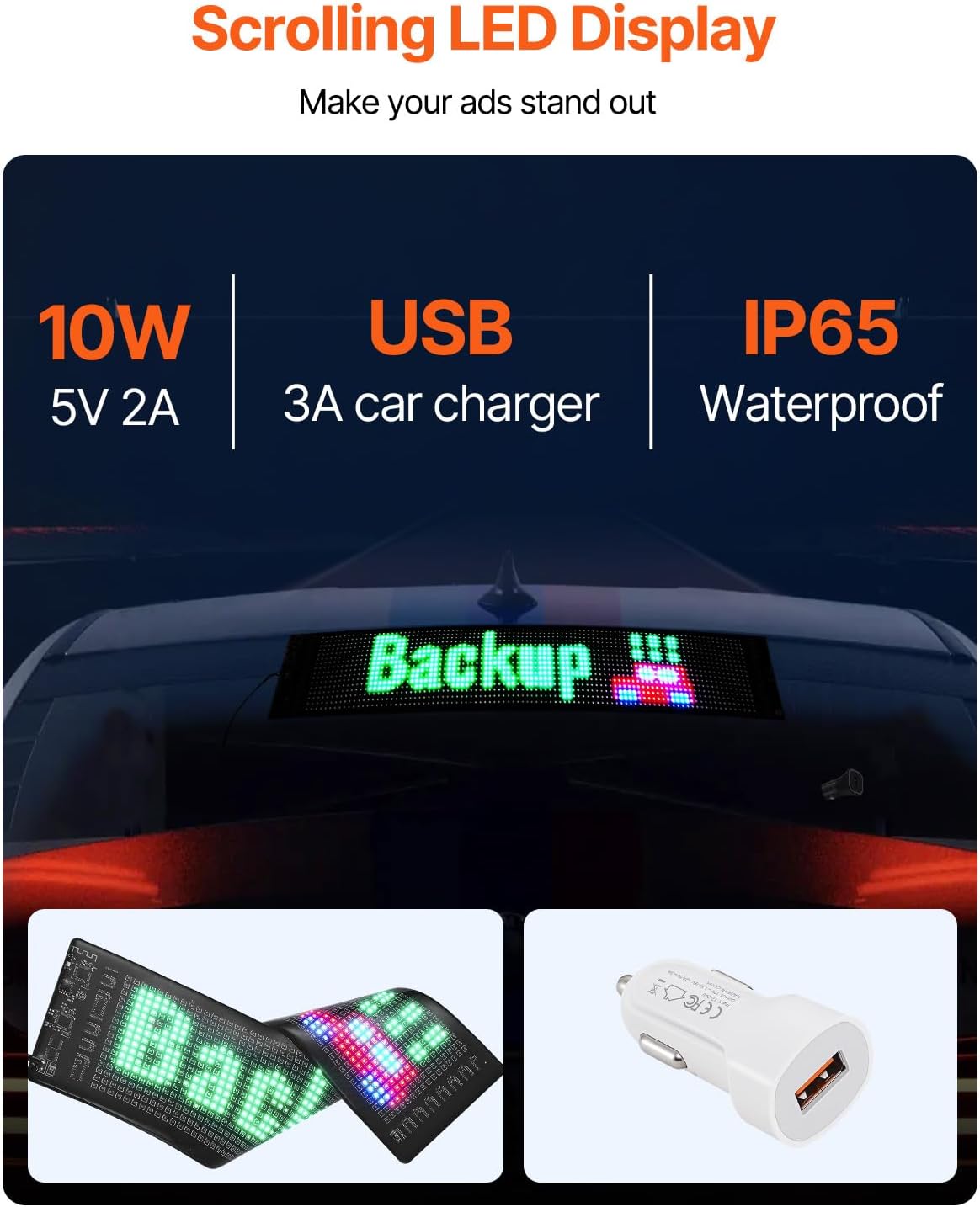
Image 6.1: The mobile application interface, displaying a playlist of messages and various content creation options such as text, images, and GIFs. The LED sign in the background shows 'Backup'.
6.2 Customizing Content
- Text: Enter custom text messages. You can select fonts, colors, sizes, and alignment.
- Images/GIFs: Upload static images or animated GIFs from your phone's gallery or choose from pre-loaded options within the app.
- Drawing: Some apps may offer a drawing tool to create simple custom patterns.
6.3 Adjusting Display Effects
- Movement Modes: Select from various display modes such as scrolling (leftward, rightward, upward, downward), static, flashing, or animation effects.
- Speed: Adjust the scrolling or animation speed to your preference.
- Brightness: Control the display brightness to suit different lighting conditions.
- Orientation: The flexible design allows for both horizontal and vertical display orientations. Adjust content within the app accordingly.
7. Maintenance
- Cleaning: Gently wipe the surface of the LED sign with a soft, dry, or slightly damp cloth. Avoid abrasive cleaners or solvents.
- Storage: When not in use, store the sign in a cool, dry place, away from direct sunlight and extreme temperatures. Avoid sharp folds or creases.
- Cable Care: Ensure power cables are not kinked or pinched to prevent damage.
8. Troubleshooting
| Problem | Possible Cause | Solution |
|---|---|---|
| Sign does not power on. | No power, loose connection, faulty cable/charger. | Check power source. Ensure all cables are securely connected. Try a different USB port or charger. |
| Cannot connect via Bluetooth. | Bluetooth off, app not open, sign not discoverable, interference. | Ensure Bluetooth is enabled on your phone. Restart the app and the LED sign. Move closer to the sign. |
| Display is blank or shows incorrect content. | No content sent, app error, connection issue. | Verify content is sent from the app. Restart the app and reconnect. Check for app updates. |
| Display is too dim or too bright. | Brightness setting incorrect. | Adjust brightness settings within the mobile application. |
9. Specifications
| Feature | Detail |
|---|---|
| Model Number | Programmable LED Sign |
| Product Dimensions | 15 x 4 x 0.1 inches (380 x 102 mm) |
| Item Weight | 1.1 pounds |
| Input Electrical Parameters | DC5V |
| Output Electrical Parameters | 5V 2A |
| Main Materials | FPC, LED Beads, Silicone |
| IP Rating | IP65 (Waterproof) |
| Pixel Pitch | P5 |
| Resolution | 16x64 |
| Control Method | Bluetooth APP Control |
Ask a question about this manual
Ask about setup, troubleshooting, compatibility, parts, safety, or missing instructions. Manuals+ will review the question and use this page’s manual context to help answer it.