
Introduction
Thank you for choosing the WAYXIN R6S Motorcycle Intercom. This device is designed to enhance your riding experience by providing seamless communication, entertainment, and navigation capabilities. Featuring advanced Bluetooth 5.1 technology, DSP & CVC noise cancellation, and IP67 waterproofing, the R6S ensures clear audio and reliable performance in various conditions. This manual provides detailed instructions for installation, operation, maintenance, and troubleshooting to help you get the most out of your intercom.
Safety Information
- Always prioritize road safety. Do not operate the intercom in a way that distracts you from riding.
- Ensure the device is securely mounted to your helmet before riding.
- Do not attempt to disassemble or modify the intercom. This may void the warranty and cause damage.
- Keep the device away from extreme temperatures and direct sunlight.
- While the device is IP67 waterproof, ensure all connection points are dry before charging or connecting accessories.
- Use only the provided charging cable and power adapter to avoid damage.
Package Contents
The WAYXIN R6S package typically includes the following items:
- WAYXIN R6S Intercom Unit (x2 for 'Due' model)
- Speakers (x2 sets)
- Boom Microphone (x2)
- Soft Wire Microphone (x2)
- Mounting Base (x2)
- Metal Clip (x2)
- USB Type-C Charging Cable (x2)
- User Manual (x2)
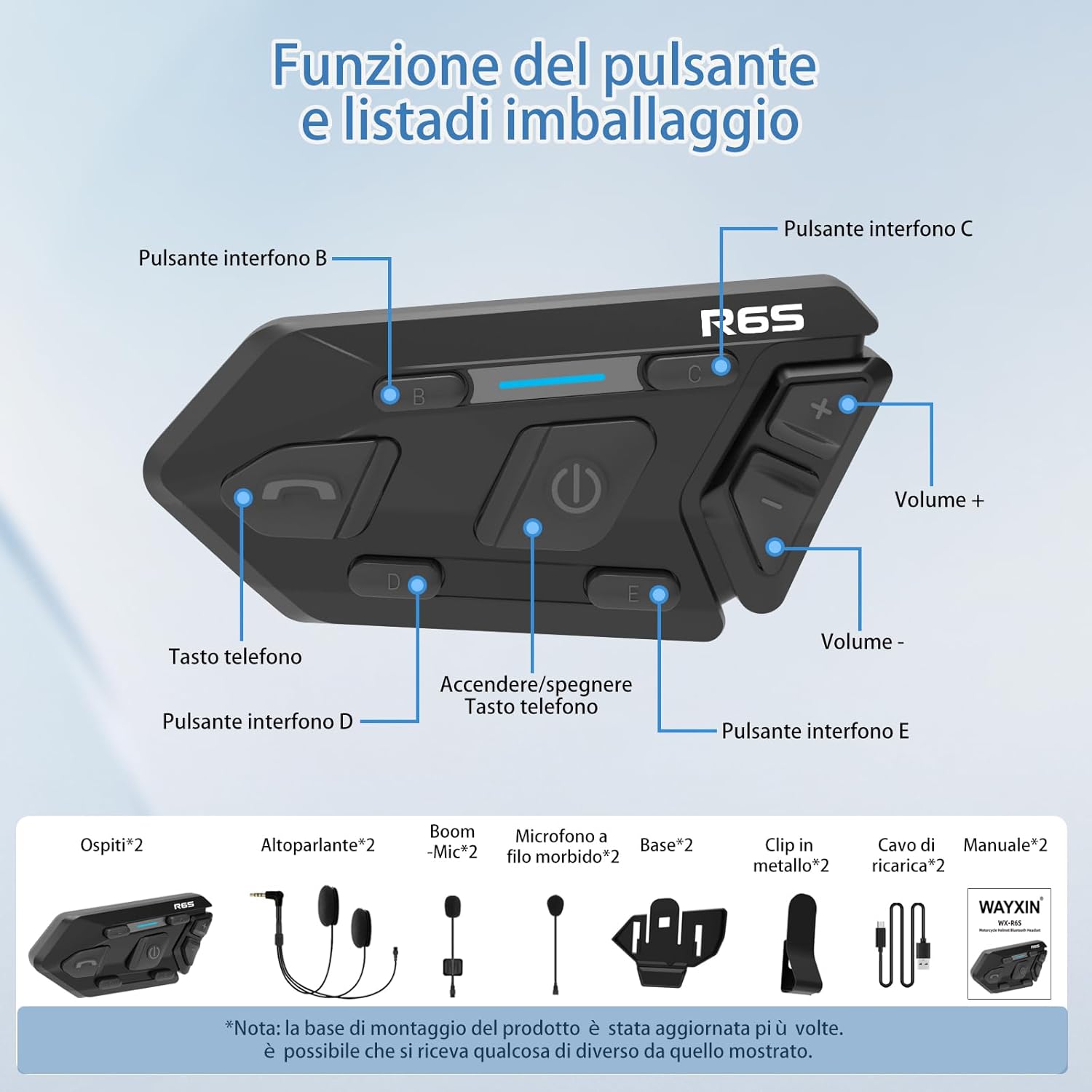
Image: Illustration of the WAYXIN R6S package contents, including two intercom units, two sets of speakers, two boom microphones, two soft wire microphones, two mounting bases, two metal clips, two USB Type-C charging cables, and two user manuals. This image provides a visual guide to verify all components are present.
Product Overview
Familiarize yourself with the buttons and indicators on your WAYXIN R6S intercom unit:
Image: A detailed diagram illustrating the various buttons and their functions on the WAYXIN R6S intercom unit. Key buttons include the Power/Phone button, dedicated intercom buttons (B, C, D, E), and volume control buttons (Volume + and Volume -). This visual aid helps users identify and understand the purpose of each control.
- Power/Phone Button: Used for powering the device on/off, answering/ending calls, and initiating voice assistant.
- Intercom Buttons (B, C, D, E): Used for initiating and managing intercom conversations with other paired units.
- Volume + Button: Increases volume.
- Volume - Button: Decreases volume.
Setup & Installation
1. Mounting the Intercom Unit
The WAYXIN R6S can be mounted to most helmet types using either the metal clip or the adhesive base.

Image: This diagram illustrates the two types of microphones included (boom and soft wire) and demonstrates the compatibility of the WAYXIN R6S with various helmet styles, including full-face, retro, open-face, and motocross helmets. This helps users select the appropriate microphone and understand mounting options for their specific helmet.
Using the Metal Clip:
- Insert the metal clip into the slot on the mounting base.
- Slide the mounting base with the clip onto the edge of your helmet, ensuring it is securely fastened.
- Insert the intercom unit into the mounting base until it clicks into place.
Using the Adhesive Base:
- Clean the desired mounting surface on your helmet thoroughly.
- Remove the protective film from the 3M adhesive on the base.
- Firmly press the adhesive base onto the helmet surface for at least 30 seconds. Allow 24 hours for the adhesive to cure before use.
- Insert the intercom unit into the mounting base until it clicks into place.

Image: A step-by-step visual demonstration of the installation process for the WAYXIN R6S intercom. It shows how to attach the metal clip to the base, secure the base to the helmet, insert the intercom unit, position the speakers inside the helmet, and finalize the setup. This guide is essential for proper and secure installation.
2. Connecting Speakers and Microphone
Choose the appropriate microphone for your helmet type (boom mic for open-face/modular helmets, soft wire mic for full-face helmets).
- Attach the hook-and-loop fasteners (velcro) to the back of the speakers.
- Position the speakers inside your helmet's ear pockets, ensuring they are aligned with your ears for optimal audio quality.
- Route the microphone cable to the front of your helmet, positioning the microphone close to your mouth. Secure the cable to prevent interference.
- Plug the speaker and microphone cable into the corresponding port on the intercom unit.
3. Charging the Device
Before first use, fully charge the intercom unit.
- Connect the provided USB Type-C charging cable to the charging port on the intercom unit.
- Connect the other end of the cable to a USB power adapter (e.g., phone charger, computer USB port).
- The LED indicator will show charging status (e.g., red for charging, blue for fully charged). A full charge takes approximately 2 hours.

Image: This graphic highlights the battery specifications of the WAYXIN R6S intercom, indicating an 800mAh capacity. It visually represents the impressive battery life: 360 hours of standby time, a quick 2-hour charging time, and 15 hours of continuous operation. This information is crucial for users to understand the device's endurance and charging requirements.
Operating Instructions
Power On/Off
- Power On: Press and hold the Power/Phone Button for approximately 3 seconds until you hear a voice prompt and the LED indicator lights up.
- Power Off: Press and hold the Power/Phone Button for approximately 5 seconds until you hear a voice prompt and the LED indicator turns off.
Bluetooth Pairing (with Mobile Phone)
The R6S can connect to two Bluetooth devices simultaneously.
- With the intercom off, press and hold the Power/Phone Button for about 5 seconds until the LED indicator flashes red and blue alternately, indicating pairing mode.
- On your mobile phone, enable Bluetooth and search for "WAYXIN R6S".
- Select "WAYXIN R6S" from the list of available devices to connect. Once connected, the LED will flash blue slowly.
- To pair a second phone, repeat the process. The intercom will automatically connect to the last two paired devices upon power-on.

Image: This visual explains the dual Bluetooth connectivity feature of the WAYXIN R6S, demonstrating how it can simultaneously connect to two smartphones. One phone can be used for navigation, while the other handles music playback. This highlights the convenience of managing multiple functions without needing to switch devices.
Intercom Communication
The R6S supports communication with up to 6 riders, with 2 riders communicating bidirectionally at any given time.

Image: A depiction of six motorcyclists riding together, illustrating the WAYXIN R6S's capability to connect up to six users. Call icons above their helmets signify active communication, emphasizing the 1200-meter range and the ability for two riders to chat in real-time. The image also notes automatic reconnection if interference occurs or riders go out of range.
Pairing Intercom Units:
- Ensure both R6S units are powered off.
- On Unit 1, press and hold the Power/Phone Button and Intercom Button B simultaneously until the LED flashes red and blue alternately.
- On Unit 2, press and hold the Power/Phone Button and Intercom Button C simultaneously until the LED flashes red and blue alternately.
- The units will automatically pair. Once paired, the LED indicators will flash blue slowly.
- To pair additional units (up to 6), repeat the process, using different intercom buttons (D, E) for each new unit.
Initiating Intercom Call:
- Press the corresponding Intercom Button (B, C, D, or E) for the desired paired unit to start a conversation.
- Press the same Intercom Button again to end the conversation.
Music Playback
- Ensure your phone is paired and music is playing.
- Play/Pause: Short press the Power/Phone Button.
- Next Track: Press and hold the Volume + Button for 2 seconds.
- Previous Track: Press and hold the Volume - Button for 2 seconds.

Image: This graphic details the high-fidelity (Hi-Fi) sound quality of the WAYXIN R6S intercom. It emphasizes the 7mm graphene acoustic membrane, which contributes to clear audio reproduction and powerful bass, providing an immersive listening experience. The image also mentions support for AAC/SBC for spatialized sound.
Call Management
- Answer Call: Short press the Power/Phone Button.
- End Call: Short press the Power/Phone Button during a call.
- Reject Call: Press and hold the Power/Phone Button for 2 seconds when a call comes in.
- Redial Last Number: Double-press the Power/Phone Button.
Voice Assistant (Siri/Google Assistant)
- Ensure your phone's voice assistant is enabled.
- Activate Voice Assistant: Double-press the Power/Phone Button. You will hear a prompt, and then you can issue commands.

Image: This visual demonstrates the voice control functionality and IP67 waterproofing of the WAYXIN R6S intercom. It shows a user activating Siri and Google Assistant with a double-click, enabling hands-free commands for safer and more relaxed riding. The image also reinforces the device's waterproof capabilities, advising users to close all openings in rain or snow.
Volume Control
- Increase Volume: Short press the Volume + Button.
- Decrease Volume: Short press the Volume - Button.
Maintenance
- Cleaning: Wipe the intercom unit with a soft, damp cloth. Do not use harsh chemicals or abrasive cleaners.
- Storage: When not in use for extended periods, store the device in a cool, dry place. Charge the battery at least once every three months to maintain battery health.
- Water Resistance: Although IP67 waterproof, always ensure the charging port cover is securely closed when not charging to prevent water ingress.
- Battery Care: Avoid fully discharging the battery frequently. For optimal battery life, avoid charging in extremely hot or cold conditions.
Troubleshooting
| Problem | Possible Cause | Solution |
|---|---|---|
| Device does not power on. | Low battery. | Charge the device for at least 2 hours. |
| Cannot pair with phone. | Device not in pairing mode; Bluetooth off on phone; too many paired devices. | Ensure intercom is in pairing mode (flashing red/blue). Turn phone's Bluetooth off and on. Delete old Bluetooth connections on phone. |
| Intercom communication not working. | Units not paired; out of range; interference. | Re-pair intercom units. Ensure units are within 1200m range. Move away from sources of strong electromagnetic interference. |
| Poor audio quality / Noise. | Microphone not positioned correctly; high wind noise; environmental noise. | Adjust microphone closer to mouth. Ensure windproof microphone cover is used. The device features DSP & CVC noise cancellation, but extreme conditions may still affect audio. |
| Volume too low. | Device volume too low; phone volume too low. | Increase volume using the '+' button on the intercom. Increase volume on your connected phone. |
Specifications
| Model | R6S(Due) |
| Bluetooth Version | 5.1 (Qualcomm Chip) |
| Intercom Range | Up to 1200 meters (between 2 units) |
| Group Intercom | Up to 6 riders (2 simultaneous bidirectional) |
| Noise Cancellation | DSP & CVC (ENC 2.0 & CVC 8.0) |
| Battery Capacity | 800mAh |
| Charging Time | Approx. 2 hours |
| Operating Time | Up to 15 hours (music), 10 hours (calls) |
| Standby Time | Up to 360 hours |
| Water Resistance | IP67 |
| Frequency Spectrum | 20Hz - 20,000Hz |
| Impedance | 32 Ohm |
| Material | Acrylonitrile Butadiene Styrene (ABS) |
| Dimensions | 17.3 x 11.2 x 3.9 cm |
| Weight | 190 grams |
Warranty & Support
WAYXIN offers a 24-month after-sales service for the R6S Motorcycle Intercom. If you encounter any issues or malfunctions with your device, please do not hesitate to contact us immediately. We are committed to providing a solution within 24 hours. Even if you contact us during the weekend, we will respond as soon as possible on Monday.
For support, please refer to the contact information provided in your purchase documentation or visit the official WAYXIN website.