
Introduction
This instruction manual provides detailed guidance for the setup, operation, maintenance, and troubleshooting of your YOYIRYB 4K Wireless Outdoor Security Camera System (BF-A70). Please read this manual thoroughly before installation and use to ensure optimal performance and safety.
What's in the Box
Your YOYIRYB BF-A70 2 Camera Kit includes the following components:
- 2 x YOYIRYB 4K Wireless Outdoor Security Cameras
- 2 x Solar Panels with long connecting cables
- 1 x HomeBase (with 64GB built-in storage)
- 1 x Power Adapter for HomeBase
- 2 x Mounting Brackets for Cameras
- 2 x Mounting Brackets for Solar Panels
- Mounting Screws and Wall Anchors
- 1 x Ethernet Cable
- 1 x USB-C Charging Cable for Cameras
- 1 x Instruction Manual (this document)
Text Description: This video provides an unboxing experience for the YOYIRYB A70 Security Cameras, detailing all included components and their initial appearance.
Product Features
The YOYIRYB BF-A70 Security Camera System offers advanced features for comprehensive home surveillance:
- 4K Ultra HD Resolution: Experience crystal-clear 4K video (3840x2160) with 8MP effective still resolution, allowing for detailed monitoring and 6x digital zoom.
- Dual-Band WiFi: Supports both 5G and 2.4G WiFi for stable and high-speed connectivity.
- 360° Pan & 90° Tilt: Offers a wide viewing angle of 360 degrees horizontally and 90 degrees vertically, eliminating blind spots.
- AI Auto Tracking: Automatically tracks movement of humans, pets, and vehicles across the surveillance area.
- Color Night Vision: Provides full-color video even in low-light conditions, enhanced by a built-in spotlight.
- Zero Monthly Fees: Local storage on the HomeBase (64GB built-in, expandable up to 128GB) means no subscription costs.
- Solar-Powered: Each camera is equipped with a 5200mAh battery and a solar panel, requiring only 2 hours of direct sunlight for continuous operation.
- Two-Way Audio: Built-in microphone and speaker enable real-time communication with visitors or to deter intruders.
- Smart Instant Siren: Motion-triggered 120dB siren and floodlights for active deterrence.
- Weatherproof (IP65): Designed for outdoor use, resistant to water, snow, and extreme temperatures (-14°F to 140°F).
- Smart Multi-Camera Sync: Links cameras to track events across multiple zones and view up to 4 live feeds simultaneously.
- Smart Home Compatibility: Works with Amazon Alexa and Google Assistant for voice control.
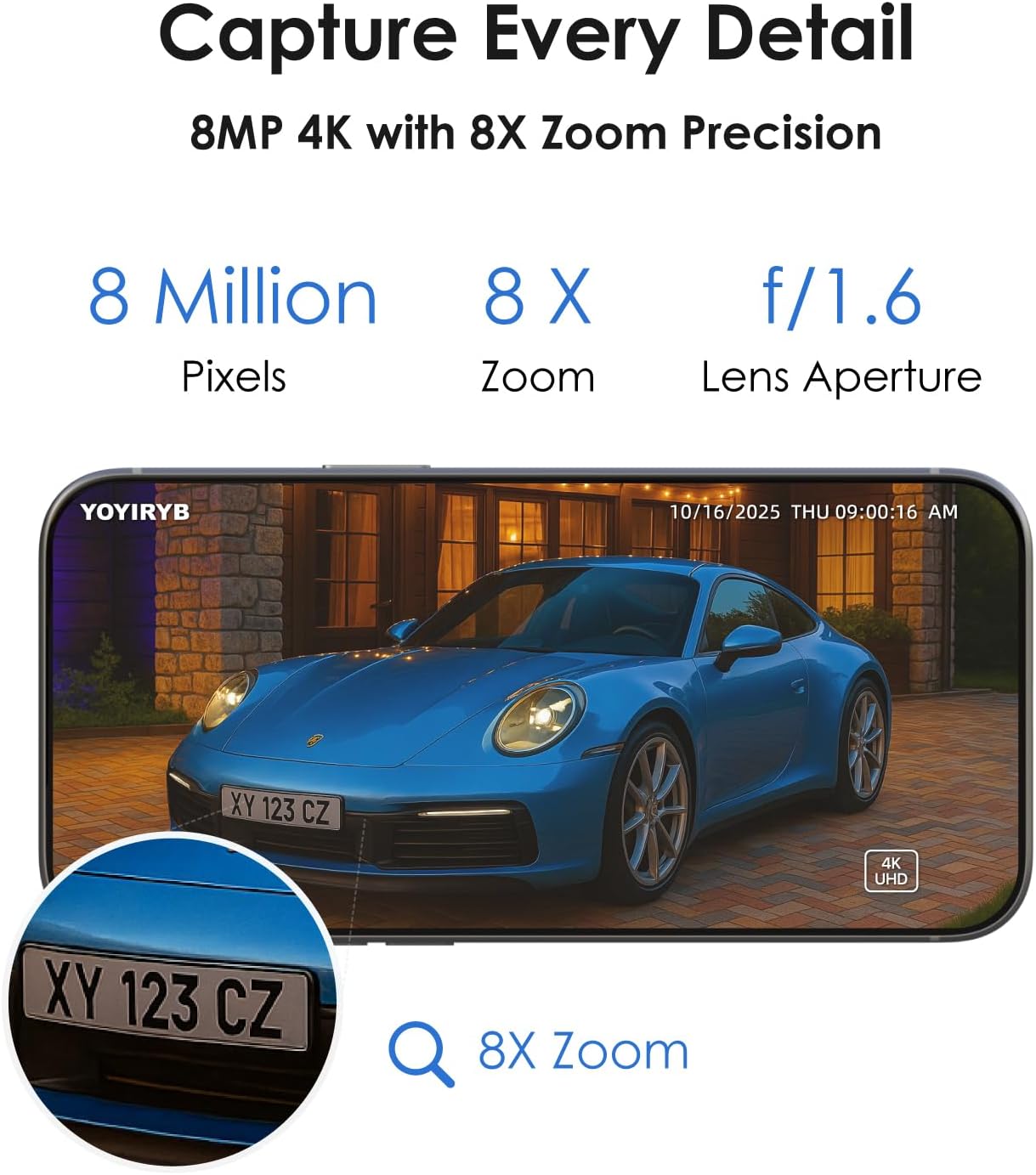
Image: Demonstrates the 4K clarity and 8x digital zoom capability, highlighting details like a car's license plate.

Image: Illustrates the whole-home coverage provided by multiple cameras connected to the HomeBase via dual-band Wi-Fi.
Setup Guide
1. App Installation & Account Registration
- Scan the QR code in the Quick Setup Guide or search for "Koocam" in your smartphone's app store (Google Play Store or Apple App Store).
- Download and install the Koocam app.
- Open the app and register for a new account using your email address. Follow the on-screen prompts to complete registration.
2. HomeBase Setup
- Connect the HomeBase to a power source using the included power adapter.
- Connect the HomeBase to your home router using the included Ethernet cable.
- Wait for the HomeBase LED indicator to turn from red to solid blue. This indicates a successful internet connection.
- In the Koocam app, tap "Add Device" and select "HomeBase". Follow the prompts to add your HomeBase to your account.
3. Camera Setup & Pairing
- Before installation, fully charge each camera using the provided USB-C cable and a 5V/1A power adapter. A full charge typically takes about 6 hours.
- Press and hold the power button on the bottom of each camera for 3 seconds until you hear a startup voice prompt and the blue light turns on.
- In the Koocam app, tap "Add Device" and select "Pan Tilt Camera". Follow the on-screen instructions to pair each camera with your HomeBase.
- Mount the cameras and solar panels in your desired outdoor locations. Ensure solar panels face direct sunlight for optimal charging. The recommended mounting height for cameras is 6-9 feet above the ground for effective motion detection.
Text Description: This video demonstrates the step-by-step process of connecting YOYIRYB Security Cameras to the HomeBase and app.

Image: Illustrates the wire-free installation process, showing how the camera and solar panel can be mounted separately for optimal sunlight exposure.
Operating Instructions
1. Live View & Pan/Tilt Control
- Open the Koocam app and select the desired camera from your device list.
- The live view will appear. Use the on-screen 360° control pad to pan (left/right) and tilt (up/down) the camera.
- Pinch to zoom in/out on the live feed to view details.
- Tap the "360°" button in the control pad to initiate an automatic cruise of the camera's view.
Text Description: This video highlights the 4K Ultra HD clarity and real-time motion alerts feature of the YOYIRYB camera system.
2. Two-Way Audio
- From the live view screen, tap the microphone icon to enable two-way audio.
- Speak into your phone's microphone to communicate with anyone near the camera.
- Tap the speaker icon to adjust the volume of the camera's speaker.
Text Description: This video demonstrates the crystal clear 2-way audio feature of the 4K YOYIRYB camera.
3. Night Vision Settings
- In the camera settings, navigate to "Night Vision".
- Choose between:
- Black & White: Infrared LEDs activate for standard black and white night vision.
- Full-Color: Spotlight turns on when motion is detected at night, providing color night vision.
- Night Vision Off: Disables both infrared LEDs and the spotlight.
Text Description: This video showcases the 4K clarity and full-color night vision capabilities of the YOYIRYB camera.
4. Motion Detection & Event Playback
- In camera settings, go to "Motion Detection" to customize sensitivity and detection types (Human, Pet, Vehicle Recognition).
- Define specific "Detection Zones" to focus alerts on critical areas.
- Access recorded events by tapping the "Events" tab in the app. You can filter by date and event type.
- The system supports "Cross-Camera Event Tracking", automatically linking videos from different cameras for a seamless timeline of events.

Image: Illustrates how the HomeBase automatically links video clips from different cameras to provide a complete view of an event across multiple zones.
Maintenance
- Solar Panel Cleaning: Regularly wipe the solar panels with a soft, damp cloth to remove dust, dirt, or snow, ensuring maximum charging efficiency.
- Lens Cleaning: Gently clean the camera lens with a microfiber cloth to maintain clear image quality.
- Firmware Updates: Check the Koocam app periodically for firmware updates to ensure your system has the latest features and security enhancements.
- Battery Health: Monitor battery levels in the app. While solar-powered, prolonged periods without sufficient sunlight may require manual charging.
Troubleshooting
- No Live View/Offline Camera:
- Check HomeBase internet connection (solid blue LED).
- Ensure cameras are powered on and within range of the HomeBase.
- Verify WiFi signal strength in the camera's location using the app's installation guide.
- Poor Image Quality:
- Clean the camera lens.
- Ensure adequate lighting for night vision (if not using full-color mode).
- Check for obstructions in the camera's field of view.
- False Motion Alerts:
- Adjust motion detection sensitivity in the app settings.
- Refine detection zones to exclude areas with frequent non-threatening movement (e.g., trees swaying).
- Ensure Human/Pet/Vehicle Recognition is enabled for advanced filtering.
- Battery Not Charging:
- Ensure the solar panel is clean and receiving direct sunlight for at least 2 hours daily.
- Check the connection between the solar panel and the camera.
- If necessary, manually charge the camera using the USB-C cable.
Specifications
| Model Name | Security Cameras Outdoor Wireless (BF-A70) |
| Video Capture Resolution | 4K (3840x2160) |
| Effective Still Resolution | 8 MP |
| Viewing Angle | 360 Degrees (Pan), 90 Degrees (Tilt) |
| Connectivity Technology | Wireless (5G & 2.4G Wi-Fi) |
| Power Source | Solar Powered (5200mAh battery) |
| Night Vision Range | 49.21 Feet |
| International Protection Rating | IP65 |
| Operating Temperature | -14°F to 140°F (-20°C to 60°C) |
| Local Storage | 64 GB (built-in HomeBase, expandable up to 128GB) |
| Compatible Devices | Android, iOS, Google Assistant, Amazon Alexa |
Warranty and Support
YOYIRYB provides a standard manufacturer's warranty for this product. For detailed warranty information, product support, or technical assistance, please refer to the warranty card included in your package or visit the official YOYIRYB website. You can also contact customer support directly through the Koocam app.