
1. Introduction
The NUROUM HP31S (2nd Gen) is a single-ear wireless headset designed for clear communication and comfort in various professional settings. It features advanced noise-cancelling technology, multi-point connectivity, and a long-lasting battery, making it ideal for call centers, remote work, and mobile professionals.

Image 1.1: The NUROUM HP31S (2nd Gen) Wireless Headset with its charging stand and USB dongle.
2. What's in the Box
Upon unboxing your NUROUM HP31S (2nd Gen) Wireless Headset, please ensure all the following components are present:
- 1x HP31S Headset
- 1x USB Dongle/Bluetooth Adapter
- 1x Charging Station
- 1x USB-A/Type-C Cable
- User Manual (this document)
3. Product Features
3.1. AI-Powered ENC Noise Cancellation
The headset incorporates AI-Powered ENC (Environmental Noise Cancellation) technology. This feature utilizes a HiFi4 DSP processor and a compressed neural network to effectively suppress up to 99.9% of background noise, ensuring your voice is transmitted clearly during calls, even in noisy environments.

Image 3.1: Visual representation of the AI-Powered ENC Noise Cancellation feature, showing clear communication in a busy setting.
3.2. Bluetooth 5.3 & Multi-Point Connection
Equipped with Bluetooth 5.3, the HP31S offers fast pairing and a stable connection with a range of up to 33 feet. Its multi-point connection capability allows simultaneous pairing with two devices, enabling seamless transitions between, for example, a PC for meetings and a mobile phone for incoming calls.

Image 3.2: The headset connected to both a laptop and a smartphone via Bluetooth, demonstrating multi-point functionality.
3.3. All-Day Comfort & Ergonomic Design
The headset is designed for extended wear with pillow-soft ear cushions, a stretchable headband with a padded leather sling, and a lightweight build. The 250° rotatable boom mic supports versatile left and right wearing, and the 180° rotatable ear muff accommodates various head shapes, minimizing pressure during prolonged use.

Image 3.3: Detailed views of the headset's comfort features, including adjustable components and soft materials.
3.4. Long Battery Life
The HP31S offers extended usage times, providing up to 35 hours of continuous call time and 45 hours of music playback on a single charge. The included charging base and USB cable offer flexible recharging options.

Image 3.4: Battery performance metrics for the headset.
3.5. Universal Compatibility
The headset offers versatile connectivity options including USB dongle, Bluetooth, or USB A/Type-C cable. It is broadly compatible with various operating systems (Windows, Mac, Linux, Android, iOS) and leading conferencing platforms such as Teams, Zoom, Google Meet, WebEx, Skype, and more.
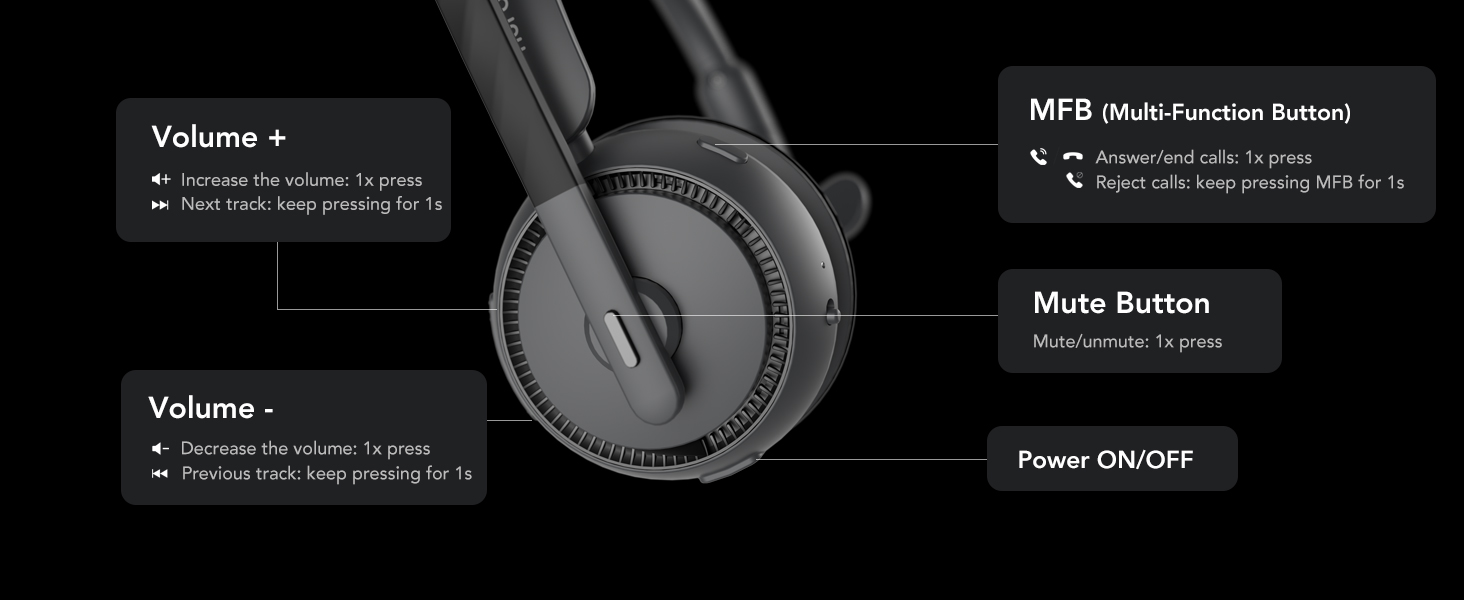
Image 3.5: Overview of the headset's wide compatibility with different software and operating systems.
4. Setup Guide
4.1. Charging the Headset
Before first use, fully charge the headset. You have two charging options:
- Using the Charging Stand: Simply place the headset onto the charging stand. Connect the charging stand to a PC or a power source using the provided USB-A/Type-C cable.
- Direct USB Connection: Alternatively, connect the headset directly to a PC or a power source using the provided USB-A/Type-C cable.

Image 4.1: Visual guide to the two available charging methods for the headset.
4.2. Connecting the Headset
The HP31S offers multiple ways to connect to your devices:
- Wireless Connection via USB Dongle: Insert the USB dongle into an available USB port on your computer. The headset will automatically pair with the dongle.
- Wireless Connection via Bluetooth: Turn on the headset. On your device (smartphone, tablet, laptop), enable Bluetooth and search for 'NUROUM HP31S' in the list of available devices. Select it to pair.
- Wired Connection via USB Cable: If the battery is low or for a stable wired connection, connect the headset directly to your PC using the provided USB-A/Type-C cable. The headset will function as a wired USB headset.
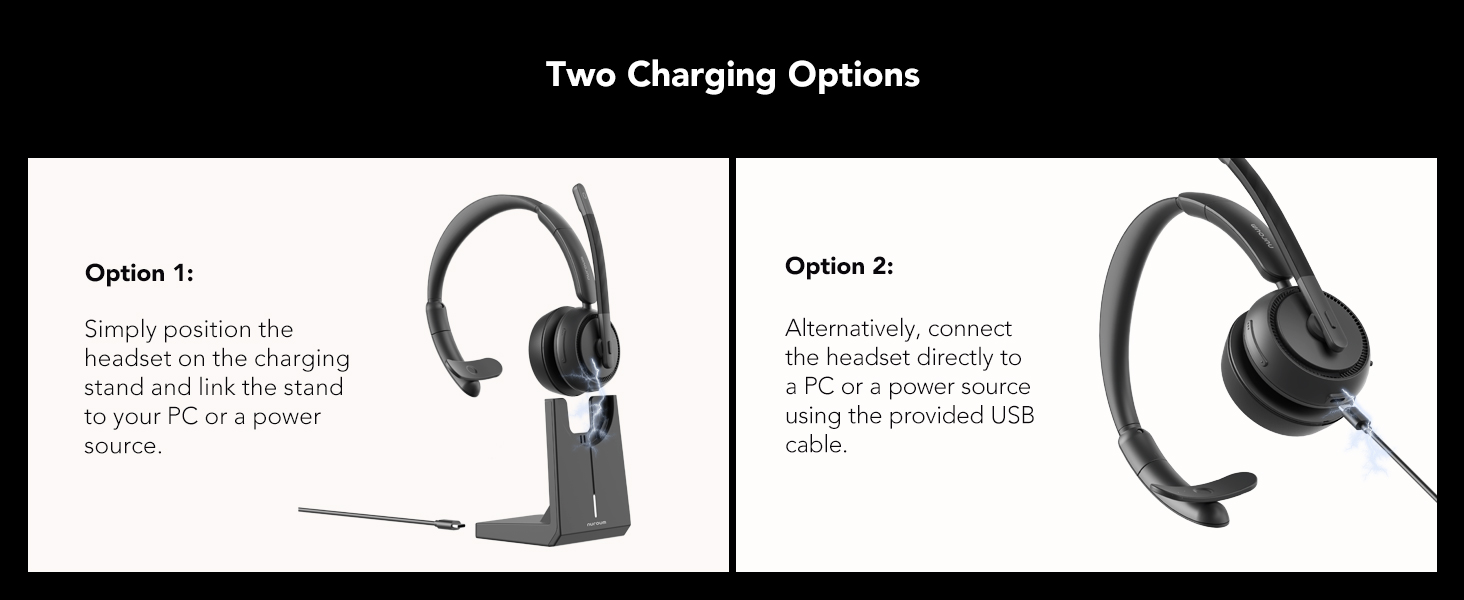
Image 4.2: Different connection methods for the headset.
5. Operating Instructions
5.1. Controls Overview
The headset features intuitive controls for easy management of calls and audio playback:
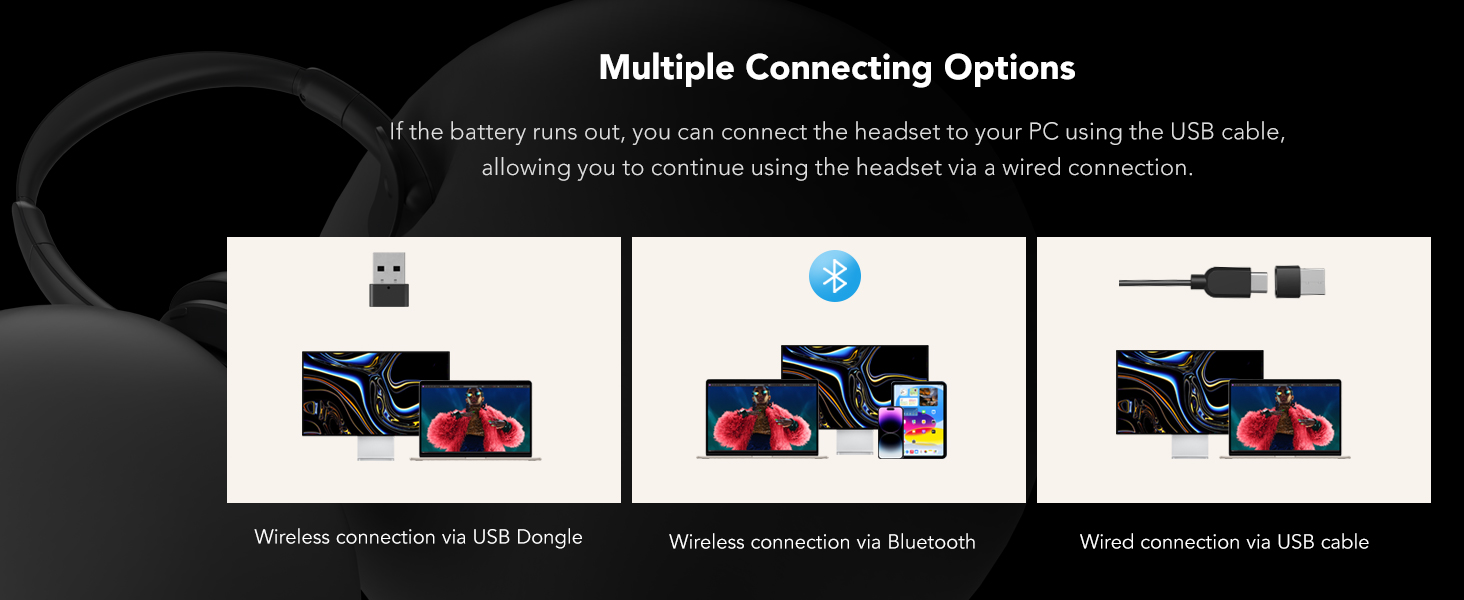
Image 5.1: A detailed view of the headset's control buttons and their functions.
- Power ON/OFF: Use the dedicated switch to turn the headset on or off.
- Volume +: Press once to increase volume. Keep pressing for 1 second to go to the next track.
- Volume -: Press once to decrease volume. Keep pressing for 1 second to go to the previous track.
- MFB (Multi-Function Button): Press once to answer/end calls. Keep pressing for 1 second to reject calls.
- Mute Button: Press once to mute/unmute the microphone.
5.2. Microphone Adjustment
The boom microphone is rotatable by 250°, allowing you to position it on either the left or right side for optimal voice pickup. Ensure the microphone is positioned close to your mouth for the best audio quality.
Video 5.2: An official product video demonstrating the features of the NUROUM HP31S headset, including the rotatable boom mic and noise cancellation capabilities.
6. Maintenance
To ensure the longevity and optimal performance of your NUROUM HP31S headset, follow these maintenance guidelines:
- Cleaning: Use a soft, dry cloth to clean the headset and charging stand. Avoid using abrasive cleaners or solvents.
- Storage: When not in use, store the headset on its charging stand or in a cool, dry place away from direct sunlight and extreme temperatures.
- Battery Care: For optimal battery life, avoid fully discharging the headset frequently. Charge it regularly, even if not in daily use.
- Microphone Care: Handle the boom microphone gently. Avoid excessive force when rotating it.
7. Troubleshooting
If you encounter issues with your NUROUM HP31S headset, refer to the following common problems and solutions:
| Problem | Possible Cause | Solution |
|---|---|---|
| Headset does not power on. | Low battery. | Charge the headset fully using the charging stand or USB cable. |
| Cannot pair with device. | Bluetooth not enabled on device; headset not in pairing mode; too far from device. | Ensure Bluetooth is on. Turn headset off and on to re-enter pairing mode. Move headset closer to device (within 33 feet). |
| No audio or poor audio quality. | Volume too low; incorrect audio output selected; interference. | Increase headset and device volume. Check device audio settings to ensure HP31S is selected as output. Move away from other wireless devices. |
| Microphone not working or mutes randomly. | Microphone muted; incorrect input device selected; software glitch. | Press the mute button to unmute. Check your computer/software audio settings to ensure HP31S microphone is selected. Restart the headset and the application. |
| Multi-point connection issues. | Connection conflict. | Ensure only two devices are actively connected. Disconnect and reconnect one device at a time. |
8. Specifications
| Feature | Detail |
|---|---|
| Model Name | AW-HP31S-3 |
| Connectivity Technology | Wireless (Bluetooth 5.3), Wired (USB-A/Type-C) |
| Noise Control | Adaptive Noise Cancellation (AI-Powered ENC) |
| Bluetooth Range | Up to 33 Feet |
| Talk Time | Up to 35 hours |
| Music Playback Time | Up to 45 hours |
| Earpiece Shape | On-ear (Monaural/Single-ear) |
| Microphone | 250° Rotatable Boom Mic, ECM+MEMS Dual Microphones |
| Item Weight | 0.51 Kilograms (1.12 pounds) |
| Color | Grey |
| Included Components | Headset, Charging Station, USB Dongle, USB-A/Type-C Cable, User Manual |
9. Warranty and Support
Your NUROUM HP31S (2nd Gen) Wireless Headset is covered by a manufacturer's warranty. For detailed warranty information, product support, or to purchase accessories, please visit the official NUROUM website or contact their customer service. Keep your purchase receipt for warranty claims.
Official NUROUM Store: Visit the NUROUM Store on Amazon


