
1. Product Overview
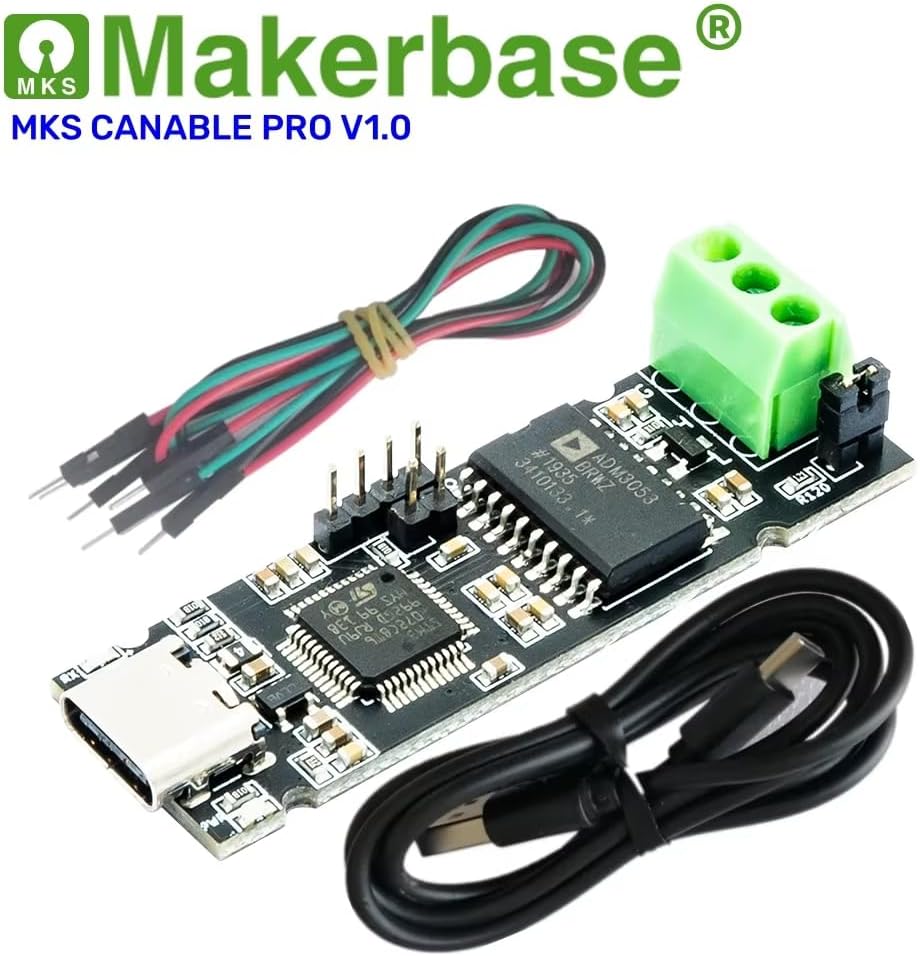
The Macrobase CANable PRO V1.0 is a USB to CAN protocol converter designed for interfacing with CANbus networks. It functions as a transceiver and controller, enabling communication between a computer (Windows/Linux) and CAN devices. This device is compatible with software such as Kangaroo and CandleLight, providing a reliable solution for CAN network analysis and control.
Key features include:
- Compatibility: Works with Kangaroo and CandleLight software.
- Power Input: Operates within a DC 3.3V-5V range.
- USB Interface: Utilizes a Type-C USB connection for modern connectivity.
- Transfer Speed: Supports a transfer speed rate of 1 Mbps.
- Signal Isolation: Features 2.5kV rms signal isolation for enhanced protection.
- Operating Systems: Compatible with Windows and Linux operating systems.

2. Setup Instructions
Follow these steps to set up your Macrobase CANable PRO V1.0:
- Connect to Computer: Use the provided Type-C USB cable to connect the CANable PRO V1.0 to an available USB port on your Windows or Linux computer.
- Driver Installation: Depending on your operating system and specific application, you may need to install appropriate drivers. Refer to the documentation for Kangaroo or CandleLight software for specific driver requirements and installation procedures.
- CANbus Connection: Connect the CANable PRO V1.0 to your CANbus network using the CAN port (green terminal block). Ensure correct polarity for CAN_H and CAN_L connections. The GND pin is for ground reference.
- Power Supply: The device is powered via the USB connection (DC 3.3V-5V). Ensure your USB port provides sufficient power.
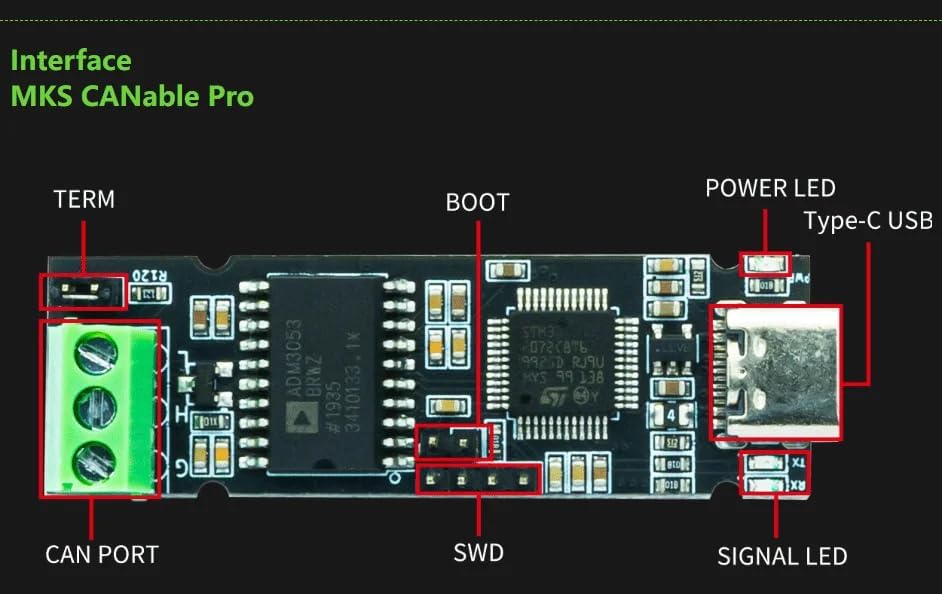
Note: The TERM jumper (Termination Resistor) can be enabled or disabled based on your CAN network requirements. Consult your CAN network specifications for proper termination.
3. Operating Instructions
Once the CANable PRO V1.0 is connected and drivers are installed, you can begin using it with your chosen CAN software (e.g., Kangaroo, CandleLight).
- Software Configuration: Open your CAN analysis or control software. Configure the software to recognize and communicate with the CANable PRO V1.0. This typically involves selecting the correct serial port or device type.
- CANbus Communication: The device facilitates sending and receiving CAN messages. Refer to your software's documentation for specific instructions on how to transmit, receive, and analyze CAN data.
- LED Indicators:
- POWER LED: Indicates that the device is receiving power.
- SIGNAL LED: Typically flashes or changes state to indicate CAN bus activity (transmitting or receiving data).
- Transfer Speed: The CANable PRO V1.0 supports a maximum transfer speed of 1 Mbps. Ensure your software and CAN network are configured to operate at compatible speeds.
For advanced usage, such as firmware updates or debugging, the SWD (Serial Wire Debug) and BOOT pins are available. These are typically used by experienced developers.
4. Maintenance
The Macrobase CANable PRO V1.0 is a robust electronic device designed for durability. Minimal maintenance is required:
- Cleaning: Keep the device clean and free from dust and debris. Use a soft, dry cloth for cleaning. Avoid liquid cleaners.
- Storage: Store the device in a dry, cool environment when not in use.
- Handling: Handle the circuit board with care to avoid damage to components or connectors. Avoid exposing the device to extreme temperatures or humidity.
5. Troubleshooting
If you encounter issues with your CANable PRO V1.0, consider the following troubleshooting steps:
- Device Not Recognized:
- Ensure the Type-C USB cable is securely connected to both the device and your computer.
- Try a different USB port or cable.
- Verify that the necessary drivers are installed correctly for your operating system.
- No CAN Communication:
- Check the CAN_H and CAN_L connections for correct polarity and secure contact.
- Confirm that the CAN bus termination (TERM jumper) is correctly configured for your network.
- Verify that your software's CAN bus speed settings match the actual CAN network speed.
- Ensure the CAN network itself is operational and other devices are communicating.
- Power LED Off:
- Check the USB connection.
- Ensure the USB port on your computer is providing power.
If problems persist, consult the documentation for your specific CAN software or seek technical support from Macrobase.
6. Specifications
Detailed technical specifications for the Macrobase CANable PRO V1.0:
| Parameter | Value |
|---|---|
| Model | CANable PRO V1.0 |
| Type | USB to CAN Protocol Converter |
| MCU | STM32F072C8T6 |
| Communication Chip | ADM3053BRWZ |
| Input Voltage | DC 3.3V-5V |
| Output Current | 250mA |
| Transmission Rate | 1 Mbps |
| Signal Isolation | 2.5kV rms |
| Immunity | High common-mode transient immunity > 25 kV/µs |
| Operating Temperature | -40°C to +85°C |
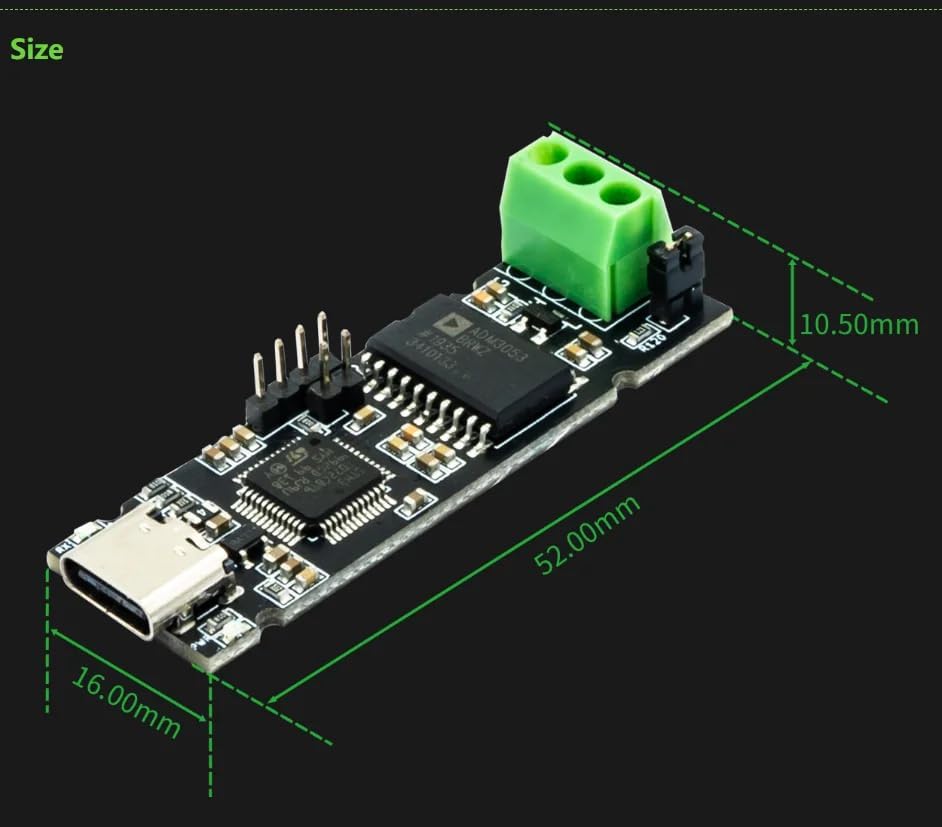
| PCB Size | 16mm x 50mm x 1.6mm |
| Item Weight | 2.11 ounces |
| Compatible Devices | Desktop, Laptop |
| UPC | 763552269638 |

7. Warranty and Support
For warranty information and technical support, please refer to the official Macrobase website or contact your retailer. Keep your purchase receipt for warranty claims.