
1. Introduction
Thank you for choosing the OwlTree Computer PC Power Button with 4 Port USB 3.0 Hub. This device provides a convenient external solution for controlling your desktop computer's power and reset functions, while also expanding your USB connectivity. Designed for ease of use and installation, it is suitable for various environments including office, home, and industrial settings.
2. Product Overview
The OwlTree PC Power Button with 4 Port USB 3.0 Hub integrates essential PC controls and high-speed data transfer capabilities into a compact unit. It features a power button, a reset button, and four USB 3.0 ports. The USB 3.0 ports support data transfer speeds of up to 5.0Gbps and are compatible with various peripherals such as keyboards, mice, flash drives, and can also be used for charging devices.

Figure 2.1: The OwlTree PC Power Button with 4 Port USB 3.0 Hub, showcasing its compact design with power, reset, and four USB 3.0 ports.
3. Package Contents
- 1x OwlTree Computer Power Button with 4 Port USB 3.0 Hub (1.2M cable length)
4. Setup and Installation
Follow these steps to install your OwlTree PC Power Button with 4 Port USB 3.0 Hub:
- Prepare your PC: Ensure your computer is completely powered off and unplugged from the power source. Open your computer case to access the motherboard.
- Locate Front Panel Headers: Identify the front panel header pins on your motherboard. These are typically labeled for POWER SW, RESET SW, POWER LED+, and POWER LED-. Refer to your motherboard manual for exact locations.
- Connect Control Cables: Carefully connect the POWER SW, RESET SW, POWER LED+ and POWER LED- cables from the OwlTree hub to the corresponding pins on your motherboard. Ensure correct polarity for the LED cables.
- Connect USB 3.0 Cable: Connect the green USB header cable from the OwlTree hub to an available USB 3.0 header on your motherboard. Then, plug the black USB 3.0 cable from the hub into an available external USB 3.0 port on your computer's rear I/O panel.
- Secure the Hub: Use the adhesive sticker provided to secure the OwlTree hub in a convenient location on your desk or preferred surface. Ensure the cables are routed neatly and do not obstruct any moving parts or airflow within your PC case.
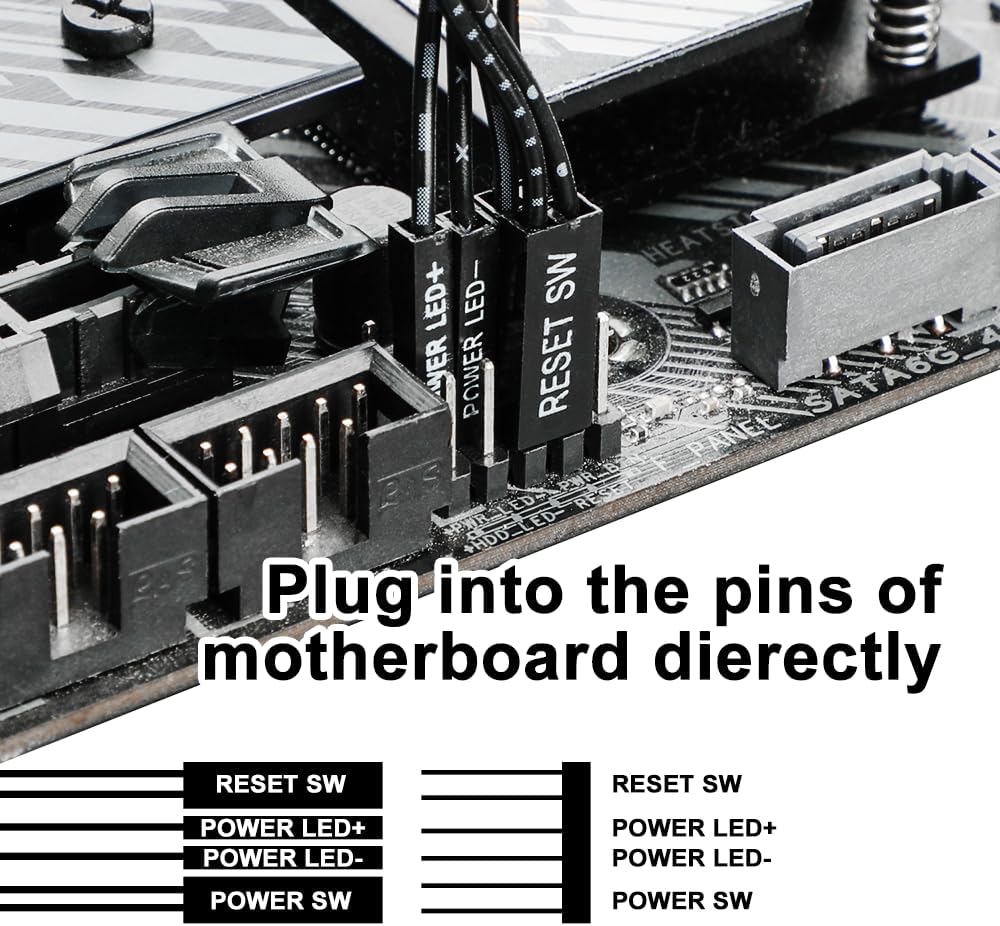
Figure 4.1: Illustration of connecting the front panel cables to the motherboard headers.

Figure 4.2: Detailed diagram showing the correct pin assignments for front panel connections.
Video 4.1: This video demonstrates the installation process of the PC Power Button, including connecting the cables to the motherboard and securing the unit.
5. Operating Instructions
Once installed, operating the OwlTree PC Power Button with 4 Port USB 3.0 Hub is straightforward:
- Power On/Off: Press the button marked with the power symbol (⏻) to power on your computer. To power off, press and hold the power button for a few seconds, or use the operating system's shutdown function.
- Reset: Press the button marked with the reset symbol (↻) to restart your computer. This is useful for resolving system freezes or applying certain software changes.
- USB 3.0 Hub: The four USB 3.0 ports are plug-and-play. Connect your USB devices such as external hard drives, flash drives, keyboards, mice, or charging cables for mobile devices. The ports support high-speed data transfer and provide power for charging.

Figure 5.1: The USB 3.0 ports can be used to charge mobile devices conveniently.

Figure 5.2: The hub supports simultaneous connection of multiple USB peripherals.
6. Specifications
| Product Dimensions | 1.97 x 0.79 x 0.39 inches |
| Item Weight | 7 ounces |
| Hardware Interface | USB 3.0 |
| Compatible Devices | Desktops |
| Brand | OwlTree |
| Manufacturer | OwlTree |
7. Troubleshooting
- Power/Reset Button Not Responding:
- Ensure all front panel cables (POWER SW, RESET SW, POWER LED) are correctly connected to the motherboard headers. Verify polarity for LED connections.
- Confirm the main USB 3.0 cable is securely plugged into both the hub and an active USB 3.0 port on your PC.
- If your original PC case buttons are still connected, ensure there are no conflicts. This external button replaces the functionality of the internal case buttons. If you wish to use both, a splitter for the front panel headers may be required (not included).
- USB Ports Not Functioning:
- Verify the black USB 3.0 cable from the hub is firmly connected to a working USB 3.0 port on your computer.
- Check if the green USB header cable is properly seated in the motherboard's USB 3.0 header.
- Test with different USB devices to rule out a device-specific issue.
- Intermittent Connectivity:
- Ensure all cable connections are secure and not loose.
- Avoid excessive bending or tension on the cables.
- If using a USB extension cable, ensure it is a high-quality USB 3.0 compatible cable to maintain signal integrity.
8. Warranty and Support
For warranty information and technical support, please refer to the documentation included with your purchase or contact OwlTree customer service directly. Keep your proof of purchase for warranty claims.